API schema compliance validation
Upload an API schema such as an OpenAPI specification, and ESA automatically matches it to your managed APIs, validates incoming requests against the schema, and applies the configured action to non-compliant requests.
How it works
Schema validation applies to any API managed within ESA API management.

-
When a request arrives at an ESA node, ESA checks if the request is for a managed API:
-
If not, ESA allows the request to pass to other security features.
-
If so, ESA matches the request with the corresponding API schema.
-
-
ESA validates the request against the schema:
-
If the request is non-compliant, ESA applies the configured action and logs the event.
-
If the request is compliant, ESA allows it to pass.
-
Configure schema validation
To use schema validation, upload a schema and enable the feature.
-
In the ESA console, choose Websites, and then click the target website in the Website column.
-
In the left navigation pane, choose .
-
On the API Security page, select the Schema Validation tab, and then click Schema Validation Settings.

-
On the settings page, click Upload Schema to upload your custom schema file.

-
ESA automatically matches your managed APIs with the definitions in the uploaded schema. After reviewing the matches, click OK.

-
After you upload the schema, configure a default action for non-compliant requests. We recommend that you start with the Monitor action. Then, enable the Status switch.

-
Return to the Schema Validation tab to view the results of schema validation.

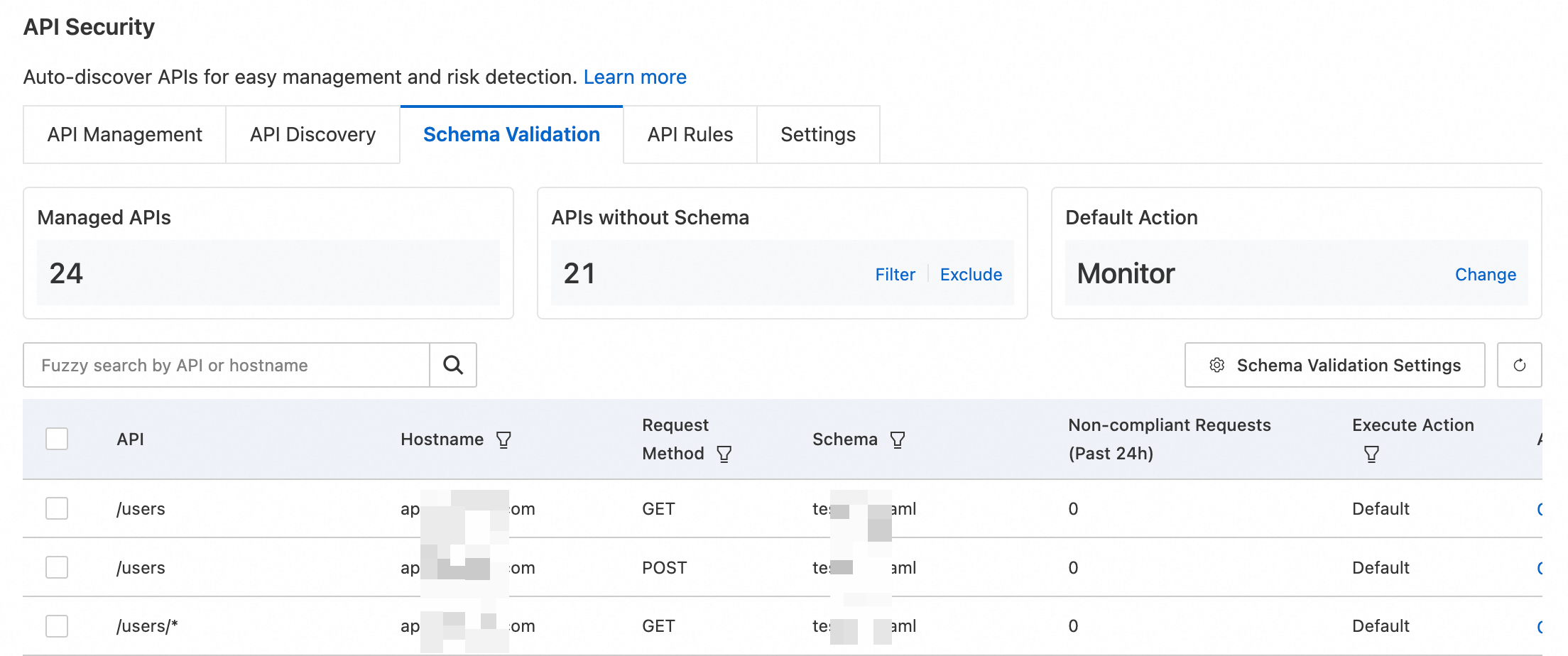
Analyze non-compliant requests
After schema validation is configured, ESA continuously monitors API requests. On the Schema Validation tab, click the  filter icon in the API list toolbar and select a schema to filter the list. The Non-compliant requests column shows the count from the last 24 hours.
Non-compliant requests can be caused by the following issues:
-
Client-side errors: Legitimate clients may send malformed requests, such as an incorrect parameter format (for example, form data instead of JSON), missing required parameters, or type mismatches (for example, a string for a boolean field). Review your frontend design and add input validation and error prompts to prevent these issues.
-
Malicious attacks: Attackers often send malformed requests to probe for injection or brute-force vulnerabilities. A sudden spike in non-compliant requests can indicate an ongoing attack. If you suspect an attack, change the action to Block and configure stricter WAF rules.
Analyze request details
To find the root cause of non-compliant requests, inspect sampled logs in Events or Security Analytics.
-
First, identify an API that has an unusual number of non-compliant requests.
-
Choose the appropriate logging feature based on the configured action:
-
Action is None: Because these requests do not trigger a security action, analyze them in Security Analytics.
-
Action is Monitor or Block: Because these requests trigger a security action, you can find the related logs more easily in Events.
-
-
This section uses Events as an example. In the left navigation pane, choose .
To use Security Analytics, choose in the left navigation pane.
-
On the Events page, scroll down to the Sampling Logs area. Filter for logs that match API Security rules. Click the expand icon
next to a log entry to view its details and analyze the request. You can also use Real-time Log for a more detailed analysis of access logs.

 next to a log entry to view its details and analyze the request. You can also use
 Change action
Configure a default action for all APIs, or set a specific action for individual APIs.
-
Change the global default action: On the Schema Validation tab, click Change in the Default Action column and select an action:
-
Block: Blocks the non-compliant request and records the event.
-
Monitor: Allows the non-compliant request to pass and records the event.
-
None: Takes no action.
-
-
Configure an action for a specific API: In the API list on the Schema Validation tab, click Change Action for the desired API and select an action:
-
Default: Use the global default action.
-
Block: Blocks the non-compliant request and records the event.
-
Monitor: Allows the non-compliant request to pass and records the event.
-
None: Takes no action.
-


Analyze APIs without a schema
After a schema file is uploaded, APIs that conform to the schema are automatically bound to it. On the Schema Validation tab, in the APIs without Schema column, click the Filter button to view the list of APIs without a schema.
Without a schema, ESA cannot count non-compliant requests, which creates a potential security gap. An API might lack a schema for the following reasons:
-
Omission from the schema: The API was not included in the uploaded schema file. Verify the API path, host, and HTTP method, then update and re-upload the schema file.
-
Non-standard API design: The API does not follow standard design practices, which prevents it from matching the schema. You may need to refactor the API. Common issues include:
-
Non-standard path: The API path is incorrect. For example, the correct
pathsentry is/users, but it is defined as/user. -
Misused HTTP method: The method does not follow semantic conventions. For example, using the
GETmethod for a destructive action like/users/delete/123instead ofDELETE. -
Status code abuse: The API response status code is incorrect. For example, all responses return
200 OK, and the actual status is returned in the response body, such as{ "responses": "500" }. -
Confusing I/O structure: The input or output data is incorrect. For example, an
emailfield that should be in the input is mistakenly placed in the output.
-
Schema file specifications
Type and size
Schema validation files must be in .yml, .yaml, or .json format. The maximum file size is 58 KB. If your schema file exceeds this limit, use the .json format and compress the file locally before uploading.
Schema content
Version
ESA schema validation supports only OpenAPI Specification (OAS) v3.0.x.
Fields
Required fields
-
openapi: The API version, such as3.0.0. -
info: Metadata about the API, such as"version": "1.0.0". -
paths: Must contain at least one API path, such as/api. -
servers: Information about the host. The following sub-fields are supported:-
url: Only absolute URLs are supported, such ashttps://api.example.com. -
variables: ESA does not support server variables. Variable placeholders are ignored during parsing.
-
Optional fields
-
schema: The data structure definition. The following types are supported:-
int32
-
uint32
-
int64
-
uint64
-
float
-
double
-
boolean
-
email
-
-
reference: Uses$refto reference a predefined object. External or relative references are not supported. -
requestBody: Defines the request body. Only data with acontent-typeofapplication/jsonis supported.
Example
The following is an example of a .json schema file.{
"openapi": "3.0.0",
"info": {
"title": "example",
"description": "example",
"version": "1.0"
},
"servers": [
{
"url": "https://example1.aliyun.com",
"description": "example1 url"
},
{
"url": "https://example2.aliyun.com",
"description": "example2 url"
}
],
"components": {
"schemas": {
"ParamsObject": {
"type": "object",
"properties": {
"id": {
"type": "integer"
},
"value": {
"type": "string"
}
},
"required": [
"id",
"value"
]
}
}
},
"paths": {
"/example/{param1}": {
"get": {
"operationId": "getexampleById",
"parameters": [
{
"name": "param1",
"in": "path",
"required": true,
"description": "id",
"schema": {
"type": "integer",
"format": "int32"
}
}
]
}
},
"/api1": {
"post": {
"operationId": "post_api1",
"summary": "post api1 request",
"parameters": [],
"requestBody": {
"required": true,
"content": {
"application/json": {
"schema": {
"$ref": "#/components/schemas/ParamsObject"
}
}
}
}
},
"get" :{
"operationId": "get_api1",
"summary": "get api1 request",
"parameters": [
{
"name": "id",
"in": "query",
"required": true,
"schema": {
"type": "integer",
"format": "int32"
}
},
{
"name": "name",
"in": "query",
"required": false,
"schema": {
"type": "string"
}
}
]
}
}
}
}