Prefetch content
The prefetch feature caches origin server resources on Edge Security Acceleration (ESA) POPs so that first-time requests are served from the edge without returning to the origin, improving cache hit ratio.
Use cases
Promotional activities
Prefetch static resources for a campaign page to ESA POPs before launch. After the event starts, requests for these resources are served from the edge.
Installation package releases
Prefetch installation or upgrade packages to ESA POPs before release. After launch, downloads are served from the ESA POP, increasing speed and reducing origin load.
Prefetch methods
ESA supports two prefetch methods: Instant Prefetch and Scheduled Prefetch.
Instant Prefetch: Starts as soon as you submit URLs, quickly caching resources on ESA POPs.
Scheduled Prefetch: Starts at a specified time with configurable frequency. Helps avoid peak hours and control origin traffic from prefetching.
Notes
When you submit a prefetch task, ESA POPs fetch resources directly from your origin. Submitting many tasks at once spikes origin bandwidth and load. Use scheduled prefetch to spread the load.
A prefetch task typically takes 5 to 30 minutes. Smaller files are prefetched faster.
By default, prefetch requests include the
Accept-Encoding:gzipheader. To add custom headers or prefetch multiple replicas, use the PreloadCaches API and set theHeaderparameter.Prefetch does not follow 301/302 redirects. If your origin returns a redirect, the task fails. To handle redirects, contact us to enable the 301/302 redirect for origin fetch feature.
If a prefetch URL contains non-ASCII characters (spaces, Chinese characters, or special characters), encode the URL before submission. Otherwise the system cannot process the task.
If the Multi-level cache feature is configured for the edge caching layer, the prefetch cache feature does not work.
When ESA executes a cache prefetch task submitted by a customer, URL rewrite rules do not apply to the prefetch URL.
Procedure
In the ESA console, choose Websites, and click the target site in the Website column.
In the navigation pane on the left, choose .
Select a prefetch method. ESA supports two methods: Instant Prefetch and Scheduled Prefetch.
Immediate prefetch
An immediate prefetch task starts as soon as you submit the URLs to quickly cache the resources on ESA POPs.
You can use two input methods: Manual Input and Upload File.
Input method
Description
Manual Input
Enter URLs in the input box and click Submit. Specify the full path for each file, one URL per line (up to 100). For example:
https://www.example.com/cat.jpg
https://www.example.com/image/cat.jpg
Upload File
For bulk prefetch, add URLs to a .txt file (one URL per line, full path required) and upload it. Maximum file size: 10 MB.
Scheduled prefetch
A scheduled prefetch task starts at a specified time. You can also specify the prefetch frequency. This helps you avoid peak business hours, control the back-to-origin traffic generated by prefetching, and reduce the load on your origin server.
Add URLs to a .txt file (one URL per line, full path required). Maximum file size: 10 MB.
Click Create Prefetch Task.
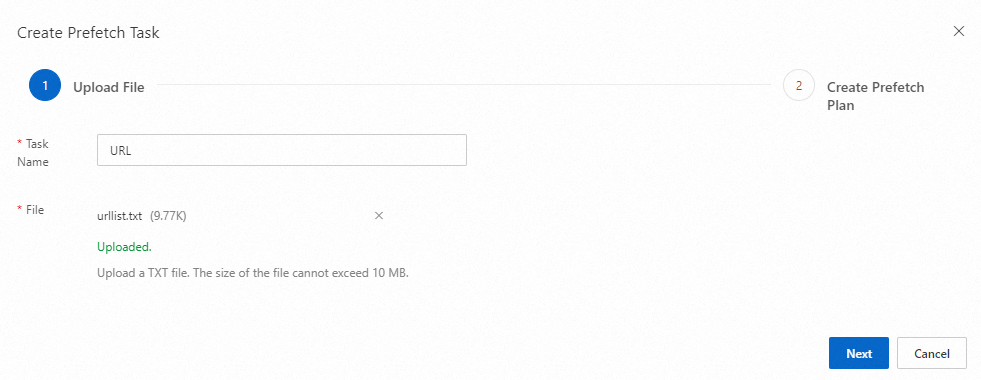
Enter a custom name for the prefetch task, upload the file, and click Next.
NoteYou can create up to 100 prefetch tasks.
Configure the prefetch schedule: time period, submission interval (minimum 1 second), and batch size (up to 100 URLs per batch).
NoteThe total number of prefetch schedules cannot exceed 10.

Click OK.
View the prefetch progress.
After submission, view task records and progress on the Prefetch Records tab. 100% indicates completion. Large batches may slow progress.
Availability
Prefetch method | Free Edition | Basic Edition | Standard Edition | Premium Edition | Enterprise Edition |
Real-time prefetch | Not supported | 10,000 | 50,000 | 100,000 | 500,000 |
Scheduled prefetch | Not supported | Not supported | Supported | Supported | Supported |