Connect to an instance by using VNC
VNC provides a real-time view of your instance's operating system. You can use VNC to view the system interface during startup or while the instance is stopping. Because VNC is not affected by security group settings or software running on the instance, it is a useful tool for troubleshooting issues with other connection methods.
Starting July 10, 2023, you no longer need to set a separate VNC logon password. You can securely access your ECS instance by using the instance's username and password.
On July 10, 2023, Alibaba Cloud completed a security upgrade for VNC. This upgrade automatically manages user authentication and end-to-end data encryption for VNC connections.
Prerequisites
-
Supported instance states: Running or Stopping.
-
Unsupported instance type: The
ecs.ebmhfc7.48xlargebare metal instance.
Procedure
-
Go to the ECS console - Instances page. In the top navigation bar, select the resource group and region where the target instance is located.
-
Find the target instance and click its ID.
-
Connect to the instance by using VNC.
ImportantVNC connections time out after 300 seconds of inactivity. If this happens, you must reconnect.
-
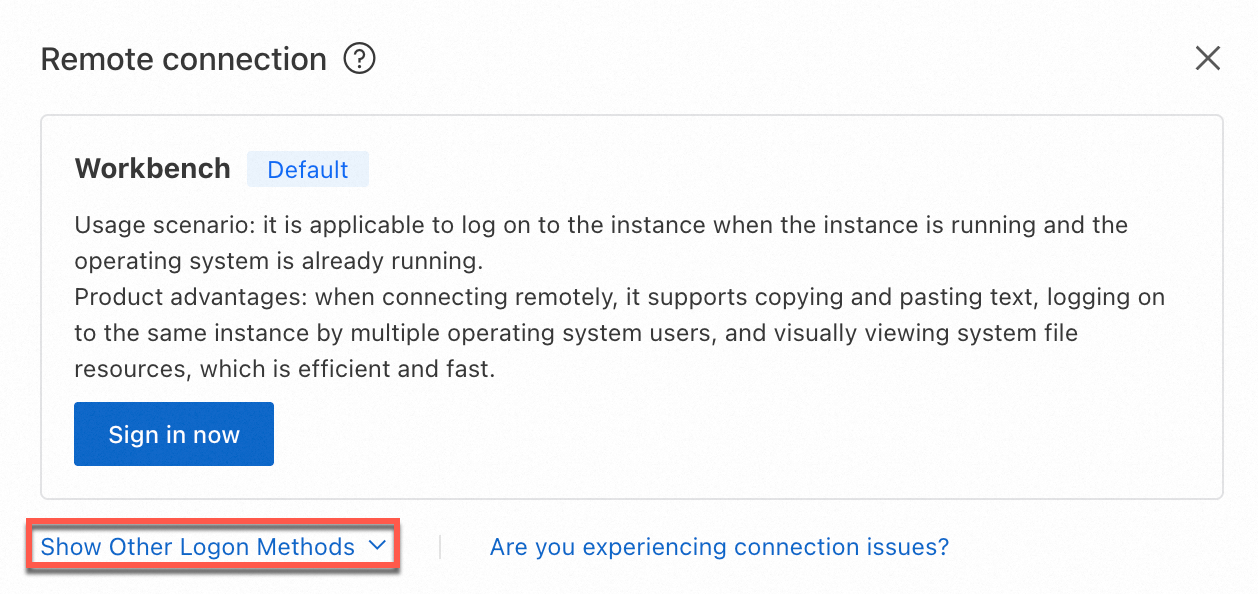
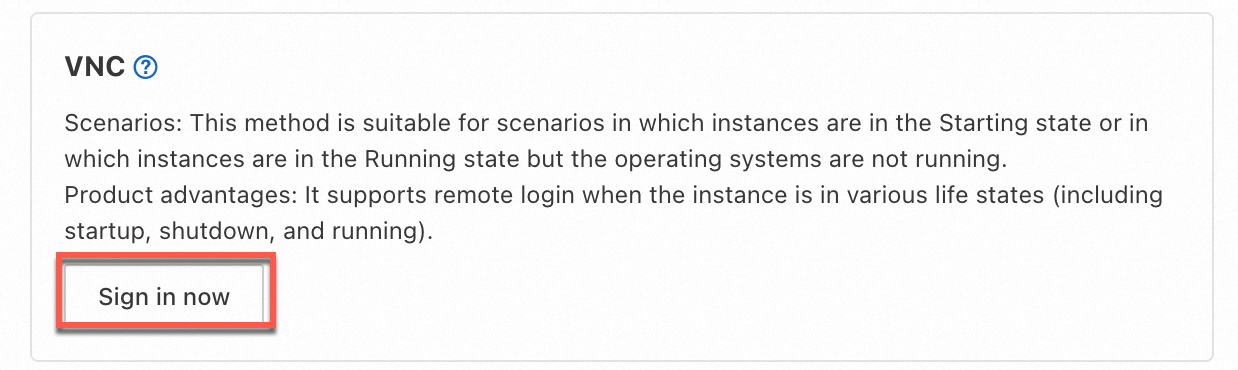
Click . In the VNC section, click Sign in now.
-
Log on to the operating system.
-
Linux instance
-
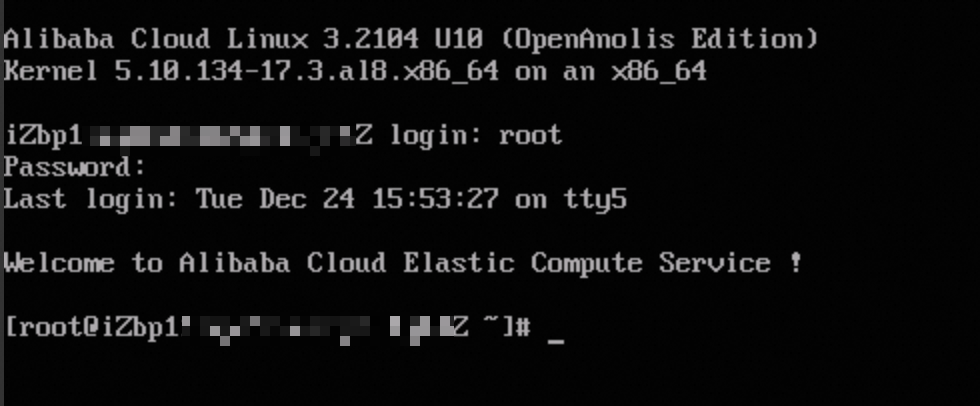
Enter the logon username, such as
rootorecs-user, and pressEnter. -
Enter the instance's logon password and press
Enter.If you have not set a password or have forgotten it, select Reset Instance Password from the All Operations menu on the instance details page.
-
-
Windows instance
-
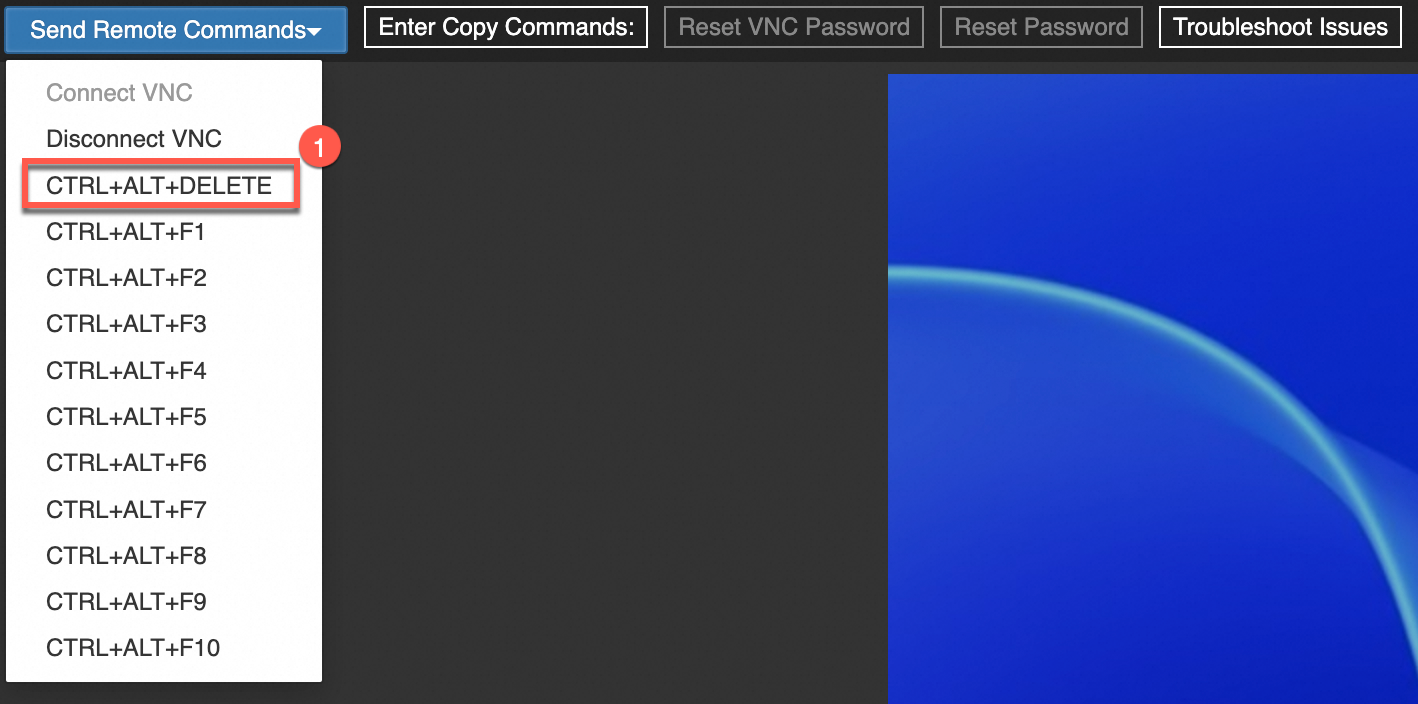
In the upper-left corner of the page, click to unlock the screen.
-
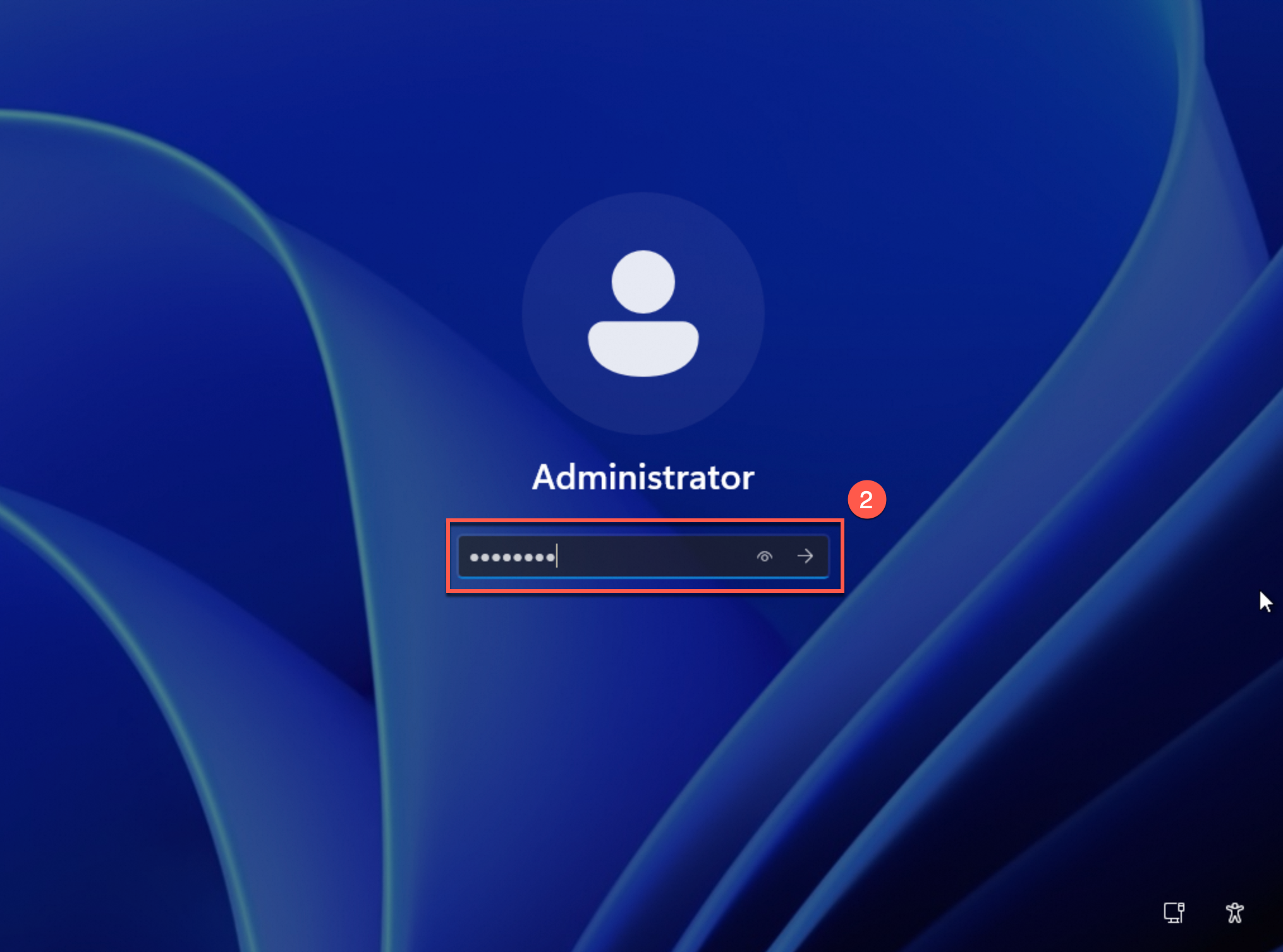
Select a user account (the default is
Administrator), enter the instance logon password, and press Enter.If you have not set a password or have forgotten it, select Reset Instance Password from the All Operations menu on the instance details page.
-
-
-
FAQ
-
How do I paste commands?
-
In the VNC window, click where you want to paste the content.
-
In the upper-left corner of the VNC window, click Enter Copied Commands.
A maximum of 2,000 characters is supported. Non-standard keyboard characters, such as Chinese characters, are not supported.
-
In the Text dialog box, enter the content and click OK.
-
-
How do I send remote commands?
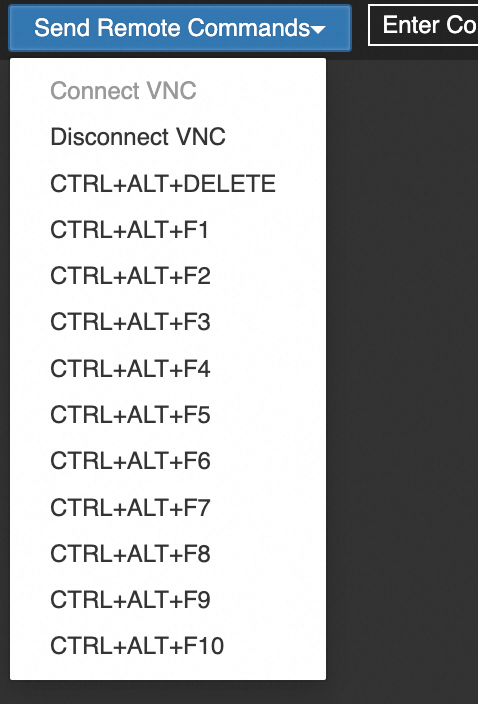
You can use the Send Remote Commands feature to simulate keyboard shortcuts. For example, you can send to unlock a Windows screen or switch between virtual terminals on a Linux instance by sending commands from CTRL+ALT+F1 to CTRL+ALT+F10.
-
Log on to the ECS instance by using VNC.
-
In the upper-left corner of the VNC window, click Send Remote Commands and select a command from the drop-down list to simulate the shortcut.

-
-
Forgotten or unset instance password
If you forget the instance password or have not set one, go to the instance details page, open the All Operations menu, and select .
-
"State does not support this operation" error
Instances in a Trusted Domain Extensions (TDX) confidential computing environment do not support VNC connections.
-
Default logon usernames
-
For Linux instances: The default user is
root. If you set the instance to use ecs-user during creation, the user is ecs-user. -
Windows instances: The default username is
Administrator.
-
-
Default logon password
None.
For security reasons, Alibaba Cloud does not assign a default or initial password to an ECS instance. If you do not set a password during instance creation, you must reset it later.
-
"You are not authorized..." error
You must grant a RAM user the
ecs:DescribeInstancesandecs:DescribeInstanceVncUrlpermissions. The permission policy file is as follows:{ "Version": "1", "Statement": [ { "Effect": "Allow", "Action": [ "ecs:DescribeInstances", "ecs:DescribeInstanceVncUrl" ], "Resource": "*" } ] } -
Login incorrecterrorMake sure that you have entered the correct password. If you have forgotten the password, go to the instance details page, open the All Operations menu, and select . Then, try to connect again.
-
Black screen on Linux instances
A black screen indicates that the Linux instance has entered sleep mode. Press any key on your keyboard to wake it up.
-
How do I connect to a Simple Application Server instance by using VNC?
In Simple Application Server, the equivalent feature is called Rescue Logon.
Related topics
-
Call the DescribeInstanceVncUrl API operation to obtain the VNC logon URL for an ECS instance.
-
For issues related to connecting to an instance by using VNC, see VNC connection issues.