Troubleshoot and resolve high fielddata memory usage
Slow search results or page loading delays can indicate high fielddata memory usage. If you experience these symptoms when you run a sort, an aggregate query, or a script query on the _id primary key or on a text field for which fielddata is enabled, check your fielddata memory usage first. If the usage is high, this topic helps you identify and resolve the issue.
Background information
Lower fielddata memory usage is better. Fielddata does not need to consume a significant amount of heap memory. However, high fielddata memory usage is a common monitoring scenario in Elasticsearch (ES) cluster operations and maintenance (O&M), and in severe cases it can make the entire cluster unavailable.
Problem scenarios
The fielddata cache mainly contains fielddata and global ordinals. The business scenarios that consume fielddata mainly include:
Sorting, aggregate queries, and script queries on the
_idprimary key.Solutions:
The official Elasticsearch documentation states that aggregations, sorting, and script operations on
_idare prohibited, and recommends data replication: copy the_iddata to a field for whichdoc_valuesis enabled, and run these operations on the new field.When you query data by
_idin Kibana Discover, the drop-down suggestion feature automatically triggers an aggregation.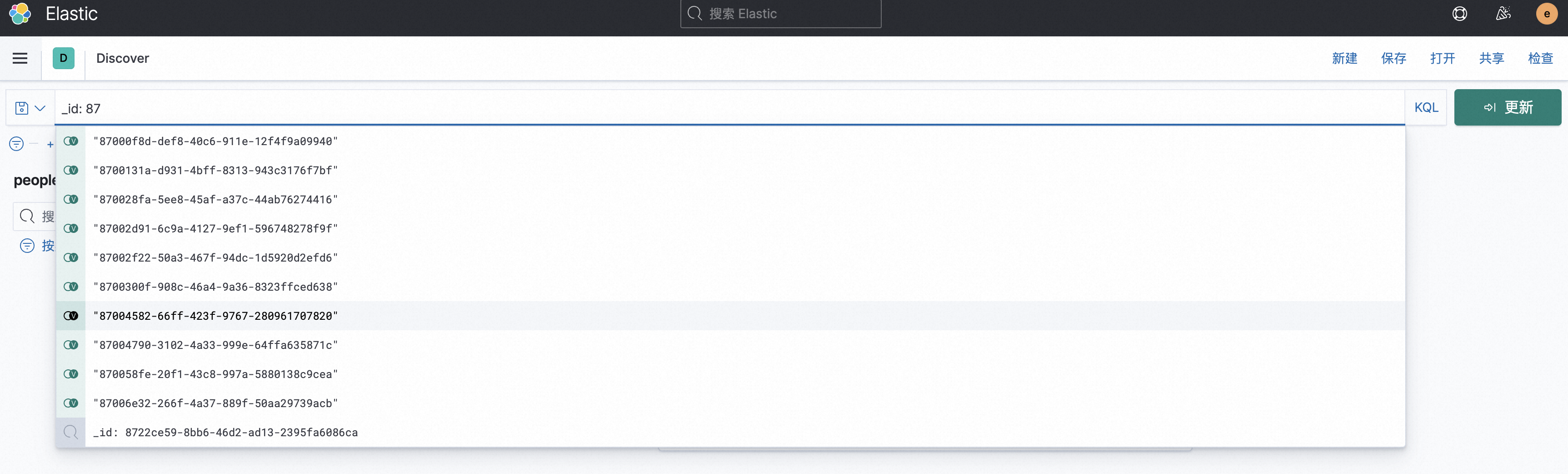
In Kibana, choose Stack Management > Advanced Settings, and disable
filterEditor:suggestValues. This prevents Kibana from running large numbers of aggregation operations on the_idfield when you search by primary key.
Aggregations, sorting, and script queries on text fields for which fielddata is enabled.
Solution:
By default, fielddata is disabled for text fields. After you enable fielddata, you can run aggregations, sorting, and script queries. If you load a high-cardinality text field, fielddata consumes a large amount of heap memory, and the heap memory usage is permanent. Change the field type to
keyword.Queries such as terms aggregations and composite aggregations on field types including
keywordandip.Aggregations on the parent and child documents of a join field.
The first two scenarios consume more fielddata cache and have a greater impact. Prioritize them when you troubleshoot. For the other scenarios, such as aggregations on keyword, ip, and join fields, use the temporary solutions in the Solutions section until you identify and remove the cause.
Check whether fielddata memory usage is high
You can check whether the fielddata memory usage is too high in the Alibaba Cloud Elasticsearch console by using Advanced Monitoring and Alerting, or on the cluster by using the fielddata API or hot threads. Fielddata does not need to consume a significant amount of heap memory. Judge the reported fielddata memory size against the heap memory usage of your cluster to decide whether the usage is too high.
If you confirm that the fielddata memory usage is high, continue with Analyze the issue to identify the cause.
Advanced monitoring and alerting
Alibaba Cloud Elasticsearch Advanced Monitoring and Alerting extends community-edition monitoring with finer granularity and supports cluster O&M.
Log on to the Alibaba Cloud Elasticsearch console.
In the left-side navigation pane, click Advanced Monitoring and Alerting.
On the Advanced Monitoring and Alerting page, choose Monitoring Visualization > Metric Monitoring.
On the Default Basic Metrics tab, view the fielddata memory usage metric.
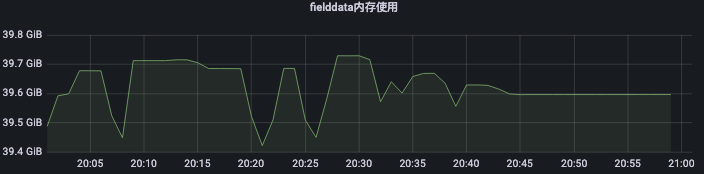
View fielddata memory usage of each node
This topic uses Alibaba Cloud Elasticsearch V7.10.0 as an example. Operations may vary among versions. The actual console interface prevails.
Log on to the Kibana console of the destination Alibaba Cloud Elasticsearch instance and follow the on-screen instructions to go to the Kibana home page.
For information about how to log on to the Kibana console, see Log on to the Kibana console.
-
In the left navigation menu, click Dev tools.
On the Console tab, run the following command to view the fielddata memory usage (
fielddata.memory_size) of each node.
GET _cat/nodes?v&h=ip,heap.percent,heap.current,heap.max,ram.current,ram.percent,fielddata.memory_sizeThe expected output is as follows.
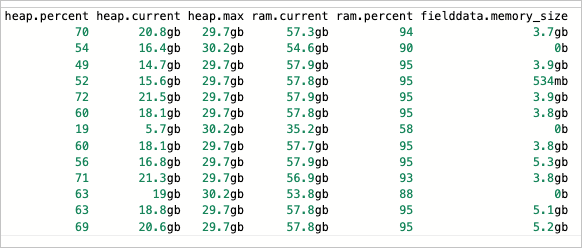
Hot threads
Use thread analysis to identify the types of time-consuming tasks that the cluster is currently processing, so that you can focus on the root cause. Run the following command on the Console tab of the Kibana console.
GET _nodes/hot_threadsThe following result shows that a hot thread is processing fielddata.ordinals.GlobalOrdinalsBuilder, which indicates that global ordinals are being built.
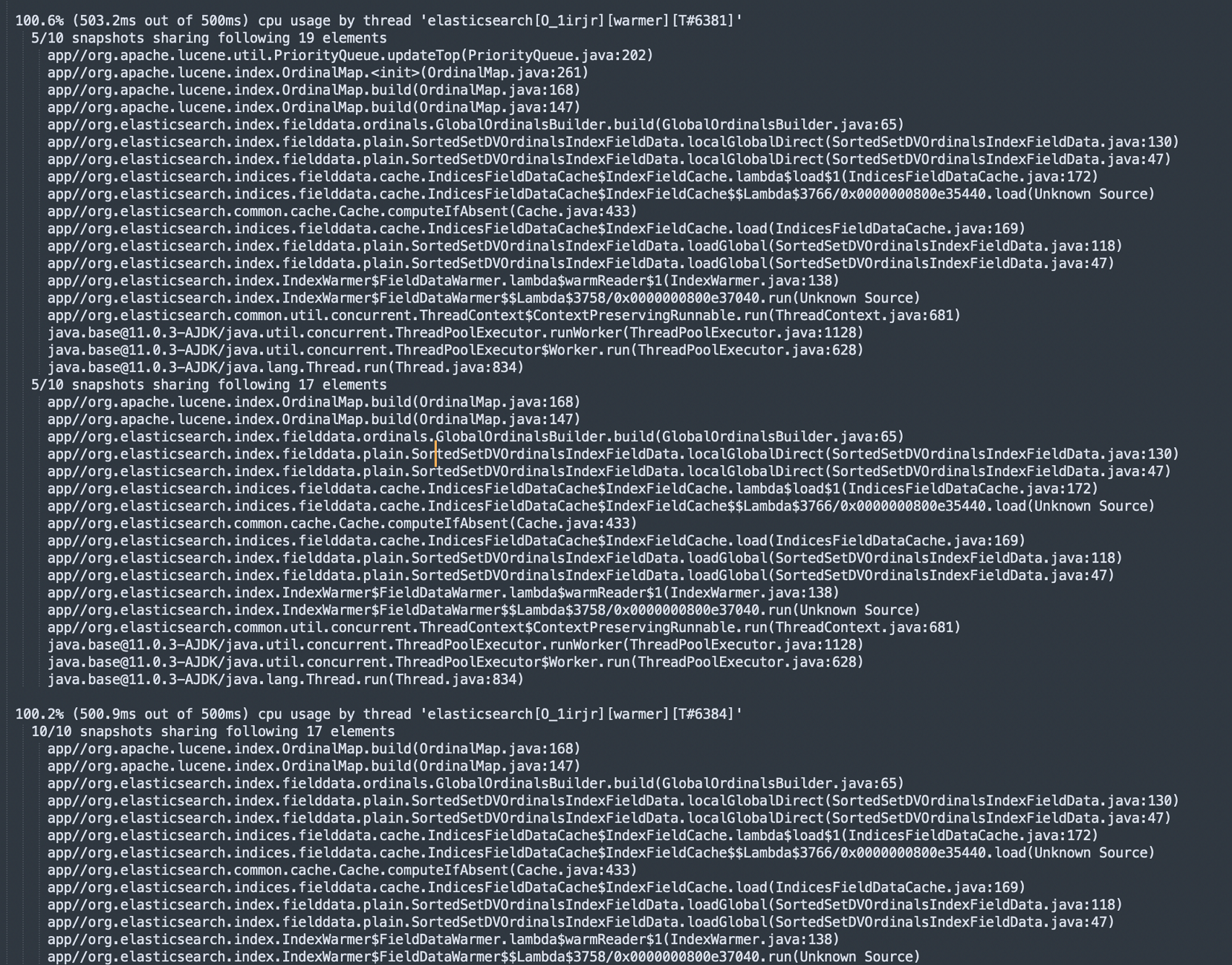
Analyze the issue
You can use the fielddata API and logs to analyze the cause of high fielddata memory usage. Use the fielddata API to find the fields that consume the most fielddata memory, and use the logs to find the queries that involve those fields.
Identify the fields that consume the most fielddata memory
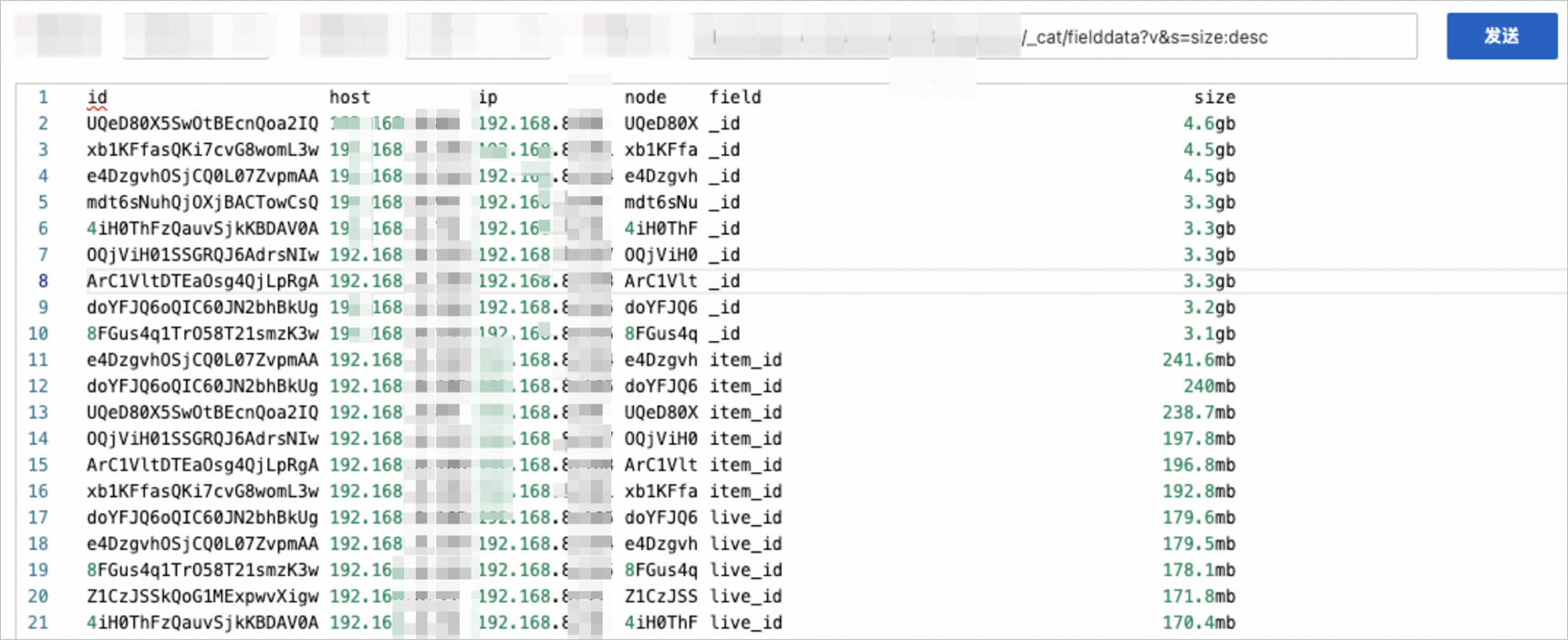
On the Console tab of the Kibana console, run the following command to get the fields that consume large amounts of fielddata memory, and analyze which types of business queries are related.
GET _cat/fielddata?v&s=size:descThe expected output is as follows.
Focused log query
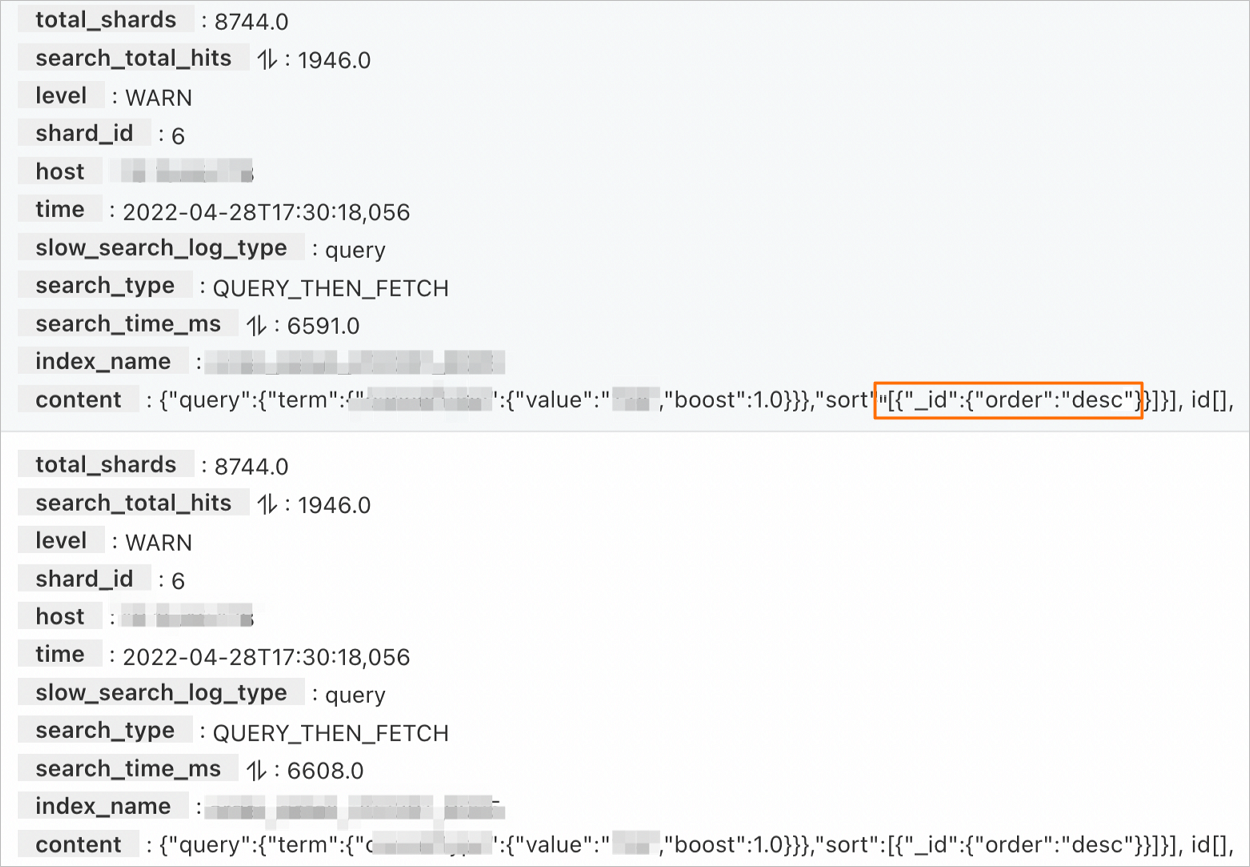
Analyze the slow logs of the instance in the Alibaba Cloud Elasticsearch console to check whether any operations cause high fielddata memory usage. For more information, see Query logs. For example, the following log contains a query that sorts results by _id, which causes high fielddata memory usage.
Solutions
Remove the cause first: the permanent solutions for each scenario are described in Problem scenarios. For example, copy _id data to a field for which doc_values is enabled, disable filterEditor:suggestValues, or change a high-cardinality text field to the keyword type. If you need immediate relief, you can use the following solutions to temporarily resolve high fielddata memory usage:
Use
_cache/clearand specifyfielddatato clear the fielddata cache. If you do not specify a cache, all caches are cleared.POST _cache/clear?fielddata=trueWarningClearing the cache by using the API is a temporary solution. Evaluate the impact on your business environment before you perform this operation. This operation increases query latency, consumes additional compute resources, and may increase the load on the cluster.
Optimize your queries based on your business requirements. Otherwise, the query load may rise to a high level again even after the cache is cleared. For example, for
_idquery scenarios, create a new field, write the data to the new field, and run queries on the new field.
Forcefully restart the cluster.
For more information, see Restart a cluster or node.
NoteIf high fielddata memory usage causes fielddata to consume a large amount of heap memory and makes the cluster inaccessible, forcefully restart the cluster first to restore access to the cluster.