Collect logs from ACK clusters
This topic explains how to deploy Elastic Agent in sidecar mode in a Container Service for Kubernetes (ACK) cluster, use its OpenTelemetry-compatible mode (EDOT) to collect application logs, and ingest them directly into an Alibaba Cloud Elasticsearch (ES) instance. This solution uses a declarative YAML configuration and is ideal for development and operations workflows that prioritize code and automation.
Use cases
In a microservices architecture, application logs are distributed across multiple containers. To store and analyze these logs, you need an efficient and reliable way to aggregate them on a centralized platform.
-
Centralized container logging: Collect log files from application containers running in an ACK cluster.
-
Real-time analysis and retrieval: Ingest collected logs in real time into Alibaba Cloud Elasticsearch for indexing, searching, and visual analysis.
-
Resource isolation: Deploy the log collector in sidecar mode to ensure the collection process shares the same Pod lifecycle as the application while isolating its resources. This prevents any impact on the application container.
With this solution, you can build a complete, automated data pipeline from container log generation to centralized storage and analysis.
Architecture
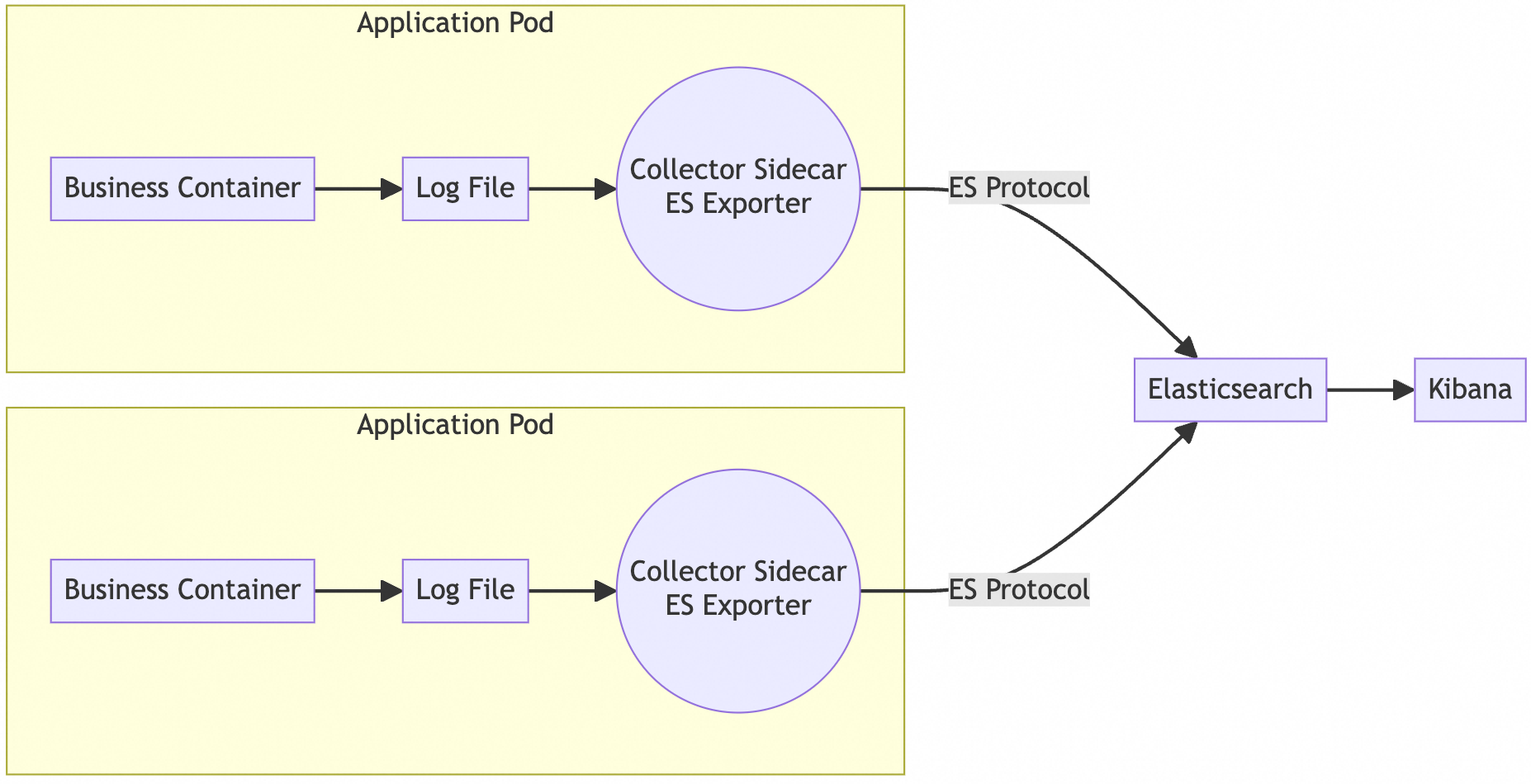
This solution uses a sidecar deployment architecture. The core workflow is as follows:
-
Share logs: The application container writes its log files to a Kubernetes volume (typically an
emptyDir) that is shared with the sidecar container. -
Collect logs: The Elastic Agent sidecar container, running in the same Pod as the application container, reads the log files by mounting the shared volume.
-
Switch modes: The Elastic Agent switches to its OpenTelemetry-compatible mode (EDOT) by setting the
ELASTIC_AGENT_OTEL=trueenvironment variable. In this mode, its behavior and configuration comply with the OpenTelemetry Collector specification. -
Ingest data: As defined in the OpenTelemetry configuration file, Elastic Agent sends the collected log data directly to the specified Alibaba Cloud Elasticsearch instance.
-
Manage configuration: You use a Kubernetes ConfigMap to manage and mount the Elastic Agent's collection configuration (
otel.yml). You use a Kubernetes Secret to securely inject sensitive credentials, such as the Elasticsearch password, as environment variables into the sidecar container.
Procedure
1. Prerequisites
Before you begin, ensure you have the following resources and configurations in place.
-
Prepare an ACK cluster and an ES instance
-
A Container Service for Kubernetes (ACK) cluster.
-
An Alibaba Cloud ES instance. We recommend enabling the auto index creation feature so the service can automatically create indices based on the data it receives.
Go to the Basic Information page of the ES instance, click , click Modify, and select Enable.
-
-
Ensure network connectivity
-
Ensure that the ACK cluster and the ES instance can communicate with each other. If they are not in the same Virtual Private Cloud (VPC), you must first establish a connection. We recommend using aVPC peering connection to enable network communication.
-
-
Prepare the container image
This solution uses the official Elastic Agent image. To ensure deployment stability and accessibility, we recommend pulling the required image and pushing it to your own Alibaba Cloud Container Registry (ACR) repository.
# Pull the official image
docker pull elastic/elastic-agent:9.1.5
This solution has been tested. The
elastic/elastic-agent:9.xversion is compatible with ES version8.17.
2. Configure the OTel Collector in ACK
You will create this configuration as a Kubernetes ConfigMap named otel-config. This ConfigMap configures the OpenTelemetry Collector (OTel Collector) to automatically collect, process, and export log data to your Alibaba Cloud ES cluster.
-
Log on to the ACK console and click .
-
Create a ConfigMap named otel-config. Set the key to otel.yml and the value to the content of your OTel configuration file.
The following example shows the content of otel.yml. Modify it based on your actual configuration. For more details on OTel configuration, see openTelemetryReceivers.
receivers:
  # Configure the filelog receiver
  filelog:
    include: [/path/to/logs/*.log]  # Path to the log files
    exclude: []                    # Files to exclude
    start_at: end                  # Start reading from the end of the file
    multiline:
      line_start_pattern: ^\d{4}-
exporters:
  # Configure the Elasticsearch exporter
  elasticsearch/logs:
    endpoints: ["http://es-cn-xxxxxxpxi00xxxxxx.elasticsearch.aliyuncs.com:9200"]  # ES cluster endpoint
    user: "elastic"
    password: "your_password"
    tls:
      insecure_skip_verify: false
    retry:
      enabled: true
      initial_interval: 5s
      max_interval: 30s
service:
  pipelines:
    logs:
      receivers: [filelog]
      exporters: [elasticsearch/logs]
Parameter
Description
Log collection (receivers)
-
Data source:
Collects logs in real time from all.logfiles in the/path/to/logs/*.logdirectory (for example, application logs). -
Key settings:
-
start_at: end: Starts reading from the end of the file to avoid re-collecting historical logs and only process new logs. -
multiline: Identifies multi-line logs, such as Java stack traces, by using a pattern like^\d{4}-as the start of a new log entry. This ensures complete entries are parsed correctly.
-
Log export (exporters)
-
Target system: Securely transmits processed logs to the Alibaba Cloud ES instance.
-
exporters.elasticsearch/logs.endpoints: The access endpoint for Elasticsearch. You can find the endpoint and port number on the Basic Information page of your ES instance. -
exporters.elasticsearch/logs.user: The username for accessing Elasticsearch.
-
-
Security and reliability:
-
TLS encryption: Specifies whether to enable certificate verification.
-
Automatic retry: Retries failed attempts with an interval from
5sto30sto prevent data loss.
-
Data pipeline (service)
Full pipeline: The
filelogreceiver ingests logs, which are then processed and exported to ES.
(In other words: log collection → standardized processing → secure transmission → storage in ES).Full workflow:
filelogingests logs → Adds resource and environment metadata → Processes data in batches → Exports data to ES.
(That is: Log collection → Standardized processing → Secure transmission → Storage in ES) -
3. Deploy the application and sidecar container
Add the log collection sidecar container definition to the Pod template of your existing Deployment or StatefulSet. This ensures that any new Pod created for your application will automatically include the sidecar container. The following example uses a Deployment, but the same configuration applies to a StatefulSet.
-
In the Deployment list, click the name of the target Deployment to open its details page.
-
Click Edit.
-
On the Edit page, find the Volume section and click Add Local Storage to add a shared log volume for the application container.
On the Edit page, in the Volume section, click Add Local Storage to add a shared log volume for the business container.
ImportantThis volume acts as shared storage between the application container and the sidecar, ensuring the sidecar can read the log files. The Container Path must exactly match the actual log path of the application container; otherwise, the sidecar cannot collect data.
-
On the Edit page, click Add Container to add the log collection sidecar container.
On the Edit page, click Add Container to add a log collection Sidecar container.
-
Image Name: Select the
elastic/elastic-agent:9.1.5image you prepared in the prerequisites. -
Environment Variables: Add
ELASTIC_AGENT_OTELwith the valuetrueto enable OpenTelemetry collection mode.
-
-
Configure volume mounts for the sidecar container. Add two mount points:
-
Mount 1: Shared log volume
-
Volume Name: Select
app-log(the volume shared with the application container). -
Container path:
/path/to/logs(Exactly the same as the mount path of the application container).
-
-
Mount 2: OTel configuration file
-
Volume type: Select
ConfigMap. -
Volume name:
otel-config(The name of the ConfigMap that must be created in advance). -
Mount path:
/usr/share/elastic-agent/otel.yml(This must strictly match the official image path). -
Subpath:
otel.yml(Important: Mount only a single file to avoid overwriting the directory).
-
-
-
After you confirm that the configuration is correct, click Update.
Kubernetes will automatically perform a rolling update of the Pods. The new Pods will contain both the application container and the sidecar container.
4. Verify log collection
-
Check container logs
Get the Pod name and view the sidecar container's logs to confirm that it has started and is processing data correctly.
If you see these logs, the container has started successfully.
-
Verify data in Elasticsearch
Log on to the Kibana console associated with the ES instance and execute a query in Dev Tools to confirm that the log data is successfully written. The index name is typically generated automatically based on the
filelogreceiver, in a format such aslogs-filelog-default.GET /logs-filelog-default/_search { "query": { "match_all": {} } }If the query returns log records from your application, the data pipeline is working correctly.