Dynatrace
Integrate Dynatrace with EventBridge by using an HTTP event source to centralize alert and event management.
Background
Dynatrace simplifies cloud operations and accelerates digital transformation. EventBridge enables quick integration with Dynatrace events for unified alert and event management.
Prerequisites
Step 1: Create an HTTP event source
Create an event source of the HTTP/HTTPS Events type in the EventBridge console. The following table describes the parameters. For more information, see Custom event source with an HTTP/HTTPS trigger.
Request Type: Select HTTP&HTTPS.
Request Method: Select a POST.
Security Configuration: Select Optional.
After the event source is created, you can find the custom event source in the event source list, and then click Details to view the configuration information. Internet request URL can be used as the webhook URL of the event source. 
Step 2: Add a problem notification
-
Sign in to the Dynatrace console. In the navigation pane on the left, choose .
-
On the Problem notifications page, click Add notification, configure the required parameters, and then click Save.
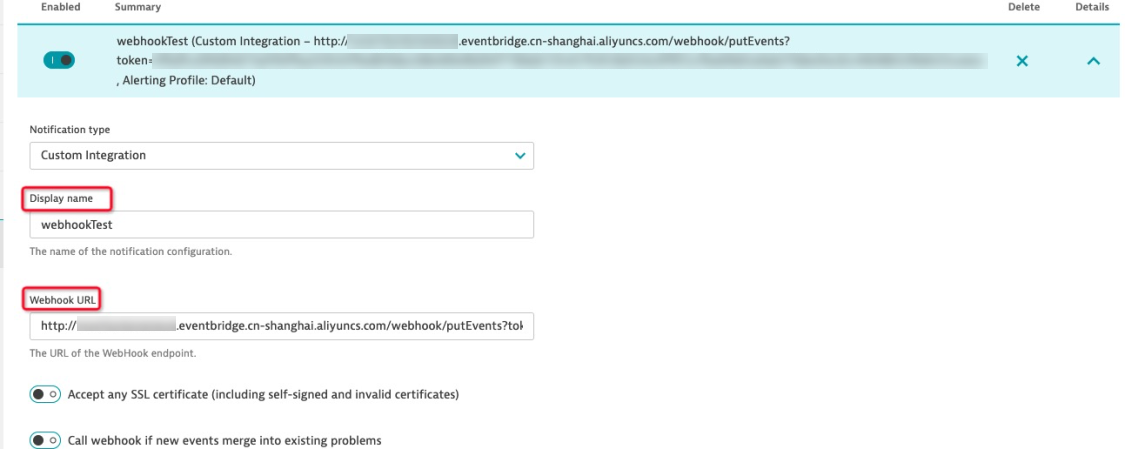
-
Display name: Enter a name for the problem notification.
-
Webhook URL: Enter the Internet Request URL from Step 1.
-
Step 3: Trigger an event
-
Sign in to the Dynatrace console. In the navigation pane on the left, choose .
-
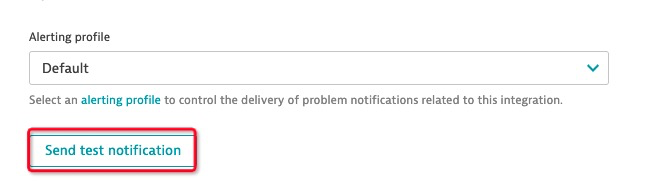
On the details page for your problem notification, click Send test notification to send a test event.
Step 4: Verify the result
Log on to the EventBridge console.
In the top navigation bar, select a region.
In the left-side navigation pane, click Event Buses.
In the left-side navigation pane, click Event Tracking to view and verify the obtained event information.