Accelerate an HTTP website over HTTPS
Global Accelerator (GA) enables secure, accelerated HTTPS access to your HTTP website, improving both speed and security for clients.
Use case
A company in the US (Silicon Valley) region hosts an HTTP website on a self-managed server. Most users are in China (Hong Kong). The website faces the following challenges:
HTTP transmits data in plaintext with no identity verification, creating significant security risks.
The cross-border public network is unstable and frequently experiences high latency, jitter, and packet loss.

Deploy GA with an HTTPS listener to accelerate access from China (Hong Kong) to the HTTP website in US (Silicon Valley) while encrypting client requests over HTTPS.
Prerequisites
You have purchased and applied for an SSL certificate. Purchase an SSL certificate. Submit a certificate application.
You have configured an HTTP service on port 80 on your backend server.
You have created an A record that maps the backend domain name to the public IP address of the backend server.
This topic uses Nginx to configure the backend HTTP service on port 80 and uses Alibaba Cloud DNS to configure the DNS record. If you use a third-party DNS provider, see your provider's documentation.
Procedure

This topic uses a pay-as-you-go standard Global Accelerator instance as an example to describe how to configure the Global Accelerator service for HTTPS acceleration of an HTTP website. Before you create a pay-as-you-go standard Global Accelerator instance, note the following:
Pay-as-you-go GA instances use Pay-By-Data-Transfer for bandwidth billing. You do not need to associate a bandwidth package. Cloud Data Transfer (CDT) handles traffic billing.
The first time you use a pay-as-you-go GA instance, you must Activate Service.
Step 1: Configure basic information about an instance
Log on to the GA console.
On the Instances page, click Create Standard Pay-as-you-go Instance.
In the Basic Instance Configuration step, configure the parameters based on the following table and click Next.
Parameter
Description
GA Instance Name
Enter a name for the GA instance.
Instance Billing Method
Pay-As-You-Go is selected by default.
You are charged instance fees, Capacity Unit (CU) fees, and data transfer fees for pay-as-you-go standard Global Accelerator instances.
For more information about instance fees and CU fees, see Pay-as-you-go Global Accelerator instance billing.
For more information about data transfer fees, see Data transfer billing.
Resource Group
Select the resource group to which the standard Global Accelerator instance belongs.
The resource group must be created by the current Alibaba Cloud account in Resource Management. For more information, see Create a resource group.
Step 2: Configure an acceleration area
Specify acceleration regions and allocate bandwidth to each acceleration region.
In the Configure Acceleration Area step, configure the parameters based on the following table and click Next.
Parameter | Description |
Acceleration Area | Select one or more regions from the drop-down list and click Add. In this example, the China (Hong Kong) region in the Asia Pacific section is selected. |
Assign Bandwidth | |
Maximum Bandwidth | Specify the maximum bandwidth for the acceleration region. Each acceleration region supports a bandwidth range of 2 to 10,000 Mbit/s. The maximum bandwidth is used for bandwidth throttling. The data transfer fees are managed by CDT. In this example, the default value 200 Mbit/s is used. Important If you specify a small value for the maximum bandwidth, throttling may occur and packets may be dropped. Specify a maximum bandwidth based on your business requirements. |
IP Protocol | Select the IP version that is used to connect to Global Accelerator. In this example, the default value IPv4 is selected. |
ISP Line Type | Select an ISP line type for the Global Accelerator instance. BGP (Multi-ISP) is selected in this example. |
Step 3: Configure a listener
A listener checks for and processes inbound connection requests based on the port and protocol you specify. Each listener is associated with one or more endpoint groups. After you associate an endpoint group with a listener, GA routes traffic to the optimal endpoint within that group.
On the Configure Listeners page, set the following parameters and click Next.
Only parameters relevant to this topic are listed. Retain default values for unlisted parameters. Add and manage listeners for Intelligent Routing.
Parameter | Description |
Routing Type | Select a routing type. In this example, Intelligent Routing is selected. |
Protocol | Select the protocol for the listener. In this example, HTTPS is selected. |
Port | Specify the listener port that is used to receive and forward requests to endpoints. The port number must be in the range of 1 to 65499. In this example, 443 is used. |
Select a server certificate | Select the server certificate that you have applied for. |
Step 4: Configure an endpoint group and endpoints
On the Configure an Endpoint Group page, configure the endpoint group and its endpoints, and then click Next.
Only parameters relevant to this scenario are listed. Add and manage endpoint groups for listeners that use Intelligent Routing.
Parameter
Description
Region
Select the region where the endpoint group is deployed.
In this example, US (Silicon Valley) is selected.
Endpoint Configuration
Configure the endpoint with these parameters:
Backend Service Type: Select Custom IP.
Backend Service: Enter the IP address of the backend service to accelerate.
Weight: Enter a weight for the endpoint. Valid values: 0 to 255. Global Accelerator routes traffic to endpoints based on their weights. In this example, the default value 255 is used.
WarningIf the weight of an endpoint is set to 0, Global Accelerator stops distributing traffic to that endpoint. Proceed with caution.
Backend Service Protocol
Select the protocol used by the backend server.
In this example, the default value HTTP is used.
Port Mapping
Configure port mapping when the listener port differs from the endpoint service port.
Listener Port: Enter the current listener port. In this example, enter 443.
Endpoint Port: The service port of the endpoint. In this example, enter 80.
On the Configuration Review page, review the settings and click Submit. Creating a GA instance takes about 3 to 5 minutes.
Optional: After the instance is created, click Go to Instance Details. On the instance details page, click the Instance Information, Listeners, or Acceleration Areas tabs to view the instance configuration.
Step 5: Configure a CNAME record
Map your domain name to the CNAME of the Global Accelerator instance. DNS then forwards requests to the Global Accelerator instance for acceleration.
On the Public Zone page, find your domain name and click Settings in the Actions column.
If your domain is not registered with Alibaba Cloud, add the domain name to Alibaba Cloud DNS before configuring DNS resolution.
On the Settings page, find the existing A record and click Modify in the Actions column.
In the Edit Record panel, change the Record Type to CNAME, set Record Value to the CNAME assigned to your Global Accelerator instance, and then click OK.
You can find the CNAME of your Global Accelerator instance on the Instances page.
To return region-specific DNS results, upgrade Alibaba Cloud DNS to Enterprise Standard or Enterprise Ultimate. Renewals.
After the upgrade, change the default resolution line of the existing A record to a region-specific line and add a CNAME record that points to the CNAME of the Global Accelerator instance.
Step 6: Test access
Test HTTPS access to the HTTP website in US (Silicon Valley) and verify acceleration performance.
The test commands are for Alibaba Cloud Linux 3.2104 LTS 64-bit. Commands may differ on other operating systems.
Check whether the CNAME record has taken effect.
Method 1: Use the DNS console
On the Public Zone page, find your domain name and click Settings in the Actions column.
On the Settings page, find the CNAME record that you added and click Validate Resolution in the Actions column.
On the Network Detect Tool page, view the results in the Inspection Result section.
If the Analysis Result column shows the CNAME of your GA instance, the CNAME record has taken effect.
Method 2: Use the command line
Open a CLI on a computer in the acceleration area. In this example, use China (Hong Kong).
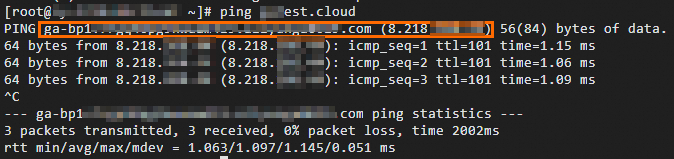
Run the following command:
ping <your domain name>If your domain resolves to the CNAME of the Global Accelerator instance, the CNAME record is in effect.
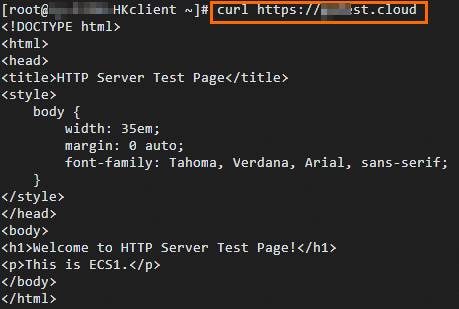
Run the following command to test HTTPS access to the website:
curl https://<your domain name>