Add and use a CloudMonitor data source
Application Real-Time Monitoring Service (ARMS)'s Managed Service for Grafana includes the CloudMonitor data source plugin by default. By using this plugin, you can synchronize CloudMonitor data and display it in real time on a Grafana dashboard. You do not need to manually obtain or migrate data. This topic describes how to use the CloudMonitor data source plugin to synchronize CloudMonitor data and use the CloudMonitor data source to create a dashboard panel.
Limitations
The CloudMonitor data source plugin only supports displaying data; it does not support configuring alert rules, and requires you to manually customize dashboards for cloud services. Therefore, we recommend using Managed Service for Prometheus to ingest metrics from cloud services. Managed Service for Prometheus provides multiple out-of-the-box dashboards and alert rules. For more information, see Cloud service observability.
Step 1: Log on to Grafana
-
Log on to the Managed Service for Grafana console. In the left-side navigation pane, click Workspace Management.
-
On the Workspace Management page, find the workspace that you want to manage and click the URL in the URL column to go to Grafana.
NoteYou can log on to Grafana with the administrator account of Grafana and the password that you configured when you created the workspace. You can also click Sign in with Alibaba Cloud to log on to Grafana with the current Alibaba Cloud account.
Step 2: Add the data source
Grafana 9.x
-
In the left-side navigation pane of Grafana, choose
 > Add data source.
 -
On the Add data source page, search for and click CMS Grafana Service.
-
On the Settings tab of the CMS Grafana Service page, configure the following parameters.
Parameter
Description
Name
The name of the data source. You can use the default name CMS Grafana Service.
Alibaba Cloud account ID
The ID of your Alibaba Cloud account. You can hover over the profile picture in the upper-right corner of the Alibaba Cloud console to view your account ID.
AccessKey ID
The AccessKey ID of your Alibaba Cloud account or a RAM user. For more information about how to obtain an AccessKey ID, see Obtain an AccessKey pair.
NoteThe RAM user must be created under the current Alibaba Cloud account and granted read permissions for CloudMonitor data.
AccessKey
The AccessKey secret of your Alibaba Cloud account or a RAM user. For more information about how to obtain an AccessKey secret, see Obtain an AccessKey pair.
NoteThe RAM user must be created under the current Alibaba Cloud account and granted read permissions for CloudMonitor data.
-
Click Save & Test.
The
Data source is workingmessage indicates that the data source was added successfully.
Grafana 10.x
-
On the Grafana homepage, click the
 icon.
icon. -
In the left-side navigation pane, choose .
-
On the Data sources tab, click + Add data source.
-
On the Add data source page, search for and click CMS Grafana Service.
-
On the Settings tab of the CMS Grafana Service page, configure the following parameters.
Parameter
Description
Name
The name of the data source. You can use the default name CMS Grafana Service.
Alibaba Cloud account ID
The ID of your Alibaba Cloud account. You can hover over the profile picture in the upper-right corner of the Alibaba Cloud console to view your account ID.
AccessKey ID
The AccessKey ID of your Alibaba Cloud account or a RAM user. For more information about how to obtain an AccessKey ID, see Obtain an AccessKey pair.
NoteThe RAM user must be created under the current Alibaba Cloud account and granted read permissions for CloudMonitor data.
AccessKey
The AccessKey secret of your Alibaba Cloud account or a RAM user. For more information about how to obtain an AccessKey secret, see Obtain an AccessKey pair.
NoteThe RAM user must be created under the current Alibaba Cloud account and granted read permissions for CloudMonitor data.
-
Click Save & Test.
The
Data source is workingmessage indicates that the data source was added successfully.
Step 3: Create a dashboard panel
Grafana 9.x
-
In the left-side navigation pane of Grafana, choose
 > New dashboard.
 -
On the New dashboard page, click Add a new panel.
-
On the Query tab of the Query page, select CMS Grafana Service from the Data source drop-down list.
-
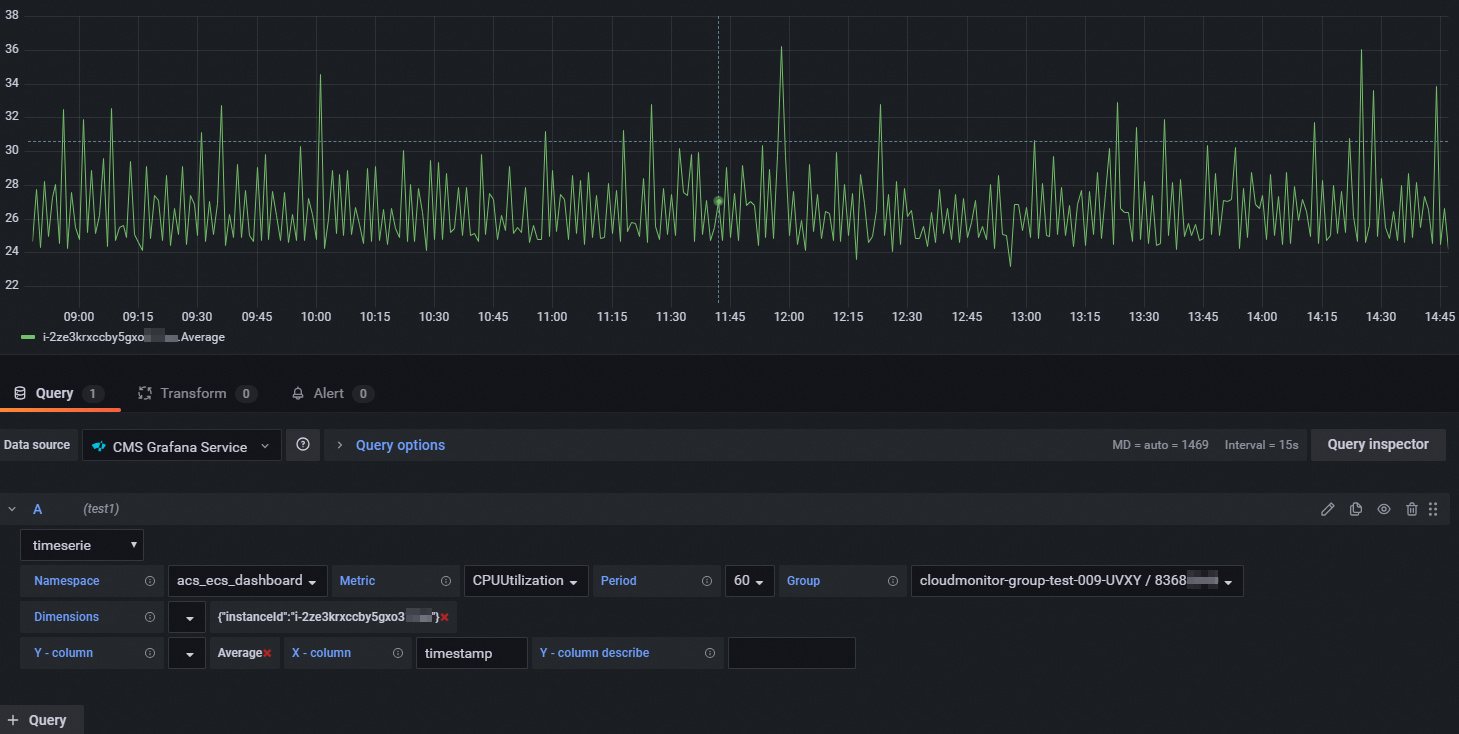
In the A query section, configure the parameters as described in the following table.
Parameter
Description
Namespace
The namespace of the service that reports monitoring data. Format:
acs_<cloud_service_name>.For more information about the namespaces for different cloud services, see Metrics.
Metric
The name of the metric whose data is reported.
For more information about the metrics for different cloud services, see Metrics.
Period
The interval at which monitoring data is reported. Unit: seconds.
For more information about the report periods for different cloud services, see Metrics.
Group
The name and ID of the application group that corresponds to the specified metric. You can obtain this information on the Application Groups page in the CloudMonitor console. For more information, see Application groups.
Dimensions
A map of dimensions used to query metrics for a specific resource.
Dimensions are a set of key-value pairs. Example:
instanceId:i-2ze2d6j5uhg20x47****. You can select multiple key-value pairs.For more information about the dimensions for different cloud services, see Metrics.
Aggregation method
The aggregation method for the reported metrics, such as Average, Maximum, Minimum, and Sum.
For more information about the aggregation methods for different cloud services, see Metrics.
In addition, set format to
Time seriesand X-column totimestamp. The panel then displays a time-series line chart for the specified metric. -
In the right-side pane, specify the name, type, and graph styles of the chart.
-
Click Apply.
-
In the upper-right corner, click the
 icon. Then, specify the name of the dashboard and the directory in which the dashboard resides.
 -
Click Save.
Grafana 10.x
-
On the Grafana homepage, click the
icon. -
In the left-side navigation pane, click Dashboards. On the page that appears, select New dashboard from the New drop-down list.
-
On the New dashboard page, click + Add visualization.
-
In the Select data source pane that appears on the right, select the CMS Grafana Service data source.
-
In the A query section, configure the parameters as described in the following table.
Parameter
Description
Namespace
The namespace of the service that reports monitoring data. Format:
acs_<cloud_service_name>.For more information about the namespaces for different cloud services, see Metrics.
Metric
The name of the metric whose data is reported.
For more information about the metrics for different cloud services, see Metrics.
Period
The interval at which monitoring data is reported. Unit: seconds.
For more information about the report periods for different cloud services, see Metrics.
Group
The name and ID of the application group that corresponds to the specified metric. You can obtain this information on the Application Groups page in the CloudMonitor console. For more information, see Application groups.
Dimensions
A map of dimensions used to query metrics for a specific resource.
Dimensions are a set of key-value pairs. Example:
instanceId:i-2ze2d6j5uhg20x47****. You can select multiple key-value pairs.For more information about the dimensions for different cloud services, see Metrics.
Aggregation method
The aggregation method for the reported metrics, such as Average, Maximum, Minimum, and Sum.
For more information about the aggregation methods for different cloud services, see Metrics.

-
In the right-side pane, specify the name, type, and graph styles of the chart.
-
Click Apply.
-
In the upper-right corner, click the
icon. Then, specify the name of the dashboard and the directory in which the dashboard resides. -
Click Save.
Step 4: View monitoring data
Grafana 9.x
-
In the left-side navigation pane of Grafana, choose
> Browse. -
On the Browse tab, find the directory and click the dashboard to view the charts.
Grafana 10.x
-
On the Grafana homepage, click the
icon. -
In the left-side navigation pane, click Dashboards. Find the directory and click the dashboard to view the charts.