Android SDK integration
This topic describes how to integrate the Android software development kit (SDK) into a client application.
1. Overview
Download the SDK&Demo package from the official website and decompress the SDK package. The following files are extracted from the SDK package:
The SDKDemo sample program
SDK dependency packages
You can also download a tool to obtain the app signature information for your application's package name.
2. Before you start
2.1 Make preparations
If mobile number-based authentication is enabled for your application, make sure that the 4G network is available for your device. The 3G network is also supported if the Internet service provider (ISP) of your mobile number is China Unicom or China Mobile, but the time consumed by calling the SDK is increased. After mobile number-based authentication is complete, you can use the SDK in the network of China Unicom or China Telecom immediately, and you need to wait 10 minutes before using the SDK in the network of China Mobile.
2.2 Procedures
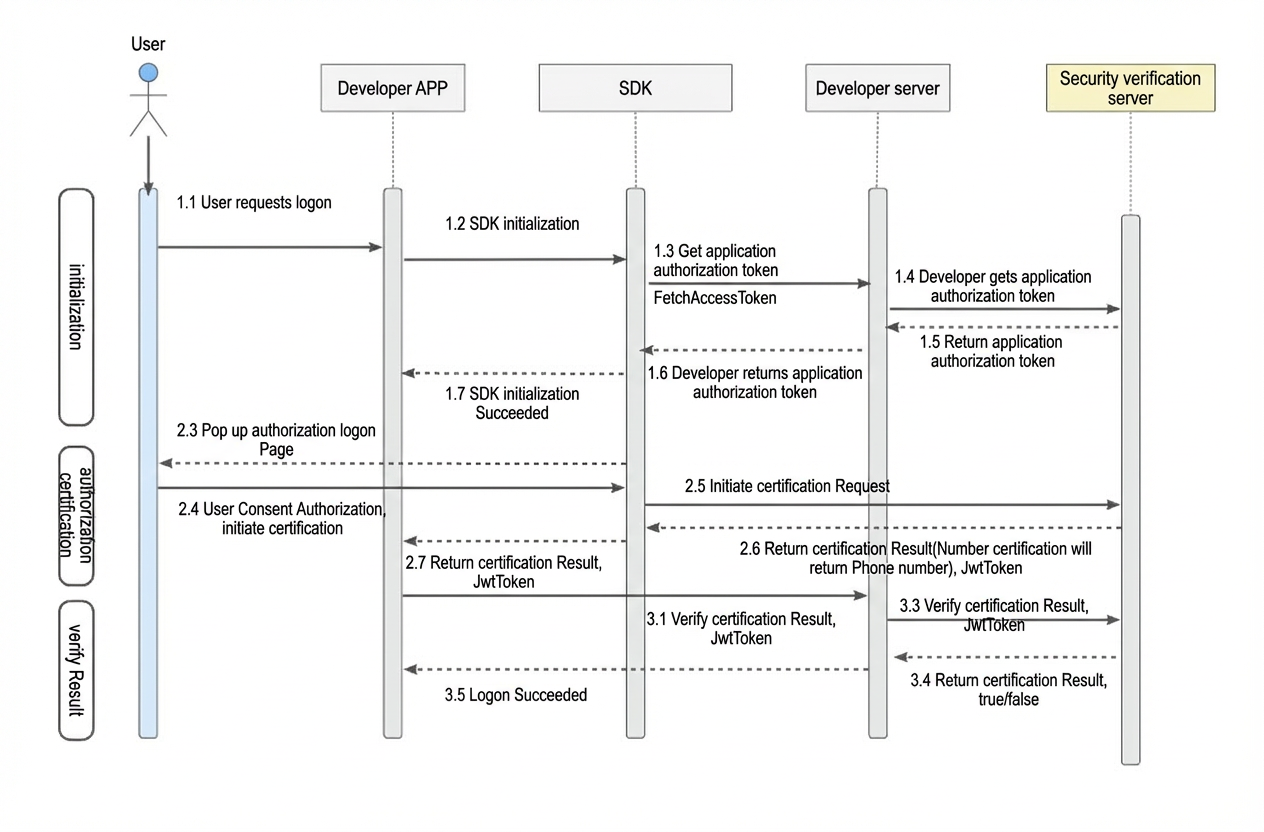
2.3 Run the demo project
Decompress the Android demo project.
Change the package name, application ID (appId), and application key (appKey) to your actual values.
Modify the FetchAccessTokenCallBackImpl.fetchAccessToken method to obtain the application authorization token.
2.4 Build a development environment
The application must run on Android 5.0 or later. It must support AndroidX and have a compileSdk version of 30 or later.
2.4.1 Import the AAR package
Copy the downloaded SDK to the libs directory of your project.

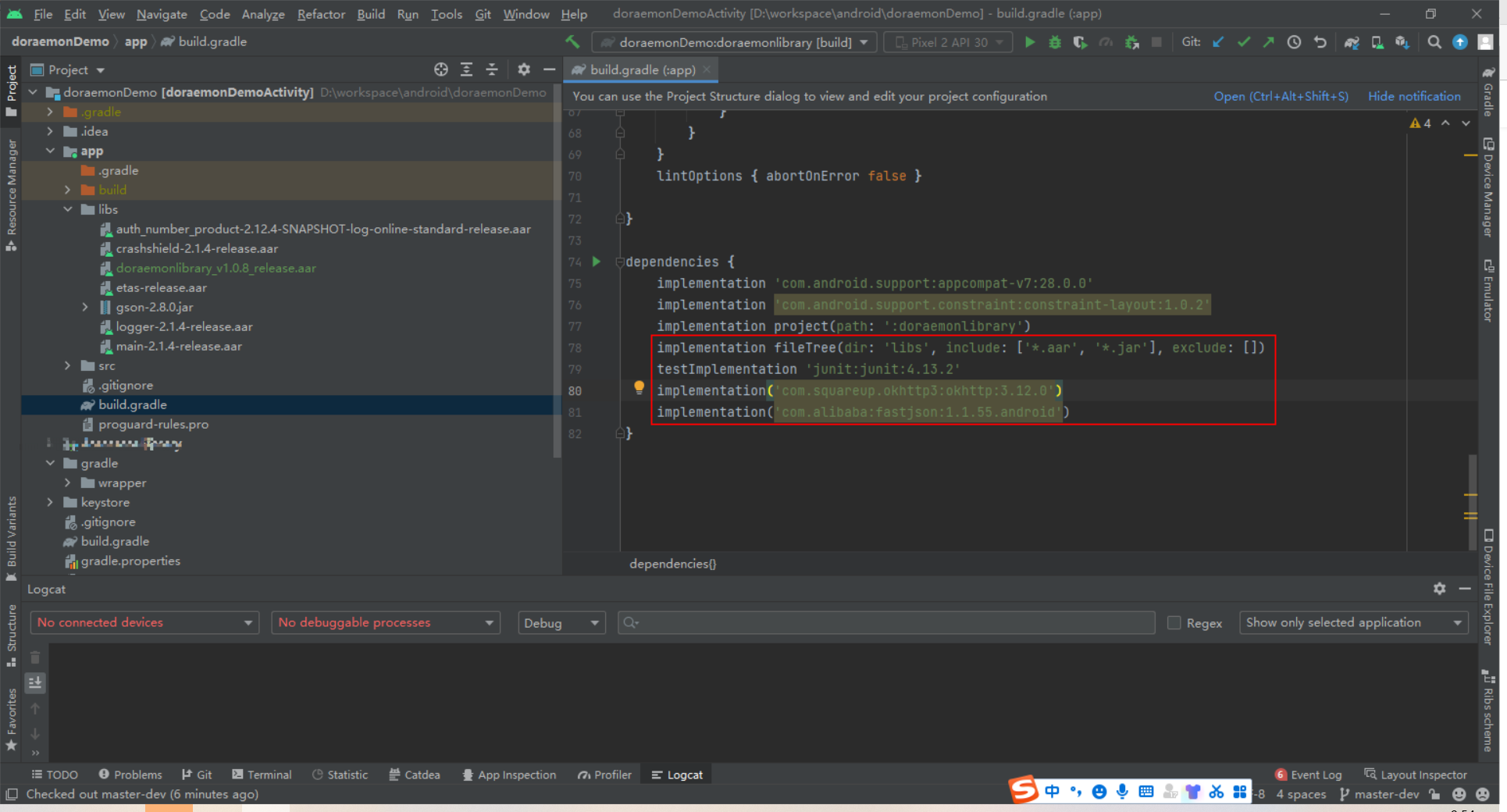
2.4.2 Add dependencies
2.4.3 Obfuscation exclusions
If resource obfuscation is enabled, you need to configure the following settings:
# Do not obfuscate classes provided by ETAS
-keep public class com.esandinfo.etas.ETASManager** { *; }
-keep public class com.esandinfo.etas.EtasResult** { *; }
-keep public class com.esandinfo.etas.IfaaBaseInfo {*;}
-keep public class com.esandinfo.etas.IfaaBaseInfo$* {*;}
-keep public class com.esandinfo.etas.IfaaCommon {*;}
-keep public class com.esandinfo.etas.IfaaCommon$* {*;}
-keep public class com.esandinfo.etas.model.json.** {*;}
-keep public class com.esandinfo.etas.biz.** {*;}
-keep public class com.esandinfo.etas.IfaaRequestBaseInfo {*;}
-keep public class com.esandinfo.etas.callback.** {*;}
-keep public class com.esandinfo.etas.utils.IfaaClient {*;}
# Do not obfuscate original IFAA interfaces
-keep class org.ifaa.** {*;}
# Keep all native methods from being obfuscated
-keepclasseswithmembernames class * {
native <methods>;
}
# Mobile number authentication configuration
-keep public class  R.drawable.authsdk*
-keep public class  R.layout.authsdk*
-keep public class  R.anim.authsdk*
-keep public class  R.id.authsdk*
-keep public class  R.string.authsdk*
-keep public class  R.style.authsdk*
# Do not obfuscate the SDK
-keep class com.idsmanager.doraemonlibrary.** {*;}
2.4.4 Grant permissions
<uses-permission android:name="android.permission.INTERNET" />   <!--Network permission-->
<uses-permission android:name="android.permission.USE_FINGERPRINT" />   <!--Fingerprint permission-->
    <uses-permission android:name="android.permission.MANAGE_FINGERPRINT" tools:ignore="ProtectedPermissions"/>  <!--Fingerprint management permission-->
<uses-permission android:name="cn.org.ifaa.permission.USE_IFAA_MANAGER" />    <!--Face recognition permission-->
<uses-permission android:name="android.permission.USE_FACERECOGNITION" />
<uses-permission android:name="oppo.permission.USE_FACE" /> <!--Face recognition permission for specific vendors-->
<uses-permission android:name="android.permission.CAMERA" /><!--Camera permission, which requires user authorization-->
<uses-permission android:name="android.permission.ACCESS_WIFI_STATE" /> <!--Check the Wi-Fi network state-->
<uses-permission android:name="android.permission.ACCESS_NETWORK_STATE" /> <!--Check the network state-->
<uses-permission android:name="android.permission.CHANGE_NETWORK_STATE" /> <!--Switch the network channel-->
<uses-permission android:name="android.permission.WRITE_EXTERNAL_STORAGE" /> <!--Cache local information-->
<uses-permission android:name="android.permission.CHANGE_WIFI_STATE" /> <!--Toggle the Wi-Fi state. This is required to resolve mobile network permission issues on some Chinese phone models.-->
2.4.5 Configure network permissions
Modify the AndroidManifest.xml file.
<?xml version="1.0" encoding="utf-8"?>
<manifest xmlns:android="http://schemas.android.com/apk/res/android"
    xmlns:tools="http://schemas.android.com/tools"
    package="com.idsmanager.doraemondemoactivity">

...

  <application
       ...
        android:networkSecurityConfig="@xml/network_security_config"
       >
       ...

</manifest>
Create the xml directory and the network_security_config.xml file in the res directory
<?xml version="1.0" encoding="utf-8"?>
<network-security-config>
    <base-config cleartextTrafficPermitted="true" />
    <domain-config cleartextTrafficPermitted="true" >
        <domain includeSubdomains="true">enrichgw.10010.com</domain> <!--Domain name for China Unicom's internal 5G requests. Developers must add this.-->
        <domain includeSubdomains="true">onekey.cmpassport.com</domain>  <!--Domain name for China Mobile's internal requests. Developers must add this.-->

    </domain-config>
</network-security-config>
Declare activities
Declare activities in the AndroidManifest.xml file.
<!--Authorization page for China Unicom and China Telecom-->
<!--If you do not use the window mode, do not use the authsdk_activity_dialog theme. Otherwise, abnormal animations may occur.-->
<!--If you use the authsdk_activity_dialog theme, do not specify a fixed orientation for screenOrientation,
    such as portrait or sensorPortrait. On Android 8.0 systems, specifying an orientation in window mode is not allowed and will cause a crash. You must set it to behind,
    and then specify the orientation on the page that precedes the authorization page.-->
<!--Required for pop-up window mode.-->
<activity
    android:name="com.mobile.auth.gatewayauth.LoginAuthActivity"
    android:configChanges="orientation|keyboardHidden|screenSize"
    android:exported="false"
    android:launchMode="singleTop"
    android:theme="@style/authsdk_activity_dialog" />
<!--Secondary pop-up window interface-->
<activity
    android:name="com.mobile.auth.gatewayauth.PrivacyDialogActivity"
    android:configChanges="orientation|keyboardHidden|screenSize"
    android:exported="false"
    android:launchMode="singleTop"
    android:screenOrientation="behind"
    android:theme="@style/authsdk_activity_dialog" />
<!--Terms of Service page WebView-->
<activity
    android:name="com.mobile.auth.gatewayauth.activity.AuthWebVeiwActivity"
    android:configChanges="orientation|keyboardHidden|screenSize"
    android:exported="false"
    android:launchMode="singleTop"
    android:screenOrientation="behind" />
2.4.6 Use a support package
You can use AndroidX packages.
androidx.appcompat:appcompat:1.3.1
com.android.support.constraint:constraint-layout:1.0.2
or later
2.4.7 Obtain the MD5 signature value of the application
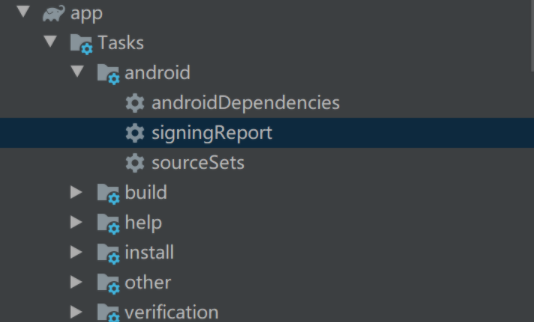
In Android Studio, use Gradle and click signingReport to obtain the MD5 signature value. Remove the colons and convert the letters to lowercase.
NoteThe debug and release packages have different signatures. Do not use the signature of the debug package in the production environment.
Download the tool to obtain the app signature information for your package name.
3. Usage notes on calling the SDK
You must integrate client-side Security Authentication SDK for Android with your application and connect to the API operations on the server. For information about how to obtain application keys and service keys, see Application management.
4. Implementation of mobile number-based authentication
4.1 Introduction to the DoraemonManager main class
4.1.1 Initialization
To call this operation, you must call the API operation in the server-side SDK that is used to obtain an application access token to customize a callback function. Then, pass the token to the client-side SDK by calling the FetchAccessTokenCallBackImpl operation.
Call the initialization method only once when the application starts. You can place it on the splash screen. If initialization fails, switch to another logon method.
Do not call the one-click logon method (phoneNumberLogin) immediately after a successful initialization.
/**
  * Initialize DoraemonManager.
  *
  * @param context
  * @param appId             The application ID. Find your Security Authentication application and copy the Application ID from the application details.
  * @param appKey            The application key. Find your Security Authentication application and click Copy Key.
  * @param fetchAccessTokenCallBack The callback to get the access token.
*/
DoraemonManager.init(context, appId, appKey, new FetchAccessTokenCallBackImpl(), new DoraemonCallback() {
   @Override
   public void onFailure(Exception e) {
       Log.e(TAG, "DoraemonManager init failed", e);
       MainActivity.this.showToast("SDK initialization failed! " + e.getMessage());
   }

   @Override
   public void onSuccess(Object data) {
        // Do not call the phoneNumberLogin method immediately after a successful initialization.
       Log.e(TAG, "DoraemonManager init success");
       MainActivity.this.showToast("SDK initialized successfully!");
   }
});
Call the FetchAccessTokenCallBackImpl operation to return the access token to the SDK.
public class FetchAccessTokenCallBackImpl implements FetchAccessTokenCallBack {
    private static final String TAG = FetchAccessTokenCallBackImpl.class.getSimpleName();
    /**
     * The callback method to get the AccessToken.
     *
     * @return
     */
    @Override
    public AccessTokenInfoResult fetchAccessToken(FetchAccessTokenRequest fetchAccessTokenRequest) {
        AccessTokenInfoResult callbackResult = new AccessTokenInfoResult();
        try {
            AccessTokenInfo accessTokenInfo =new AccessTokenInfo();
            /**
             * TODO: Obtain the application authorization token.
             * You must develop a backend API to obtain the token as described in the documentation and then return it.
             * The token must be obtained synchronously.
             * You can get the required parameters from the 'fetchAccessTokenRequest' object, for example: fetchAccessTokenRequest.getMobileExtendParamsJson().
             * For more information, see https://help.aliyun.com/document_detail/354357.html.
             */
            accessTokenInfo.setAccess_token(?);
            //// You do not need to set the refresh_token if it is not available.
            accessTokenInfo.setRefresh_token(?);
            accessTokenInfo.setExpires_in(?);
            callbackResult.setSuccess(true);
            callbackResult.setMessage("Successfully obtained the access token.");
            callbackResult.setAccessTokenInfo(accessTokenInfo);
        } catch (Exception e) {
            Log.e(TAG, "getAccessTokenRun exception", e);
            callbackResult.setSuccess(false);
            callbackResult.setMessage(e.getMessage());
        }
        return callbackResult;
    }
}
4.1.2 Mobile number-based logon
 /**
   * One-click logon with a mobile number.
   *
   * @param activity
   * @param doraemonCallback The callback interface.
   * @param authUIConfig     The custom UI.
   */
DoraemonManager.phoneNumberLogin(this, new DoraemonCallback() {
    @Override
    public void onFailure(Exception e) {
        Log.e(TAG, "phoneNumberLogin failed", e);
        MainActivity.this.showToast("Mobile number logon failed! " + e.getMessage());
    }

    @Override
    public void onSuccess(Object data) {
         Log.e(TAG, "DoraemonManager init success");
         MainActivity.this.showToast("Mobile number logon successful! " + data);
     }
}, baseUIConfig);
The following example shows how to customize the logon page:
public class FullPortConfig extends BaseUIConfig {
    private final String TAG = "Full-screen portrait style";

    public FullPortConfig(Activity activity) {
        super(activity);
    }

    @Override
    public void configAuthPage(PhoneNumberAuthHelper mAuthHelper) {
        mAuthHelper.setUIClickListener(new AuthUIControlClickListener() {
            @Override
            public void onClick(String code, Context context, String jsonString) {
                JSONObject jsonObj = null;
                try {
                    if (!TextUtils.isEmpty(jsonString)) {
                        jsonObj = new JSONObject(jsonString);
                    }
                } catch (JSONException e) {
                    jsonObj = new JSONObject();
                }
                switch (code) {
                    // The user clicks the default Back button on the authorization page.
                    case ResultCode.CODE_ERROR_USER_CANCEL:
                        Log.e(TAG, "Clicked the default Back button on the authorization page.");
                        mAuthHelper.quitLoginPage();
                        mActivity.finish();
                        break;
                    // The user clicks the default button to switch to another logon method. The authorization page closes.
                   case ResultCode.CODE_ERROR_USER_SWITCH:
                        Log.e(TAG, "Clicked the default button to switch to another logon method.");
                        break;
                    // This callback is triggered when the logon button is clicked.
                    // If the terms of service check box is not selected, a default toast message appears. To hide the default toast or customize its content, set setLogBtnToastHidden(true).
                    // Use this callback to set a custom toast.
                    case ResultCode.CODE_ERROR_USER_LOGIN_BTN:
                        if (!jsonObj.optBoolean("isChecked")) {
                            Toast.makeText(mContext, "isCheck", Toast.LENGTH_SHORT).show();
                        }
                        break;
                    // This callback is triggered when the state of the check box changes.
                    case ResultCode.CODE_ERROR_USER_CHECKBOX:
                        Log.e(TAG, "Check box state changed to " + jsonObj.optBoolean("isChecked"));
                        break;
                    // This callback is triggered when the user clicks the terms of service section.
                    case ResultCode.CODE_ERROR_USER_PROTOCOL_CONTROL:
                        Log.e(TAG, "Clicked the terms of service, " + "name: " + jsonObj.optString("name") + ", url: " + jsonObj.optString("url"));
                        break;
                    default:
                        break;

                }

            }
        });
        mAuthHelper.removeAuthRegisterXmlConfig();
        mAuthHelper.removeAuthRegisterViewConfig();
        // Add a custom button to switch to another logon method.
        mAuthHelper.addAuthRegistViewConfig("switch_msg", new AuthRegisterViewConfig.Builder()
                .setView(initSwitchView(350))
                .setRootViewId(AuthRegisterViewConfig.RootViewId.ROOT_VIEW_ID_BODY)
                .setCustomInterface(new CustomInterface() {
                    @Override
                    public void onClick(Context context) {
                        Toast.makeText(mContext, "Switched to SMS logon method 1", Toast.LENGTH_SHORT).show();

                        mAuthHelper.quitLoginPage();
                    }
                }).build());
        int authPageOrientation = ActivityInfo.SCREEN_ORIENTATION_SENSOR_PORTRAIT;
        if (Build.VERSION.SDK_INT == 26) {
            authPageOrientation = ActivityInfo.SCREEN_ORIENTATION_BEHIND;
        }
        mAuthHelper.setAuthUIConfig(
            new AuthUIConfig.Builder()
                .setAppPrivacyOne("《Custom Privacy Policy》", "https://****/user")
                .setAppPrivacyTwo("《》", "https://***")
                .setAppPrivacyColor(Color.GRAY, Color.parseColor("#002E00"))
                // Hide the default button for switching logon methods.
                .setSwitchAccHidden(true)
                // Hide the default toast message.
                .setLogBtnToastHidden(true)
                // Immersive status bar.
                .setNavColor(Color.parseColor("#026ED2"))
                .setStatusBarColor(Color.parseColor("#026ED2"))
                .setWebViewStatusBarColor(Color.parseColor("#026ED2"))


                .setLightColor(false)
                .setWebNavTextSizeDp(20)
                // The parameters for images or XML files must be the full names without suffixes. The files must be placed in the drawable or drawable-xxx directory, such as in_activity.xml or mytel_app_launcher.png.
                .setAuthPageActIn("in_activity", "out_activity")
                .setAuthPageActOut("in_activity", "out_activity")
                .setVendorPrivacyPrefix("《")
                .setVendorPrivacySuffix("》")
                .setPageBackgroundPath("page_background_color")
                .setLogoImgPath("mytel_app_launcher")
                // Example of a background for the one-click logon button in three states: login_btn_bg.xml.
                .setLogBtnBackgroundPath("login_btn_bg")
                .setScreenOrientation(authPageOrientation)
                .create()
        );
    }
}
4.1.3 Check whether the device supports mobile number-based logon
/**
  * Check if the device supports one-click logon.
  * @param i
  * @param doraemonCallback
  */
DoraemonManager.checkEnvAvailable(PhoneNumberAuthHelper.SERVICE_TYPE_LOGIN, new DoraemonCallback() {
     @Override
     public void onFailure(Exception e) {
         Log.e(TAG, "checkEnvAvailable failed", e);
         MainActivity.this.showToast("checkEnvAvailable failed! " + e.getMessage());
     }

     @Override
     public void onSuccess(Object data) {
         Log.e(TAG, "DoraemonManager init success");
         MainActivity.this.showToast("checkEnvAvailable successful! " + data);
     }
});
4.1.4 Close the mobile number-based logon page
DoraemonManager.quitLoginPage();4.2 Mobile number verification
The user enters a mobile number to verify whether it is the mobile number used on the current device.
/**
  * Mobile number verification.
  *
  * @param phoneNumber      The mobile number.
  * @param doraemonCallback The callback interface.
  */
DoraemonManager.phoneNumberVerify(phoneNum, new DoraemonCallback() {
     @Override
     public void onFailure(Exception e) {
         Log.e(TAG, "phoneNumberVerify failed", e);
         MainActivity.this.showToast("Mobile number authentication failed! " + e.getMessage());
     }

     @Override
     public void onSuccess(Object data) {
         Log.e(TAG, "DoraemonManager init success");
         MainActivity.this.showToast("Mobile number authentication successful! " + data);
     }
});
4.3 Verify a JWT token
Finally, you need to verify a JSON Web Token (JWT) token to ensure that the verification result is valid.
5. Notes on the mobile number-based authentication page
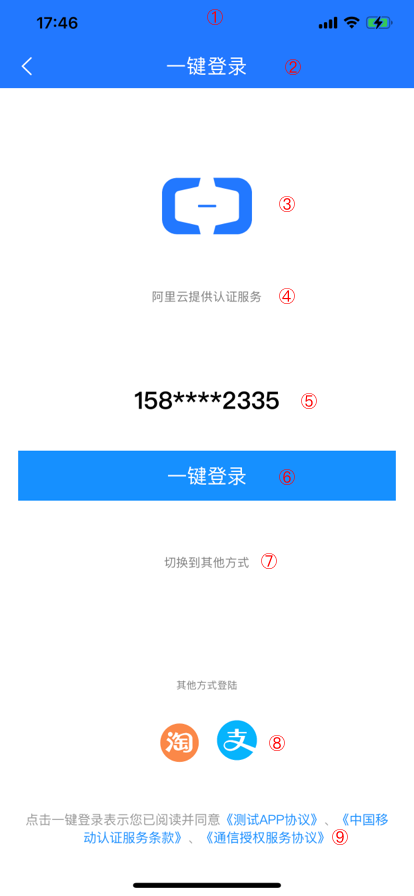
5.1. Full-screen authorization page design specifications
① Status bar |
|
|
② Navigation bar |
|
|
③ Logo area |
|
|
④ Slogan |
|
|
⑤ Mask bar |
|
|
|
⑥ Logon button |
|
⑦ Switch to another method |
|
|
⑧ Custom control area (for other logon methods) |
You can add custom controls in any area except for the terms of service, number mask, and logon button areas. Two methods are supported for adding custom controls:
|
|
⑨ Terms of service bar |
|
|
Other full-screen page properties |
|
5.2. Pop-up authorization page design specifications
|
Other pop-up page properties |
|
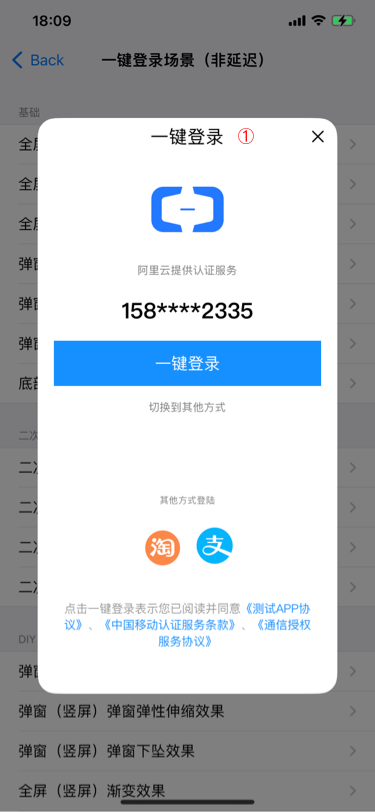
5.3 Authorization page configuration instructions
5.3.1. Configure the authorization page navigation bar
Method |
Type |
Description |
setStatusBarColor |
int |
Sets the status bar color. This feature is available only for Android 5.0 or later. |
setLightColor |
boolean |
Sets the status bar font color. You can set the color to black or white for Android 6.0 or later. The default is black. Valid values:
|
setNavColor |
int |
Sets the navigation bar color. |
setNavText |
String |
Sets the navigation bar title text. |
setNavTextColor |
int |
Sets the navigation bar title text color. |
setNavTextSize |
int |
Sets the navigation bar title text size. |
useNavFontAndPath |
boolean, String |
Specifies whether to use a custom font for the navigation bar text. The custom font name must include the font format, such as xxx.ttf. The file must be placed in the assets folder.
|
setNavTypeface |
Typeface |
Sets the navigation bar text to use a system font. Parameters include the following: Typeface.SANS_SERIF, Typeface.SERIF, Typeface.MONOSPACE. |
setNavReturnImgPath |
String |
Sets the path for the Back button image in the navigation bar. This is the file name in the drawable directory, without the file extension. |
setNavReturnHidden |
boolean |
Hides the Back button in the navigation bar. Valid values:
|
setNavHidden |
boolean |
Specifies whether to hide the default navigation bar. Valid values:
|
setStatusBarHidden |
boolean |
Specifies whether to hide the status bar. Valid values:
|
setStatusBarUIFlag |
int |
Sets the UI properties of the status bar. Property types:
|
setWebViewStatusBarColor |
int |
Sets the status bar color of the Terms of Service page. This feature is available only for Android 5.0 or later. If not set, the color is the same as the authorization page. |
setWebNavColor |
int |
Sets the background color of the top navigation bar on the Terms of Service page. If not set, the color is the same as the authorization page. |
setWebNavTextColor |
int |
Sets the title color of the top navigation bar on the Terms of Service page. If not set, the color is the same as the authorization page. |
setWebNavTextSize |
int |
Sets the text size of the top navigation bar on the Terms of Service page. If not set, the size is the same as the authorization page. |
webNavReturnImgPath |
String |
Sets the image path for the Back button in the navigation bar of the Terms of Service page. If not set, the path is the same as the authorization page. |
setBottomNavColor |
int |
Sets the background color of the bottom virtual navigation buttons. This feature is available only for Android 5.0 or later. |
setNavTextSizeDp |
int |
Sets the navigation bar title text size. The unit is dp. The font size does not change with system settings. |
setNavReturnImgDrawable |
Drawable |
Sets the image for the Back button in the navigation bar. |
5.3.2 Authorization page logo
Method |
Type |
Description |
setLogoHidden |
boolean |
Specifies whether to hide the logo. Valid values:
|
setLogoImgPath |
String |
Sets the path for the logo image. This is the file name in the drawable directory, without the file extension. |
setLogoWidth |
int |
Sets the width of the logo control. The unit is dp. |
setLogoHeight |
int |
Sets the height of the logo control. The unit is dp. |
setLogoOffsetY |
int |
Sets the vertical offset of the logo control relative to the top of the navigation bar. The unit is dp. |
setLogoOffsetY_B |
int |
Sets the vertical offset of the logo control relative to the bottom of the page. The unit is dp. |
setLogoScaleType |
ImageView.ScaleType |
Sets the scaling mode of the logo image. Mode types:
|
5.3.3 Slogan on the authentication page
Method |
Type |
Description |
setSloganText |
String |
Sets the slogan text. |
setSloganTextColor |
int |
Sets the slogan text color. |
setSloganTextSize |
int |
Sets the slogan text size. |
setSloganOffsetY |
int |
Sets the vertical offset of the slogan relative to the top of the navigation bar. The unit is dp. |
setSloganOffsetY_B |
int |
Sets the vertical offset of the slogan relative to the bottom of the page. The unit is dp. |
setSloganTextSizeDp |
int |
Sets the slogan text size. The unit is dp. The font size does not change with system settings. |
useSloganFontAndPath |
boolean, String |
Specifies whether to use a custom font for the slogan text. The custom font name must include the font format, such as xxx.ttf. The file must be placed in the assets folder.
|
setSloganTypeface |
Typeface |
Sets the slogan text to use a system font. Parameters include the following: Typeface.SANS_SERIF, Typeface.SERIF, Typeface.MONOSPACE. |
5.3.4. Authorization page number bar
Method |
Type |
Description |
setNumberColor |
int |
Sets the mobile number font color. |
setNumberSize |
int |
Sets the mobile number font size. |
setNumFieldOffsetY |
int |
Sets the vertical offset of the number bar control relative to the top of the navigation bar. The unit is dp. |
setNumFieldOffsetY_B |
int |
Sets the vertical offset of the number bar control relative to the bottom of the page. The unit is dp. |
setNumberFieldOffsetX |
int |
Sets the horizontal offset of the number bar from its default position. The unit is dp. |
setNumberLayoutGravity |
int |
Sets the layout alignment of the mobile number mask. The following three alignment modes are supported:
|
setNumberSizeDp |
int |
Sets the mobile number font size. The unit is dp. The font size does not change with system settings. |
useNumberFontAndPath |
boolean, String |
Specifies whether to use a custom font for the mobile number text. The custom font name must include the font format, such as xxx.ttf. The file must be placed in the assets folder.
|
setNumberTypeface |
Typeface |
Sets the mobile number text to use a system font. Parameters include the following: Typeface.SANS_SERIF, Typeface.SERIF, Typeface.MONOSPACE. |
5.3.5 Logon button on the authentication page
Method |
Type |
Description |
setLogBtnText |
String |
Sets the logon button text. |
setLogBtnTextColor |
int |
Sets the logon button text color. |
setLogBtnTextSize |
int |
Sets the logon button text size. |
setLogBtnWidth |
int |
Sets the logon button width. The unit is dp. |
setLogBtnHeight |
int |
Sets the logon button height. The unit is dp. |
setLogBtnMarginLeftAndRight |
int |
Sets the margin of the logon button relative to the left and right edges of the screen. The unit is dp. |
setLogBtnBackgroundPath |
String |
Sets the path of the logon button's background image. |
setLogBtnOffsetY |
int |
Sets the vertical offset of the logon button relative to the top of the navigation bar. The unit is dp. |
setLogBtnOffsetY_B |
int |
Sets the vertical offset of the logon button relative to the bottom of the page. The unit is dp. |
setLoadingImgPath |
String |
Sets the path of the background image for the loading dialog. |
setLogBtnOffsetX |
int |
Sets the horizontal offset of the logon button. Note If setLogBtnMarginLeftAndRight is set and the layout alignment is left or right, the offset is added to the margin. If the alignment is centered, the offset is applied from the center. |
setLogBtnLayoutGravity |
Gravity |
Sets the layout alignment of the logon button. The following three alignment modes are supported:
|
setLogBtnTextSizeDp |
int |
Sets the logon button text size. The unit is dp. The font size does not change with system settings. |
setLogBtnBackgroundDrawable |
Drawable |
Sets the drawable object for the logon button's background image. |
setLoadingImgDrawable |
Drawable |
Sets the drawable object for the background image of the loading dialog. |
useLogBtnFontAndPath |
boolean, String |
Specifies whether to use a custom font for the logon text. The custom font name must include the font format, such as xxx.ttf. The file must be placed in the assets folder.
|
setLogBtnTypeface |
Typeface |
Sets the logon text to use a system font. Parameters include the following: Typeface.SANS_SERIF, Typeface.SERIF, Typeface.MONOSPACE. |
5.3.6 Privacy term section on the authorization page
Make sure that the privacy term section on the authentication page is not blocked. Otherwise, mobile number-based authentication fails.
Method |
Type |
Description |
setAppPrivacyOne |
String, String |
Sets the name and URL for the first developer privacy policy (Name, URL). |
setAppPrivacyTwo |
String, String |
Sets the name and URL for the second developer privacy policy (Name, URL). |
setAppPrivacyColor |
int, int |
Sets the colors for the privacy policy text (base text color, policy link color). |
setPrivacyOffsetY |
int |
Sets the vertical offset of the privacy bar relative to the top of the navigation bar. The unit is dp. |
setPrivacyOffsetY_B |
int |
Sets the vertical offset of the privacy bar relative to the bottom of the page. The unit is dp. |
setPrivacyState |
boolean |
Sets the default selection state of the privacy policy check box. |
setProtocolGravity |
int |
Sets the text alignment for the privacy policy. The unit is Gravity.xxx. |
setPrivacyTextSize |
int |
Sets the text size for the privacy policy. The unit is sp. |
setPrivacyMargin |
int |
Sets the margin between the privacy policy and the left and right edges of the screen. The unit is dp. |
setPrivacyBefore |
String |
Sets custom text to display before the developer's privacy policy. |
setPrivacyEnd |
String |
Sets custom text to display after the developer's privacy policy. |
setCheckboxHidden |
boolean |
Specifies whether to hide the check box. Valid values:
|
setUncheckedImgPath |
String |
Sets the image path for the unselected state of the check box. |
setCheckedImgPath |
String |
Sets the image path for the selected state of the check box. |
setCheckBoxMarginTop |
int |
Sets the top margin of the privacy policy check box. |
setVendorPrivacyPrefix |
String |
Sets the prefix symbol for the carrier's terms of service. Only one character is allowed: <>, (), 《》, 【】, 『』, [], or (). |
setVendorPrivacySuffix |
String |
Sets the suffix symbol for the carrier's terms of service. Only one character is allowed: <>, (), 《》, 【】, 『』, [], or (). |
setProtocolLayoutGravity |
int |
Sets the layout alignment of the privacy bar. The following three alignment modes are supported:
Note This parameter controls the alignment of the entire privacy bar, including the check box, within its parent layout. In contrast, setProtocolGravity controls the alignment of the text within the text view. |
setPrivacyOffsetX |
int |
Sets the horizontal offset of the privacy bar. The unit is dp. |
setLogBtnToastHidden |
boolean |
Specifies whether to display a toast message when the logon button is clicked while the check box is not selected. |
setPrivacyTextSizeDp |
int |
Sets the text size for the privacy policy. The unit is dp. The font size does not change with system settings. |
setUncheckedImgDrawable |
Drawable |
Sets the drawable object for the unselected state of the check box. |
setCheckedImgDrawable |
Drawable |
Sets the drawable object for the selected state of the check box. |
useProtocolFontAndPath |
boolean, String |
Specifies whether to use a custom font for the terms of service text. The custom font name must include the font format, such as xxx.ttf. The file must be placed in the assets folder.
|
setProtocolTypeface |
Typeface |
Sets the terms of service text to use a system font. Parameters include the following: Typeface.SANS_SERIF, Typeface.SERIF, Typeface.MONOSPACE. |
setPrivacyOneColor |
int |
Sets the text color for the first privacy policy on the authorization page. |
setPrivacyTwoColor |
int |
Sets the text color for the second privacy policy on the authorization page. |
setPrivacyThreeColor |
int |
Sets the text color for the third privacy policy on the authorization page. |
setPrivacyOperatorColor |
int |
Sets the text color for the carrier's terms of service on the authorization page. |
5.3.7 Switch control
Method |
Type |
Description |
setSwitchAccHidden |
boolean |
Specifies whether the switch button is visible. |
setSwitchAccText |
String |
Sets the text of the switch button. |
setSwitchAccTextColor |
int |
Sets the text color of the switch button. |
setSwitchAccTextSize |
int |
Sets the text size of the switch button. |
setSwitchOffsetY |
int |
Sets the vertical offset of the switch button relative to the top of the navigation bar. The unit is dp. |
setSwitchOffsetY_B |
int |
Sets the vertical offset of the switch button relative to the bottom of the page. The unit is dp. |
setSwitchAccTextSizeDp |
int |
Sets the text size of the switch button. The unit is dp. The font size does not change with system settings. |
useSwitchFontAndPath |
boolean, String |
Specifies whether to use a custom font for the switch button text. The custom font name must include the font format, such as xxx.ttf. The file must be placed in the assets folder.
|
setSwitchTypeface |
Typeface |
Sets the switch button text to use a system font. Parameters include the following: Typeface.SANS_SERIF, Typeface.SERIF, Typeface.MONOSPACE. |
5.3.8 Page-related functions
Method |
Type |
Description |
setAuthPageActIn |
String |
Sets the entry animation for the authorization page. This is the file name in the anim directory, without the file extension. |
setAuthPageActOut |
String |
Sets the exit animation for the authorization page. This is the file name in the anim directory, without the file extension. |
setScreenOrientation |
int |
Sets the screen orientation. Note The value must be a screen orientation constant from ActivityInfo, such as ActivityInfo.SCREEN_ORIENTATION_LANDSCAPE. |
setPageBackgroundPath |
String |
Sets the background image for the authorization page. Note This is the path to a drawable resource, without the file extension. For example, if the image is at res/drawable-xxhdpi/loading.png, pass "loading" to setPageBackgroundPath("loading"). |
setDialogWidth |
int |
Sets the width of the authorization page in pop-up mode. The unit is dp. A value greater than 0 enables pop-up mode. |
setDialogHeight |
int |
Sets the height of the authorization page in pop-up mode. The unit is dp. A value greater than 0 enables pop-up mode. |
setDiaLogoffsetX |
int |
Sets the horizontal offset of the authorization page in pop-up mode. The unit is dp. |
setDiaLogoffsetY |
int |
Sets the vertical offset of the authorization page in pop-up mode. The unit is dp. |
setTapAuthPageMaskClosePage |
boolean |
In pop-up mode, specifies whether to close the authorization page when the area outside the pop-up is clicked.
|
setDialogBottom |
boolean |
Specifies whether the authorization page is aligned to the bottom of the screen. |
setPageBackgroundDrawable |
Drawable |
Sets the drawable object for the authorization page's background image. |
setProtocolAction |
String |
Action to redirect to a custom protocol page. |
setPackageName |
String |
You must set this property to your app's package name when configuring a custom action for the Terms of Service page. |
setWebCacheMode |
int |
Sets the cache mode for the built-in WebView that displays the Terms of Service page. |
5.3.9. Configure the secondary privacy agreement pop-up page
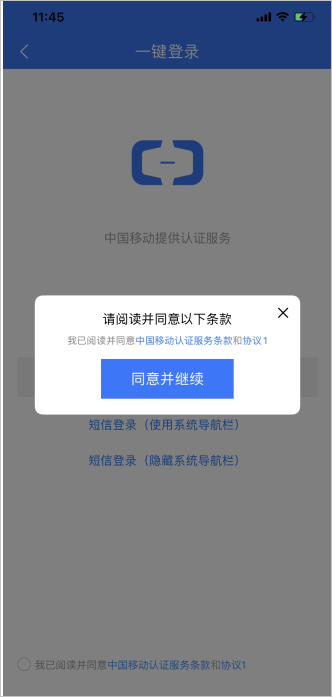
Method |
Parameter type |
Description |
privacyAlertIsNeedShow |
boolean |
Specifies whether to show the secondary privacy agreement pop-up. Valid values:
|
privacyAlertIsNeedAutoLogin |
boolean |
Specifies whether to perform the logon action when the button in the secondary privacy agreement pop-up is clicked. Valid values:
|
privacyAlertMaskIsNeedShow |
boolean |
Specifies whether to show the background overlay for the secondary privacy agreement pop-up.
|
privacyAlertMaskAlpha |
float |
Sets the opacity of the overlay for the secondary privacy agreement pop-up. The default value is 0.3. Note The value must be in the range of 0.3 to 1.0. |
privacyAlertAlpha |
float |
Sets the opacity of the secondary privacy agreement pop-up. The default value is 1.0. Note The value must be in the range of 0.3 to 1.0. |
privacyAlertBackgroundColor |
int |
Sets the background color of the secondary privacy agreement pop-up (the area of the "Agree and Continue" button). |
privacyAlertEntryAnimation |
String |
Sets a custom entry animation for the secondary privacy agreement pop-up. |
privacyAlertExitAnimation |
String |
Sets a custom exit animation for the secondary privacy agreement pop-up. |
privacyAlertCornerRadiusArray |
int |
Sets the corner radius values for the four corners of the secondary privacy agreement pop-up. Note The order is top-left, top-right, bottom-right, bottom-left. You must provide 4 values. If fewer than 4 values are provided, the setting is invalid. A value less than or equal to 0 results in a right-angled corner. |
privacyAlertAlignment |
int |
Sets the alignment on the screen: center, top, bottom, left, or right. The default is center. |
privacyAlertWidth |
int |
Sets the pop-up width. |
privacyAlertHeight |
int |
Sets the pop-up height. |
privacyAlertOffsetX |
int |
Sets the horizontal offset of the pop-up. The unit is dp. |
privacyAlertOffsetY |
int |
Sets the vertical offset of the pop-up. The unit is dp. |
privacyAlertTitleBackgroundColor |
int |
Sets the background color of the title area in the secondary privacy agreement pop-up. |
privacyAlertTitleAlignment |
int |
Sets the alignment of the title in the secondary privacy agreement pop-up. Center and left alignment are supported. The default is center. |
privacyAlertTitleOffsetX |
int |
Sets the horizontal offset of the title text. The unit is dp. |
privacyAlertTitleOffsetY |
int |
Sets the vertical offset of the title text. The unit is dp. |
privacyAlertTitleContent |
String |
Sets the title text. |
privacyAlertTitleTextSize |
int |
Sets the title text size. The default value is 18 sp. |
privacyAlertTitleColor |
int |
Sets the title text color. |
privacyAlertContentBackgroundColor |
int |
Sets the background color of the agreement content area. |
privacyAlertContentTextSize |
int |
Sets the text size for the terms of service. The default value is 16 sp. |
privacyAlertContentAlignment |
int |
Sets the alignment of the agreement text in the secondary privacy agreement pop-up. Center and left alignment are supported. The default is left. |
privacyAlertContentColor |
int |
Sets the text color for the terms of service. |
privacyAlertContentBaseColor |
int |
Sets the color for the non-link text in the terms of service. |
privacyAlertContentHorizontalMargin |
int |
Sets the left and right margins for the terms of service. |
privacyAlertContentVerticalMargin |
int |
Sets the top and bottom margins for the terms of service. |
privacyAlertBtnBackgroundImgPath |
String |
Sets the path of the button's background image. |
privacyAlertBtnBackgroundImgDrawable |
Drawable |
Sets the drawable object for the confirmation button's background image. |
privacyAlertBtnTextColor |
int |
Sets the confirmation button text color. |
privacyAlertBtnTextColorPath |
String |
Sets the path for the confirmation button's text color. |
privacyAlertBtnTextSize |
int |
Sets the confirmation button text size. The default value is 18 sp. |
privacyAlertBtnWidth |
int |
Sets the confirmation button width. The unit is dp. |
privacyAlertBtnHeigth |
int |
Sets the confirmation button height. The unit is dp. |
privacyAlertCloseBtnShow |
boolean |
Sets the Close button in the top-right corner.
|
privacyAlertCloseImagPath |
String |
Sets the path for the Close button image. |
privacyAlertCloseScaleType |
ImageView.ScaleType |
Sets the scaling type for the Close button. |
privacyAlertCloseImagDrawable |
Drawable |
Sets the image for the Close button. |
privacyAlertCloseImgWidth |
int |
Sets the width of the Close button. The unit is dp. |
privacyAlertCloseImgHeight |
int |
Sets the height of the Close button. The unit is dp. |
privacyAlertBtnGrivaty |
int[] |
Sets the layout mode for the confirmation button. |
privacyAlertBtnContent |
int |
Sets the confirmation button text. |
privacyAlertBtnHorizontalMargin |
int |
Sets the horizontal margin of the confirmation button. |
privacyAlertBtnVerticalMargin |
int |
Sets the vertical margin of the confirmation button. |
tapPrivacyAlertMaskCloseAlert |
boolean |
Specifies whether to close the secondary privacy agreement pop-up when the background overlay is clicked.
|
usePrivacyAlertTitleFontAndPath |
boolean, String |
Specifies whether to use a custom font for the title text of the secondary pop-up. The custom font name must include the font format, such as xxx.ttf. The file must be placed in the assets folder.
|
setPrivacyAlertTitleTypeface |
Typeface |
Sets the title text of the secondary pop-up to use a system font. Parameters include the following: Typeface.SANS_SERIF, Typeface.SERIF, Typeface.MONOSPACE. |
usePrivacyAlertContentFontAndPath |
boolean, String |
Specifies whether to use a custom font for the agreement text of the secondary pop-up. The custom font name must include the font format, such as xxx.ttf. The file must be placed in the assets folder.
|
setPrivacyAlertContentTypeface |
Typeface |
Sets the agreement text of the secondary pop-up to use a system font. Parameters include the following: Typeface.SANS_SERIF, Typeface.SERIF, Typeface.MONOSPACE. |
usePrivacyAlertBtnFontAndPath |
boolean, String |
Specifies whether to use a custom font for the confirmation button text of the secondary pop-up. The custom font name must include the font format, such as xxx.ttf. The file must be placed in the assets folder.
|
setPrivacyAlertBtnTypeface |
Typeface |
Sets the confirmation button text of the secondary pop-up to use a system font. Parameters include the following: Typeface.SANS_SERIF, Typeface.SERIF, Typeface.MONOSPACE. |
setPrivacyAlertBefore |
String |
Sets the prefix for the agreement in the secondary pop-up. |
setPrivacyAlertEnd |
String |
Sets the suffix for the agreement in the secondary pop-up. |
setPrivacyAlertOneColor |
int |
Sets the text color for the first privacy policy on the authorization page. |
setPrivacyAlertTwoColor |
int |
Sets the text color for the second privacy policy on the authorization page. |
setPrivacyAlertThreeColor |
int |
Sets the text color for the third privacy policy on the authorization page. |
setPrivacyAlertOperatorColor |
int |
Sets the text color for the carrier's terms of service on the authorization page. |
6. FAQ
1. What do I do if the network communication of the application is normal but mobile number-based authentication fails when my mobile number is obtained for the first time?
Check whether the SIM card has an overdue payment and whether you can access the Internet over the cellular data network.
On some Android systems from Chinese manufacturers, Wi-Fi and cellular network permissions are managed separately. Check if the application has only Wi-Fi permission and does not have cellular network permission.
2. Why does the checkEnvAvailable function return false?
Check whether the SIM card is inserted.
Check whether the cellular network is turned on.
3. Why does the token fail to be obtained?
You can check the network mode in your phone's settings. The supported network modes are 2G/3G/4G for China Mobile, 3G/4G for China Unicom, and 4G for China Telecom. However, all these carriers are more reliable on their 4G networks.
The interface timeout period is too short. We recommend that you set the timeout period from 3,000 to 5,000 milliseconds.
Check if the SIM card has an overdue payment and can access the internet over the cellular network.
After you change the SIM card, you must wait for the network to be stable before you use the mobile-number-based authentication and logon services.
4. What is the logon logic of a dual-SIM card mobile phone that runs Android?
The default data SIM card is used for one-click logon authentication.
5. What causes the "mobile device not secure" error (error code 600005)?
The phone's network is connected to a proxy.
The phone is in a hooked state, or a hooking framework is installed.
Check whether the application is in the attached state.
Check whether root permissions of the mobile phone are obtained.
Indicates whether the current environment is an emulator.
The application is in debug mode. You can disable this check using getReporter.setLoggerEnable(true).
6. Permissions
Check whether the permissions of the application are normal. If you have normally added the reference to the .aar files, permissions are automatically merged. If the permissions are not merged, you need to add the following permissions:
<uses-permission
    android:name="android.permission.INTERNET" />
<uses-permission
    android:name="android.permission.ACCESS_WIFI_STATE" />
<uses-permission
    android:name="android.permission.ACCESS_NETWORK_STATE" />
<uses-permission
    android:name="android.permission.CHANGE_NETWORK_STATE" />
7. Invalid mobile phone number
For some mobile numbers that use pilot pure data packages and do not pass real-name verification, an error code may be returned that indicates that the current mobile number is invalid.
8. VPN Errors
When you turn on VPN and use the SDK to implement mobile number-based logon, the source IP error occurs if you use a China Unicom number, the 800008 error occurs if you use a China Telecom number, and the 103111 error occurs if you use a China Mobile number. In this case, turn off VPN, or turn on and off the airplane mode in sequence, and then try again.
9. Unauthorized page modifications
If a floating window control is added to block the privacy term section, logon button, or mask, or the font color is set to transparent, the error code 600005 is returned, indicating that an illegal modification occurs.
10. What do I do if the mobile number-based logon with a China Mobile SIM card fails and the following error message appears?
ontokenfaild{"code":"600011","msg":"vendorCode:200025, msg: Fails to obtain the mobile authentication code: {\"resultCode\":\"200025\",\"authType\":\"1\",\"authTypeDes\":\"Gateway authentication under the Wi-Fi network\",\"resultDesc\":\"An unknown error occurs.\"}","requestCode":0,"vendorName":"CMCC"} Check the version of the v4 or v7 package. The version of the com.android.support:support-v4 or com.android.support:appcompat-v7 package must be later than 25.4.0.
11. What do I do if the mobile number-based logon with a China Mobile SIM card fails and the following error message appears?
ontokenfaild{"code":"600011","msg":"vendorCode:200028, msg: Fails to obtain the mobile authentication code:{\"resultCode\":\"200028\",\"authType\":\"1\",\"authTypeDes\":\"Network authentication\",\"resultDesc\":\"Network error\"}","requestCode":0,"vendorName":"CMCC"}
Check whether the android:usesCleartextTraffic parameter under the application label of the manifest file is set to true and whether the android:networkSecurityConfig file is configured.
If the networkSecurityConfig file is configured, set the parameters in the networkSecurityConfig file.
<application
        android:name=".DemoApplication"
        android:icon="@drawable/ic_launcher"
        android:label="@string/app_name"
        android:supportsRtl="true"
        android:theme="@style/AppTheme"
        android:usesCleartextTraffic="true"
        android:networkSecurityConfig="@xml/config"
        android:requestLegacyExternalStorage="true">
</application>
<network-security-config>
<domain-config cleartextTrafficPermitted="true">
<domain includeSubdomains="true">cmpassport.com</domain>
</domain-config>
</network-security-config>