iOS SDK integration
This guide explains how to integrate the iOS client SDK.
1. Overview
Download the SDK & demo package from the official website and unzip it. The package contains the following:
-
IDaaSDoraemonSDK.framework (security authentication static library)
-
Service-specific authentication SDKs
2. Before you begin
2.1 Prerequisites
If your application uses the phone number authentication service, ensure the device is connected to a 4G network. 3G networks are supported for China Mobile and China Unicom subscribers, but may increase API response times. After a phone number is authorized, the service is available immediately for China Telecom and China Unicom subscribers. For China Mobile subscribers, you must wait 10 minutes before using the service.
2.2 Integration process
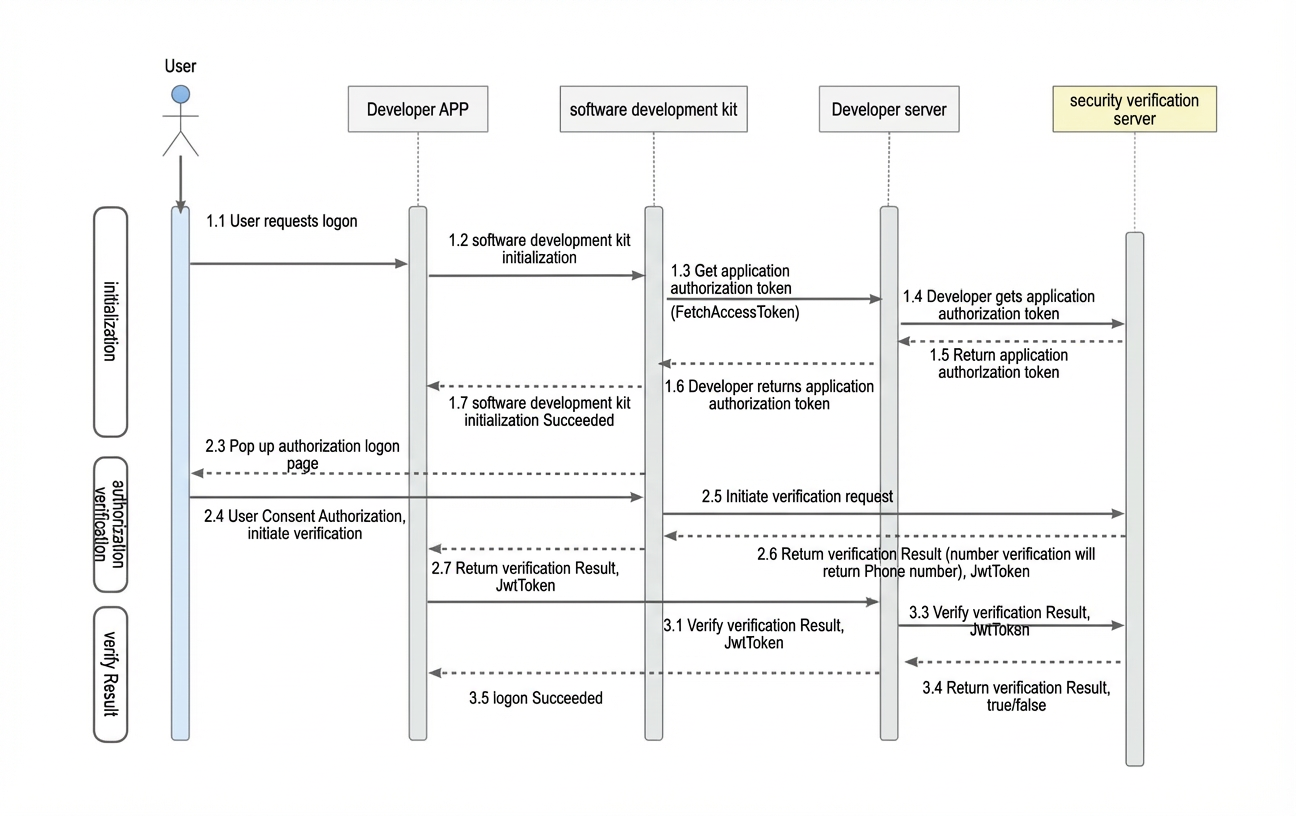
2.3 Run the demo project
The unzipped package contains the DoraemonDemo project. In the project, replace the placeholder bundleID and app key with the values obtained when you created your application.
2.4 Set up the development environment
Your application must run on iOS 11.0 or later.
2.4.1 Add frameworks and libraries
In Targets > General > Linked Frameworks and Libraries, add IDaaSDoraemonSDK.framework.
If you enable an authentication method for your application, add these additional libraries:
In Targets > General > Linked Frameworks and Libraries, add ATAuthSDK.framework.
Add YTXMonitor.framework, YTXOperators.framework, and ATAuthSDK.bundle.
2.4.2 Configure Build Settings
In Targets > Build Settings, add -ObjC to Other Linker Flags. Ensure the C is uppercase, as using a lowercase c will cause the application to crash at runtime.
3. Mobile number authentication SDK API
3.1 IDaaSDoraemonManager main class
3.1.1 Get the singleton instance (sharedInstance)
  /**
  * Gets the singleton instance.
  * @return The singleton instance.
  */
+ (instancetype _Nonnull )sharedInstance;
3.1.2 Get the SDK version (getVersion)
/**
* Gets the SDK version.
* @return A string containing the SDK version.
*/
- (NSString *_Nonnull)getVersion;
3.1.3 Initialize the authentication service (SDKInitWithApplicationExternalId)
/**
 *  Initializes the SDK.
 *  @param applicationExternalId The application external ID.
 *  @param appKey The app key.
 *  @param complete A callback invoked on the main thread with the result.
 */
-(void)SDKInitWithApplicationExternalId:(NSString *)applicationExternalId appKey:(NSString *)appKey complete:(void (^)(NSDictionary *resultDic))complete;
3.1.4 Access token callback
To obtain the access token, call the server-side Get application access token API. You must then implement this callback to provide the token to the SDK.
/** A callback used to fetch the access token. You must implement this callback to retrieve the token from your server and return it to the SDK. */
@property (nonatomic,copy) NSDictionary *(^fetchAccessTokenCallBack)(NSString *mobileExtendParamsJson, NSString *mobileExtendParamsJsonSign);
3.1.5 Mobile number authentication (custom UI)
For details on how to customize the UI, see 4. SDK demo integration example and 5. Guide to the mobile number authentication authorization page.
/**
 *  Performs mobile number authentication with a custom UI. This method supports one-click login and local mobile number verification.
 *  @param userId  The user ID. This parameter is required.
 *  @param action  The authentication type. Valid values: `DoraemonAuthTypeVerifyToken` and `DoraemonAuthTypeLoginToken`.
 *  @param options  Configuration options for the custom UI or other settings.
 */
-(void)SDKAuthenticateWithUserId:(NSString *)userId action:(DoraemonAuthType)action options:(UIControlOptions *)options complete:(void (^)(NSDictionary *resultDic))complete;
3.1.6 Mobile number authentication (default UI)
/**
 *  Performs mobile number authentication by using the default UI. This method supports one-click login and local mobile number verification.
 *  @param userId  The user ID. This parameter is required.
 *  @param controller  The view controller from which to present the default authentication UI.
 */
-(void)SDKAuthenticatesWithUserId:(NSString *)userId controller:(UIViewController *)controller complete:(void (^)(NSDictionary *resultDic))complete;
4. SDK examples
4.1 Getting an access token
 [IDaaSDoraemonManager sharedInstance].fetchAccessTokenCallBack = ^NSDictionary *(NSString *mobileExtendParamsJson, NSString *mobileExtendParamsJsonSign) {
        HKLog(@"mobileExtendParamsJson--- %@",mobileExtendParamsJson);
        HKLog(@"mobileExtendParamsJsonSign--- %@",mobileExtendParamsJsonSign);
    // The dictionary that the app's server returns from the FetchAccessToken call.
    NSDictionary *dic = @{
            @"access_token":@"eyJhbGciOiJIUzI1NiIsInR5cCI6IkpXVCIsImtpZCI6ImJiY2Q1NzVjNDJlMjhiZDJmYjM0NGNmNWRiZjY3MWE2Z0xaYnlIYVJZNE****.eyJhdWQiOlsiZG9yYWVtb25fYXBpX3Jlc291cmNlIl0sImdyYW50X3R5cGUiOiJjbGllbnRfY3JlZGVudGlhbHMiLCJfX3BhcmFtZXRlcnNfXyI6eyJfX2NsaWVudCQkYXBwT3NfXyI6ImlPUyIsIl9fY2xpZW50JCR1c2VySWRfXyI6ImxpbmJhb3dlaSIsImdyYW50X3R5cGUiOiJjbGllbnRfY3JlZGVudGlhbHMiLCJfX2NsaWVudCQkYXBwSWRfXyI6ImNvbS5pZHNtYW5hZ2VyLmlkcDQiLCJfX2NsaWVudCQkYXBwbGljYXRpb25FeHRlcm5hbElkX18iOiJBMDAwMDAwMDMiLCJfX2NsaWVudCQkZGV2aWNlVW5pcXVlSWRfXyI6IjBGRTE3NTU2LTg5NTYtNDY4MC1BNkNELUIzMUVBOUM0MDcyOSJ9LCJzY29wZSI6WyJyZWFkIl0sIl9fZXh0ZW5zaW9uc19fIjp7fSwiZXhwIjoxNjM3ODkzODMwLCJqdGkiOiI2NGVmNDY0MS1jMGYwLTQ2MWItOGFjNC00YzNhYmY4OTg3NTYiLCJjbGllbnRfaWQiOiI2NGJjMzhmZGI3NmY4MjE3MDEwMjlmZjRhZjAwNTI5OWdzQ2RtRVM2VXp2In0.D_Fp7nGwC7a-FxGIr9lrPbn37qxRtNwLGSV94KaGnW8",
            @"refresh_token":@"refresh_token",
            @"expires_in":@86399
        };
        return dic;
    };
4.2 Authorization page for local number login
 __weak typeof(self) weakSelf = self;
    TXCustomModel *model = [weakSelf buildCustomModel:NO];
    model.supportedInterfaceOrientations = YES;
    UIControlOptions *options = [[UIControlOptions alloc]init];
    options.controller = weakSelf;
    options.customModel = model;
    options.timeOut = 3.0;
    [[IDaaSDoraemonManager sharedInstance]SDKAuthenticateWithAuthMethod:@"PHONE_VERIFICATION" action:DoraemonAuthTypeLoginToken userId:@"12313" options:options complete:^(NSDictionary *resultDic) {
        NSString *code = [resultDic objectForKey:@"code"];
        if ([PNSCodeLoginControllerPresentSuccess isEqualToString:code]) {
            HKLog(@"Authorization page presented successfully.");
        } else if ([PNSCodeLoginControllerClickCancel isEqualToString:code]) {
            HKLog(@"Tapped the Back button on the authorization page.");
        } else if ([PNSCodeLoginControllerClickChangeBtn isEqualToString:code]) {
            HKLog(@"Tapped the button to switch to another login method.");
        } else if ([PNSCodeLoginControllerClickLoginBtn isEqualToString:code]) {
            if ([[resultDic objectForKey:@"isChecked"] boolValue] == YES) {
                HKLog(@"Tapped the login button while the checkbox is selected. The SDK then fetches the login token.");
            } else {
                HKLog(@"Tapped the login button while the checkbox is not selected. The SDK will not fetch the login token.");
            }
        } else if ([PNSCodeLoginControllerClickCheckBoxBtn isEqualToString:code]) {
            HKLog(@"Tapped the checkbox.");
        } else if ([PNSCodeLoginControllerClickProtocol isEqualToString:code]) {
            HKLog(@"Tapped the agreements.");
        } else if ([AuthSuccess isEqualToString:code]) {
            // Callback for a successful login token response.
            HKLog(@"token %@",resultDic);
        }
    }];
4.3 Full-screen authorization page with orientation switching
TXCustomModel *model = [[TXCustomModel alloc] init];
model.navColor = UIColor.orangeColor;
model.navTitle = [[NSAttributedString alloc] initWithString:@"Login with local number (Full Screen)" attributes:@{NSForegroundColorAttributeName : UIColor.whiteColor,NSFontAttributeName : [UIFont systemFontOfSize:20.0]}];
//model.navIsHidden = NO;
model.navBackImage = [UIImage imageNamed:@"icon_nav_back_light"];     //model.hideNavBackItem = NO;
UIButton *rightBtn = [UIButton buttonWithType:UIButtonTypeSystem];
[rightBtn setTitle:@"More" forState:UIControlStateNormal];
model.navMoreView = rightBtn;
model.privacyNavColor = UIColor.orangeColor;
model.privacyNavBackImage = [UIImage imageNamed:@"icon_nav_back_light"];
model.privacyNavTitleFont = [UIFont systemFontOfSize:20.0];
model.privacyNavTitleColor = UIColor.whiteColor;
model.logoImage = [UIImage imageNamed:@"taobao"];
//model.logoIsHidden = NO;
//model.sloganIsHidden = NO;
model.sloganText = [[NSAttributedString alloc] initWithString:@"Slogan for local number login" attributes:@{NSForegroundColorAttributeName : UIColor.orangeColor,NSFontAttributeName : [UIFont systemFontOfSize:16.0]}];
model.numberColor = UIColor.orangeColor;
model.numberFont = [UIFont systemFontOfSize:30.0];
model.loginBtnText = [[NSAttributedString alloc] initWithString:@"Login with local number" attributes:@{NSForegroundColorAttributeName : UIColor.whiteColor,NSFontAttributeName : [UIFont systemFontOfSize:20.0]}];
//model.autoHideLoginLoading = NO;
//model.privacyOne = @[@"Privacy Policy 1",@"https://www.taobao.com/"];
//model.privacyTwo = @[@"Terms of Service 2",@"https://www.taobao.com/"];
model.privacyColors = @[UIColor.lightGrayColor, UIColor.orangeColor];
model.privacyAlignment = NSTextAlignmentCenter;
model.privacyFont = [UIFont fontWithName:@"PingFangSC-Regular" size:13.0];
model.privacyOperatorPreText = @"《";
model.privacyOperatorSufText = @"》";
//model.checkBoxIsHidden = NO;
model.checkBoxWH = 17.0;
model.changeBtnTitle = [[NSAttributedString alloc] initWithString:@"Switch to another method" attributes:@{NSForegroundColorAttributeName : UIColor.orangeColor,NSFontAttributeName : [UIFont systemFontOfSize:18.0]}];
//model.changeBtnIsHidden = NO;
//model.prefersStatusBarHidden = NO;
model.preferredStatusBarStyle = UIStatusBarStyleLightContent;
//model.presentDirection = PNSPresentationDirectionBottom;
// Adjust the layout of the default controls on the authorization page.
//model.navBackButtonFrameBlock =
//model.navTitleFrameBlock =
model.navMoreViewFrameBlock = ^CGRect(CGSize screenSize, CGSize superViewSize, CGRect frame) {
    CGFloat width = superViewSize.height;
    CGFloat height = width;
    return CGRectMake(superViewSize.width - 15 - width, 0, width, height);
};
model.loginBtnFrameBlock = ^CGRect(CGSize screenSize, CGSize superViewSize, CGRect frame) {
    if ([self isHorizontal:screenSize]) {
        frame.origin.y = 20;
        return frame;
    }
    return frame;
};
model.sloganFrameBlock = ^CGRect(CGSize screenSize, CGSize superViewSize, CGRect frame) {
    if ([self isHorizontal:screenSize]) {
        return CGRectZero; // Simulates hiding this control in landscape mode.
    } else {
        return CGRectMake(0, 140, superViewSize.width, frame.size.height);
    }
};
model.numberFrameBlock = ^CGRect(CGSize screenSize, CGSize superViewSize, CGRect frame) {
    if ([self isHorizontal:screenSize]) {
        frame.origin.y = 140;
    }
    return frame;
};
model.loginBtnFrameBlock = ^CGRect(CGSize screenSize, CGSize superViewSize, CGRect frame) {
    if ([self isHorizontal:screenSize]) {
        frame.origin.y = 185;
    }
    return frame;
};
model.changeBtnFrameBlock = ^CGRect(CGSize screenSize, CGSize superViewSize, CGRect frame) {
    if ([self isHorizontal:screenSize]) {
        return CGRectZero; // Simulates hiding this control in landscape mode.
    } else {
        return CGRectMake(10, frame.origin.y, superViewSize.width - 20, 30);
    }
};
//model.privacyFrameBlock =
// Add and lay out a custom control.
__block UIButton *customBtn = [UIButton buttonWithType:UIButtonTypeCustom];
[customBtn setTitle:@"This is a custom control" forState:UIControlStateNormal];
[customBtn setBackgroundColor:UIColor.redColor];
customBtn.frame = CGRectMake(0, 0, 230, 40);
model.customViewBlock = ^(UIView * _Nonnull superCustomView) {
    [superCustomView addSubview:customBtn];
};
model.customViewLayoutBlock = ^(CGSize screenSize, CGRect contentViewFrame, CGRect navFrame, CGRect titleBarFrame, CGRect logoFrame, CGRect sloganFrame, CGRect numberFrame, CGRect loginFrame, CGRect changeBtnFrame, CGRect privacyFrame) {
    CGRect frame = customBtn.frame;
    frame.origin.x = (contentViewFrame.size.width - frame.size.width) * 0.5;
    frame.origin.y = CGRectGetMinY(privacyFrame) - frame.size.height - 20;
    frame.size.width = contentViewFrame.size.width - frame.origin.x * 2;
    customBtn.frame = frame;     };
// Screen orientation switching
model.supportedInterfaceOrientations = UIInterfaceOrientationMaskAllButUpsideDown;
// Portrait only
model.supportedInterfaceOrientations = UIInterfaceOrientationMaskPortrait;
// Landscape only
model.supportedInterfaceOrientations = UIInterfaceOrientationMaskLandscape;
4.4 Pop-up authorization page with orientation switching
TXCustomModel *model = [[TXCustomModel alloc] init];
model.alertCornerRadiusArray = @[@10, @10, @10, @10];
//model.alertCloseItemIsHidden = YES;
model.alertTitleBarColor = UIColor.orangeColor;
model.alertTitle = [[NSAttributedString alloc] initWithString:@"Login with local number (Pop-up)" attributes:@{NSForegroundColorAttributeName : UIColor.whiteColor, NSFontAttributeName : [UIFont systemFontOfSize:20.0]}];
model.alertCloseImage = [UIImage imageNamed:@"icon_close_light"];
model.privacyNavColor = UIColor.orangeColor;
model.privacyNavBackImage = [UIImage imageNamed:@"icon_nav_back_light"];
model.privacyNavTitleFont = [UIFont systemFontOfSize:20.0];
model.privacyNavTitleColor = UIColor.whiteColor;
model.logoImage = [UIImage imageNamed:@"taobao"];
//model.logoIsHidden = NO;
//model.sloganIsHidden = NO;
model.sloganText = [[NSAttributedString alloc] initWithString:@"Slogan for local number login" attributes:@{NSForegroundColorAttributeName : UIColor.orangeColor,NSFontAttributeName : [UIFont systemFontOfSize:16.0]}];
model.numberColor = UIColor.orangeColor;
model.numberFont = [UIFont systemFontOfSize:30.0];
model.loginBtnText = [[NSAttributedString alloc] initWithString:@"Login with local number" attributes:@{NSForegroundColorAttributeName : UIColor.whiteColor, NSFontAttributeName : [UIFont systemFontOfSize:20.0]}];
//model.autoHideLoginLoading = NO;
//model.privacyOne = @[@"Privacy Policy 1",@"https://www.taobao.com/"];     //model.privacyTwo = @[@"Terms of Service 2",@"https://www.taobao.com/"];
model.privacyColors = @[UIColor.lightGrayColor, UIColor.orangeColor];     model.privacyAlignment = NSTextAlignmentCenter;
model.privacyFont = [UIFont fontWithName:@"PingFangSC-Regular" size:13.0];
model.privacyOperatorPreText = @"《";
model.privacyOperatorSufText = @"》";
//model.checkBoxIsHidden = NO;
model.checkBoxWH = 17.0;
model.changeBtnTitle = [[NSAttributedString alloc] initWithString:@"Switch to another method" attributes:@{NSForegroundColorAttributeName : UIColor.orangeColor,NSFontAttributeName : [UIFont systemFontOfSize:18.0]}];     //model.changeBtnIsHidden = NO;
//model.prefersStatusBarHidden = NO;
//model.preferredStatusBarStyle = UIStatusBarStyleDefault;
//model.presentDirection = PNSPresentationDirectionBottom;
CGFloat ratio = MAX(TX_SCREEN_WIDTH, TX_SCREEN_HEIGHT) / 667.0;
// To display the authorization page in pop-up mode, implement this block and return a frame where the x or y coordinate is greater than 0.
model.contentViewFrameBlock = ^CGRect(CGSize screenSize, CGSize contentSize, CGRect frame) {
CGFloat alertX = 0;
CGFloat alertY = 0;
CGFloat alertWidth = 0;
CGFloat alertHeight = 0;
if ([self isHorizontal:screenSize]) {
    alertX = ratio * TX_Alert_Horizontal_Default_Left_Padding;
    alertWidth = screenSize.width - alertX * 2;
    alertY = (screenSize.height - alertWidth * 0.5) * 0.5;
    alertHeight = screenSize.height - 2 * alertY;
} else {
    alertX = TX_Alert_Default_Left_Padding * ratio;
    alertWidth = screenSize.width - alertX * 2;
    alertY = TX_Alert_Default_Top_Padding * ratio;
    alertHeight = screenSize.height - alertY * 2;
}
return CGRectMake(alertX, alertY, alertWidth, alertHeight);
};
// Adjust the layout of the default controls on the authorization page.
//model.alertTitleBarFrameBlock =
//model.alertTitleFrameBlock =
//model.alertCloseItemFrameBlock =
model.logoFrameBlock = ^CGRect(CGSize screenSize, CGSize superViewSize, CGRect frame) {
    if ([self isHorizontal:screenSize]) {
        return CGRectZero;
        // Simulates hiding this control in landscape mode.
    } else {
        frame.origin.y = 10;
        return frame;
    }
};
model.sloganFrameBlock = ^CGRect(CGSize screenSize, CGSize superViewSize, CGRect frame) {
    if ([self isHorizontal:screenSize]) {
        return CGRectZero;
        // Simulates hiding this control in landscape mode.
    } else {
        frame.origin.y = 110;
        return frame;
    }
};
model.numberFrameBlock = ^CGRect(CGSize screenSize, CGSize superViewSize, CGRect frame) {
    if ([self isHorizontal:screenSize]) {
        frame.origin.y = 20;
        frame.origin.x = (superViewSize.width * 0.5 - frame.size.width) * 0.5 + 18.0;
    } else {
        frame.origin.y = 140;
    }
    return frame;
};
model.loginBtnFrameBlock = ^CGRect(CGSize screenSize, CGSize superViewSize, CGRect frame) {
    if ([self isHorizontal:screenSize]) {
        frame.origin.y = 60;
        frame.size.width = superViewSize.width * 0.5;
        // The login button's minimum width is half of its superview's width. A smaller value has no effect.
    } else {
        frame.origin.y = 180;
    }
    return frame;
};
model.changeBtnFrameBlock = ^CGRect(CGSize screenSize, CGSize superViewSize, CGRect frame) {
    if ([self isHorizontal:screenSize]) {
        return CGRectZero; // Simulates hiding this control in landscape mode.
    } else {
        return CGRectMake(10, 240, superViewSize.width - 20, 30);
    }
};
//model.privacyFrameBlock =
// Add and lay out a custom control.
__block UIButton *customBtn = [UIButton buttonWithType:UIButtonTypeCustom];
[customBtn setTitle:@"This is a custom control" forState:UIControlStateNormal];
[customBtn setBackgroundColor:UIColor.redColor];
model.customViewBlock = ^(UIView * _Nonnull superCustomView) {          [superCustomView addSubview:customBtn];     };
model.customViewLayoutBlock = ^(CGSize screenSize, CGRect contentViewFrame, CGRect navFrame, CGRect titleBarFrame, CGRect logoFrame, CGRect sloganFrame, CGRect numberFrame, CGRect loginFrame, CGRect changeBtnFrame, CGRect privacyFrame) {
    CGFloat padding = 15;
    CGFloat x = 0;
    CGFloat y = 0;
    CGFloat width = 0;
    CGFloat height = 0;
    if ([self isHorizontal:screenSize]) {
        x = CGRectGetMaxX(loginFrame) + padding;
        y = padding;
        width = contentViewFrame.size.width - x - padding;
        height = CGRectGetMinY(privacyFrame) - y - padding;
    } else {
        x = padding;
        y = MAX(CGRectGetMaxY(changeBtnFrame), CGRectGetMaxY(loginFrame)) + padding;
        width = contentViewFrame.size.width - 2 * x;
        height = CGRectGetMinY(privacyFrame) - y - padding;
    }
    customBtn.frame = CGRectMake(x, y, width, height);
};
// Screen orientation switching
model.supportedInterfaceOrientations =UIInterfaceOrientationMaskAllButUpsideDown;
// Portrait only
model.supportedInterfaceOrientations = UIInterfaceOrientationMaskPortrait;
// Landscape only
model.supportedInterfaceOrientations = UIInterfaceOrientationMaskLandscape;
4.5 Local number verification
   UIControlOptions *options = [[UIControlOptions alloc]init];
    options.phoneNumber = @"176*****806";
    [[IDaaSDoraemonManager sharedInstance]SDKAuthenticateWithAuthMethod:@"PHONE_VERIFICATION" action:DoraemonAuthTypeVerifyToken userId:@"12313" options:options complete:^(NSDictionary *resultDic) {
        HKLog(@"token %@",resultDic);
    }];
4.6 JWT verification
Finally, you must verify the JWT to validate the authentication result.
5. Phone number authentication and authorization
5.1 Full-screen authorization page
|
The Phone Number Verification Service one-tap login authorization page has the following customizable UI areas: ① status bar, ② navigation bar title (defaults to "one-tap login"), ③ logo, ④ service provider attribution text (for example, "Authentication service provided by Alibaba Cloud"), ⑤ masked phone number (the middle four digits are masked, for example, 158****2335), ⑥ one-tap login button, ⑦ switch login method link, ⑧ third-party login icons (for example, Taobao and Alipay), and ⑨ agreement section at the bottom, which contains links to your app's agreements and the operator's terms of service. |
① Status bar |
prefersStatusBarHidden: Hides or shows the status bar. Default: NO. preferredStatusBarStyle: Sets the style of the status bar. Default: UIStatusBarStyleDefault. |
|
② Navigation bar |
|
|
|
③ Logo |
|
|
|
④ Slogan |
|
|
|
⑤ Masked number field |
|
|
|
Below the ⑥ login button, the authorization page also includes the following customizable elements: ⑦ a switch login method text link, ⑧ third-party login entry points (such as Taobao and Alipay icons), and ⑨ the agreement section at the bottom, which displays links to your app's agreements and the operator's terms of service. |
⑥ Login button |
|
|
⑦ Switch login method |
|
|
|
⑧ Custom view area (for other login methods, etc.) |
|
|
|
⑨ Agreement section |
|
|
|
Other full-screen page properties |
|
5.2 Pop-up authorization page
|
The default UI for the Alibaba Cloud Phone Number Verification Service SDK's one-tap login pop-up in portrait mode has several customizable elements. The top features a title bar (labeled ①) with the "one-tap login" title and a close button. The middle section contains a brand icon, the "Authentication service provided by Alibaba Cloud" text, and the masked phone number (for example, 158****2335). Below this is the main action area with a blue one-tap login button and a switch login method link. The bottom of the pop-up includes options for third-party login (such as Taobao and Alipay icons) and links to privacy agreements. |
① Title bar |
|
|
Other pop-up page properties |
|
Secondary privacy agreement dialog
The Phone Number Verification Service one-tap login feature includes a default secondary privacy agreement dialog. This dialog displays the "Authentication service provided by China Mobile" text, is titled "Please read and agree to the following terms", and contains a link to the authentication service terms, an "Agree and Continue" button, and a checkbox to agree to the China Mobile authentication service terms. The dialog also provides options for "SMS login (with system navigation bar)" and "SMS login (without system navigation bar)".
Configuration
|
Parameter |
Type |
Description |
|
privacyAlertIsNeedShow |
BOOL |
Shows or hides the secondary privacy agreement dialog. Valid values:
Note The secondary privacy agreement dialog is not supported for pop-up authorization pages. |
|
privacyAlertIsNeedAutoLogin |
BOOL |
Specifies whether to automatically log in when the dialog's button is tapped. Valid values:
|
|
privacyAlertEntryAnimation |
CAAnimation |
Sets a custom animation for displaying the secondary privacy agreement dialog. Default: slide-up animation. |
|
privacyAlertExitAnimation |
CAAnimation |
Sets a custom animation for hiding the secondary privacy agreement dialog. Default: slide-down animation. |
|
privacyAlertCornerRadiusArray |
NSArray<NSNumber *> |
Sets the corner radius values for the four corners of the secondary privacy agreement dialog. Note The order is top-left, bottom-left, bottom-right, and top-right. You must provide an array of 4 values for this property to take effect. A value less than or equal to 0 results in a right-angled corner. |
|
privacyAlertBackgroundColor |
UIColor |
Sets the background color of the secondary privacy agreement dialog. |
|
privacyAlertAlpha |
CGFloat |
Sets the opacity of the secondary privacy agreement dialog. Default: 1.0. Note Values must be between 0.3 and 1.0. |
|
privacyAlertTitleFont |
UIFont |
Sets the font size of the title text in the secondary privacy agreement dialog. |
|
privacyAlertTitleColor |
UIColor |
Sets the color of the title text in the secondary privacy agreement dialog. |
|
privacyAlertTitleBackgroundColor |
UIColor |
Sets the background color of the title in the secondary privacy agreement dialog. |
|
privacyAlertTitleAlignment |
NSTextAlignment |
Sets the alignment of the title in the secondary privacy agreement dialog. Default: center-aligned. |
|
privacyAlertContentFont |
UIFont |
Sets the font size of the agreement content in the secondary privacy agreement dialog. Default: 13 dp. Minimum: 12 dp. |
|
privacyAlertContentBackgroundColor |
UIColor |
Sets the background color of the agreement content in the secondary privacy agreement dialog. |
|
privacyAlertContentColors |
NSArray<UIColor *> |
An array of colors for the agreement content in the secondary privacy agreement dialog. Note Default: [#999999, #1890FF]. Format: [non-clickable text color, clickable text color]. |
|
privacyAlertContentAlignment |
NSTextAlignment |
Sets the alignment of the agreement text in the secondary privacy agreement dialog. Supports left and center alignment. Default: left-aligned. |
|
privacyAlertBtnBackgroundImages |
NSArray<UIImage *> |
Sets the background images for the button in the secondary privacy agreement dialog. |
|
privacyAlertButtonTextColors |
NSArray<UIColor *> |
Sets the text colors for the button in the secondary privacy agreement dialog. |
|
privacyAlertButtonFont |
UIFont |
Sets the font size of the button text in the secondary privacy agreement dialog. Default: 18 dp. Minimum: 10 dp. |
|
privacyAlertCloseButtonIsNeedShow |
BOOL |
Shows or hides the close button in the secondary privacy agreement dialog.
|
|
privacyAlertCloseButtonImage |
UIImage |
Sets the image for the close button on the right side of the secondary privacy agreement dialog. |
|
privacyAlertMaskIsNeedShow |
BOOL |
Shows or hides the background mask for the secondary privacy agreement dialog.
|
|
tapPrivacyAlertMaskCloseAlert |
BOOL |
Specifies whether tapping the background mask closes the secondary privacy agreement dialog.
|
|
privacyAlertMaskColor |
UIColor |
Sets the background color of the mask for the secondary privacy agreement dialog. |
|
privacyAlertMaskAlpha |
CGFloat |
Sets the opacity of the mask for the secondary privacy agreement dialog. Default: 0.5. Note Values must be between 0.3 and 1.0. |
|
privacyAlertOperatorColor |
UIColor |
Sets the color of the operator agreement text in the secondary privacy agreement dialog. This property overrides the clickable text color set in |
|
privacyAlertOneColor |
UIColor |
Sets the color of the first agreement's text in the secondary privacy agreement dialog. This property overrides the clickable text color set in |
|
privacyAlertTwoColor |
UIColor |
Sets the color of the second agreement's text in the secondary privacy agreement dialog. This property overrides the clickable text color set in |
|
privacyAlertThreeColor |
UIColor |
Sets the color of the third agreement's text in the secondary privacy agreement dialog. This property overrides the clickable text color set in |
|
privacyAlertPreText |
NSString |
Sets the prefix text for the entire agreement string in the secondary privacy agreement dialog. If not set, this defaults to the value of the main authorization page's |
|
privacyAlertSufText |
NSString |
Sets the suffix text for the entire agreement string in the secondary privacy agreement dialog. If not set, this defaults to the value of the main authorization page's |
|
privacyAlertMaskEntryAnimation |
CAAnimation |
Sets the animation for displaying the mask of the secondary privacy agreement dialog. Default: fade-in animation. |
|
privacyAlertMaskExitAnimation |
CAAnimation |
Sets the animation for hiding the mask of the secondary privacy agreement dialog. Default: fade-out animation. |
|
privacyAlertFrameBlock |
PNSBuildFrameBlock |
Sets the frame for the secondary privacy agreement dialog. Note Default origin and size: x=20, y=(Screen Height - 100) * 0.5, width=(Screen Width - 40), height=100. The dialog cannot extend beyond its parent view. The minimum height is 50 px and the minimum width is 0 px. |
|
privacyAlertTitleFrameBlock |
PNSBuildFrameBlock |
Sets the frame for the title in the secondary privacy agreement dialog. Note The title cannot extend beyond its parent view. The minimum width is 100 px and the minimum height is 15 px. |
|
privacyAlertPrivacyContentFrameBlock |
PNSBuildFrameBlock |
Sets the frame for the content in the secondary privacy agreement dialog. Note The frame is positioned relative to the top of the title and cannot extend beyond its parent view. |
|
privacyAlertButtonFrameBlock |
PNSBuildFrameBlock |
Sets the frame for the "Agree and Continue" button in the secondary privacy agreement dialog. Note The button is center-aligned and cannot extend beyond its parent view. The minimum width is 40 px and the minimum height is 20 px. |
|
privacyAlertCloseFrameBlock |
PNSBuildFrameBlock |
Sets the frame for the close button on the right side of the secondary privacy agreement dialog. Note The button cannot extend beyond its parent view. |
|
privacyAlertBtnContent |
NSString |
Sets the button text for the secondary privacy agreement dialog. Default: "Agree". |
|
privacyAlertTitleContent |
NSString |
Sets the title text for the secondary privacy agreement dialog. Default: "Please read and agree to the following terms". |
|
privacyAlertCustomViewBlock |
Block |
A block for adding custom views to the secondary privacy agreement dialog. |
|
privacyAlertCustomViewLayoutBlock |
Block |
A block for setting the frame of custom views in the secondary privacy agreement dialog. |
6. iOS FAQ
1. Why does the checkEnvAvailableWithComplete interface always return NO?
To troubleshoot the issue, follow these steps: 1. Check that the SIM card is activated and has a sufficient balance. 2. Ensure that cellular data is enabled on the device. 3. Confirm that the app has been granted network permissions. 4. Check if a proxy is configured on the device. Using a VPN during one-click login may cause source IP errors for China Unicom users, error 800008 for China Telecom users, or error 103111 for China Mobile users. To resolve this, disable the VPN or toggle airplane mode on and off, then retry. 5. Ensure that a scheme code has been created in the cloud console. 6. Verify that the bundleId specified for the scheme code matches the one used in your project. 7. Check that the device's system time is set to the standard time and has not been manually altered. 8. Confirm that the setAuthSDKInfo interface has been called. 9. If the issue persists, provide your bundleId to us for further log analysis.
2. Why does my app crash with a [UAReachability reachableType]: unrecognized selector sent to instance error when using a China Mobile SIM card?
In your Xcode project, navigate to Project > Edit Active Target > Build Setting > Other Linker Flags and add the -all_load flag. This flag must be added in addition to the -ObjC flag, as both are required.
3. Can a login token request fail?
Yes, occasional failures can occur. These can be caused by network fluctuations leading to a gateway disconnection, an unavailable network, or temporary issues with the carrier's or your application's servers. If failures are persistent, contact the carrier for troubleshooting assistance.
4. The one-click login service is designed for 4G or 4G+Wi-Fi networks. What happens on 2G or 3G networks?
China Mobile supports 2G, 3G, and 4G networks. China Unicom supports 3G and 4G. China Telecom supports 4G. On 2G and 3G networks, API request failures or timeouts are slightly more likely.
5. What should I do if I experience frequent timeouts?
First, confirm your SIM card has a sufficient balance. Then, verify the device has a stable network connection by opening a website in Safari. Also, ensure the timeout value is set correctly in your configuration and is specified in seconds (s). Request failures or timeouts are more likely on 2G and 3G networks. Network instability during network switching can also cause timeouts.
6. Notice: Upgrading the Phone Number Verification Service for iOS 16.4
7. Notice: Upgrading the Phone Number Verification Service to the Standard Version