The document format conversion feature lets you convert supported input document types into specified output formats. This makes the document content easier for your applications to use.
This document is no longer maintained. We recommend that you use the new version of Intelligent Media Management.
For a comparison between the new and old versions of Intelligent Media Management, see New and old version guide.
For information about how to convert document formats in the new version of Intelligent Media Management, see Document format conversion.
Features
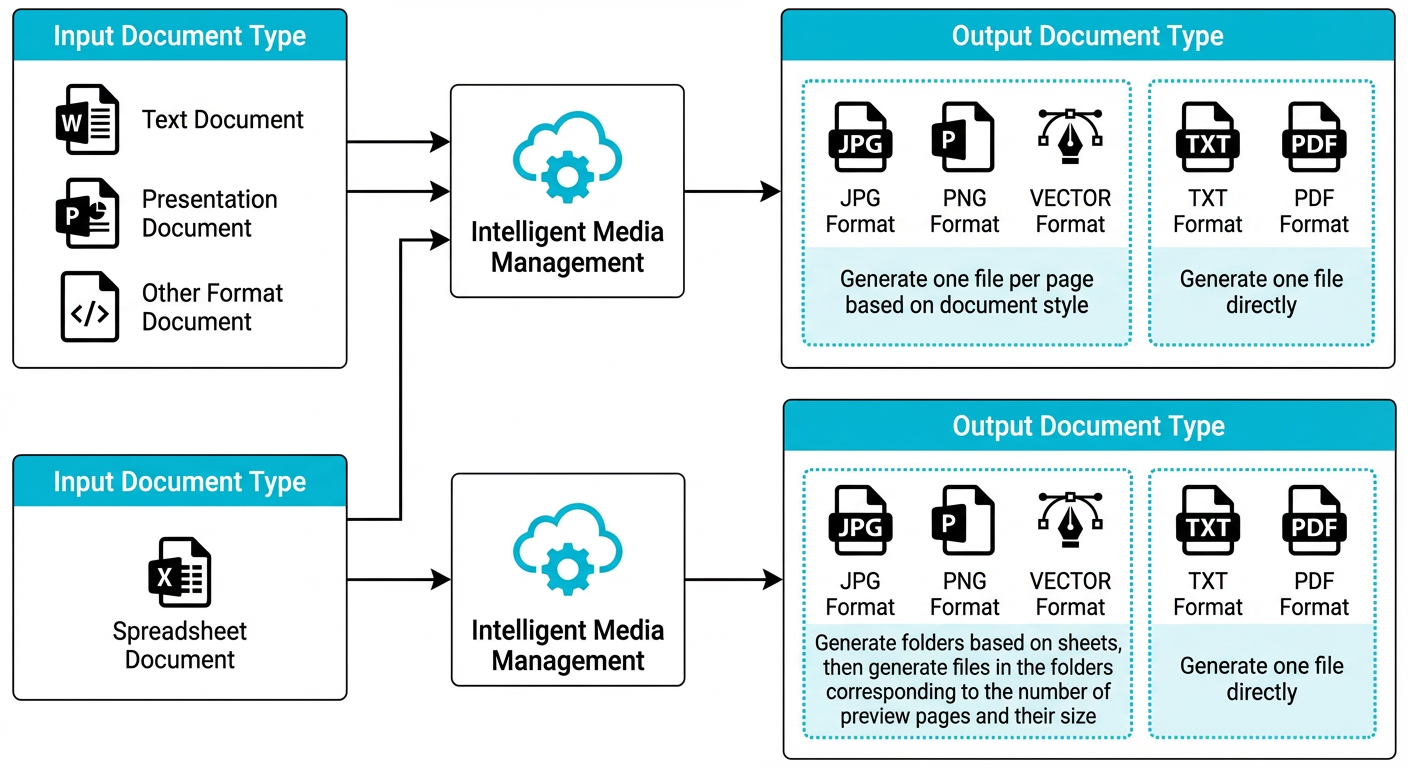
This feature converts supported input document types into specified output formats and saves the converted documents to the OSS path that you specify in the request.
The supported input document types include the following:
Text documents: DOC, DOT, WPS, WPT, DOCX, DOTX, DOCM, DOTM
Presentation documents: PPTX, PPT, POT, POTX, PPS, PPSX, DPS, DPT, PPTM, POTM, PPSM
Spreadsheet documents: XLS, XLT, ET, ETT, XLSX, XLTX, CSV, XLSB, XLSM, XLTM
Other document formats: PDF, LRC, C, CPP, H, ASM, S, JAVA, ASP, BAT, BAS, PRG, CMD, RTF, TXT, LOG, XML, HTM, HTML
The supported output document types include JPG, PNG, PDF, TXT, and VECTOR.
The output content varies depending on the output document type specified in the request. For more information, see Output content examples.
For JPG, PNG, and VECTOR output formats, the output content differs based on whether the input is a spreadsheet document.
If the input is a spreadsheet document, a folder is created for each sheet in the spreadsheet. Then, files are generated in each folder based on the number of preview pages.
If the input is not a spreadsheet document, such as a text or presentation document, one file is generated for each page of the document.
For PDF and TXT output formats, a single file is generated, regardless of the input document type.
Usage
The time required for document format conversion depends on the document size, page count, and word count. A typical request is completed in seconds, but large documents may take tens of seconds. To reduce application wait times, document format conversion provides an asynchronous API.
You can convert document formats using synchronous or asynchronous requests.
The synchronous API for document format conversion is ConvertOfficeFormat.
The asynchronous API for document format conversion is CreateOfficeConversionTask.
Output content examples
The following examples show the output content for different output document types. The examples assume the output is saved to the OSS path /bucket1/imm-format-convert-tgt/session123/.
JPG output format
If the input is a spreadsheet document, the output is structured as follows. In this example, s1 and s2 are folders generated based on the sheet names in the spreadsheet.
/bucket1/imm-format-convert-tgt/session123/s1/1.jpg
/bucket1/imm-format-convert-tgt/session123/s1/2.jpg
/bucket1/imm-format-convert-tgt/session123/s1/[...].jpg
/bucket1/imm-format-convert-tgt/session123/s2/1.jpg
/bucket1/imm-format-convert-tgt/session123/s2/2.jpg
/bucket1/imm-format-convert-tgt/session123/s2/[...].jpg
If the input is not a spreadsheet document, the output is structured as follows.
/bucket1/imm-format-convert-tgt/session123/1.jpg
/bucket1/imm-format-convert-tgt/session123/2.jpg
PNG output format
If the input is a spreadsheet document, the output is structured as follows. In this example, s1 and s2 are folders generated based on the sheet names in the spreadsheet.
/bucket1/imm-format-convert-tgt/session123/s1/1.png
/bucket1/imm-format-convert-tgt/session123/s1/2.png
/bucket1/imm-format-convert-tgt/session123/s1/[...].png
/bucket1/imm-format-convert-tgt/session123/s2/1.png
/bucket1/imm-format-convert-tgt/session123/s2/2.png
/bucket1/imm-format-convert-tgt/session123/s2/[...].png
If the input is not a spreadsheet document, the output is structured as follows.
/bucket1/imm-format-convert-tgt/session123/1.png
/bucket1/imm-format-convert-tgt/session123/2.png
For the PDF output format, the output is the same regardless of the input document type. An example is /bucket1/imm-format-convert-tgt/session123/1.pdf.
For the TXT output format, the output is the same regardless of the input document type. An example is /bucket1/imm-format-convert-tgt/session123/1.txt.
VECTOR output format
If the input is a spreadsheet document, the output is structured as follows. The meta.json file contains metadata. s1/meta.json contains the metadata for sheet1. Files such as s1/fp1.json and s1/fp2.json contain the rendering information for each page of sheet1.
/bucket1/imm-format-convert-tgt/session123/doc/meta.json
/bucket1/imm-format-convert-tgt/session123/doc/s1/meta.json
/bucket1/imm-format-convert-tgt/session123/doc/s1/fp1.json
/bucket1/imm-format-convert-tgt/session123/doc/s1/fp2.json
/bucket1/imm-format-convert-tgt/session123/doc/s1/fp[...].json
/bucket1/imm-format-convert-tgt/session123/doc/s2/meta.json
/bucket1/imm-format-convert-tgt/session123/doc/s2/fp1.json
/bucket1/imm-format-convert-tgt/session123/doc/s2/fp2.json
/bucket1/imm-format-convert-tgt/session123/doc/s2/fp[...].json
If the input is not a spreadsheet document, the output is structured as follows. The meta.json file contains metadata. Files such as fp1.json and fp2.json contain the rendering information for each page. Files such as I/1 and I/2 contain the specific content used for rendering.
/bucket1/imm-format-convert-tgt/session123/doc/meta.json
/bucket1/imm-format-convert-tgt/session123/doc/fp1.json
/bucket1/imm-format-convert-tgt/session123/doc/fp2.json
/bucket1/imm-format-convert-tgt/session123/doc/fp[...].json
/bucket1/imm-format-convert-tgt/session123/doc/I/1
/bucket1/imm-format-convert-tgt/session123/doc/I/2
/bucket1/imm-format-convert-tgt/session123/doc/I/[...]