Document Preview V1 converts input documents to the VECTOR format and uses the front-end rendering engine provided by Intelligent Media Management to provide a more powerful, customizable, and user-friendly preview experience. During preview, you can copy text from the document, zoom content without distortion, and display custom advertisements.
This document is no longer maintained. We recommend that you use the latest version of Intelligent Media Management.
-
For a comparison between the new and old versions of Intelligent Media Management, see New and old version usage guide.
-
To learn how to quickly use the document processing features in the new version of Intelligent Media Management, see Quick start.
When you convert an input document to a format such as JPG or PNG, you can build an online document preview system.
How it works
After an input document is converted to the VECTOR format, it can be previewed using the front-end rendering engine provided by Intelligent Media Management.
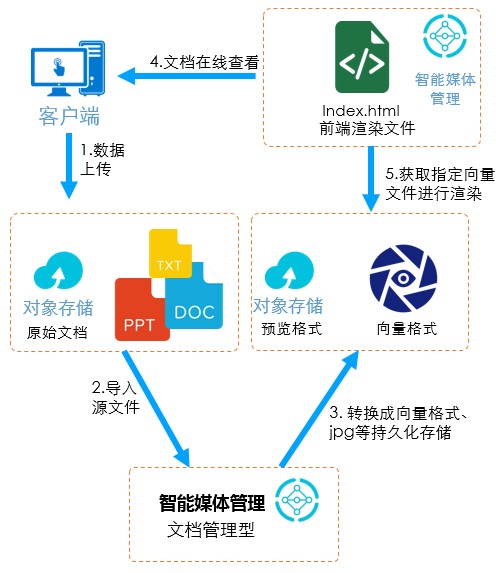
Prerequisites
-
Configure a cross-origin access rule.
Since the Object Storage Service (OSS) bucket and the preview engine are on different domains, you must add the engine's domain to the cross-origin access list of the bucket that stores the converted documents. You can configure this in the OSS console. For more information, see Configure cross-origin resource sharing (CORS). Follow these steps:
-
Log on to the OSS console, click the target bucket name, and then choose .
-
In the Cross-Origin Resource Sharing (CORS) section, click Configure.
-
Click Create Rule to configure a cross-origin access rule.
When you configure the rule, set Sources to *.imm.aliyuncs.com and select GET and HEAD for Allowed Methods. Configure other parameters as needed.
-
Click OK.
-
-
Obtain temporary access credentials for the preview file.
For private buckets, you must use Security Token Service (STS) to obtain a temporary access credential for the file. The preview engine uses this credential to gain the necessary permissions to preview the document.
A temporary access credential includes an AccessKey ID, an AccessKey Secret, and a security token. For detailed instructions on how to obtain temporary access credentials, see Use STS temporary access credentials to access OSS.
NoteThe preview engine needs to read converted documents from your OSS bucket, and its access depends on the bucket's read permissions. For more information about OSS permissions, see OSS access control.
-
Upload the original document to Object Storage Service (OSS). For more information, see Upload objects.
-
Call the Intelligent Media Management CreateOfficeConversionTask API to convert the original document to the VECTOR format and output it to a specified OSS directory.
Comparison of preview methods
The Intelligent Media Management preview engine supports two methods: URL parameter preview and JavaScript API preview. The following table compares these two methods. Choose the one that best suits your use case. We recommend the JavaScript API preview method.
The preview engine supports Internet Explorer 10+, Microsoft Edge, Google Chrome, Firefox, Safari, and Opera.
| Preview method |
Description |
| This method passes the required parameters to the preview engine through a URL query string. The engine then uses these parameters to render the document. This method is fast and easy to use, but it exposes temporary access credentials in the iframe URL. If your OSS bucket is private, anyone who copies the URL from the iframe |
|
| This method uses The JavaScript API preview provides higher security and supports advanced features, such as full-screen preview, page navigation control, and UI customization for text and presentation previews. For more information, see Configure advanced features for JavaScript API preview. This method passes parameters implicitly, which is more secure but requires additional front-end programming. Because the iframe URL does not contain a signature, the document cannot be previewed if the URL is copied.
Note
For more information about browser compatibility for |
URL parameter preview
You can preview a document directly in a browser by using a complete URL, or you can embed the preview engine from Intelligent Media Management into a webpage or web app.
-
Preview a document by using a complete URL
The format of a complete preview URL is as follows:
https://preview.imm.aliyuncs.com/index.html?url=[url]&accessKeyId=[accessKeyId]&accessKeySecret=[accessKeySecret]&stsToken=[stsToken]&bucket=[bucket]®ion=[region]In the URL,
https://preview.imm.aliyuncs.com/index.htmlis the address of the preview engine provided by Intelligent Media Management, which cannot be accessed directly. The parameters after the question mark (?) specify the document to be previewed. If you do not provide all the required parameters, the preview fails.-
Parameters
Parameter
Type
Required
Description
url
String
Yes
The OSS directory where the converted VECTOR file is stored.
If the TgtUri of the document conversion task is oss://your-bucket/paxos.pptx/output, the URL format is https://your-bucket.oss-{region}.aliyuncs.com/paxos.pptx/output.
ImportantDo not add a forward slash (/) at the end of the OSS directory path.
accessKeyId
String
Yes
The AccessKey ID obtained from STS.
accessKeySecret
String
Yes
The AccessKey Secret obtained from STS.
stsToken
String
Yes
The encoded security token from STS. For information about how to encode the security token, see RPC mechanism.
region
String
Yes
The region of the OSS bucket, for example, oss-cn-shanghai.
ImportantMake sure to include the
oss-prefix.bucket
String
Yes
The name of the OSS bucket where the converted VECTOR file is stored, for example, your-bucket.
endpoint
String
No
The custom domain name that is bound to the OSS bucket. If you use this parameter, you do not need to specify the
bucketandregionparameters.pageIndex
Int
No
The starting page number for the preview.
serverTime
Int
No
The current server time, in seconds. This is used to calibrate the local time for the OSS signature to prevent signature failures caused by a time skew of more than 15 minutes between your local machine and the server.
expires
Int
No
The preview's validity period, in seconds. The default value is 1800.
-
Example
https://preview.imm.aliyuncs.com/index.html ?url=https://yourid-dev-imm.oss-cn-shanghai.aliyuncs.com/paxos.pptx/output // The OSS directory where the converted VECTOR file is stored. Do not add a forward slash (/) after output. &accessKeyId=STS.AAAA // The AccessKey ID obtained from STS. Note that 'access' in the parameter name is in lowercase. &accessKeySecret=BBBB // The AccessKey Secret obtained from STS. Note that 'access' in the parameter name is in lowercase. &stsToken=CCCC // CCCC is the encoded security token from STS. The original token cannot be used directly. ®ion=oss-cn-shanghai // The region of the OSS bucket. Make sure to include the oss- prefix. &bucket=bucket-name // The name of the OSS bucket where the converted VECTOR file is stored. &...
-
-
Embed the preview engine in a webpage or web app to preview a document
Embed the preview engine provided by Intelligent Media Management,
preview.imm.aliyuncs.com/index.html?url=[TgtUri], into your webpage or web app by using an HTML <iframe> tag. TheTgtUriis the HTTP or HTTPS path of the preview file in OSS and must be passed as a query string parameter.
JavaScript API preview
For clarity, the embedded Alibaba Cloud iframe is the child page, and the page containing it is the parent page.
-
The child page sends a
preview.readyevent. -
After the parent page receives the
preview.readyevent, it sends apreview.initevent and passes the initialization parameters.The parent page sends messages to the child page by calling the
sendMessage(action, data)function.Parameter
Type
Required
Description
action
String
Yes
The event name. Valid values:
preview.initandsetData.-
preview.init: The parent page passes parameters to initialize the child page. -
setData: The parent page sets rendering parameters for the child page.
data
Object
No
The event parameters.
-
For a description of the parameters in the
preview.initevent, see Parameters. -
The
setDataevent is used to pass parameter variables. The variables in the function can be accessed in the child page aswindow.iframeData. This function can be called multiple times. For more information about supported features, see Configure advanced features for JavaScript API preview.sendMessage("setData", { // Data to be used in the child page. }); // Note: sendMessage encapsulates postMessage. For detailed operations, see the sample code.
-
-
The child page receives the
preview.initevent and its parameters, and then initializes the rendering engine based on these parameters.
-
Parameters
In the
preview.initevent, the parent page passes parameters to initialize the child page. For more information about the parameters, see the following table.Parameter
Type
Required
Description
url
String
Yes
The OSS directory where the converted VECTOR file is stored.
If the TgtUri of the document conversion task is oss://your-bucket/paxos.pptx/output, the URL format is https://your-bucket.oss-{region}.aliyuncs.com/paxos.pptx/output.
ImportantDo not add a forward slash (/) at the end of the OSS directory path.
region
String
Yes
The region of the OSS bucket, for example, oss-cn-shanghai.
ImportantMake sure to include the
oss-prefix.bucket
String
Yes
The name of the OSS bucket where the converted VECTOR file is stored, for example, your-bucket.
accessKeyId
String
Yes
The AccessKey ID obtained from STS.
accessKeySecret
String
Yes
The AccessKey Secret obtained from STS.
stsToken
String
Yes
The security token obtained from STS.
endpoint
String
No
The custom domain name that is bound to the OSS bucket. If you use this parameter, you do not need to specify the
bucketandregionparameters.copy
Int
No
Specifies whether to allow text to be copied. Valid values:
-
0 (default): Text copying is disabled.
-
1: Text copying is enabled.
wmType
Int
No
The watermark type. Valid values:
-
0 (default): Watermarks are disabled.
-
1: Text watermark.
-
2: Image watermark.
wmValue
String
No
The watermark value.
-
If
wmTypeis set to 1, enter the watermark text. -
If
wmTypeis set to 2, enter the URL of the watermark image.
wmColor
String
No
The RGBA value of the watermark color. Default value:
rgba(192, 192, 192, 0.6).wmRotate
Float
No
The rotation angle of the watermark. Default value:
-Math.PI/4.wmFont
String
No
The watermark font. Default value:
bold 20px Serif.wmHeight
Int
No
The watermark height, in pixels. Default value:
170.wmWidth
Int
No
The watermark width, in pixels. Default value:
195. -
-
Example
<html>
  <head>
    <meta charset="UTF-8">
    <!-- We recommend that you disable the browser's native zoom on the parent page. -->
    <meta name="viewport" content="width=device-width, initial-scale=1.0, maximum-scale=1.0, minimum-scale=1.0,user-scalable=no">
    <meta http-equiv="X-UA-Compatible" content="ie=edge">
    <title></title>
    <style>
      * {
        box-sizing: border-box;
      }
      html, body {
        padding: 0;
        margin: 0;
        height: 100%;
        /* Prevent zooming on double-tap. */
        touch-action: manipulation;
      }
      .main {
        display: flex;
        flex-direction: column;
        height: 100%;
      }
      #aliyunPreview {
        flex: 1;
      }
    </style>
    <script type="text/javascript" charset="utf-8">
      function json2str(obj) {
        return JSON.stringify(obj, function(key, val) {
          if (typeof val === 'function') {
            val = val.toString();
          }
          return val;
        });
      };

      window.sendMessage = function(action, data) {
        var iframe = document.getElementById('aliyunPreview');
        iframe.contentWindow.postMessage(json2str({ action: action, data: data }), '*');
      };

      window.addEventListener('message', function(e) {
        try {
          var res = JSON.parse(e.data);
        } catch(err) {
          return;
        }

        switch (res.action) {
          case 'preview.ready':
            window.sendMessage('preview.init', {
              url: '',
              region: '',
              bucket: '',
              accessKeyId: '',
              accessKeySecret: '',
              stsToken: ''
            });
            break;
        }
      }, false);

      // Disable the pinch-to-zoom gesture.
      document.addEventListener('gesturestart', function (e) {
        e.preventDefault();
      });
    </script>
  </head>
  <body>
    <iframe
      allowfullscreen
      id="aliyunPreview"
      frameborder="0"
      src="https://preview.imm.aliyuncs.com/index.html"
    ></iframe>
  </body>
</html>
Error codes
| Error code |
Description |
| -1002 |
Invalid AccessKey ID. |
| -1003 |
You do not have permission to access the document. |
| -1004 |
Invalid security token. |
| -1005 |
The security token has expired. |
| -1006 |
Signature error. |
| -1007 |
The OSS bucket is not configured for cross-origin access. |
| -1008 |
Incorrect Referer configuration. |
| -1100 |
An unknown error occurred. |
Troubleshooting
These are general recommendations. Address issues based on your specific use case.
| Common issue |
Solution |
| The preview interface in the iframe is obscured. |
|
| The preview interface is distorted when the parent page is zoomed. |
To resolve this issue, disable the browser's native zoom functionality in the parent page.
|
| The full-screen button for PowerPoint previews disappears in some browsers. |
To fix this, add the |
| In Internet Explorer, when you open a preview URL with |
This is a known bug in Internet Explorer. Use one of the following solutions:
|