Access Alibaba Cloud OSS
This topic describes how to use Function Compute in IoT Edge to access Alibaba Cloud Object Storage Service (OSS). You will learn how to upload local files and download files from the cloud.
Prerequisites
- You have activated Object Storage Service (OSS). For more information, see Activate OSS.
- Ensure that you have created the edge instances. For more information, see Set up a Professional Edition environment or Set up a Standard Edition environment.
Background
IoT Edge lets you use Function Compute to easily access various Alibaba Cloud services. You can transfer files, such as statistical reports, logs, images, and videos, from edge devices to the cloud. You can also download configuration files from the cloud to affect the behavior of your edge applications. You can use Function Compute to access OSS and permanently store device data.
The process of using Function Compute to access Alibaba Cloud services involves three main steps:
- Activate the required cloud service on the Alibaba Cloud website. Download the software development kit (SDK) for the service. Then, package the SDK and your function code into a .zip file.
- On the Alibaba Cloud Function Compute console, create a function and upload the .zip file.
- In the IoT Platform console, assign the function to an edge instance and deploy it to the edge gateway.
Step 1: Create an OSS bucket
- Create a bucket. For more information, see Create a bucket in the console.
In this example, set the parameters as described in the following table. You can use the default values for the other parameters.
Parameter Description Bucket Name Set to le-fc-bucket. Region Select a data center for the bucket from the drop-down list. Choose a data center near you for faster access.
Important After you select a region, the corresponding Endpoint is displayed. Copy the Endpoint to a local file. You will need it later when you edit the function code. - Create a local text file named ossCloudFile.txt. You can add any content to the file.This file is used as the source file that you download from OSS using the function.
- Upload the ossCloudFile.txt file to the le-fc-bucket bucket. For more information, see Upload a file from the console.
Step 2: Create a function to access OSS
- Download the function code package accessAliOSS-code.zip. This function is used to access OSS to upload a local file and download a cloud file.
- Log on to the Function Compute console.If you have not activated this service, read the terms and select I have read and agree to the terms. Then, click Activate Now.
- (Optional) In the navigation pane on the left, click Services & Functions. On the Services & Functions page, in the Service List section, click Create Service to create a service.The Service Name parameter is required. Set this parameter to EdgeFC. You can configure the other parameters as needed or use their default settings.Note
- If this is your first time creating a service in Function Compute, follow the configuration wizard.
- If you have already created the EdgeFC service for other scenarios or miniprogram examples, you do not need to create it again.
- After the service is created, on the Services and Functions page, in the EdgeFC section, click Create Function. Then, in the Event Function section, click Configure and Deploy.
- Set the basic configuration parameters for the function that accesses OSS.
Parameter Description Function TypeKeep the default option.ServiceSelect the EdgeFC service that you created.Function NameSet to accessAliOSS. RuntimeSet the function's runtime environment to Node.JS 8.x. To the right of Upload Code, select Upload Code Package. Click Upload Code and upload the accessAliOSS-code.zip code package from Step 1.
HandlerUse the default value: index.handler.You can configure the other parameters as needed or use their default settings. For more information, see Function Compute.
After you confirm the function information, click Create.
- After the function is created, you are redirected to the function details page. On the Code tab, in the Code Execution Management section, select the Edit Online radio button to view the source code.
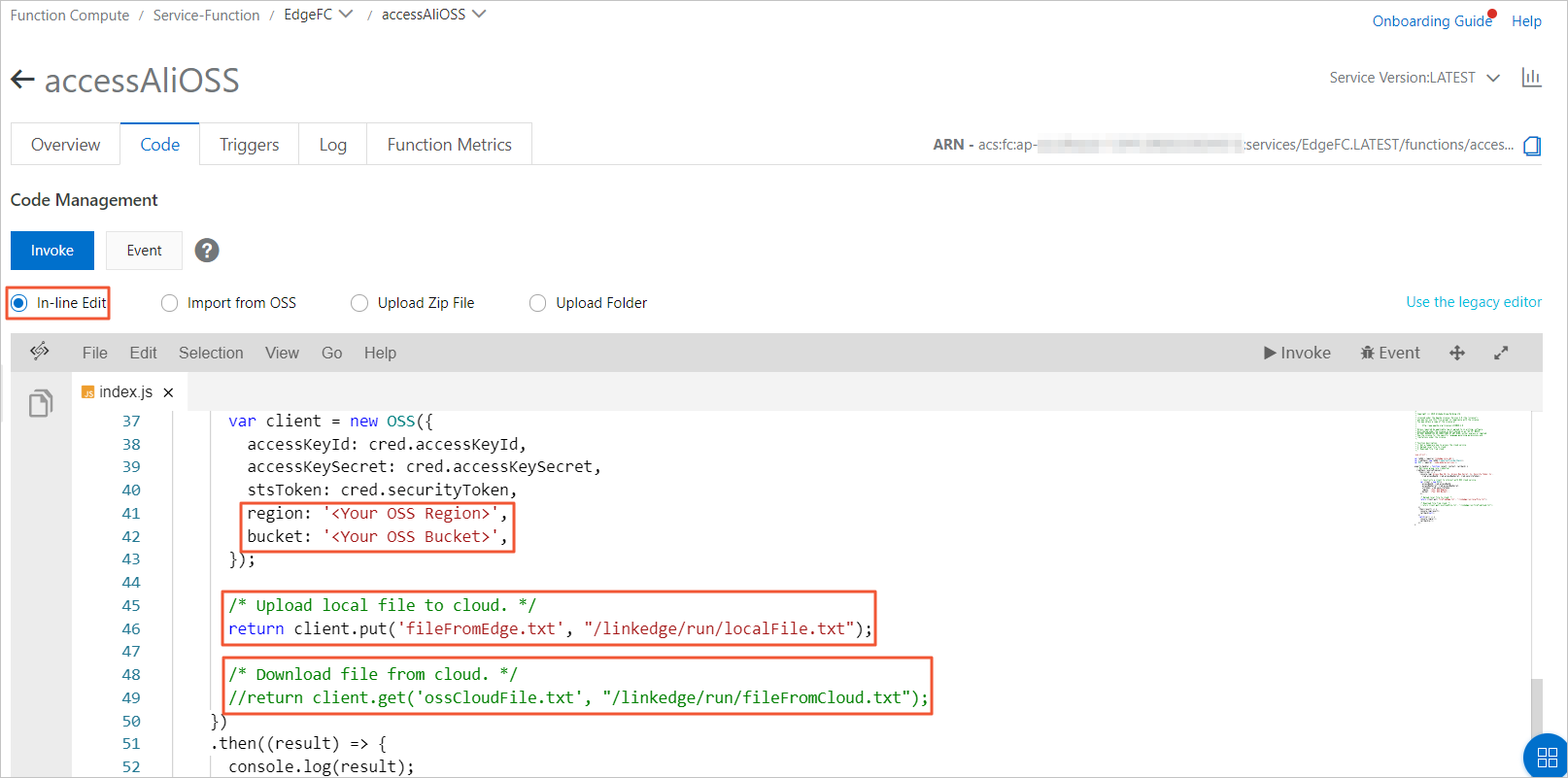
Where:
- Replace <Your OSS Region> with the Endpoint that you obtained when you created the bucket in the Create an OSS bucket step.
- Replace <Your OSS Bucket> with le-fc-bucket, the bucket you created in Create an OSS Bucket
- Log on to the gateway that you configured in the Prerequisites section. Run the following command to create a local test file named localFile.txt. This file is used by the sample code to test the local file upload feature.
sudo echo "Hi, this is the file from edge GW." > /linkedge/run/localFile.txtNote When Function Compute code accesses files on the gateway host, the file path is restricted. In Link IoT Edge Standard Edition, the code runs in a file system that is isolated from the host. Only the /linkedge/run directory is shared between the Function Compute environment and the host environment with read and write permissions. For testing, place the test file in the /linkedge/run directory. - Return to the Function Compute console. On the Code tab of the accessAliOSS function, in the Code Execution Management section, click Save.
- (Optional) To test downloading a file from OSS to a local device, go to the Code tab of the accessAliOSS function. In the Edit Online box, comment out the
client.putcode on line 45. Then, uncomment line 48 to call the `get` method of the OSS SDK (client.get('ossCloudFile.txt', "/linkedge/run/fileFromCloud.txt");).Where ossCloudFile.txt is the name of the file uploaded to the le-fc-bucket bucket as described in Create an OSS Bucket/linkedge/run/fileFromCloud.txt is the name of the file saved to the edge after it is downloaded.
- Obtains credentials. These credentials are used as a temporary token to access Alibaba Cloud services.
credChain.resolvePromise() - Provides your OSS region and bucket information.
region: '<Your OSS Region>', bucket: '<Your OSS Bucket>', - Calls the `put` method of the OSS SDK to upload the local file to OSS.
client.put('fileFromEdge.txt', "/linkedge/run/localFile.txt");In this example, fileFromEdge.txt is the name of the file after it is uploaded to the cloud. /linkedge/run/localFile.txt is the path of the local file to upload. You can change both filenames as needed, but the local file must exist.
Step 3: Assign the function to an edge instance
First, assign a role with the Manage Object Storage Service (OSS) Permission to the edge instance, or add the Manage Object Storage Service (OSS) Permission to an existing role that is assigned to the edge instance. For more information, see Accessing cloud resources.
- Log on to the IoT Edge console.
- In the navigation pane on the left, click Application Management.
- Create an edge application of the Function Compute type that uses the function that you created in Step 2. For more information, see Function Compute application.
The following table describes the application information parameters:
Parameter Description Application Name Set a name for your application, for example, accessAliOSS. Application Type Select Function Compute. Region Select the region where you created the service. Service Select the EdgeFC service. Function Select the accessAliOSS function. Authorization Select AliyunIOTAccessingFCRole. Application Version Set a version for the application. The version number must be unique for this application. The following table describes the function configurations:Parameter Description Enable Default Configuration Select No. Run Mode There are two run modes. Select Keep Running mode. The program executes immediately after deployment. Timeout (seconds) The maximum processing time after the function receives an event. Use the default value of 5 seconds. If the function does not return a result within this time, the Function Compute program is forcibly restarted. Timed Run Turn on the Timed Run switch and enter * * * * *in the text box. This means the function will be triggered to run every minute. For more information about cron expressions, see the CRONTAB website.No other parameters need to be configured.
- In the navigation pane on the left, click Edge Instances.
- Find the edge instance that you created in the "Prerequisites" section and click View.
- On the Instance Details page, select the Settings tab. Click Add Role and Permissions to assign the AliyunIOTAccessingFCRole role to the edge instance. For more information, see Access cloud resources.
- On the Instance Details page, go to the Edge Applications tab and click Assign Application.
- In the Assign Application panel, find the accessAliOSS function that you created. Click Assign in the Actions column, and then click Close.
Step 4: Deploy the edge instance
- On the Instance Details page, click Deploy in the upper-right corner. In the dialog box that appears, click OK to deploy resources, such as sub-devices and functions, to the edge.
- Approximately one minute after the deployment is successful, go to the Object Storage Service console. On the , you can see that the fileFromEdge.txt file has been uploaded.To the right of the file, you can choose to download the file to your computer and view its content.
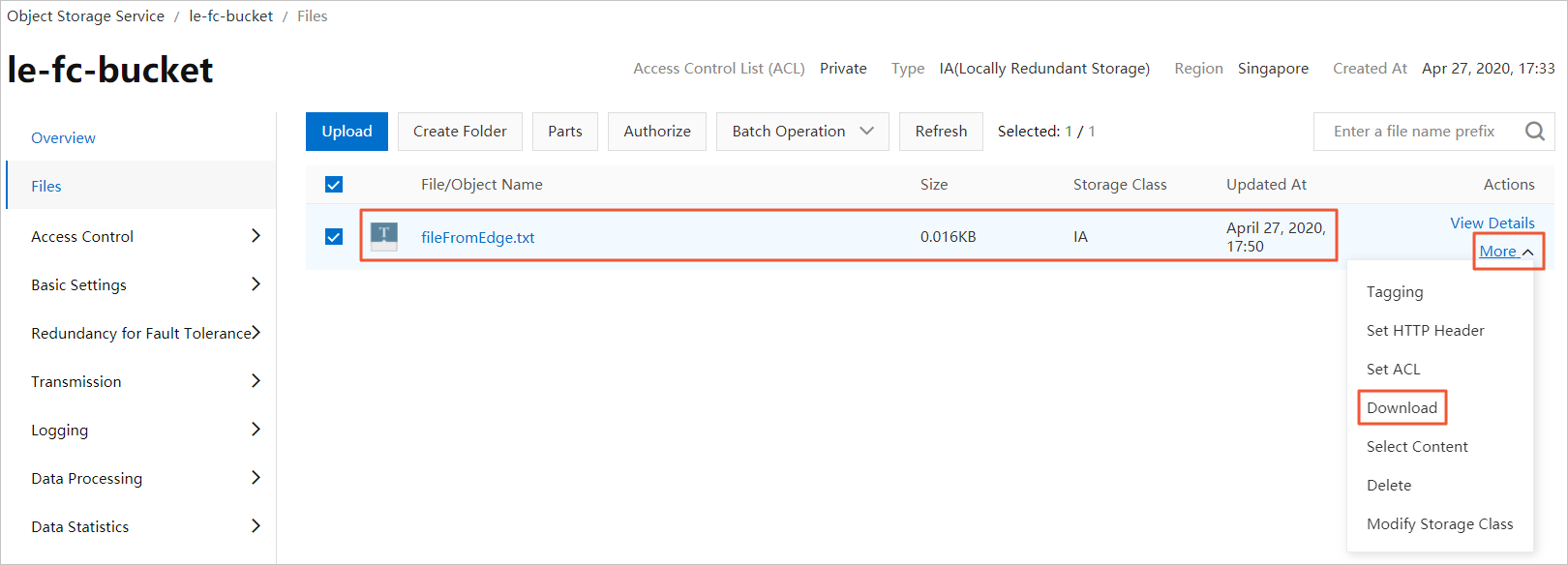
You have now successfully used Function Compute in IoT Edge to access Alibaba Cloud OSS.
FAQ
If the fileFromEdge.txt file does not appear on the OSS Files page, the cause may be one of the following:
- The function has not been triggered. The function is scheduled to run once per minute. If you have just completed the deployment, the function may not have run yet. Wait for two minutes and refresh the page.
- The local system time of the gateway is incorrect. You can check the local time by running the
datecommand. If the time differs significantly from the network time, OSS will deny the request. - The local file for upload does not exist. If you run the
ls /linkedge/run/localFile.txtcommand on the gateway and the file is not found, create the file as described in the Generate a local test file step. - The OSS configuration is incorrect. Make sure you have entered the correct OSS configuration information as described in the Edit the code online step.
- If you have checked all the preceding configurations and they are correct, you can view the operational log of the function to identify the problem. Run the command
cat /linkedge/run/logger/fc-base/accessAliOSS/log.INFO.