Filter device data uploaded to the cloud
This topic uses the LightSensor device from the official sample driver to demonstrate how to filter data that devices report to the cloud.
Prerequisites
- Create an edge instance. For more information, see Set up a Professional Edition environment or Set up a Standard Edition environment.
- Create a light sensor product and a LightSensor device for the product. Then, assign the LightSensor device to the edge instance. For more information, see Sample driver.
Background information
Devices such as sensors continuously report collected data. For example, a thermometer reports temperature values, and a light sensor reports illuminance values. This data often varies only slightly. Typically, you only need data points that exceed a specific threshold. You can use the Function Compute feature of IoT Edge to filter device data before it is sent to the cloud. This practice reduces the amount of uploaded data and lowers your cloud computing costs.
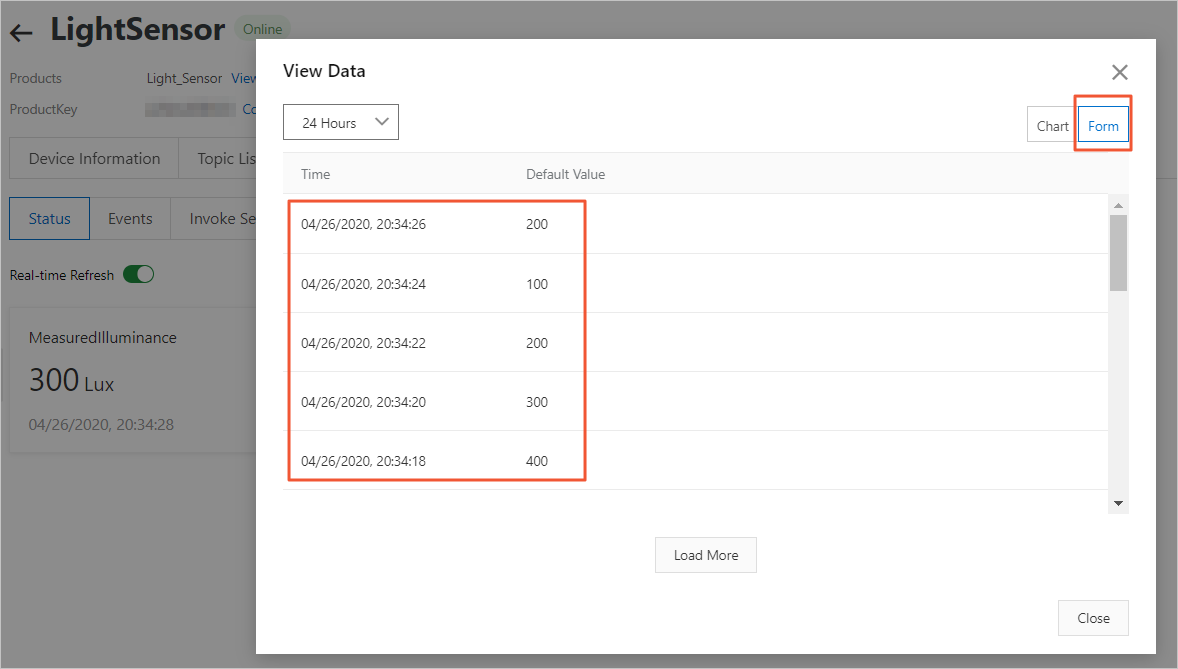
In the preceding figure, click View Data. The value continuously changes between 100 and 600 in increments of 100. Data is reported at a high frequency, once every 2 seconds. Over time, this high frequency of data reporting can lead to unnecessary costs. To avoid these costs, you can use Function Compute to process and filter the data that the device reports to the cloud.
Step 1: Create a data filtering function
- Download the data filtering function: deviceDataFilter.zip. This function filters the illuminance data reported by the LightSensor device. The function reports data to the cloud only when the illuminance value is greater than 500 or less than 200.
- Log on to the Function Compute console.If you have not activated this service, read the terms and select I have read and agree to the terms. Then, click Activate Now.
- (Optional) In the navigation pane on the left, click Services & Functions. On the Services & Functions page, in the Service List section, click Create Service to create a service.The Service Name parameter is required. Set this parameter to EdgeFC. You can configure the other parameters as needed or use their default settings.Note
- If this is your first time creating a service in Function Compute, follow the configuration wizard.
- If you have already created the EdgeFC service for other scenarios or miniprogram examples, you do not need to create it again.
- After the service is created, on the Services & Functions page, find the EdgeFC service and click Create Function.
- On the Create Function page, click Configure and Deploy in the Event Function section.
- Set the basic configuration parameters for the data filtering function.
Parameter Description Function Type Keep the default option. Service Select the EdgeFC service that you created. Function Name Set to lightSensorDataFilter. Runtime Set the function runtime and choose how to upload the code. For this example, select Node.js 8. To the right of Upload Code, select Upload a ZIP file. Click Upload Code and upload the deviceDataFilter.zip package that you downloaded in Step 1.
Handler Use the default value: index.handler. You can configure the other parameters as needed or use their default settings. For more information, see Function Compute.
After you confirm the function information, click Create.
- After the function is created, you are redirected to the function details page. On the Code tab, in the Code Execution Management section, select Online Editing to view the source code.
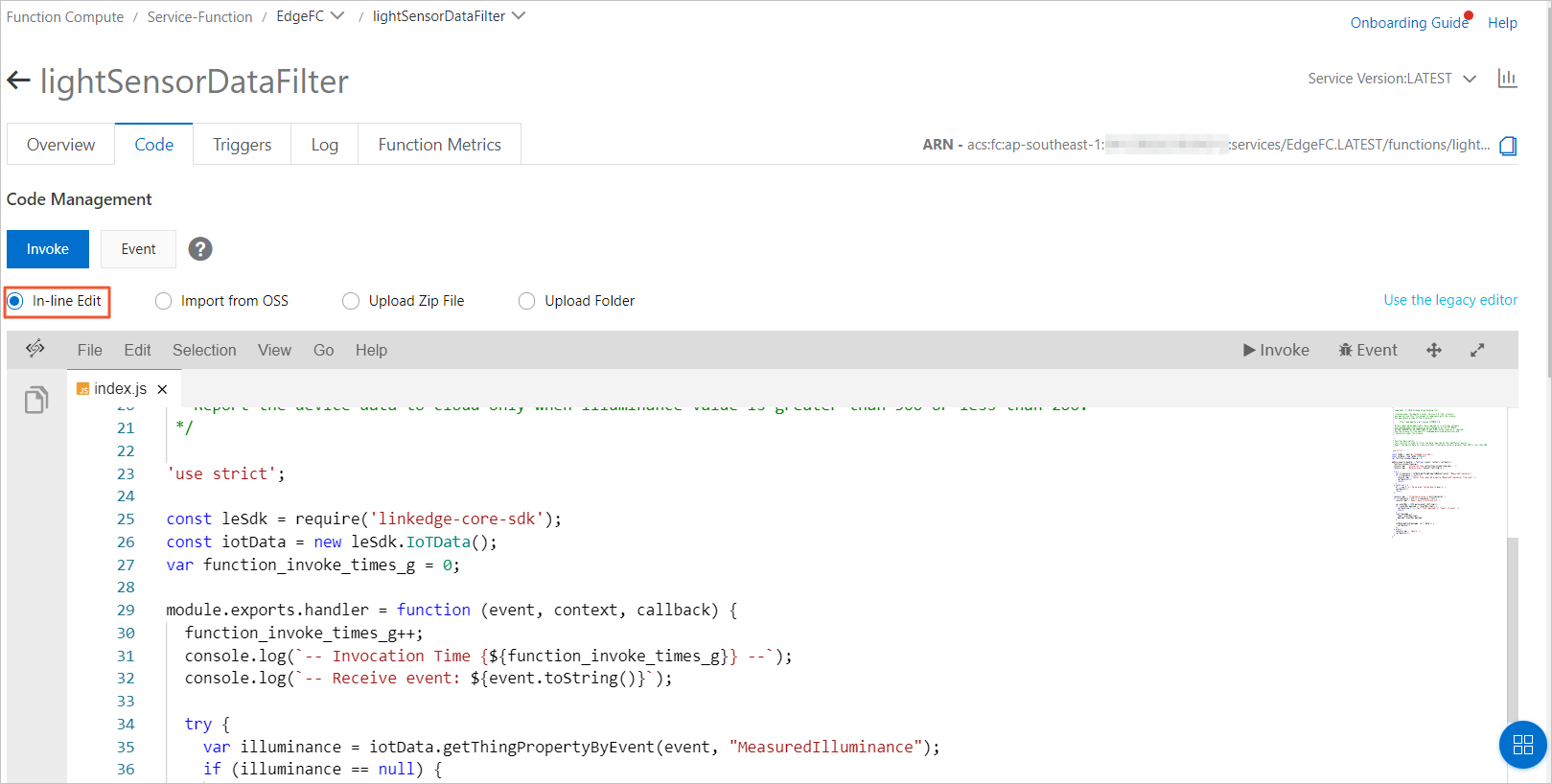 Note The lightSensorDataFilter sample code consists of the following three steps.
- Parse the illuminance value from the received device data (the event parameter).
var illuminance = iotData.getThingPropertyByEvent(event, "MeasuredIlluminance"); - Check whether the data meets the filtering conditions for cloud upload.
if (illuminance > 500 || illuminance < 200) - Report the data that meets the conditions.
iotData.publish(message, (err, data)=> {callback(err);});
- Parse the illuminance value from the received device data (the event parameter).
- (Optional) Adjust the data filtering parameters.After the function is created, you can edit the code online to change the data filtering conditions.The default data filtering condition in the sample code is as follows. After you assign the function to an edge instance and deploy the instance, the function filters the collected illuminance data. Only data where the illuminance is greater than 500 or less than 200 is displayed on the tab of the Device Details
if (illuminance > 500 || illuminance < 200)You can change the filtering condition. For example, to filter for data where the illuminance is greater than 450, change the data filtering parameter to the following:if (illuminance > 450)
Step 2: Assign the function to an edge instance
- Log on to the IoT Edge console.
- In the navigation pane on the left, click Application Management.
- Create an edge application of the Function Compute type using the function that you created in Step 1. For more information, see Function Compute applications.
The application parameters are described as follows:
Parameter Description Application Name Enter a name for your application, such as lightSensorDataFilter. Application Type Select Function Compute. Region Select the region where your service was created. Service Select the EdgeFC service. Function Select the lightSensorDataFilter function. Authorization Select AliyunIOTAccessingFCRole. Application Version Set the application version. The version number must be unique for this application. You cannot have two identical version numbers for the same application. In the Function Configuration section, set Enable Default Configurations to Yes. The other parameters can be left at their default settings.
- In the navigation pane on the left, click Edge Instances.
- Find the edge instance that you created in the "Prerequisites" section and click View.
- On the Instance Details page, go to the Edge Applications tab and click Assign Application.
- In the Assign Application panel, find the lightSensorDataFilter function you created. Click Assign in the Actions column, and then click Close.
Step 3: Configure message routing
This topic explains how to add messages and describes each parameter. For more information, see Set message routing.
- On the Instance Details page, go to the Message Routing tab. Remove the message route from the device to IoT Hub.Note When you followed the instructions in the Sample driver prerequisite, you configured a message route for the edge instance. You must remove this route in this step.

- Click Assign Route to add a message route from the LightSensor device to Function Compute.Set the following parameters. After you finish, click OK to add the first route.
Parameter Description Route Name Enter a name for the message route. Message Source Select Device, and then select . Topic Filter Select All. Message Target Select Edge Application and the EdgeFC/lightSensorDataFilter function. - On the Instance Details page, go to the Devices & Drivers tab. Click View next to the LightSensor device. You are redirected to the Device Details page.
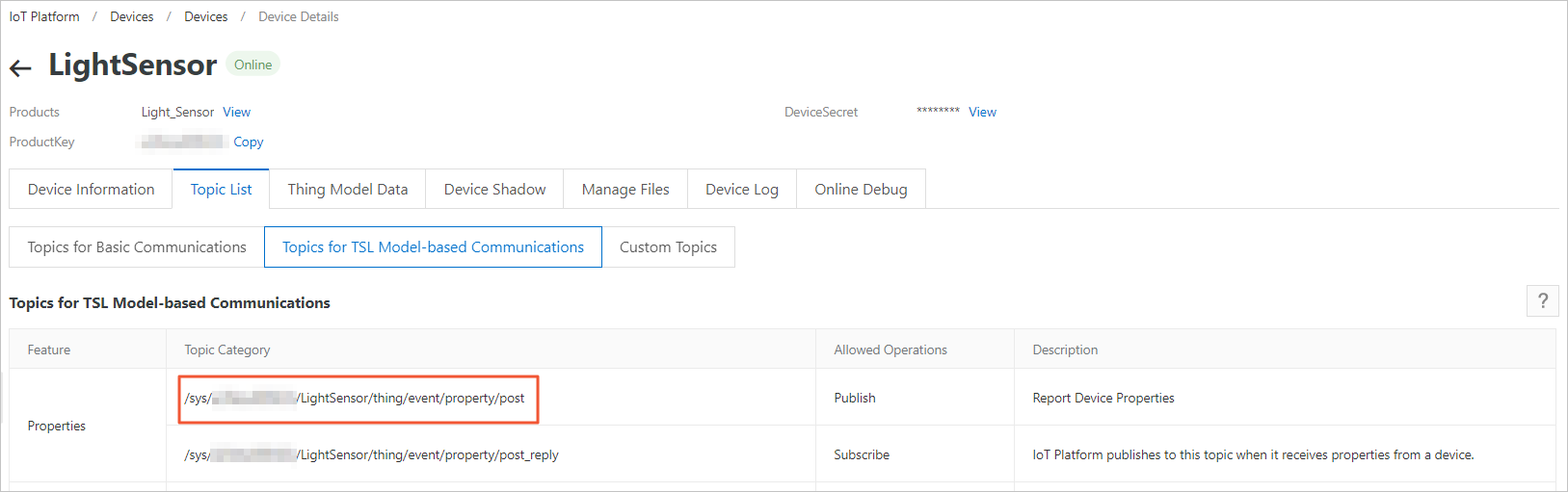
- Go to the tab. Copy the first topic for reporting device properties.
- Return to the Instance Details page. Click Assign Route to add a message route from Function Compute to IoT Hub (the cloud).Set the following parameters. After you finish, click OK to add the second route.
Parameter Description Route Name Enter a name for the message route. Message Source Select Function Compute and the EdgeFC/lightSensorDataFilter function. Topic Filter Enter the topic for reporting device properties that you copied in the previous step. Message Target Select IoT Hub. QoS Level Select 0.
Step 4: Deploy the edge instance
- On the Instance Details page, click Deploy in the upper-right corner. In the dialog box that appears, click OK to deploy resources, such as sub-devices and functions, to the edge.
- On the Instance Details page, go to the Devices & Drivers tab. Then, click View next to the LightSensor device. You are redirected to the Device Details page in the IoT Platform consoleOn the Device Details page, go to the tab to view the status and data of the LightSensor device.
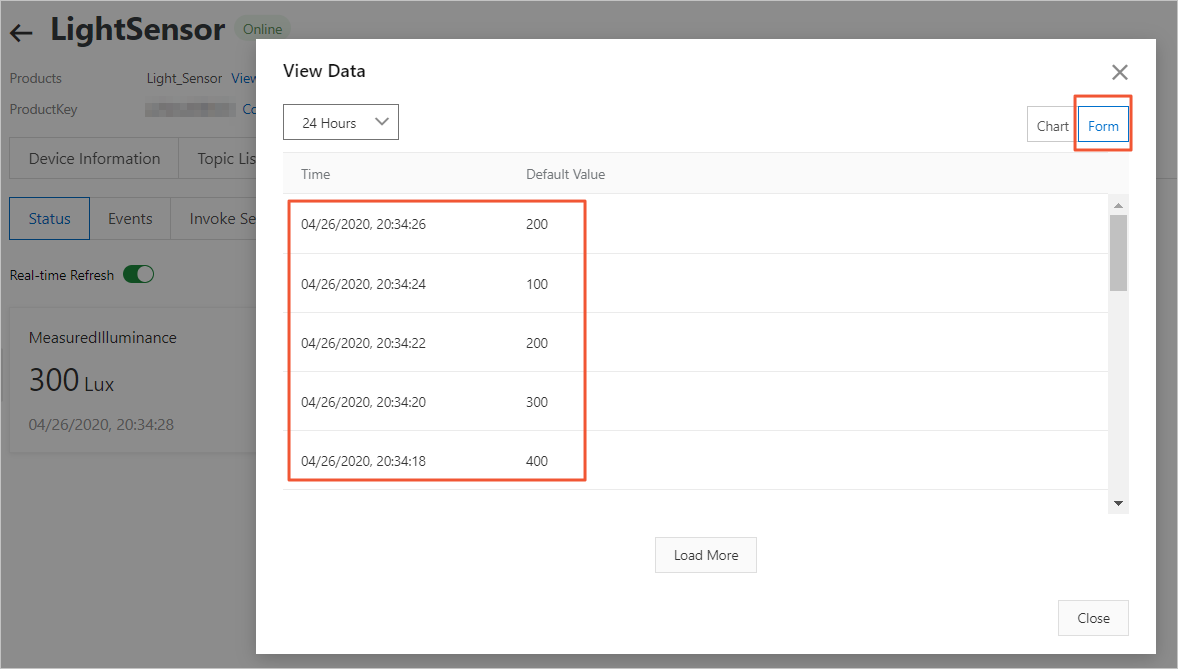
You have now successfully used an edge function to filter device data before it is uploaded to the cloud.