The LinkDriver driver
Link IoT Edge provides the LinkDriver driver to connect devices that have integrated the Alibaba Cloud device access Link SDK. This driver enables these devices to communicate with the cloud through Link IoT Edge.
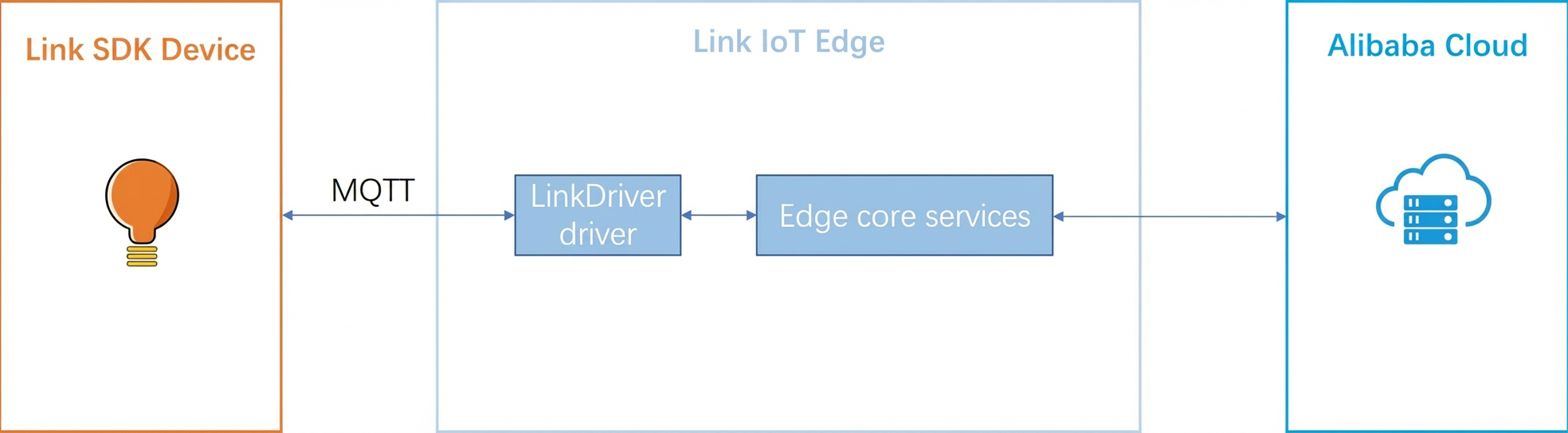
Prerequisites
- You have downloaded the Link SDK and integrated it into your device. For more information, see Connect a device using the Link SDK.
- You have created an edge instance and brought the gateway online. For more information, see Set up the environment.
Modify the Link SDK
Before you use the LinkDriver driver, modify the Link SDK on your device so that the device can connect to the gateway where Link IoT Edge is located.
This topic uses the latest C language Link SDK V4.x as an example to demonstrate the required modifications. For other programming languages, modify the Link SDK based on the instructions for the C language SDK.
- Open the demos/mqtt_basic_demo.c file in the C language Link SDK.
- Modify the MQTT connection parameters as shown in the red box in the following figure.
Important Replace the IP address
192.168.56.102with your gateway's IP address. Keep all other parameters the same as shown in the figure.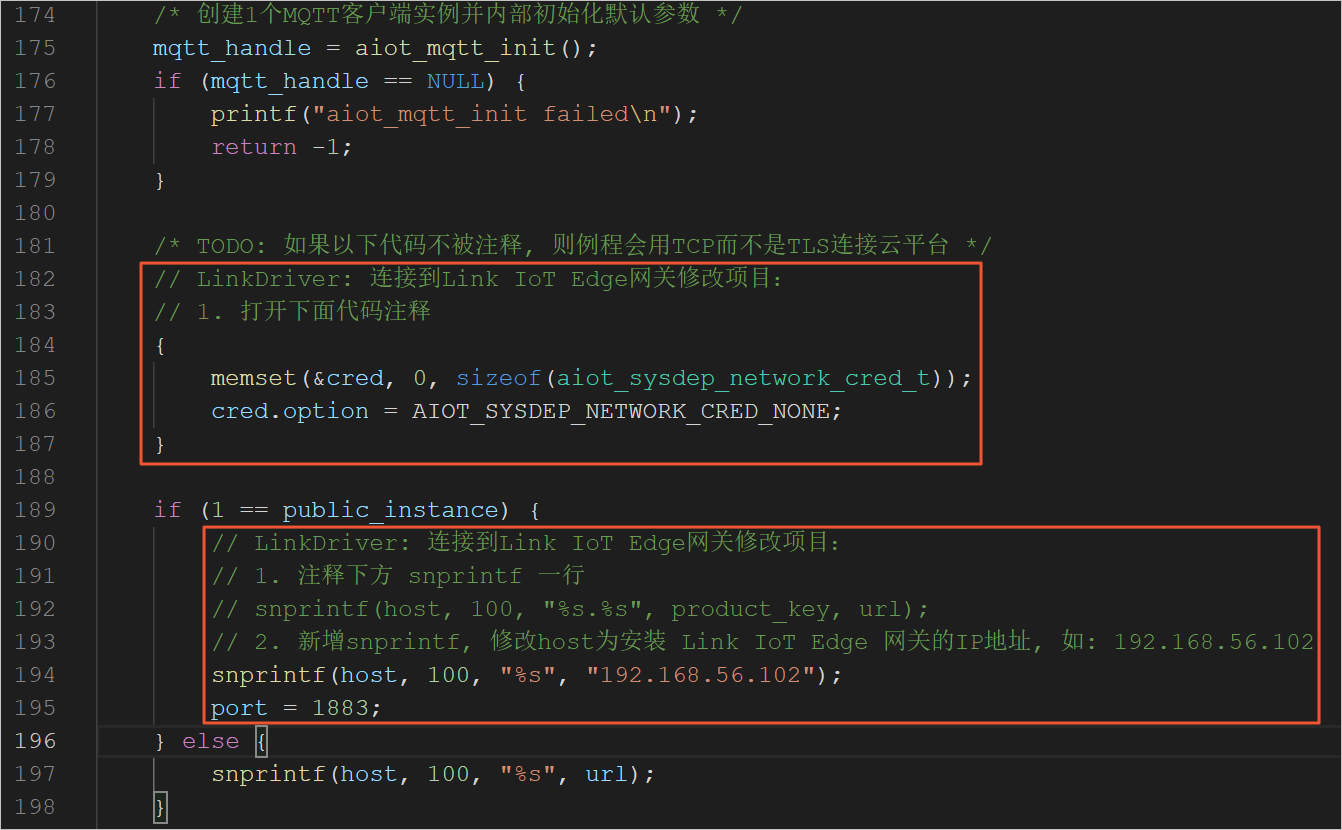
- Save your changes. Then, recompile the Link SDK and update it on your device. For more information, see the Link SDK documentation.
2. Assigning drivers
- Log on to the IoT Edge console.
- In the navigation pane on the left, click Edge Instances. Find the edge instance that you created and click View in the Actions column.
- On the Instance Details page, click the Devices & Drivers tab. Then, click the
+icon next to All Drivers. - In the Assign Driver panel, select Official Drivers. Select the LinkDriver driver that matches your gateway's CPU architecture and click Assign in the Actions column. Then, click OK.
Associate the driver with a sub-device
- Click the LinkDriver driver that you assigned. In the Device List area, click Assign Sub-device.
- In the Assign Sub-device panel that appears on the right, click Add Sub-device.
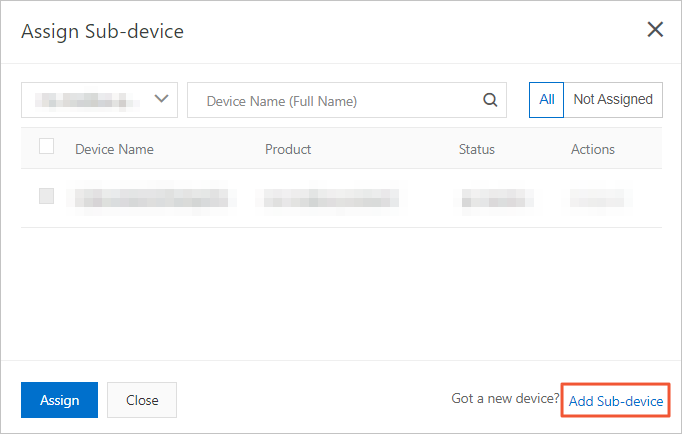
- In the Add Device dialog box, click Create Product to create a product for the Link SDK device.
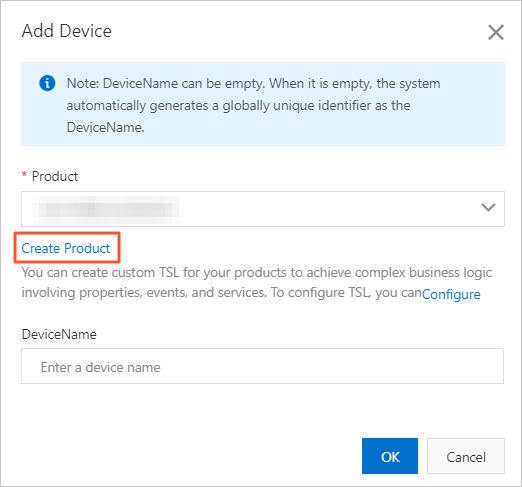
- In the Create Product dialog box, configure the parameters and click OK.
Table 1. Parameter description Parameter Description Product NameThe product name must be unique within your account. The name must be 4 to 30 characters long. It can contain Chinese characters, letters, digits, underscores (_), hyphens (-), at signs (@), and parentheses (). A Chinese character counts as two characters. CategorySelect a category and define a Thing Specification Language model for the product. For the category, select Custom Category. Gateway ProtocolSelect Custom. Authentication MethodSelect an authentication method for your device. For more information, see Device security and authentication.Product Description Optional. Add a description for the product. - In the Add Device dialog box, the product you created is automatically selected for the Product parameter. Click Configure under the product name to add custom features to the product.
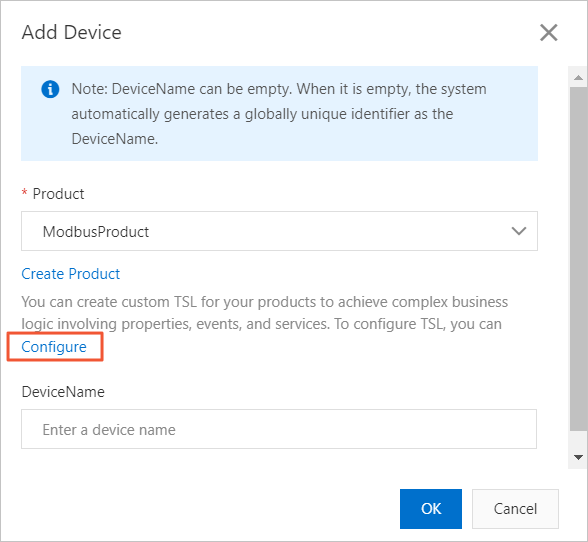
The system redirects you to the Product Details page in the IoT Platform console. On the Function Definition tab, click Edit Draft. In the dialog box that appears, click Add Custom Feature in the Default Module section.
- In the Add Custom Feature dialog box, configure the property parameters as needed. For more information, see Add a single TSL model.
- Return to the Instance Details page and add the Link SDK device.
- Assign the new Link SDK device to the edge instance.
Deploy the edge instance
- On the Instance Details page, click Deploy in the upper-right corner to deploy the edge instance. After successful deployment, Deployed appears next to the instance name.
- Check the device status.
After the instance is deployed, you can check the connection status and operational status of the device. You can view this information in the Alibaba Cloud IoT Platform console or in the driver's operational logs in the edge gateway environment.
- On the Instance Details page, go to the Devices & Drivers tab and click the LinkDriver driver to check the device connection status.
- In the Actions column, click View next to the device name. You are redirected to the Device Details page in the IoT Platform console.
- Click the TSL Data tab, and then click Running Status to view the data reported by the device.
- Check the driver's operational data and logs.
- Log on to the gateway where Link IoT Edge is located.
- Go to the directory where the LinkDriver driver files are located to view the driver logs.
cd /linkedge/run/logger/fc-base/LinkDriver