Network time synchronization helper
This topic describes how to use Function Compute to deploy a network time synchronization helper. This helper synchronizes the local time of a device with the network time. If your device already has the Network Time Protocol (NTP) service installed and can periodically synchronize its system time with a cloud server, you can skip this topic.
Prerequisites
This example applies only to Link IoT Edge Pro Edition. Before you start, make sure that you have created an edge instance. For more information, see Set up the environment for the Professional Edition.Background information
Many Linux systems on devices connected to the edge do not have the NTP service installed by default. After these systems start, their clocks often start from the UNIX epoch (January 1, 1970). Some Linux virtual machines synchronize their time only once at startup. Later, the virtual machine's clock may pause due to events such as system hibernation. Over time, the discrepancy between the system time and the network time increases.
When the local time of a device is not synchronized with the network time, it can cause failures when you access Alibaba Cloud services or prevent the online installation of some software. Accurate timestamps also provide more valuable information for log analysis.
The edge Function Compute feature of IoT Edge helps you resolve unsynchronized device time.
Create the time synchronization function
- Download the time synchronization function syncNetworkTime-code.zip. This function automatically synchronizes time with an NTP server.
- Log on to the Function Compute console.If you have not activated this service, read the terms and select I have read and agree to the terms. Then, click Activate Now.
- (Optional) In the navigation pane on the left, click Services & Functions. On the Services & Functions page, in the Service List section, click Create Service to create a service.The Service Name parameter is required. Set this parameter to EdgeFC. You can configure the other parameters as needed or use their default settings.Note
- If this is your first time creating a service in Function Compute, follow the configuration wizard.
- If you have already created the EdgeFC service for other scenarios or miniprogram examples, you do not need to create it again.
- After the service is created, on the Services & Functions page, find the EdgeFC service and click Create Function.
- On the Create Function page, click Configure and Deploy in the Event Function section.
- Set the basic configuration parameters for the time synchronization function.
Parameter Description ServiceSelect the EdgeFC service that you created.Function NameSpecify syncNetworkTime. RuntimeSet the runtime environment for the function. In this example, select Node.js 8. To the right of Upload Code, select Upload a ZIP package. Click Upload Code and upload the syncNetworkTime-code.zip package that you downloaded in Step 1.
HandlerUse the default value: index.handler.You can configure the other parameters as needed or use their default settings. For more information, see Function Compute.
After you confirm the function information, click Create.
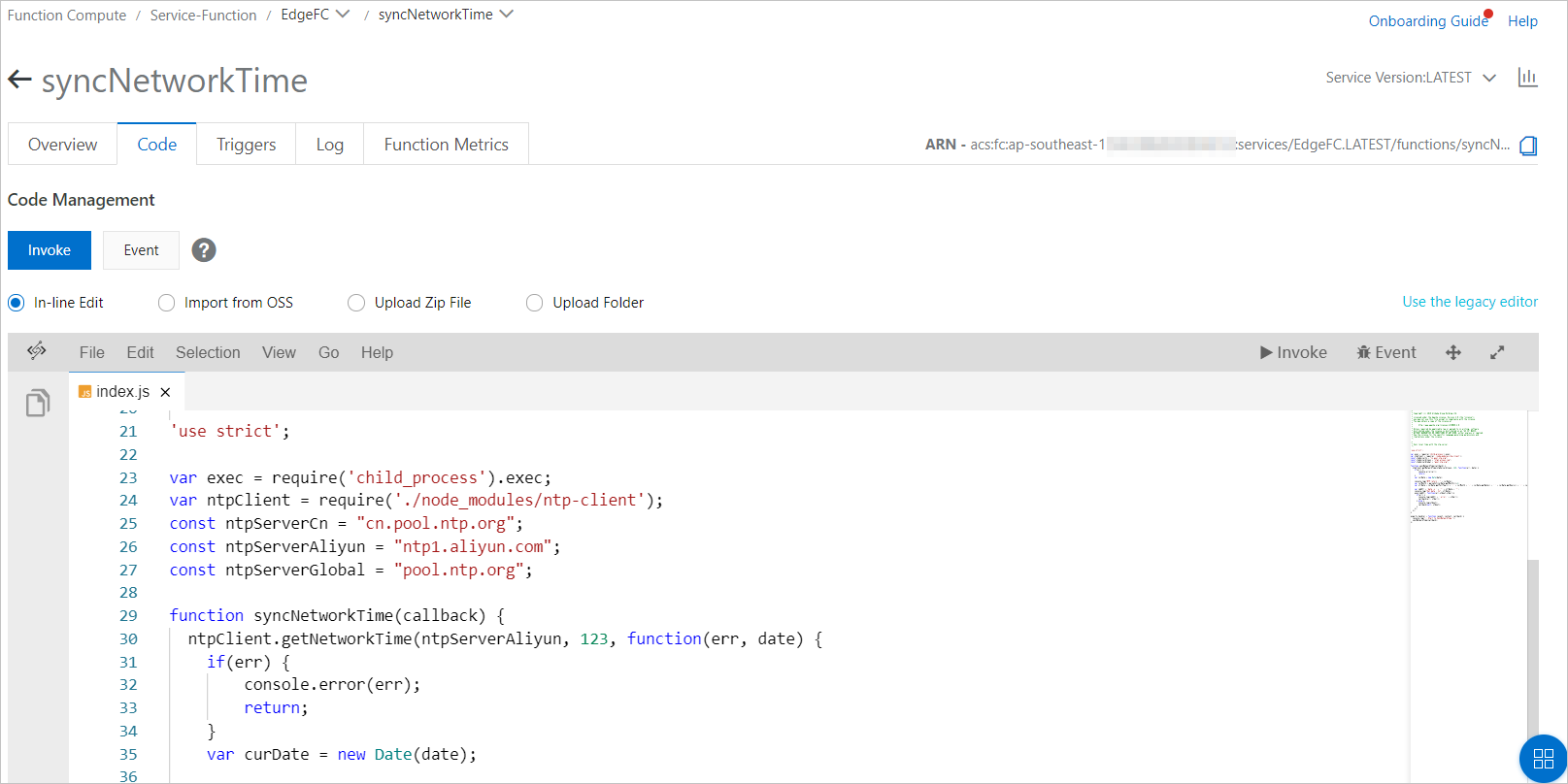
- After the function is created, you are redirected to the function details page. On the Code tab, in the Code Execution Management section, select the Online Edit radio button to view the source code.
Assign the function to the edge instance
- Log on to the IoT Edge console.
- In the navigation pane on the left, click Application Management.
- Use the syncNetworkTime function that you created to create an edge application of the Function Compute type. For more information, see Function Compute applications.
The application parameters are described as follows:
Parameter Description Application Name Set a name for your application, such as syncNetworkTime. Application Type Select Function Compute. Region Select the region where your service was created. Service Select the EdgeFC service. Function Select the syncNetworkTime function. Authorization Select AliyunIOTAccessingFCRole. Application Version Set the version for the application. The version number must be unique for this application. You cannot have two identical version numbers for the same application. The function configurations are described as follows:
Parameter Description Enable Default Configuration Select No. Run Mode There are two run modes. Select Keep Running mode. The program executes immediately after deployment. Timeout (seconds) The maximum processing time after the function receives an event. Use the default value of 5 seconds. If the function does not return a result within this time, the Function Compute program is forcibly restarted. Timed Run Turn on the Timed Run switch and enter * * * * *in the text box. This means the function will be triggered to run every minute. For more information about cron expressions, see the CRONTAB website.Important Container ConfigurationsIf you use Link IoT Edge Pro Edition, the network time synchronization helper needs to modify the system time of the host. Therefore, in the section, set Run in privileged mode to Yes. For more information about the parameters, see Container configurations in the Function Compute applications topic.No other parameters need to be configured.
- In the navigation pane on the left, click Edge Instances.
- Find the edge instance that you created in the "Prerequisites" section and click View.
- On the Instance Details page, go to the Edge Applications tab and click Assign Application.
- In the Assign Application panel, find the syncNetworkTime application that you created, click Assign in the Actions column, and then click Close.
Deploy the edge instance
- On the Instance Details page, click Deploy in the upper-right corner. In the dialog box that appears, click OK to deploy resources, such as sub-devices and functions, to the edge.
- After the instance is deployed, run the
datecommand on the gateway to check the local system time. The system time of the gateway is now synchronized with the network time.
You have now used the edge Function Compute feature to synchronize network time.