Local database storage helper
This topic uses the LightSensor device, which runs on the official sample driver, to demonstrate how to store device data in a local database.
Prerequisites
This example applies only to Link IoT Edge Pro Edition. Make sure that you have created an edge instance as described in Set up the environment for the Pro Edition.
Create a light sensor product and a LightSensor device for the product as described in Sample driver, and then assign the device to the edge instance.
Background information
In production environments, you often need to analyze on-site conditions at the edge using historical sensor data and industry-specific algorithm models. To do this, you must first store the data that is reported by devices in a local database.
Function Compute for IoT Edge provides a local database storage helper. This helper uses the ProductKey_DeviceName format to separate reported device data into different tables and store the data in a local SQLite database. Other functions in Function Compute, such as algorithm logic, can then query the data. Because edge devices have limited storage space, the local database storage helper provides a configurable storage limit for each table. The default limit is 10,000 records. The helper also includes a rollback mechanism that is triggered when the storage limit is reached.
1. Create the local database storage function
Download the local database storage function saveSqliteDB-code.zip.
- Log on to the Function Compute console.If you have not activated this service, read the terms and select I have read and agree to the terms. Then, click Activate Now.
- (Optional) In the navigation pane on the left, click Services & Functions. On the Services & Functions page, in the Service List section, click Create Service to create a service.The Service Name parameter is required. Set this parameter to EdgeFC. You can configure the other parameters as needed or use their default settings.Note
- If this is your first time creating a service in Function Compute, follow the configuration wizard.
- If you have already created the EdgeFC service for other scenarios or miniprogram examples, you do not need to create it again.
- After the service is created, on the Services & Functions page, find the EdgeFC service and click Create Function.
Configure the basic parameters for the local database storage function.
Parameter
Description
ServiceSelect the EdgeFC service that you created.Function NameSet it to saveSqliteDB.
RuntimeSet the runtime environment for the function. In this example, select python3.
HandlerUse the default value: index.handler.You can configure the other parameters as needed or use their default settings. For more information, see Function Compute.
After confirming the function information, click Finish.
After the function is created, you are redirected to the function details page. On the Code tab, select Upload from ZIP. Click Select File, upload the saveSqliteDB-code.zip package that you downloaded in Step 1, and then click Save.
After the code package is uploaded, you can view the source code in the Code Editor.
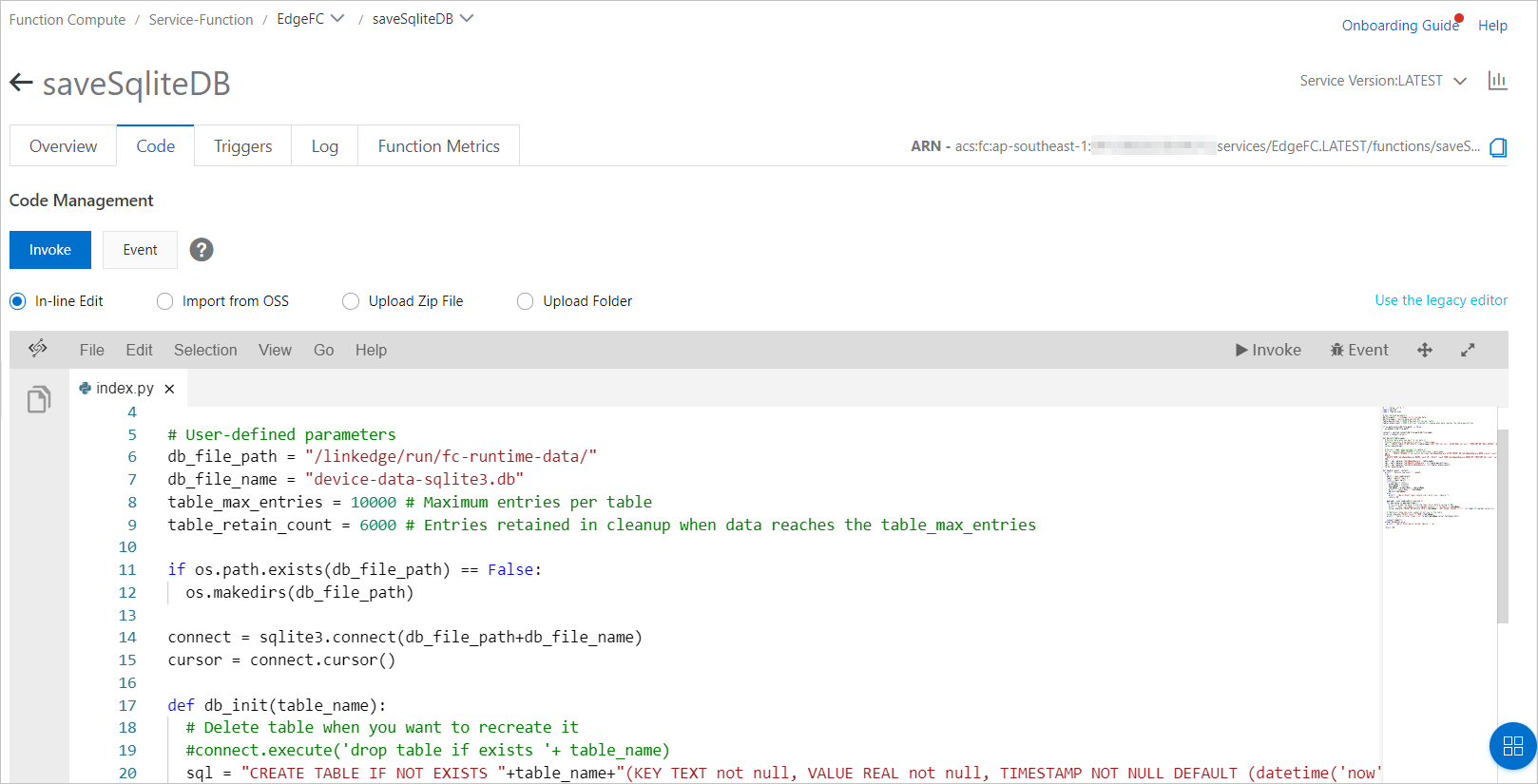
(Optional) Configure database parameters.
saveSqliteDB is a sample function that stores device data in a local SQLite database. You can modify the sample as needed. The following parameters can be adjusted:
db_file_path: The path of the SQLite file. Default: /linkedge/run/fc-runtime-data/.
ImportantIf you redeploy the edge instance, the device-data-sqlite3.db file in this directory is deleted. You must reconfigure the database parameters.
db_file_name: The name of the SQLite file. Default: device-data-sqlite3.db.
table_max_entries: The maximum number of records in a single table. Default: 10,000.
table_retain_count: The number of recent records to retain when the database is cleared after it reaches its limit. Default: 6,000.
2. Assign the function to the edge instance
- Log on to the IoT Edge console.
- In the navigation pane on the left, click Application Management.
Create a Function Compute application from the function that you created in the previous section. For more information, see Function Compute applications.
The application parameters are described as follows:
Parameter
Description
Application Name
Set a name for your application, such as saveSqliteDB.
Application Type
Select Function Compute.
Region
Select the region where you created the service.
Service
Select the EdgeFC service.
Function
Select the saveSqliteDB function.
Authorization
Select AliyunIOTAccessingFCRole.
Application Version
Set a version for the application. The version number must be unique for this application. You cannot have two identical version numbers for the same application.
The container parameters are described as follows:
Parameter
Description
Volume Mapping
Click Add Volume Mapping. The file system is completely isolated from the host environment. When a function needs to access a host file, you must map the file to the container where the function runs. You can add up to 10 volume mappings.
Memory LimitSet the maximum memory for the container.- If the container's memory usage exceeds the limit, the container is restarted.
- If the memory limit is too small, the application in the container may fail to run.
The default memory is 1024 MB. Increase the memory limit based on the size of the application in the container.
You do not need to configure the other parameters.
- In the navigation pane on the left, click Edge Instances.
- Find the edge instance that you created in the "Prerequisites" section and click View.
- On the Instance Details page, go to the Edge Applications tab and click Assign Application.
Assign the saveSqliteDB application to the edge instance and click Close.
3. Configure message routing
Data from the device is sent to the saveSqliteDB function for processing. The saveSqliteDB function then stores the data in the local database. For more information about how to add a message route, see Set up message routing.
On the Instance Details page, select the Message Routing tab.
Click Add Route to add a message route from the LightSensor device to Function Compute.
Set the following parameters as prompted and click OK.
Parameter
Description
Route Name
Set a name for the message route.
Source
Select Device. Then, select .
Topic Filter
Select All.
Destination
Select Function Compute and the EdgeFC/saveSqliteDB function.
4. Deploy the edge instance
- On the Instance Details page, click Deploy in the upper-right corner. In the dialog box that appears, click OK to deploy resources, such as sub-devices and functions, to the edge.
After the instance is deployed, the local database storage function runs as a background service and stores the data reported by the LightSensor device in the SQLite database.
You can view the contents of the /linkedge/run/fc-runtime-data/device-data-sqlite3.db file on your gateway device. You can also log on to your gateway and run the
tail -f /linkedge/run/logger/fc-base/saveSqliteDB/log.INFOcommand to view the function logs and monitor its runtime status.