OPC UA driver
Link IoT Edge provides an OPC UA driver to connect to OPC UA devices. You can deploy the driver to a gateway directly from the console or download the driver code from the console and modify it to create a custom driver.
The OPC UA driver runs only on Link IoT Edge Pro Edition (LE Pro).
Overview
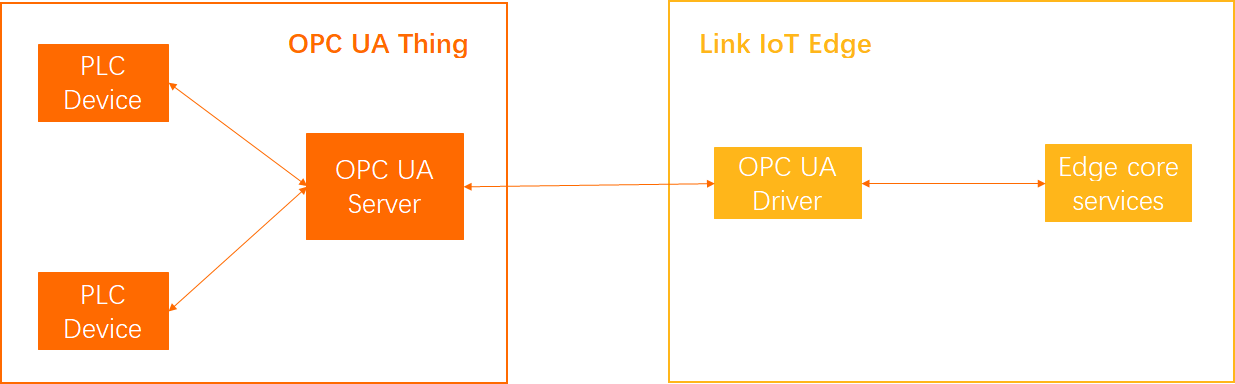
This topic provides an example of how to use the official OPC UA driver.
Prerequisites
Before you use the official OPC UA driver, create an edge instance and ensure that the gateway is online. For more information, see Set up the environment.
Step 1: Assign the driver
- In the left-side navigation pane, click Edge Instances. On the Edge Instances page, find the edge instance that you want to use and click View in the Actions column.
- On the Instance Details page, click the Devices & Drivers tab and click the
+icon next to All Drivers. - In the Assign Driver dialog box, select Official Driver. Find the OPC UA driver and click Assign in the Actions column. Then, click Finish.
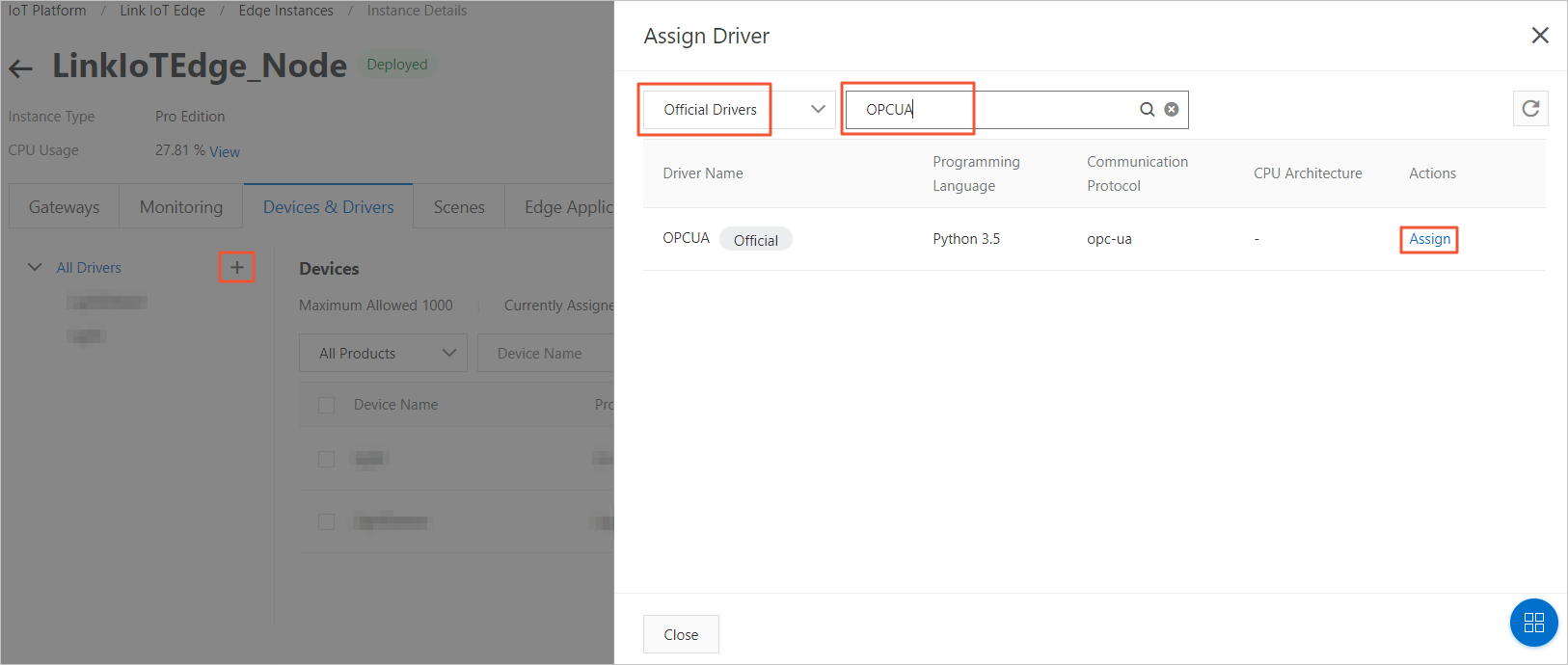
Step 2: Configure the driver
- Click the assigned OPC UA driver. To the right of the Device List, click Driver Configuration.
- On the page that appears, click Add Channel.
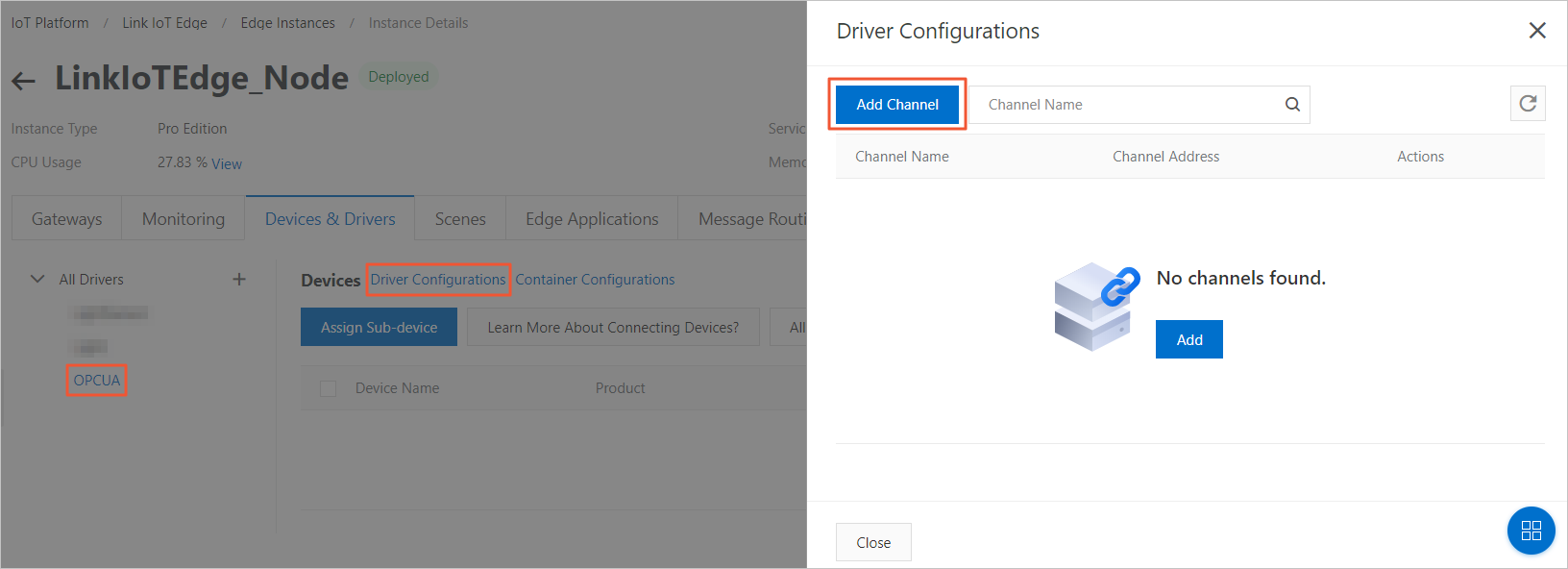
- Set the parameters as prompted and click OK.
Parameter Description Channel Name Must be unique for the gateway. The name can contain Chinese characters, letters, digits, and underscores (_). It must be 1 to 30 characters in length. A Chinese character is counted as two characters. Channel Address Example: opc.tcp://localhost:4840.Security Policy The encryption algorithm policy. Options are None, Basic128Rsa15, and Basic256. Security Mode The signature type. Options are None, Sign, and SignAndEncrypt. Username Optional. Password Optional. Method Invocation Timeout The unit is seconds. - Optional. On the right side of Devices, click Container Configurations. On the Container Configurations page, configure the container for the driver based on the parameters that are described in the following table. Click Save. Note You can configure the container only when the Instance Type parameter of the edge instance is set to Pro Edition.
Parameter Description Use Host Network Specifies whether to isolate the container's network and use the host network environment directly. - Yes: The container's network is not isolated. The host network is used directly.
- No: The container's network is isolated. You must configure Port Mapping.
Port Mapping This parameter appears when Use Host Network is set to No. The network environment of the function is completely isolated from the host environment. Through port mapping, you can map the listening port of the function in the container to a port on the host. This allows client programs on different hosts to access the service provided by the function. You can map up to 10 network ports. For example, the
fc-http-serverfunction runs in a container on the host and provides services on port 80. In this case, client programs on other hosts cannot access thefc-http-serverfunction by accessing port 80 of the host. Therefore, you need to map the container port of thefc-http-serverfunction to a port on the host. For example, map port 80 in the container to port 8080 on the host. This allows client programs on other hosts to access thefc-http-serverfunction in the container by accessingHost IP address:8080.Enable Privileged Mode The root user in a container is actually a regular user on the host. To perform operations that require root permissions inside the container, such as modifying the system time or using the mount command, you must grant the container privileged mode.
Note In privileged mode, the container has root permissions on the host. All host devices are mapped to the container by default. You do not need to configure Device Mapping.Device Mapping This parameter appears when Enable Privileged Mode is set to No. The device management system is completely isolated from the host environment. When a function needs to access a host device, such as a serial port, you must map the device to the container where the function runs. You can add up to 10 device mappings. Volume Mapping The file system is completely isolated from the host environment. When a function needs to access a host file, you must map the file to the container where the function runs. You can add up to 10 volume mappings. Memory Limit Set the maximum memory for the container. - If the container's memory usage exceeds the limit, the container is restarted.
- If the memory limit is too small, the application in the container may fail to run.
The default memory is 1024 MB. Increase the memory limit based on the size of the application in the container.
Step 3: Associate the driver with sub-devices
- In the Device List section, click Assign Sub-devices to assign a sub-device to the edge instance.You can assign an existing OPC UA device or create a new one.Note If you assign an existing OPC UA device, the product to which the device belongs must be connected to the gateway, and its gateway protocol must be set to OPC UA. For more information, see Create a product.
- In the Assign Sub-device panel, click Add Sub-device.
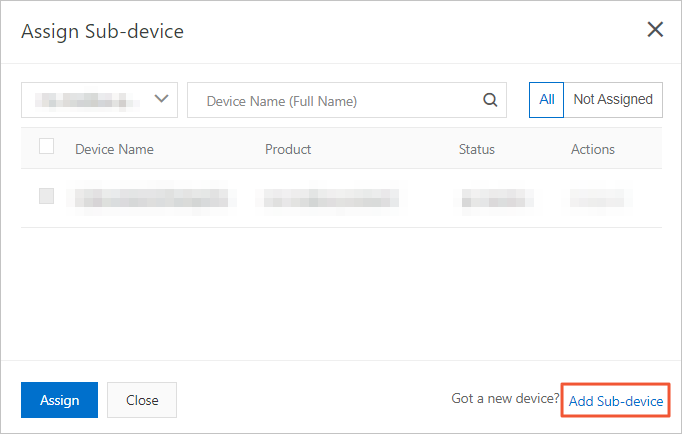
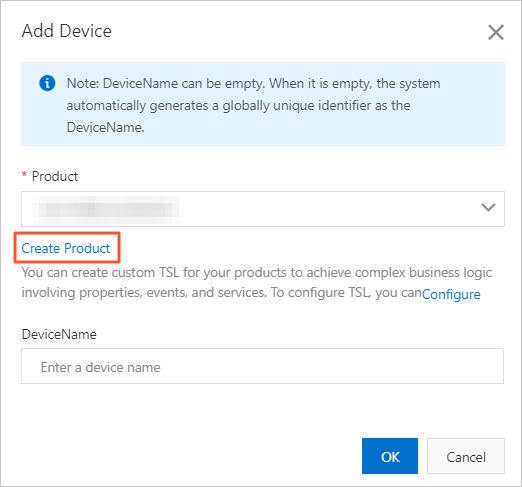
- In the Add Device dialog box, click Create Product to create a product for the OPC UA device.
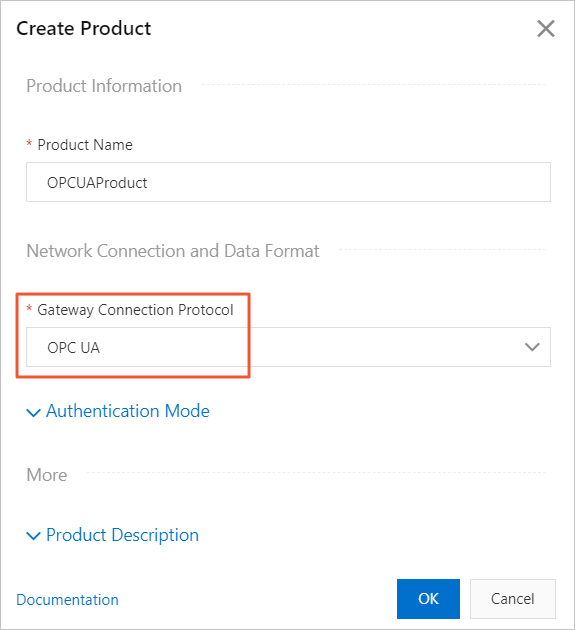
- In the Create Product dialog box, set the parameters and click Finish.

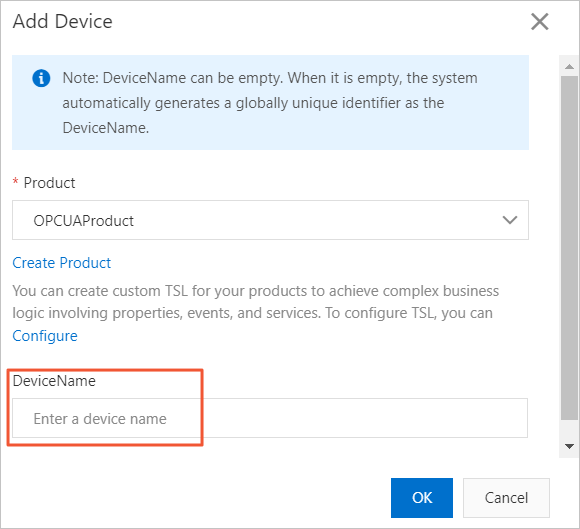
Table 1. Parameter description Parameter Description Product Name Set a product name. The product name must be unique within your account. The name can be 4 to 30 characters in length and can contain Chinese characters, letters, digits, underscores (_), hyphens (-), at signs (@), and parentheses (()). A Chinese character is counted as two characters. Category Select a category to define a Thing Specification Language model for the product. Here, select Custom Category. Gateway Protocol You must select OPC UA. Authentication Method Select an authentication method that is suitable for your device. For more information, see Device security authentication. - Return to the Add Device dialog box and add the OPC UA device.
- On the Assign Sub-devices panel, assign the new OPC UA device to the edge instance.
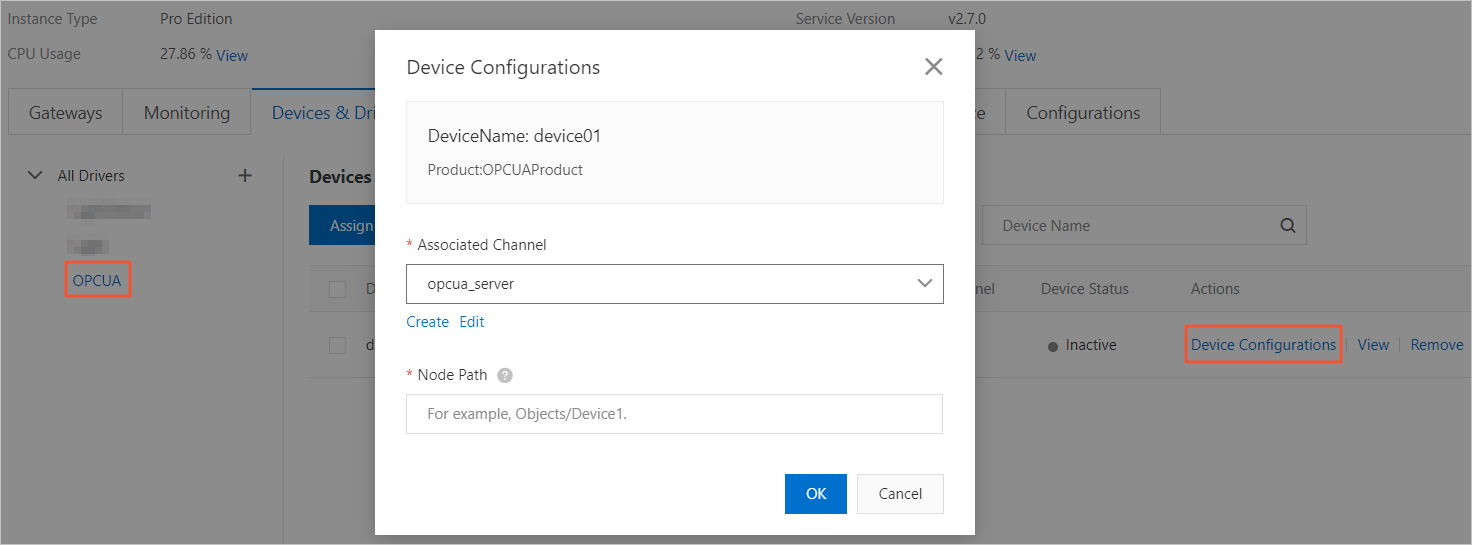
- After the device is assigned to the edge instance, click Device Configuration in the Actions column. Then, associate the device with the OPC UA driver by selecting a channel.
Table 2. Parameter description Parameter Description Associated Channel Select the channel that you added in Step 3 of Step 2: Configure the driver. Node Path The absolute path of the device in the OPC UA Server, starting from Objects to the device node. Note For more information about the OPC UA Server, see OPC UA device connection practice.
Step 4: Deploy the edge instance
On the Instance Details page, click Deploy in the upper-right corner to redeploy the instance.