Create a product
A product is a collection of devices of the same type that typically share the same features, such as devices of the same hardware model. Create a product in the IoT Platform console before connecting devices.
Prerequisites
-
Activate the IoT Platform service.
NoteAfter activation, try IoT Platform for free. Alibaba Cloud IoT Platform products for free trial. Billing overview.
-
To create a product in an Enterprise Edition instance, purchase an Enterprise Edition instance first.
Procedure
-
Log on to the IoT Platform console.
In the upper-left corner of the IoT Platform console, select the region where the IoT Platform instance resides.
On the Overview page, find the instance that you want to manage and click the instance ID or instance name.
-
In the left-side navigation pane, choose , and click Create Product.
-
You can click the Create Product tab or the Create Product From Device Center tab to select a method to create a product.
ImportantMQTT instances only support Create Product, and do not support Create Product From Device Center.
Create product
Parameter
Description
Product Name
The product name. Must be unique within your Alibaba Cloud account. 4-30 characters; supports letters, digits, underscores (_), hyphens (-), at signs (@), and parentheses ().
Category
Categories serve as product templates.
-
Standard Category: IoT Platform has predefined feature templates for standard categories.
For example, the category has predefined standard features such as range hood power switch, range hood working status, and range hood fan speed. If you select this category, the created product has predefined features. You can edit, modify, or add features on the Product Details page Define Feature tab.
Click the help button to the right of Category
 to learn more about standard categories or request a new category.
 -
Custom Category: After the product is created, you need to customize the Thing Specification Language (TSL) model based on your needs.
NoteMQTT instances only use this configuration to identify the product category.
-
Selecting Standard Category does not associate predefined TSL features.
-
Selecting Custom Category does not require customizing TSL features.
Node Type
The type of devices in the product. Valid values:
-
Directly Connected Device: Devices with IP addresses that connect directly to IoT Platform. Cannot attach sub-devices, but can be attached to gateways as sub-devices.
-
Gateway Sub-device: Devices that connect to IoT Platform through gateways. Gateway and sub-devices.
-
Gateway Device: Devices that connect directly to IoT Platform and manage attached sub-devices. Maintains sub-device topologies and syncs them to IoT Platform.
NoteMQTT instances only support Directly Connected Device.
Connection And Data
Network Connection Method
The network connection method of directly connected devices or gateways. Valid values:
-
Wi-Fi
-
Cellular (2G/3G/4G/5G)
-
Ethernet
-
LoRaWAN
Supported only on Enterprise HA premium instances. Not available on MQTT instances or new and old public instances.
NoteWhen you first select LoRaWAN, click Authorize Now to open the RAM console and grant IoT Platform the AliyunIOTAccessingLinkWANRole role for LinkWAN access.
-
Others
Data Type
The format of upstream and downstream data. Valid values:
NoteMQTT instances do not display this parameter.
-
ICA Standard Data Format (Alink JSON): The JSON-based Alink protocol is provided by IoT Platform to establish communication between devices and IoT Platform.
-
Custom: If you want to use a custom serial data format, set this parameter to Custom.
You must submit a data parsing script in the console to convert upstream custom-format data to Alink JSON data and parse downstream Alink JSON data to custom-format data. This way, devices can communicate with IoT Platform.
NoteProducts that use LoRaWAN to connect to gateways support only Custom.
Checksum Type
Specifies how IoT Platform verifies TSL data submitted by devices.
NoteMQTT instances do not display this parameter.
If Data Type is set to Custom, IoT Platform calls the data parsing script to convert custom-format data to Alink JSON before verification.
-
Weak Verification: Only the identifier and dataType fields in the data submitted by the device are verified. Data of other fields is forwarded without verification.
Data that passes validation appears on the TSL Data tab of the Device Details page for the device in the IoT Platform console. Data that fails validation is not displayed.
You can view the data that failed validation in the checkFailedData parameter of the forwarded data. For more information, see Data formats.
-
Verification-free: All data submitted by the device is forwarded without verification.
The TSL model data is used as follows:
- TSL model property reporting: Property data is not displayed on the tab of the Device DetailsIoT Platform console
- TSL model service invocation: All services use asynchronous invocation.
- TSL model event reporting: All events are of the information type.
Authentication Mode
The device authentication method. Cannot be changed after the product is created. Valid values:
NoteMQTT instances do not display this parameter.
-
Device Secret: Uses the IoT Platform-generated DeviceSecret for device authentication.
-
ID²: IoT Device ID (ID²) provides mutual identity verification between devices and IoT Platform through lightweight iTLS secure tunnels.
ImportantID² certificate-based authentication is supported only for Enterprise instances and earlier-version public instances in the China (Shanghai) and Singapore regions.
-
Activate the ID² service before use. IoT Internet Device ID User Manual.
-
Products whose Network Connection Method parameter is set to LoRaWAN do not support ID²-based authentication.
-
X.509 Certificate: Uses X.509 digital certificates for device authentication.
NoteCurrently, only the cloud gateway feature of Enterprise Edition premium instances supports X.509 certificate authentication.
More Information
Product Description
The description of the product. The description must be 1 to 100 characters in length.
Create Product from Device Center
You can quickly create a product by using the AliThingsCode of a certified device in the AIoT Device Center.
Note-
To create a product from the AIoT Device Center, you must complete AIoT hardware partner registration and certification.
-
IoT Platform has predefined feature templates for products created from the Device Center. You can edit, modify, or add features on the Product Details page Define Feature tab.
Parameter
Description
Product Name
The product name. Must be unique within your Alibaba Cloud account. 4-30 characters; supports letters, digits, underscores (_), hyphens (-), at signs (@), and parentheses.
AliThingsCode
The AliThingsCode of the certified device.
You can go to the AIoT Device Center to find the certified device and obtain its AliThingsCode.
-
Result
After the product is created, the page opens. You can Add Devices, Define Features, and Configure Devices.
What to do next
Define product features
-
On the Products page, click View in the Actions column corresponding to the product that you want to configure.
-
On the product details page, click a tab to configure the product based on your business requirements.
NoteMQTT instances only support displaying the Product Information and Server-side Subscription tabs.
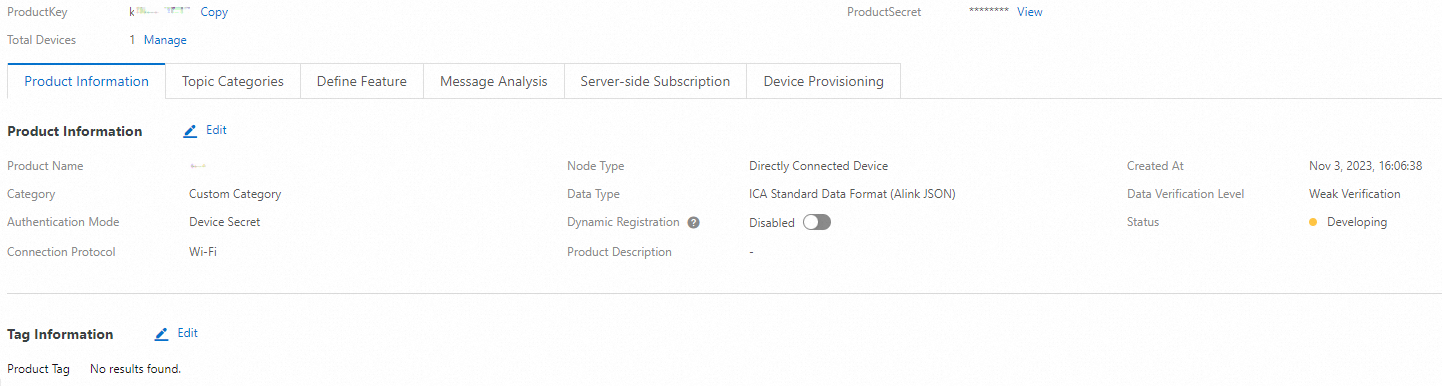
Product information
-
View the product information. You can click Edit to the right of Product Information. In the Edit Product Information dialog box, modify the Product Name or Product Description parameters.
-
View product tags. No tags are set by default. Add tags to identify products. Add product tags.
Topic categories
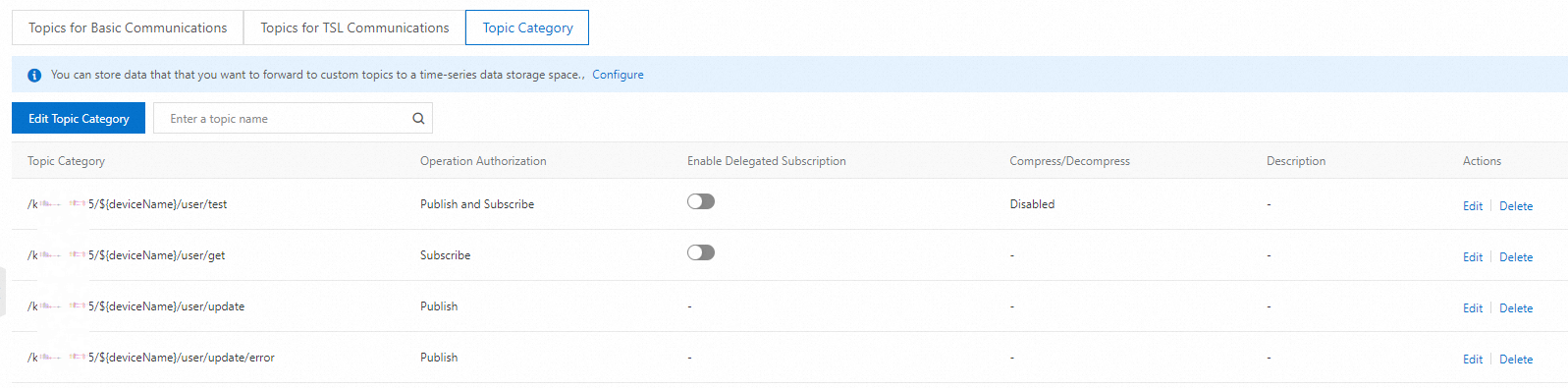
View existing topic categories on the Topics For Basic Communications, Topics For TSL Communications, and Topic Category tabs. Topic categories.
You can also add a custom topic category. Add a custom topic category.
Define feature
Configure properties, events, and services for a TSL model for TSL communication:
Message analysis
If Custom is set as the data type, write a script to parse data:
Server-side subscription
Create a server-side subscription to forward device data. Configure an AMQP server-side subscription.
Device development
To connect devices to IoT Platform: register the device, Connect The Device, Verify The Device Connection Status, and Mass Produce Devices. Device development.
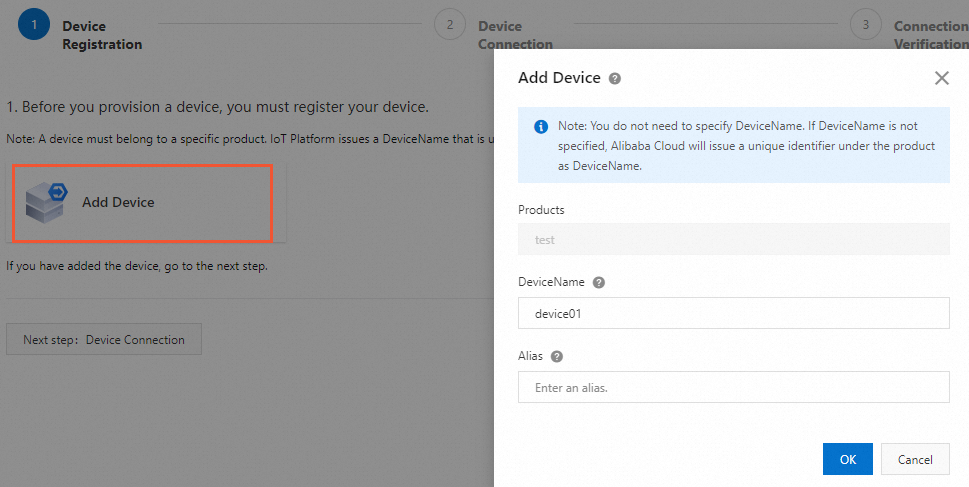
Device registration
The following figure shows how to create a device. Create a device.
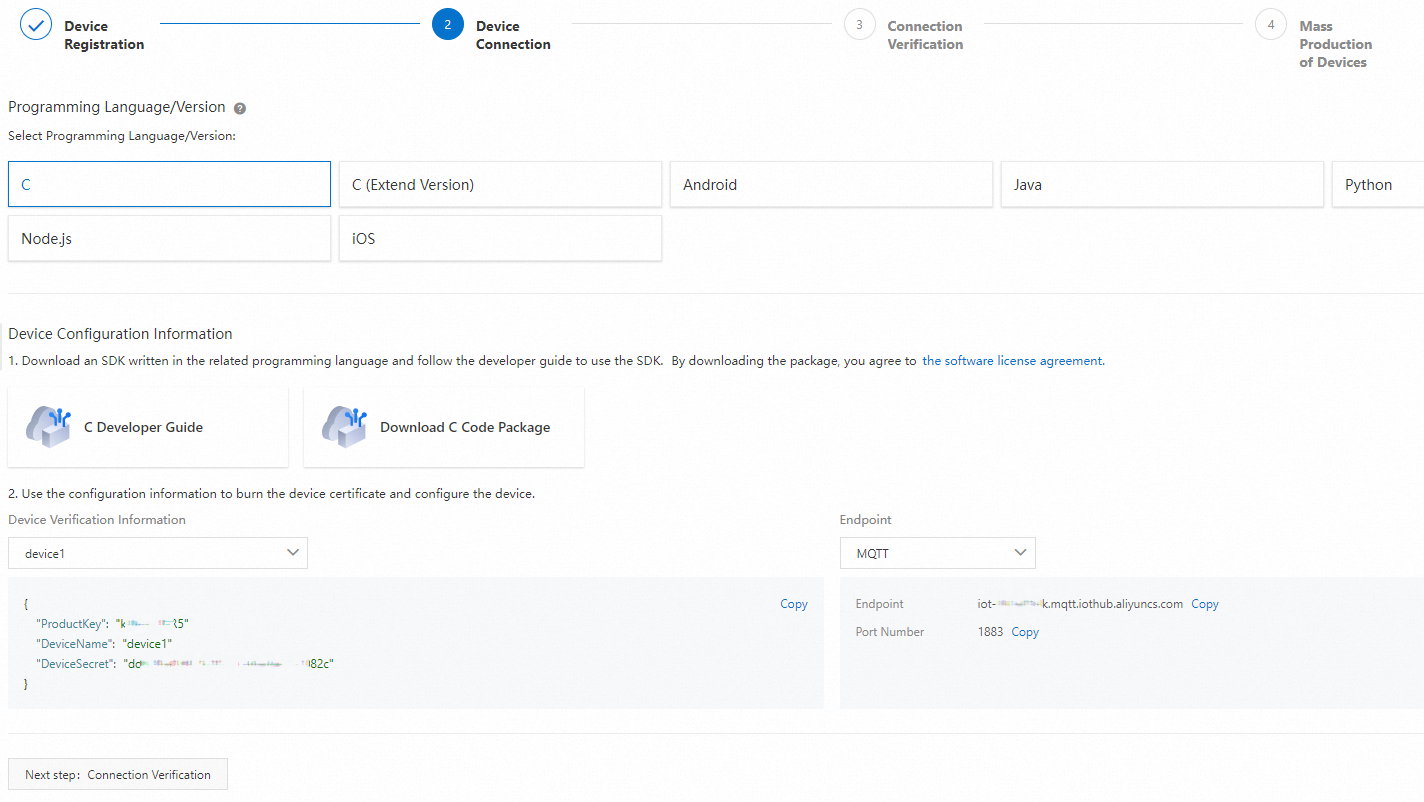
Device connection
IoT Platform provides Link SDKs in multiple programming languages. Overview of device connection.
Connection verification
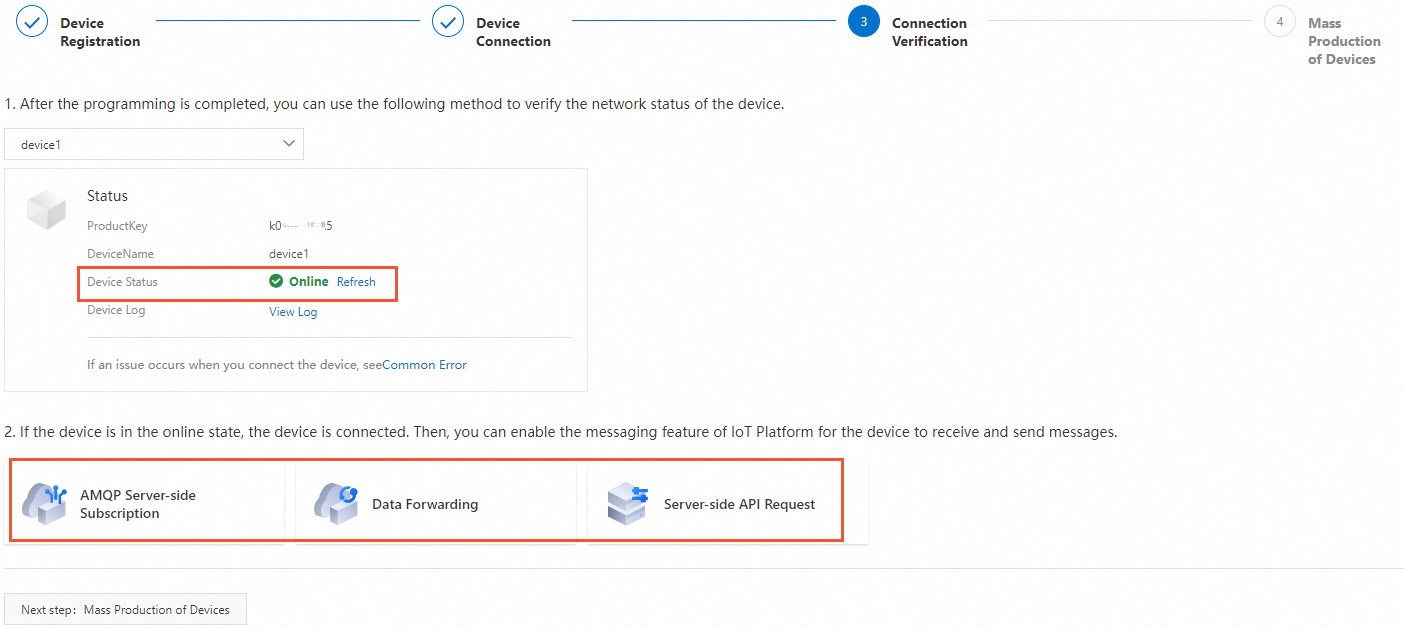
Verify the device is online. If connected, use IoT Platform messaging to send and receive device messages:

Mass Production of Devices
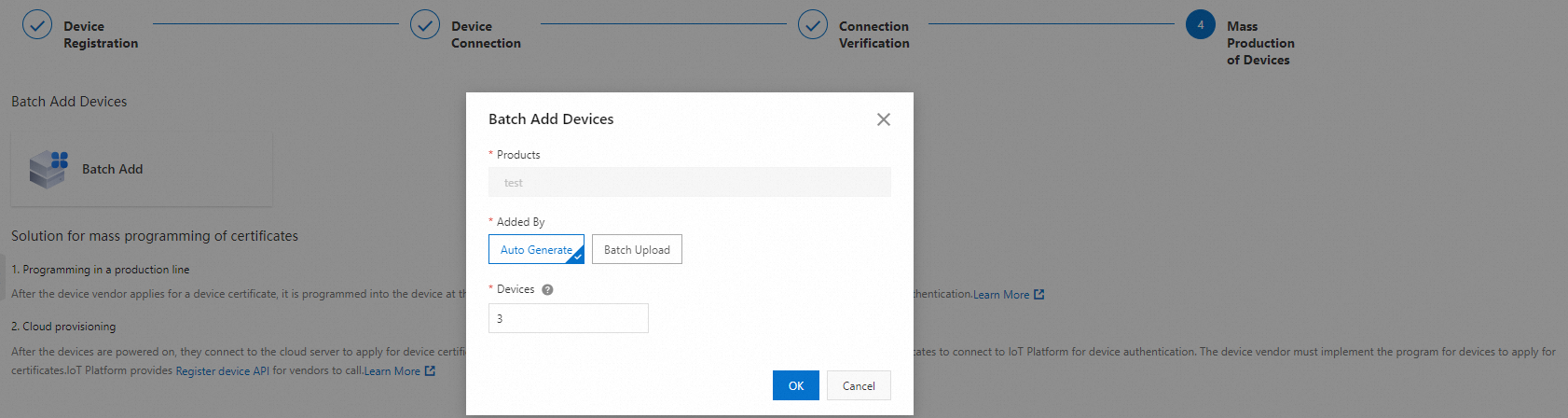
Add multiple devices and burn certificates:
-
Burn device certificates on the manufacturer's production line.
-
Retrieve device certificates from the cloud server of a device manufacturer.
File upload configuration
To upload device files to your OSS bucket, complete bucket authorization and configuration. Configure file upload.
-
(Optional) Publish the product
On the Product Details page, click Publish in the upper-right corner to publish the product.
Ensure all product parameters are configured and devices are configured and debugged before publishing.
After the product is published, the product enters the Published state.
You cannot modify or delete a product that is in the Published state.

Other operations
-
Cancel the publish operation for a product. On the Product Details page, click Cancel Publishing in the upper-right corner, and then click OK.
-
Delete a product that is not in the Published state. Go back to the Products page. Find the product that you want to delete in the product list, click Delete in the Actions column, and then click OK.
Warning-
All product data will be deleted. If devices are connected to IoT Platform, their services will become unavailable and business will be interrupted. Proceed with caution.
-
Delete all devices of the product before deleting the product. Delete a device.
-
-
Back up the product data. Go back to the Products page, and click Back Up Product Data above the product list to go to the page. You can select the target product to enable data backup. For more information, see Back up a product.
