Host health diagnostics

更新时间:
复制 MD 格式

The host management page in IoT Edge provides a health diagnostics feature for your hosts. This feature comprehensively diagnoses the host's system configuration, runtime status, software runtime status, network status, and historical runtime status. This helps you understand the health of your hosts and promptly identify and resolve common issues.

Limits

The host health diagnostics feature is supported only for hosts that are EDGEBOX nodes or converged nodes with a Kubernetes (k8s) base.

Procedure

  1. You can log on to the IoT Edge console.

  2. In the navigation pane on the left, you can select your instance from the drop-down list.

  3. In the navigation pane on the left, you can choose Node Management > Host Management.

  4. In the Actions column for the target host, you can click Host Details.

  5. On the host details page, you can click the Health Diagnostics tab and then click Start Diagnostics.

    The diagnosis covers five areas: system configuration, system runtime status, system software runtime status, host network status, and host historical runtime status. The process takes about 2 minutes.

    Note

    If the k8s-launcher for your host base is missing, the interface prompts you to upgrade. You must perform the upgrade before you can run the health diagnostics.
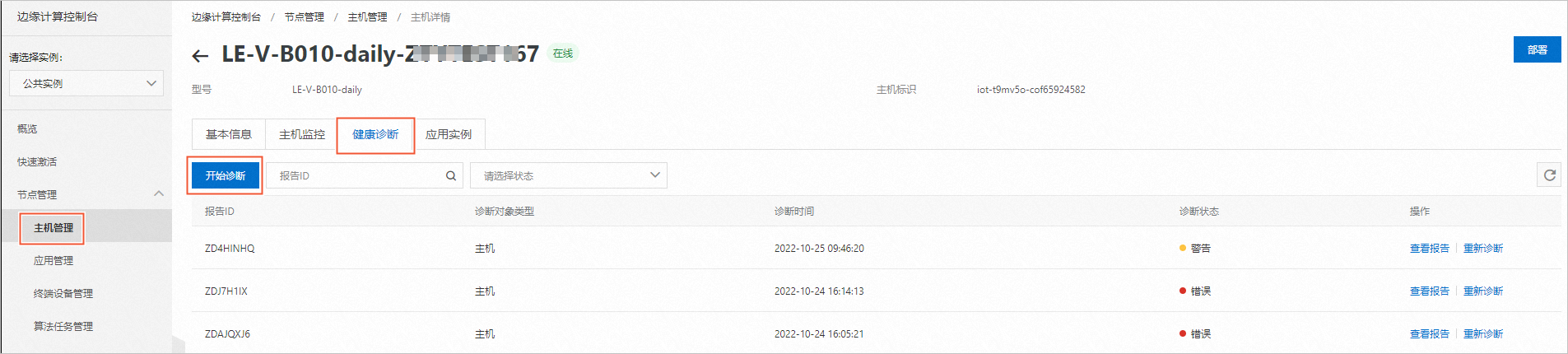
    image

  6. After the diagnostics are complete, you can click View Report to see the results. You can then fix any issues based on the provided results and suggestions.

System configuration diagnostics

Diagnostic Item

Description

Kernel parameter check

The recommended values for kernel parameters are as follows:

  • net.bridge.bridge-nf-call-ip6tables=1

  • net.bridge.bridge-nf-call-iptables=1

  • net.ipv4.ip_forward=1

  • net.ipv4.conf.all.forwarding=1

  • net.ipv6.conf.all.forwarding=1

  • fs.inotify.max_user_watches=524288

  • net.ipv4.conf.all.arp_ignore=1

  • net.ipv4.conf.all.arp_announce=2

Use commands to adjust the parameters as needed.

Example command: Set net.ipv4.conf.all.arp_announce to 2.

touch /etc/sysctl.conf && sed -i '/net.ipv4.conf.all.arp_announce/d' /etc/sysctl.conf && echo 'net.ipv4.conf.all.arp_announce=2' >> /etc/sysctl.conf && sysctl -p /etc/sysctl.conf

SELinux check

Checks if Security-Enhanced Linux (SELinux) is disabled.

If SELinux is not disabled, run the following command to disable it.

sudo setenforce 0 > /dev/null ; sudo sed -i '/SELINUX=/d' /etc/selinux/config ; sudo echo -e "SELINUX=disabled" >> /etc/selinux/config

Swap partition check

Checks if the Swap partition is turned off.

If the Swap partition is not turned off, run the following command to turn it off.

swapoff -a; sed -i '/\bswap\b/d' /etc/fstab

CPU operating mode check

Checks if the CPU is set to high-performance mode (interactive).

IPv6 DNS check

Checks if the /etc/resolv.conf file contains an IPv6 address.

If it does, edit the file manually to fix it.

System runtime status diagnostics

Diagnostic Item

Diagnostic Result

Solution

CPU load check

High system load

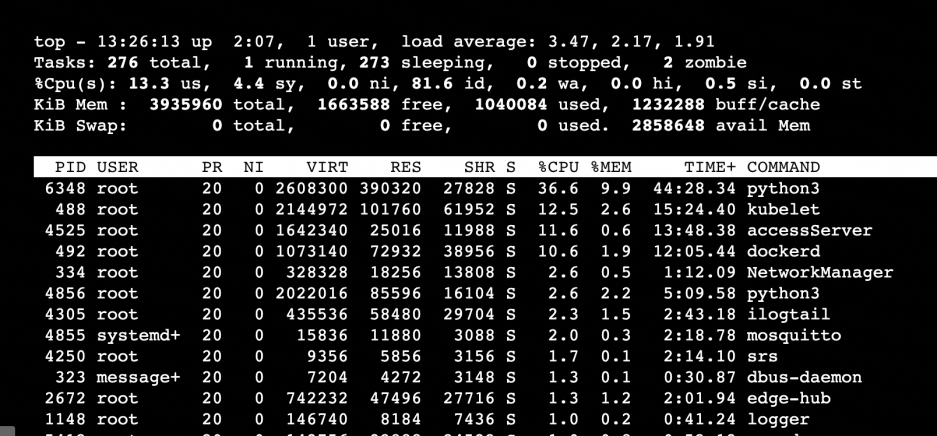
A higher load value indicates a longer task queue and more tasks waiting for execution. You can use the top command to view the system load. load average: 3.47, 2.17, 1.91 shows the average load values over 1, 5, and 15 minutes.

Investigate as follows:

  • If high CPU usage is causing high system load, find the reason for the high CPU usage.

  • If CPU usage is low but the load is high, the system might have many disk or network I/O waits. There might also be zombie processes.

CPU temperature check

High CPU temperature

Confirm the following:

  • Is the environmental temperature for the all-in-one machine too high?

  • Is the CPU usage too high?

If these are not the issues, the cause might be a slow fan speed or other hardware problems.

Memory usage diagnostics

High memory or CPU usage

If a host's memory or CPU usage remains high, it can affect system stability and business operations. For a Linux system, you can handle this as follows.

In Linux, you can use common commands such as vmstat, top, ps -aux, and ps -ef to view system processes. The following steps describe how to use the top command to find processes that cause high memory or CPU usage.

  1. Run the top command.

  2. Pay attention to the first and third lines of the output.

    • First line: top - 13:26:13 up 2:07, 1 user, load average: 3.47, 2.17, 1.91. This shows the current system time, system uptime, number of currently logged-on users, and system load.

    • Third line: Shows the overall usage of CPU resources. Below this, the resource usage of each process is displayed.

  3. Press P to sort by CPU usage. This helps locate processes with high CPU usage.

  4. Press M to sort by system memory usage. If you have a multi-core CPU, press the 1 key to display the load of each CPU core.

  5. Run the command ll /proc/PID/exe to view the program file corresponding to each process ID.image

  6. If you confirm that a process consuming too much CPU or memory is problematic, use the kill command to stop it. For a long-term solution, analyze why the process is consuming excessive resources and optimize it.

CPU usage diagnostics

Disk usage check

High disk space usage

Use the command sudo du -h --max-depth=1 to find large directories or files starting from the root directory. Delete the relevant files or directories based on your business needs.

For a long-term solution, analyze the cause of the large files and optimize, or scale out the disk. Common causes of high disk usage include not setting a log rollback policy or setting an unreasonable one, and not cleaning up historical files promptly. These issues cause disk usage to rise continuously. When it reaches a certain threshold, it can cause system or application abnormalities.

Disk inode usage check

High disk inode usage

This is caused by too many small files on the system. Clean up the small files promptly. Otherwise, you risk being unable to create new files.

  1. Run the df -i command to query inode usage.

    If inode usage reaches or approaches 100%, you must clean up files or directories with high inode consumption.

  2. Log on to the server and run the command: for i in /*; do echo $i; find $i | wc -l; done. This shows the number of files in the second-level directories under the root directory.

  3. Navigate to the directory with the most files and run the same command again. Repeat this process to locate the files or directories that occupy too much space, and then clean them up.

PID and thread usage check

PID and thread limits reached

The current number of processes in the system has reached the maximum limit. If this occurs, new system processes cannot be created.

File system read/write check

Unable to read or write files

Try creating a file on the host. If you see a No space left on device … error, it is usually caused by one of the following issues:

  • High disk partition space usage.

  • High disk partition inode usage.

  • Zombie files exist. These are deleted files whose space has not been released because a handle is still in use.

If none of these are the issue, the cause might be disk or file system corruption.

Zombie process check

Zombie processes found

The following command shows the zombie processes that exist on the system:

ps -A -ostat,ppid,pid,cmd | grep -v color | grep -e '^[Zz]'

Zombie processes cannot be stopped and cannot exit on their own. They can only be resolved by recovering their dependent resources or by restarting the system. If you choose to restart the system to resolve zombie processes, first ensure that the restart will not affect your business operations.

Host network status diagnostics

Diagnostic Result

Solution

Network connection failed

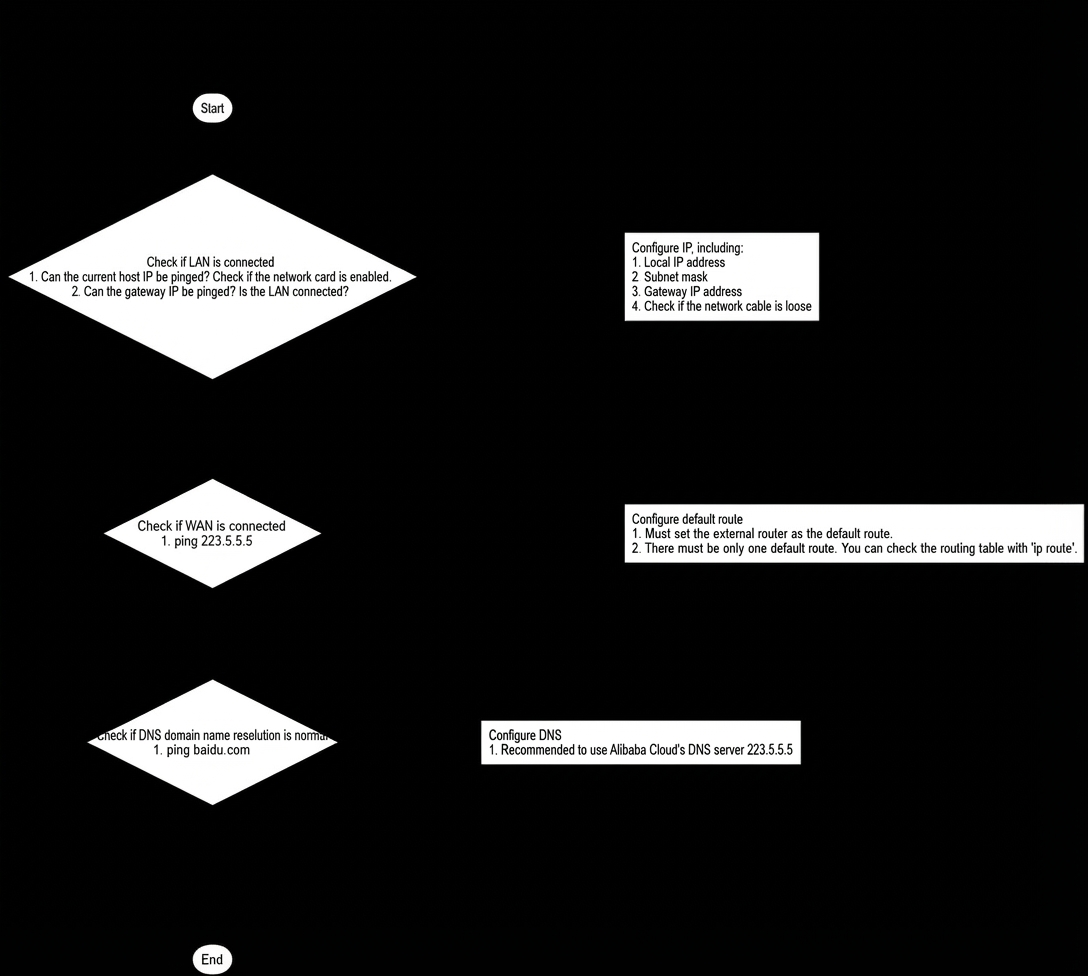
The troubleshooting process is as follows:

  1. ping the host's own IP address and the local area network (LAN) gateway's IP address. If the ping fails, there is a problem with the LAN configuration.

  2. ping a public IP address, such as 223.5.5.5 (the IP address for Alibaba Cloud DNS).

    • If the ping is successful, the IP layer configuration is correct.

    • If the ping fails, the host cannot connect to the public network. This is usually because the default route is not set, or multiple default routes are set. Use the ip route command to view the route table. The entry with the word default is the default route.

  3. ping a public domain name, such as www.baidu.com.

    • If the ping is successful, the DNS configuration is correct.

    • If the ping fails, there is a problem with the DNS configuration. Check the contents of the DNS configuration file /etc/resolv.conf.

The process is illustrated in the following diagram:image

    IP conflict

    On the host where the IP address conflict was detected, run the arping -D -I ethN x.x.x.x command, where x.x.x.x is the host's IP address. If there is no output, there is no conflict for this IP address. If there is an IP conflict, the command will display the MAC address used by the conflicting IP address. You must reconfigure the network.

    arping -D -I NIC_Name IP

    image

    DHCP search domain injection exists

    Check the host file /etc/resolv.conf. If you find search DHCP HOST, it may cause domain names to fail to resolve correctly.image

    Try the following steps to resolve the issue:

    1. Run the command ip route | grep default to find the default network interface controller (NIC).image

    2. Run the nmtui command to configure the network.

    3. In the Network Editor, click Edit a connection and configure it as shown in the following figure.

    4. Run the following command to check if the configuration has taken effect.

      cat /etc/sysconfig/network-scripts/ifcfg-enp2s0

      Note

      After turning off search domain injection, PEERDNS changes to no. This configuration takes effect only after the machine is restarted. Before restarting, check that other configurations are correct to avoid going offline due to a network connection failure after the restart.

      The NIC configuration file directories for x86 and arm are as follows:

      • x86: /etc/sysconfig/network-scripts

      • arm: /etc/NetworkManager/system-connections

      Pay attention to the following parameters:

      • BOOTPROTO: The method for obtaining an IP address. `dhcp` (dynamic IP) or `static` (static IP). This should be `dhcp`.

      • ONBOOT: Whether to activate the NIC on system startup. This should be `yes`.

      • DNS: DNS service configuration. Recommended values are 223.5.5.5 and 223.6.6.6. You can also configure it as needed.

      • PERRDNS: Whether to allow automatic injection of the search domain. This should be `no`.

        • x86: /etc/sysconfig/network-scripts

        • arm: /etc/NetworkManager/system-connections

    5. Run `reboot` to restart the system.

        Important

        If you are performing this operation remotely, do not restart the NIC directly. Restarting the NIC might fail, and you will lose network connectivity. Restart the system directly instead.

    Host software runtime status diagnostics

    Diagnostic Result

    Solution

    System service not running

    To ensure that the all-in-one machine can provide services normally, the following system services must be running:

    kubelet, docker, containerd, LinkIoTEdge, NetworkManager, sshd, dbus

    You can use the following commands to query the running status of a system service. If a service is not running, you can start it manually.

    # Check the running status of a system service
    systemctl status docker
    # Start a system service
    systemctl start docker

    Firewall is enabled

    Use the following commands to stop and disable the firewall.

    systemctl stop firewalld
    systemctl disable firewalld

    Docker is hanging

    If you find that Docker is unresponsive, try restarting the Docker service by running the systemctl restart docker command, or restart the system by running sync && reboot.

    Container has a storage leak

    This is a known issue in the open source software. You can run the following script to clean up unused container storage layers.

    Note

    If not cleaned, this will occupy extra disk space. It will not affect system operation if disk usage is low. You can decide whether to clean it up as needed.

    curl -s 'http://edge-box-production-management.oss-cn-shanghai.aliyuncs.com/utils/cleanup_docker_storage.sh' | bash -s