Remote service access
Remote operations and maintenance (O&M) includes remote connections using the Secure Shell (SSH) protocol, remote file management using the SSH File Transfer Protocol (SFTP), and remote access to other network services based on the Transmission Control Protocol (TCP).
Remote access to a host
Remote access to a host uses the Secure Shell (SSH) protocol. You can remotely log on to an edge all-in-one machine to control the device and manage files. The username and password are the same as those for the SSH service on the edge all-in-one machine.
Log on to the Edge Computing console.
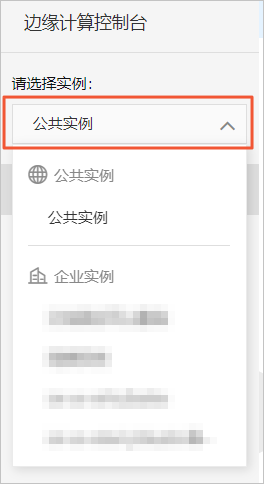
From the drop-down list in the navigation pane on the left, select your instance.
In the navigation pane on the left, choose Node Management > Host Management.
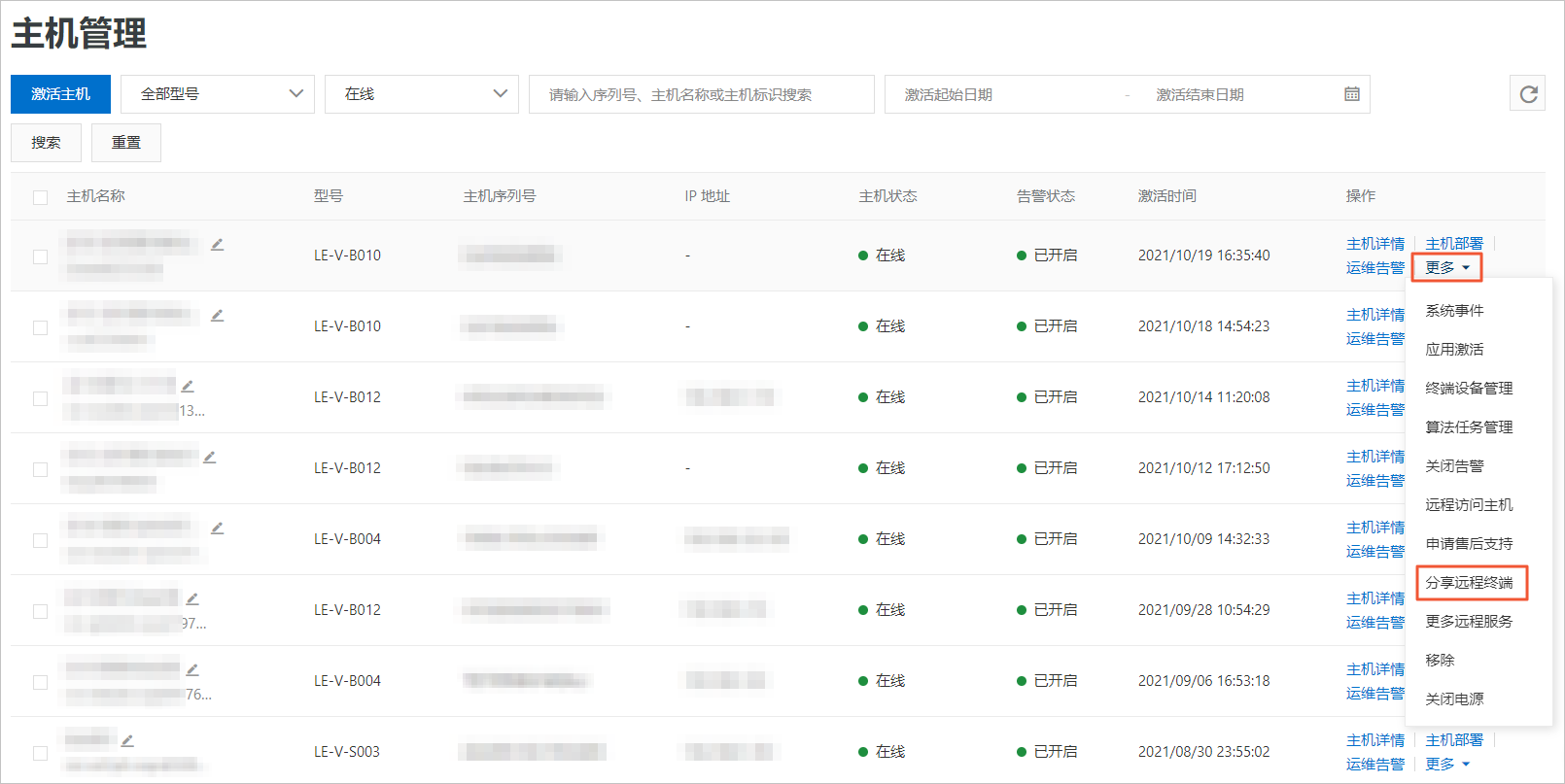
In the Operations column of the activated host, choose More > Remote Access Host.
In the dialog box that appears, enter the username and password to remotely log on to the host, and then click OK.
If you forget the username and password, navigate to the Host Management page. In the Operations column for the host, click Host Details. On the Basic Information tab, click Modify Local Password. You can then view the username and reset the password. For more information, see Host management.
After the connection is successful, the remote console page appears, as shown in the following figure.
ImportantRemote logon to an edge all-in-one machine grants advanced privileges. You can update, delete, modify, and view all types of information and files on the machine. Use these privileges with caution.
(Optional) Manage remote files in the remote console.
Remote file management provides features, such as browsing and creating folders, and uploading and downloading files. The following table describes these features.
Operation
Description
Upload File
Click Upload File. In the dialog box that appears, click the upload button to select a local file. After the upload is successful, click OK to upload the file to the remote folder.
New Folder
Click New Folder. In the dialog box that appears, enter a folder name and click OK to add a new remote folder.
NoteFolder names can contain Chinese characters, English letters, and numbers. The name cannot be longer than 64 bytes.
Download
Click Download to download a remote file to your local machine.
Delete
Click Delete to delete a remote file.
ImportantDeleted remote files cannot be recovered. Use this feature with caution.
Share a remote terminal
On the Host Management page, find an activated host. In the Operations column of the host, choose More > Share Remote Terminal.
In the Share Remote Terminal dialog box that appears, turn on the Remote Sharing switch.
The Share Remote Terminal dialog box displays the link and password for remote sharing. Click Copy Link and Password to share remote access privileges to the edge all-in-one machine with other users.
NoteRemote sharing is automatically disabled after 24 hours. After remote sharing is disabled, users cannot start new logon sessions. However, users who are already logged on can continue their sessions. To prevent users who are logged on from using the remote terminal, turn off the Remote Sharing switch.
Click Reset Password to generate a new password. After you reset the password, other users cannot use the old password to log on to the remote terminal. However, users who are already logged on can continue their sessions until they log off.
Users who receive the shared remote terminal link can follow these steps to log on to the edge all-in-one machine and use the remote service.
Open the shared link in a browser and enter the shared password.
Enter the username and password for the SSH service on the edge all-in-one machine. The person who shared the link provides this information.
After you successfully log on to the edge all-in-one machine, you can use the remote service.
Remote services
To remotely access SSH, SFTP, HTTP, or HTTPS services on an edge all-in-one machine, you can log on to the remote service using the logon username and password for the machine.
On the Host Management page, find an activated host. In the Operations column of the host, choose More > More Remote Services.
In the More Remote Services dialog box, set the parameters and then click OK.
Parameter
Description
Remote Service
Select the type of remote service that you want to access. To add a custom remote service, see Custom remote services later in this topic.
Resource Path
If the custom service is a web service, you can specify the resource access path to access the service.
Enter a username and password to access the remote service.
SSH and SFTP services: The initial username is
ownerand the initial password ischangepassword. Change the password immediately after your first logon.HTTP and HTTPS services: For more information, see Management console of the edge all-in-one machine.
Custom remote services
In the More Remote Services dialog box, you can add custom remote services in one of the following two ways:
You can add a maximum of 20 custom remote services.
Dynamically add a custom remote service
On the Host Management page, find an activated host. In the Operations column of the host, choose More > More Remote Services.
In the More Remote Services dialog box, click Add below the Remote Service drop-down list.
In the panel that appears, set the parameters and then click OK.
Parameter
Description
Service Category
Select a service category from the drop-down list based on the type of remote service on the edge.
NoteIf the service type is not SSH, SFTP, HTTP, or HTTPS, select
Custom
.
Service Name
Set the name for the remote service. The name can contain English letters, numbers, hyphens (-), underscores (_), at signs (@), periods (.), and colons (:).
IP Address/Domain Name
The IP address or domain name of the remote service.
Port Number
The port number of the remote service.
Username
Enter the username to remotely log on to the edge all-in-one machine.
Password
Enter the username and password for remote logon to the edge all-in-one machine.
(Optional) You can delete a custom remote service.
In the More Remote Services dialog box, select the service that you want to delete from the Remote Service drop-down list. Click the
 icon next to the service name. In the dialog box that appears, click OK to delete the remote service.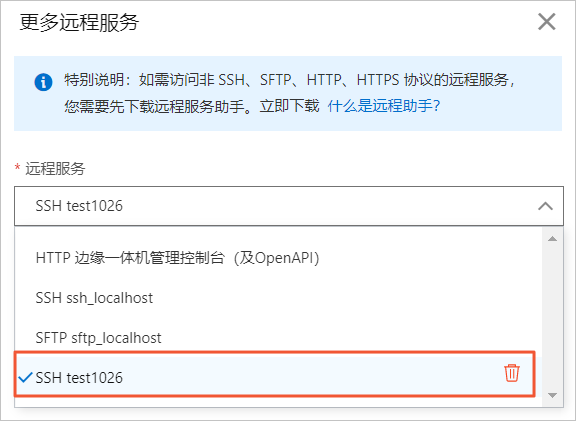
Statically add a custom remote service
Log on to your edge all-in-one machine.
Navigate to the
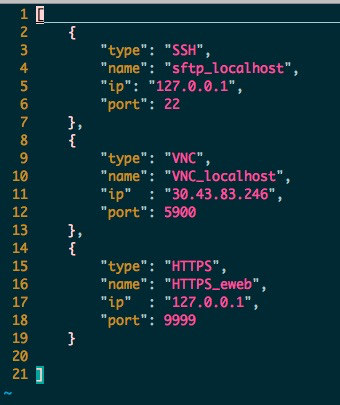
/linkedge/gateway/build/config/remote_terminal.jsonfile and add a custom remote service based on the template in the file.ImportantA remote service that is statically added on an edge all-in-one machine is displayed in the Remote Service list in the More Remote Services dialog box in the console. However, you cannot delete the service from this list.
The file contains the following sample template.