Domain name management
This topic describes how to bind a domain name to a mobile application and configure domain name resolution, allowing visitors to access your application.
Prerequisites
You have purchased a domain name. For more information, see Alibaba Cloud Domain Name Service.
Limitations
You can bind up to five domain names to an application, but a domain name can be bound to only one application. If you attempt to bind a domain name that is already associated with another application, the binding fails with the error message: domain already exit. In this case, you must unbind the domain name from the existing application before binding it to the new one.
Bind a domain name
-
Log on to the IoT Studio console. In the upper-left corner, select the target instance. In the navigation pane on the left, click App Development.
-
In the Recent Development section, find your target application in the Mobile Applications list, and click the application name.
-
In the mobile application editor, click the Application Settings icon
 on the far left.
 -
On the Application Settings page, select the Domain Name Management tab and click Add.
-
In the Add Domain Name dialog box, enter your domain name and click OK.
NoteYou must add a domain name to your mobile application before publishing it. You can bind a maximum of five domain names.
Configure domain name resolution and HTTPS acceleration
When you bind a custom domain name by using Alibaba Cloud CDN, we recommend that you do not configure CDN caching. Otherwise, changes to your application may not appear immediately when accessed through the domain name.
This section explains how to use Alibaba Cloud DNS and Alibaba Cloud CDN to configure domain name resolution and HTTPS secure acceleration. For more information, see Add a DNS record and Configure an HTTPS certificate.
-
Log on to the CDN console. In the navigation pane on the left, click Domain Name Management.
-
On the Domain Name Management page, click Add Domain Name.
-
On the Add Domain Name page, configure the settings and click Next.
-
Part 1: Configure basic information
Parameter
Description
Domain name
Enter your domain name.
NoteThis domain name cannot have other CNAME records.
Business type
Select a type based on your business requirements.
Acceleration region
Select an option based on your requirements. If you select Chinese mainland only or Global, you must apply for an ICP filing for your domain name. For more information about the ICP filing procedure, see First-time ICP filing.
Resource group
If you have created resource groups, select the group that contains your resources.
-
Part 2: Configure origin information
-
On the Add Domain Name page, click Add Origin.
-
In the Add Origin dialog box, configure the following parameters.
Parameter
Description
Origin information
Select Origin Domain. For the domain name, enter the application's default domain name:
xxxxxx.vapp.cloudhost.link.You can find your application's default domain name on the Domain Name Management tab.
This system-assigned domain name has the format
xxxxxx.vapp.cloudhost.link.Priority
Origin priority allows for a primary/secondary configuration where requests are routed to the higher-priority (primary) origin first.
Weight
You can use the default weight.
Port
You can use the default port.
-
Click OK to complete the configuration.
-
-
-
After the domain name is added, return to the Domain Name Management page and copy the generated CNAME value.
-
Go to the Alibaba Cloud DNS console and click DNS Settings for the corresponding domain name.
-
Click Add Record and set the CNAME record for the domain name to the CNAME value that you copied in the previous step.
For more information, see Add a DNS record.
-
Return to the CDN console. On the Domain Name Management page, find your domain name and click Manage in the Actions column.
-
In the navigation pane on the left, select HTTPS Settings. In the HTTPS Certificate section, click Modify and enable HTTPS secure acceleration.
For more information about HTTPS acceleration settings, see Configure an HTTPS certificate.
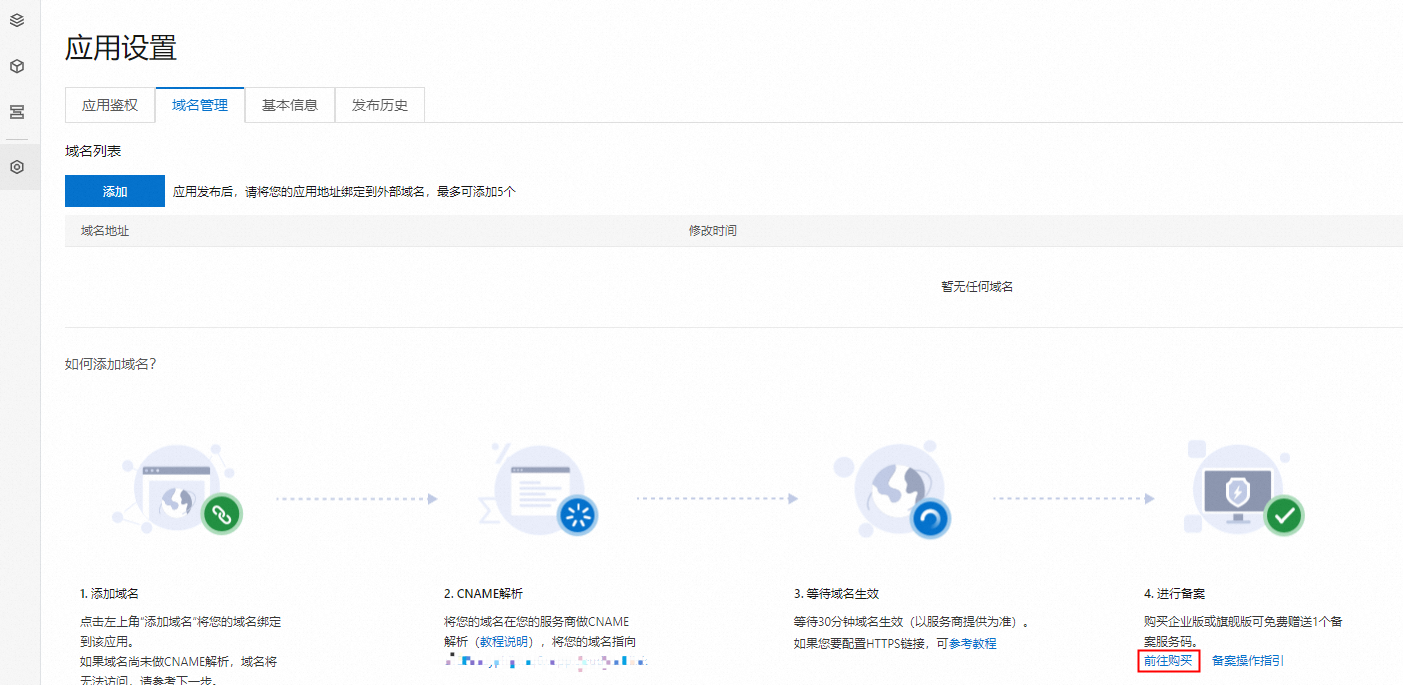
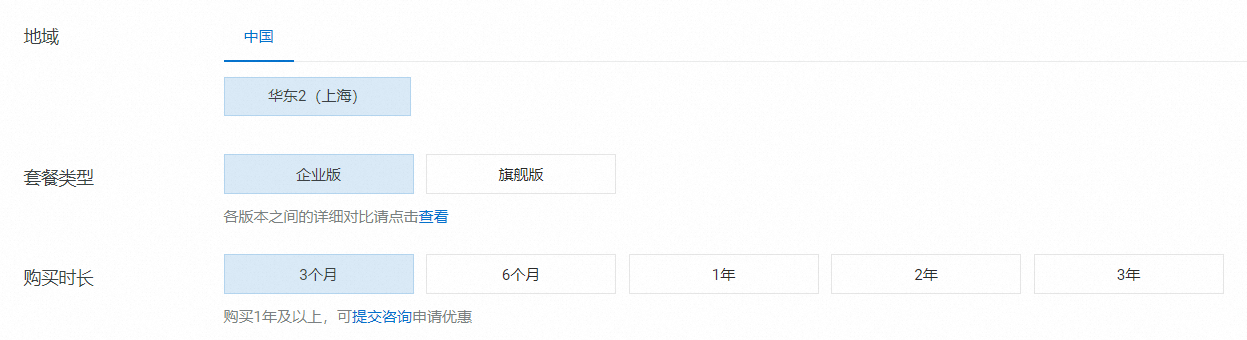
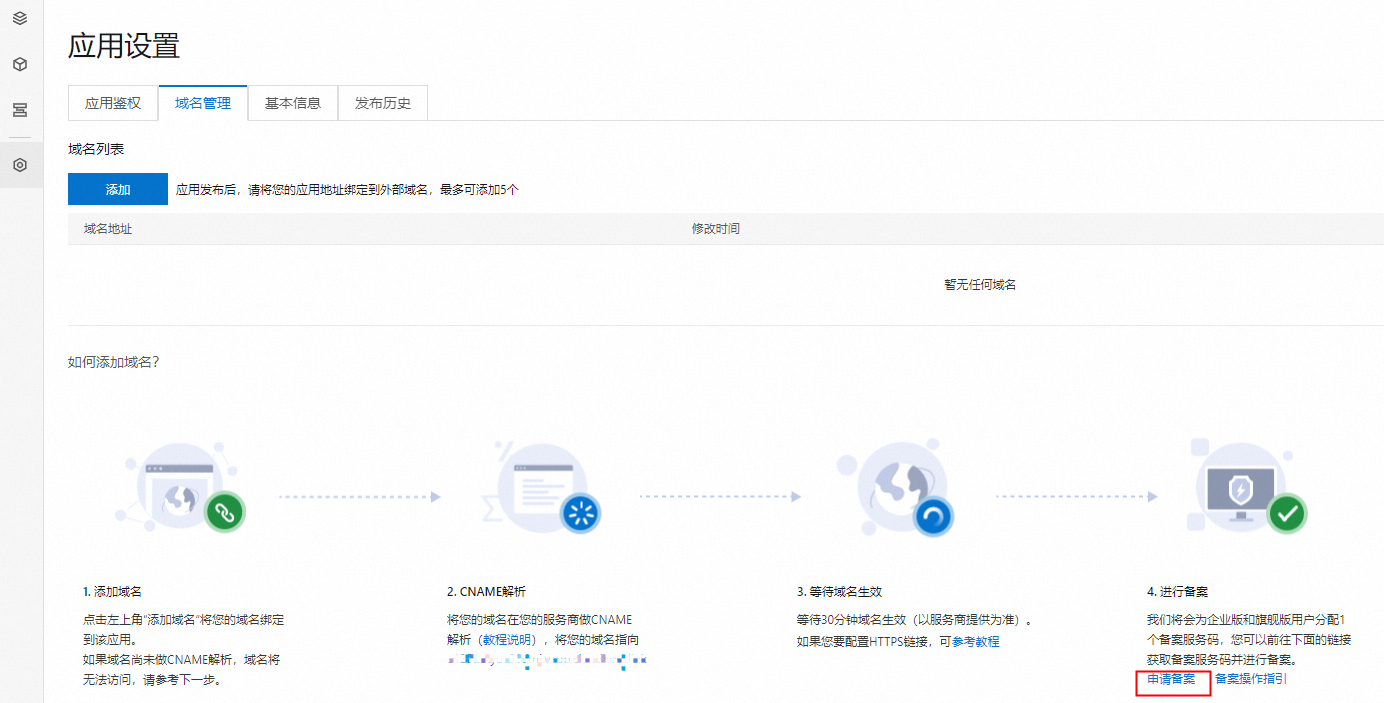
Apply for an ICP filing
Product Type | Description | Procedure |
Public Preview |
|
|
Trial Edition | ||
Enterprise or Ultimate Edition |
| On the Domain Management tab of the application, click Apply for ICP Filing to request an ICP filing service code and complete the filing. For more information, see Apply for a free ICP filing service code and ICP filing on a PC or mobile device.
|
Unbind a domain name
-
Log on to the IoT Studio console. In the upper-left corner, select the target instance. In the navigation pane on the left, click App Development.
-
In the Recent Development section, find your target application in the Mobile Applications list, and click the application name.
-
In the mobile application editor, click the Application Settings icon
 on the far left.
 -
On the Application Settings page, click the Domain Name Management tab.
-
In the Domain Name List, find the domain name that you want to remove and click Unbind in the Actions column.
 on the far left.