Add an update package
To perform over-the-air (OTA) updates for Internet of Things (IoT) devices, you must first add an update package for the corresponding product in the Alibaba Cloud IoT Platform. This topic describes how to add an update package.
Prerequisites
The device supports the OTA update feature. For more information, see OTA updates for devices using Link SDK.
If you add an OTA update package that contains multiple files, the device must support OTA updates that use multiple files. For more information, see OTA updates with multiple files.
Currently, only the C Link SDK for devices supports the development of the multi-file OTA update feature.
Background information
For information about how to use OTA updates, see OTA update overview. For information about the OTA update process on a device, see Device-side OTA updates.
Procedure
Log on to the IoT Platform console.
On the Overview page, find the instance that you want to manage and click the instance ID or instance name.
In the navigation pane on the left, choose .
NoteTo provide better services, IoT Platform has redesigned the OTA update feature and added a feature that collects statistics on update package versions. The first time you open the redesigned OTA Update page, you must manually associate your previously uploaded update packages with products. Each update package can be associated with only one product. For more information, see the instructions in the console.
(Optional) If your device uses an AliOS Things chip, enable the secure update feature.
Secure updates help ensure the integrity and confidentiality of update packages. We recommend that you enable this feature. To use the secure update feature, the device must verify the update package and its signature. For more information, see the AliOS Things documentation.
On the OTA Update page, click Secure Update.
In the dialog box, turn on the Secure Update switch for the product that you want to update.
When the secure update feature is On, click the corresponding Copy button to copy the public key. The device uses this key to verify the signature.
(Optional) Create a custom OTA module.
OTA modules are updatable modules, such as firmware, software, and drivers, for devices that belong to the same product. The default module represents the firmware of the entire device. You can also create other custom OTA modules.
On the Module List tab, click Add Module, configure the module information, and then click OK.
Parameter
Description
Related Product
Select the product to which the module belongs.
Module Name
Set the module name. The module name must be unique within the product and cannot be modified after it is created. The name can contain letters, digits, periods (.), hyphens (-), and underscores (_). The name must be 1 to 64 characters in length.
Module Alias
Set the module alias. The alias can contain letters, digits, periods (.), hyphens (-), and underscores (_). The alias must be 4 to 64 characters in length.
Module Description
Describe the purpose of the module. The description can be up to 100 characters in length.
On the OTA Update page, click the Update Package List tab, and then click Add Update Package.
Configure the update package information, upload the update package file, and then click OK.
Parameter
Description
Update Package Type
Full: The file you upload is a complete update package. The full package is pushed to the device to perform the update.
Delta: The file you upload contains only the differences between the new version and the previous version. Only the differences are pushed to the device. The device performs a delta restore to generate a full update package. Delta updates can reduce the consumption of device resources and network traffic during updates.
For devices that use AliOS Things chips, Alibaba Cloud provides a method for generating delta packages and a delta restore algorithm. For more information, see OTA Diff Tools User Guide. You can also generate delta packages and develop a delta restore algorithm.
Update Package Name
Set a name for the update package. The name must be unique within your Alibaba Cloud account and cannot be modified after it is created. The name can contain Chinese characters, letters, Japanese characters, digits, hyphens (-), underscores (_), and parentheses (()). It must start with a Chinese character, letter, Japanese character, or digit and be 1 to 40 characters in length.
After the update package is added, on the Update Package Details page, click the Update Package Information tab, and then click Edit to modify the Update Package Name.
Product
Select the product to which the update package belongs.
Update Package Module
Select the OTA module to which the update package belongs.
Click Add Module to add a new module.
Update Package Version
Set the version number for the update package. The version number can contain letters, digits, periods (.), hyphens (-), and underscores (_). The version number must be 1 to 64 characters in length.
This parameter is required when Update Package Type is set to Full.
Target version
Enter or select the OTA module version of the device to be updated. The drop-down list displays the OTA module versions of all devices that belong to the current product.
This parameter is required when Update Package Type is set to Delta.
Destination Version
Set the version number for this update package.
This parameter is required when Update Package Type is set to Delta.
Signature Algorithm
MD5 and SHA256 are supported.
If the device uses the Android SDK provided by Alibaba Cloud and Update Package Type is set to Delta, select MD5.
Upload Update Package
Upload the update package files. You can upload a maximum of 20 files. The total size of the files cannot exceed 1,000 MB. The file format is .
Note the following when you upload multiple update package files:
File names cannot be the same. A single file name cannot exceed 32 characters in length.
IoT Platform checks the signatures of the files. Files with the same signature are considered duplicates.
Require platform validation for the update package
Select whether to use a small number of test devices to validate the update package before you perform a batch update.
Yes: Validation is required. You can perform a batch update only after the validation is successful.
No: Validation is not required. You can directly perform a batch update.
Update Package Description
Enter a description for the update package. The description can be up to 1,024 characters in length.
After the update package is added, on the Update Package Details page, click the Update Package Information tab, and then click Edit to modify the Update Package Description.
Custom information to push to devices
After you add the update package and create an update task, IoT Platform sends this custom information to the device when it pushes an update notification.
The custom information can be up to 4,096 characters in length. The content and format are not limited.
After the update package is added, on the Update Package Details page, click the Update Package Information tab, and then click Edit to modify the Custom information to push to devices.
Update Package Security Scan Service
Performs a security scan on the update package that you upload. This service is supported only by public instances in the China (Shanghai) region.
After you select Use Scan Service, enter your email address to receive the scan report.
After you add the update package, the scan starts. On the Update Package Details page, on the Update Package Information tab, the Update Package Security Scan Service section displays the Scan Status and the Number of Security Risks.
ImportantIf the update package contains multiple files, the security scan service is not supported.
Results
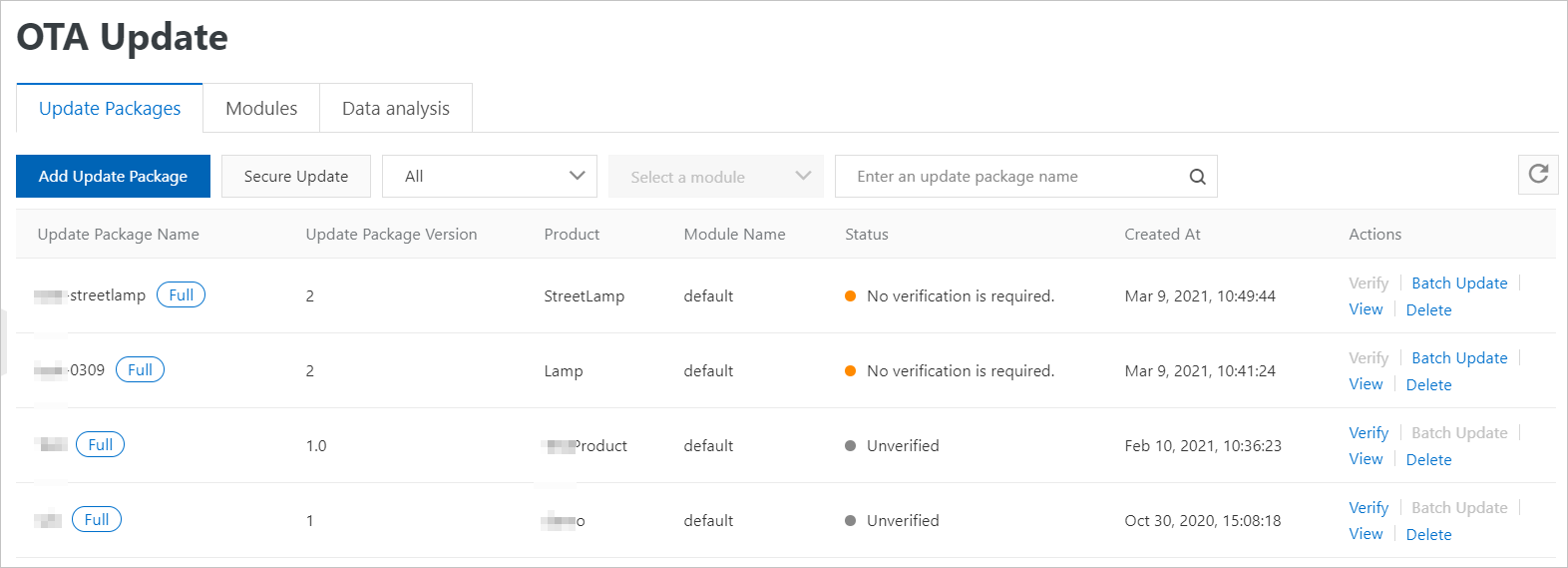
After the update package is added, you can view it in the Update Package List, as shown in the following figure.
What to do next
If you set Require platform validation for the update package to Yes, first validate the update package. For more information, see (Optional) Validate an update package.
Otherwise, you can directly initiate a batch update for devices. For more information, see Initiate a batch update task.
Optional: Delete an update package
After an OTA update package is deleted, its files cannot be downloaded. This may interrupt related services. Perform this operation with caution.
On the Update Package List tab, find the update package that you want to delete and click Delete in the Actions column.
Click OK.
Related API operations
API | Description |
Generates the URL and details for uploading an update package file to OSS. | |
Adds an update package. | |
Creates an OTA module for a product. | |
Modifies the alias and description of an OTA module. | |
Deletes a custom OTA module. | |
Queries the list of OTA modules for a product. | |
Deletes a specified update package. | |
Queries the list of update packages. |
For more information about OTA-related API operations, see OTA update API operations.