Remote login
You can use the remote login feature to access devices over the Secure Shell (SSH) protocol. This lets you run commands in a remote console to debug devices and troubleshoot issues.
Prerequisites
Your device must meet the following requirements:
-
Runs a Linux operating system.
-
Has an SSH server installed.
-
Is integrated with the official Link SDK. For more information, see Get the SDK for remote login.
Background information
Remote connections use SSH to let you manage and control your devices. Authentication relies on the device's own username and password.
IoT Platform only provides the SSH service channel. You must develop the specific management capabilities for the remote console on your device.
Limitations
-
The remote login service is available only in the China (Shanghai), China (Beijing), and China (Shenzhen) regions.
-
The remote login feature is not supported for devices created through device distribution.
Usage
To remotely log in to a device, it must first establish an SSH channel with IoT Platform. This channel can be established in two ways, each with a distinct workflow.
-
Manually enable the remote login feature on the IoT Platform console to access and manage your device.
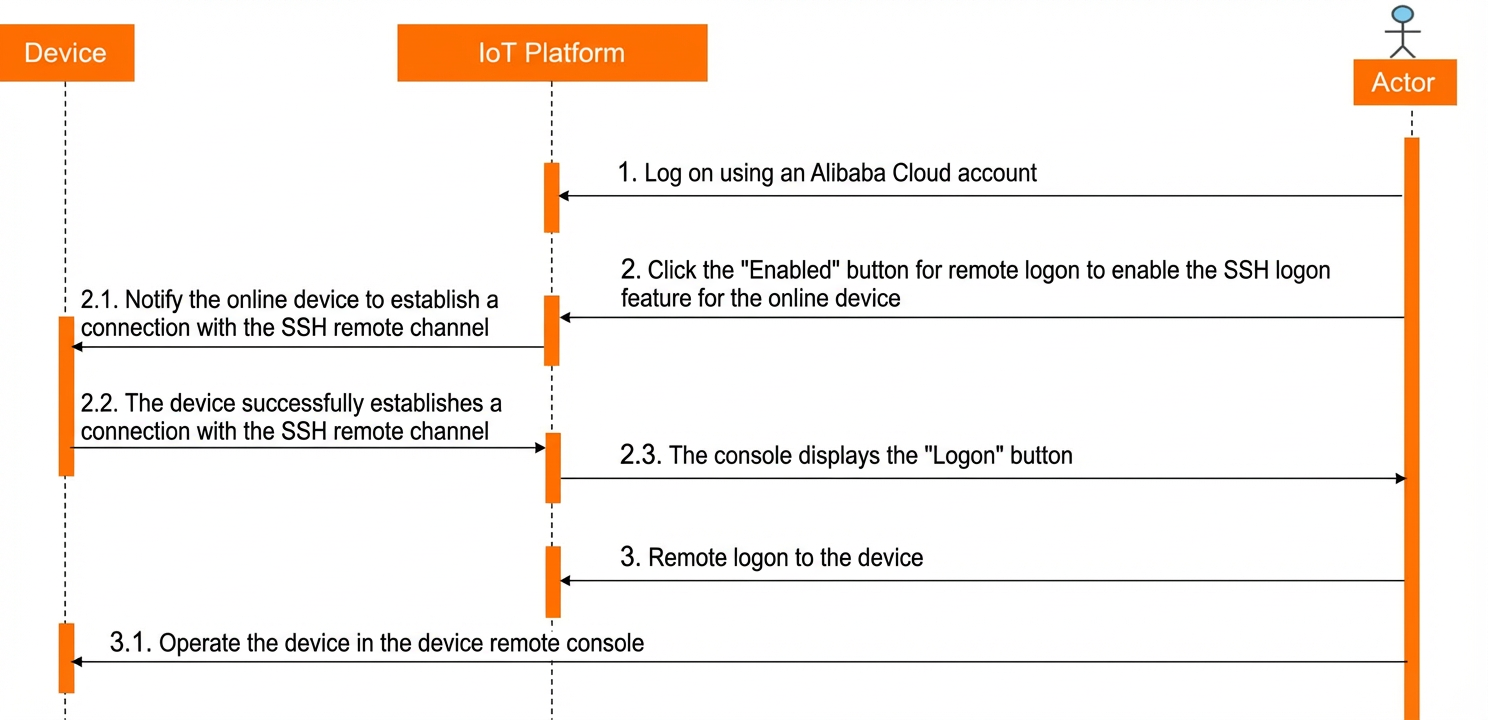
This method requires the device to be online and have remote login capabilities. Otherwise, the device cannot receive the IoT Platform notification to establish an SSH channel, and the remote login feature cannot be enabled.
-
For device-side development, see Example of manually enabling remote login.
-
For instructions on how to enable and use the feature, see Manually enable remote login and Log in to a device remotely.
-
-
The device proactively requests SSH channel connection details from IoT Platform. After receiving the response, the device enables the remote login feature and establishes the channel.
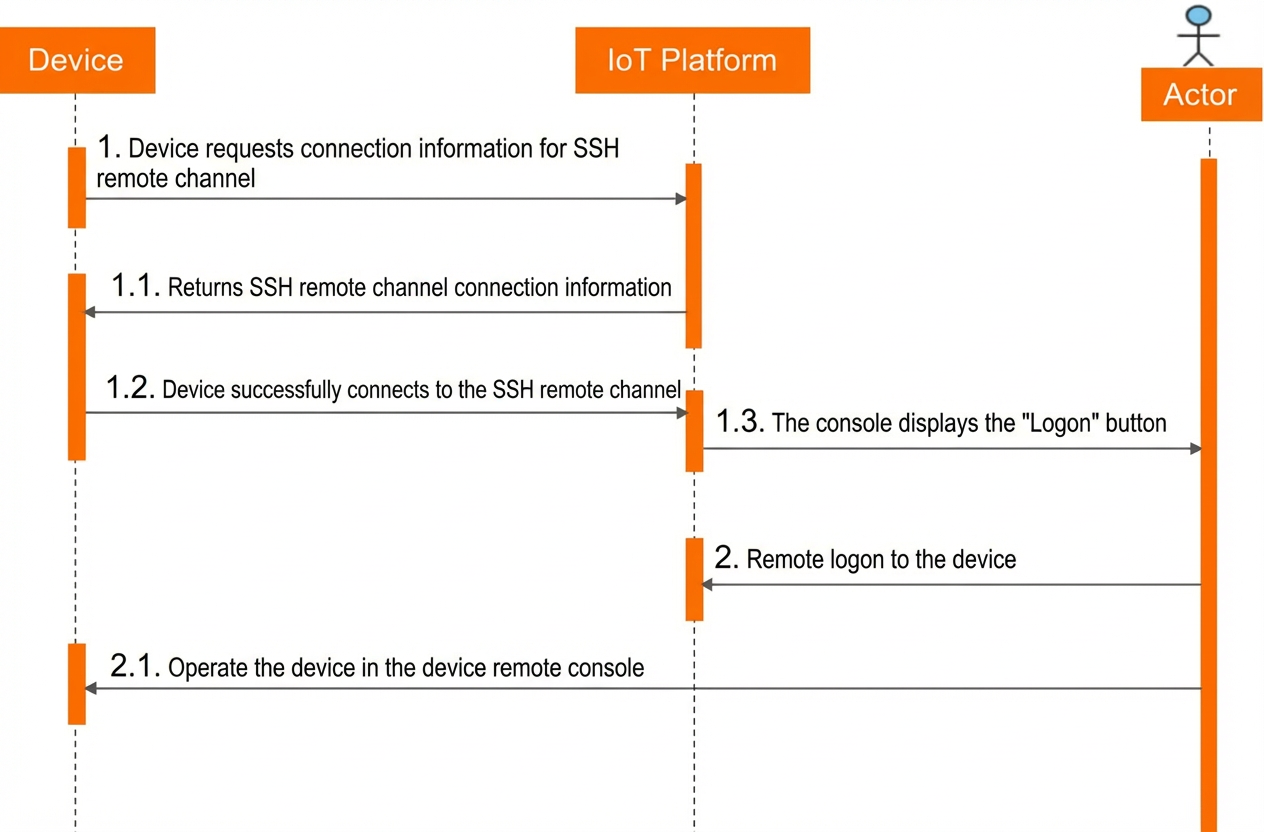
This method requires the device to be able to proactively send requests for SSH channel connection details. The device then uses the information returned by IoT Platform to establish the channel.
The SSH channel is not closed when the device goes offline. The connection information can be reused within its validity period, allowing an SSH channel to be established even if the device is offline. This enables continued remote management. For example, in a business scenario where a device's business functions and O&M functions must be isolated, you can still manage the device remotely if its business functions fail and it goes offline.
-
For device-side development, see Example of device-initiated remote login.
Important-
The SSH channel authentication information sent by IoT Platform is valid for 7 days. Configure your device to periodically request new connection details from IoT Platform (for example, once a day) and re-establish the channel with the new credentials.
-
Persist the SSH channel connection details. This allows the device to use the saved details to reconnect if the channel disconnects.
-
-
For instructions on how to enable and use this feature, see Device-initiated remote login and Log in to a device remotely.
-
Manually enable remote login
-
Log on to the IoT Platform console and go to the Remote Login page.
-
On the Instance Overview page, select the target region, find the target instance, and click the instance to go to the Instance Details page.
-
In the left-side navigation pane, choose .
On the device details page for the target device, you can also click Go to View on the Online Debugging tab.
-
On the Online Debugging page, select the target device and click Remote Login.
-
-
On the Remote Login tab, click Enable.
ImportantIf the physical device is offline, enabling the remote login feature fails.
After the device receives the connection information from IoT Platform and establishes the SSH channel, a Log In button appears on the Remote Login tab.
Device-initiated remote login
After device-side development is complete, the device requests SSH channel connection details from IoT Platform upon startup. Upon receiving the response, the device establishes the SSH channel.
For the topics and data formats used to request SSH channel information, see Data formats for remote login.
After the device establishes the SSH channel, a Log In button appears on the Remote Login tab.
Log in to a device remotely
-
On the Remote Login tab, click Log In.
-
In the dialog box that appears, enter the username and password for the device, and then click OK.
ImportantThese credentials are set on the device itself.
After you log in, the remote console page appears. You can manage the device based on its built-in functions.
ImportantThe connection automatically closes after 5 minutes of inactivity.
Last login: Fri Apr 23 16:47:23 2021 from localhost
[root@xxx ~]#
Share remote login permissions
You can share remote access permissions for any device that has this service enabled.
Leaked links and passwords can pose data security risks and lead to financial losses. Proceed with caution.
-
On the Remote Login tab, click Share.
-
In the Share Remote Service dialog box, turn on the Remote Share switch to enable remote access permissions for the device.
The dialog box displays the link and password for remote sharing. Click Copy Link and Password to share this information with other users.
Important-
Remote sharing is automatically disabled after 24 hours, preventing new logins. However, existing sessions are not terminated. To disconnect active users, turn off the Remote Share switch.
-
Click Reset Password to generate a new password. The old password becomes invalid for new logins, but this does not affect existing sessions.
Users who receive the shared remote terminal link can follow these steps to log in to the device:
-
Open the shared link in a browser and enter the shared password.
-
Enter the device's SSH username and password, as provided by the user who shared the access.
-
Log in to the device to use the remote service.
-
Disable remote login
On the Remote Login tab, click Disable. The device receives a notification to close the SSH channel, disconnects from it, and disables the remote login feature.
This operation is supported only when the physical device is online.
Even after you disable the feature on the console, a device can re-enable it by proactively requesting to establish an SSH channel connection.