Cloud scene orchestration
Scene orchestration rules automate business logic visually. Configure time-based or device-based triggers and conditions, then define actions to change device statuses, invoke other rules, or call functions for large-scale device orchestration.
Prerequisites
An edge instance is created. Set up environments.- Existing instances that already use scene orchestration are not affected.
- For new instances, use the Event Response service instead. What is Event Response.
Create a scene rule
- Log on to the IoT Platform console, select the China East 2 (Shanghai) region, and click the target instance.
- In the left-side navigation pane, choose .
- Click Create Rule.
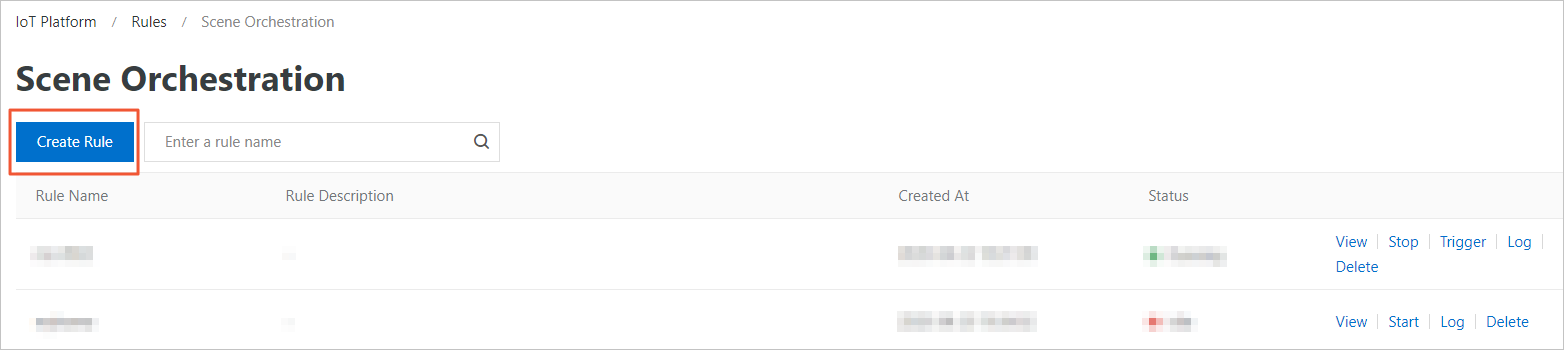
- Configure the following parameters and click OK.
Parameter Description Rule Name The name of the rule. The name must be 1 to 30 characters in length, and can contain letters, digits, underscores (_), and hyphens (-). Rule Description Optional. The description of the rule. - Click Edit in the dialog box to configure the rule.
You can also click View next to the rule name to configure it.
Example: A scene rule automates an air conditioner. When the temperature sensor reports a reading below 16°C between 12:00 and 23:59, the air conditioner raises the temperature to 26°C.
Parameter configurations:
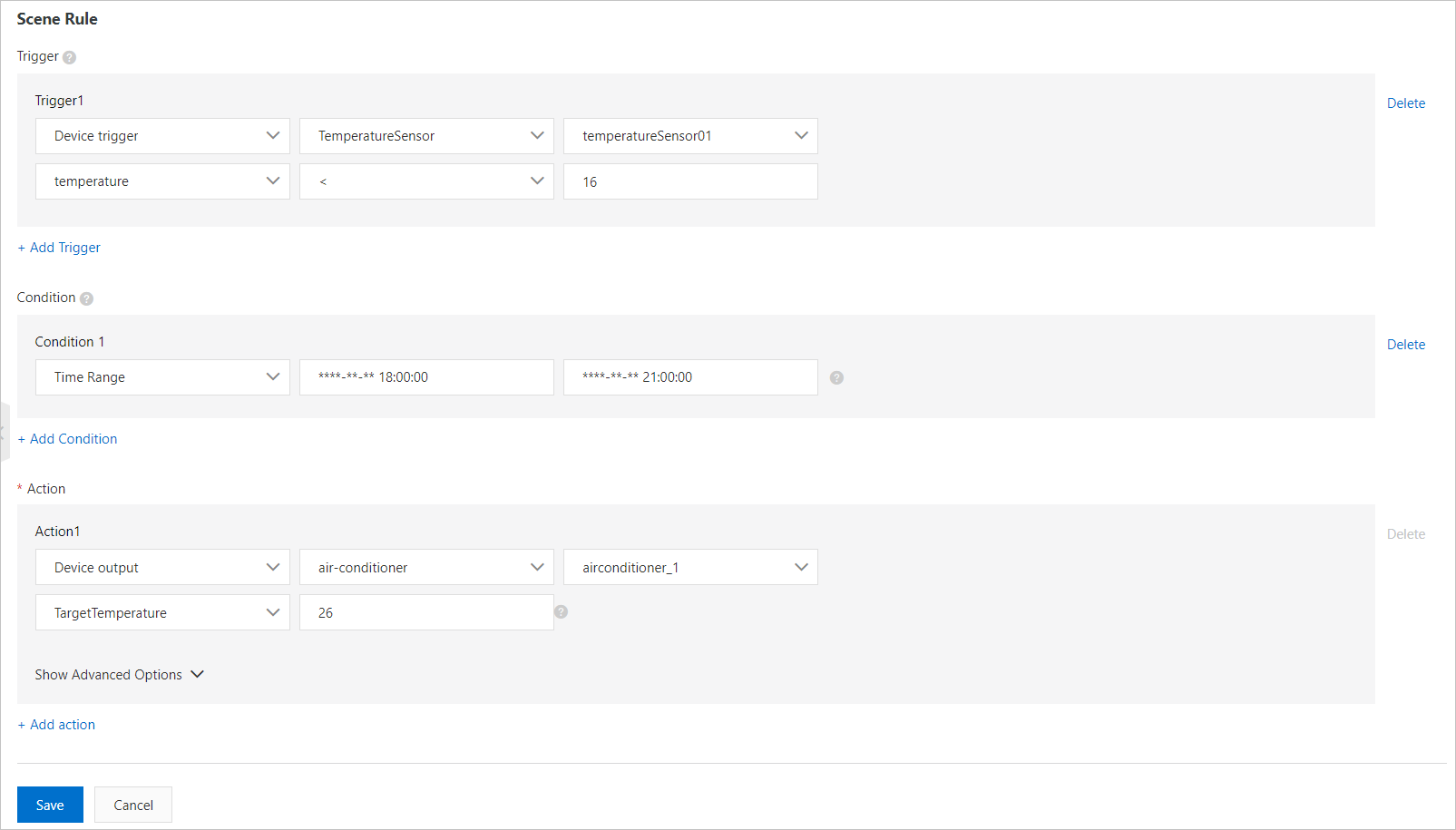
Click Edit in the upper-right corner to rename the rule. The following table describes other parameters.
Parameter Description Triggers Options: Device Trigger and Timed Trigger. Multiple triggers are joined by OR logic. - Device Trigger: Select a product, one or all devices, and one or all properties or events.
- Timed Trigger: Specify a time using a CRON expression with five fields: minute, hour, day, month, and day of week (0 or 7 = Sunday, 1–6 = Monday to Saturday). Examples:
0 18 * * *(daily at 18:00),0 18 * * 5(every Friday at 18:00). Asterisks (*) are wildcards. CRONTAB.In the example, the Device Trigger fires when the temperature sensor reports a reading below 16°C.
Condition The rule executes only when all conditions are met. Options: Device Status and Time Range. Multiple conditions are joined by AND logic. - Device Status: Select a product, a device, and a property or event.
- Time Range: Specify the start and end time in
yyyy-mm-dd hh24:mi:ssformat.
In the example, the Time Range is set to 12:00–23:59.
Action Actions to perform when the rule triggers. Configure one or more actions. Action failures do not affect other actions. - Device Output: Select a product, a device, and a writable property or service. IoT Platform sets the property or calls the service when rule conditions are met.
- Rule Output: Select another rule to invoke. The invoked rule skips its own triggers and evaluates only its conditions. If all conditions pass, the invoked rule's actions execute.
Example: When Rule A is invoked, its triggers are skipped. If all AND conditions pass, IoT Platform runs Rule A's actions.
- 函数输出: Select a created function. The function runs when triggers and conditions are met. Quickly create a function.
- 告警输出: Associate the rule with the alert center. An alert triggers when conditions are met. Click 告警中心 to configure alert rules. Alert Center.
In the example, Device Output sets the air conditioner temperature to 26°C.
Delayed Execution Displayed in advanced options. Delays action execution by the specified duration. Valid values: 0 to 86400. Unit: seconds.
Start a scene rule
Start scene rules on the Scene Orchestration page.
To start a scene rule:
- Log on to the IoT Platform console. In the left-side navigation pane, choose . on the target instance page
- Find the scene rule and click Start. The rule status changes to Running.

After the rule starts:
- If the rule runs on the cloud, configure message routing so that device properties and events are sent to IoT Hub. Set up message routing.
- If the rule runs at the edge, stop running it in the cloud first, then assign it to the edge instance. Other operations for scene orchestration.
View logs
View scene rule logs and execution results on the details page.
- In the left-side navigation pane of the IoT Platform console, choose . on the target instance page
- Find the target rule and click Log.
- Click Details to view the log details.
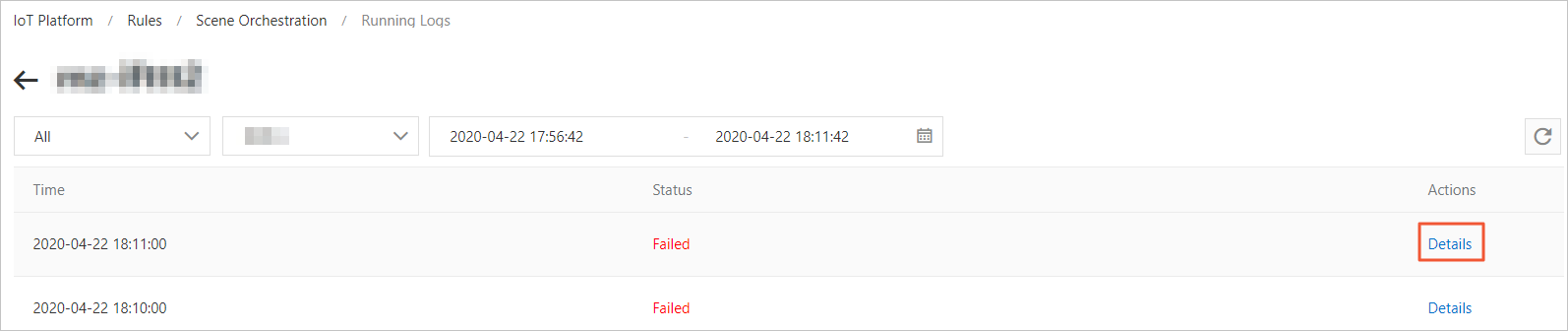 Note If a log is in the Failed state, click Details in the Actions column to view failure details.
Other operations for scene orchestration
- Delete scene rules:
- On the Scene Orchestration page, find the target rule.
- Click Delete next to the rule name, then click OK.
- Trigger scene rules:
After you start a scene rule, you can manually trigger it.
- On the Scene Orchestration page, find the target rule.
- Click Trigger next to the rule name. The rule executes once, running all actions regardless of trigger conditions.
- Run a scene rule on an edge instance: To deploy a scene rule on an edge instance:Important Make sure that you have stopped running the scene rule in the cloud.
- Log on to the Link IoT Edge console. In the left-side navigation pane, click Edge Instances. Find the edge instance that you created and click View.
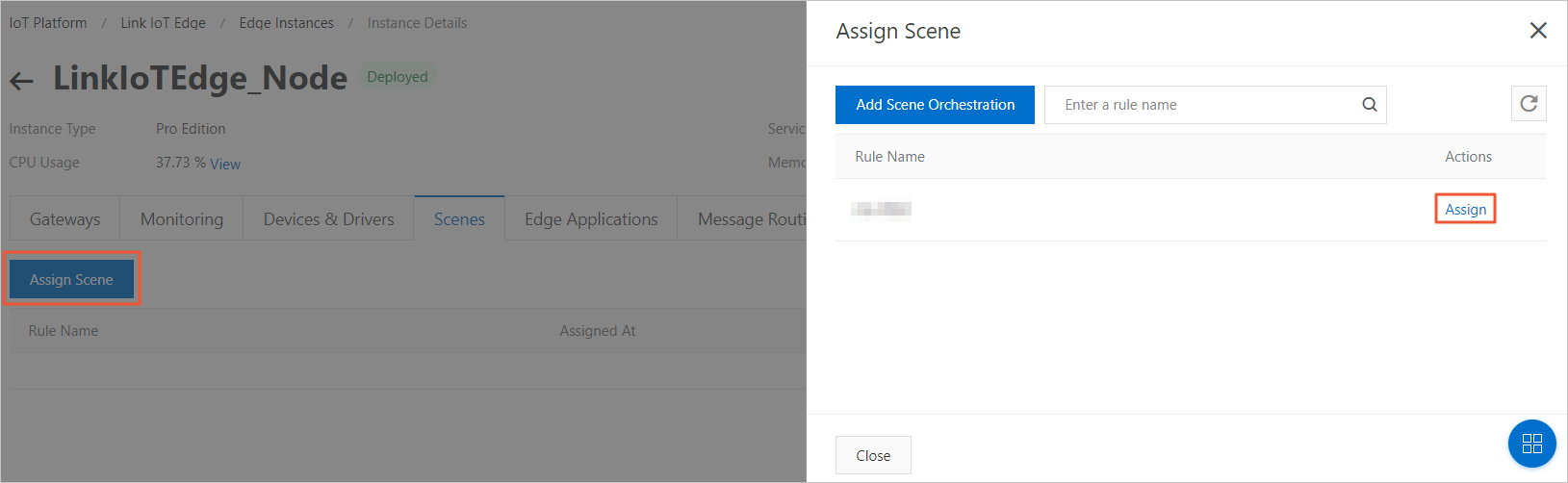
- On the Instance Details page, click the Scenes tab, then click Assign Scene.
- In the Assign Scene panel, click Assign next to the rule name, then click Close.
- Redeploy the edge instance.