Qoder CN Enterprise Edition offers user management, authorization management, and enterprise customization. It enables enterprise administrators to centrally manage Qoder CN access for developers and helps organizations adopt intelligent development at scale.
Qoder CN Enterprise Edition is available in two versions:
Qoder CN Enterprise Standard Edition: Provides out-of-the-box enterprise management services. It supports unified account and authorization management, statistical reports, and operation logs for rapid, large-scale deployment and centralized authorization management.
Qoder CN Enterprise Dedicated Edition: Offers user management with support for user account integration, unified authorization management, intelligent Q&A based on an enterprise knowledge base, and enhanced code generation from enterprise codebases. It also provides a VPC deployment mode to meet enterprise security, compliance, and custom requirements.
For details on the features of each version, see Billing.
This document applies to the legacy Qoder CN Enterprise Dedicated Edition. This version is no longer under development, and this document is provided for existing customers for reference and maintenance only. It will not be updated.
To learn about the latest features, visit the documentation for the latest product version.Qoder CN's enterprise management capabilities are powered by the enterprise management service of Alibaba Cloud DevOps. To create an enterprise, go to the Qoder CN console.
For a private deployment, you can submit an enterprise solution inquiry. We will contact you shortly after receiving your information. Please ensure your contact number is reachable.
This topic describes how to get started with the Enterprise Dedicated Edition.
Step 1: Create an enterprise and purchase Qoder CN
You can use an Alibaba Cloud account or an authorized RAM user to perform the following steps:
Log on to the Alibaba Cloud console and go to the Qoder CN console.
In the left-side navigation pane, choose Enterprise Management. In the Enterprise Dedicated Edition section, click Create instance.
For detailed instructions, see Create an Enterprise Dedicated Edition instance.
Step 2: Manage enterprise users and departments
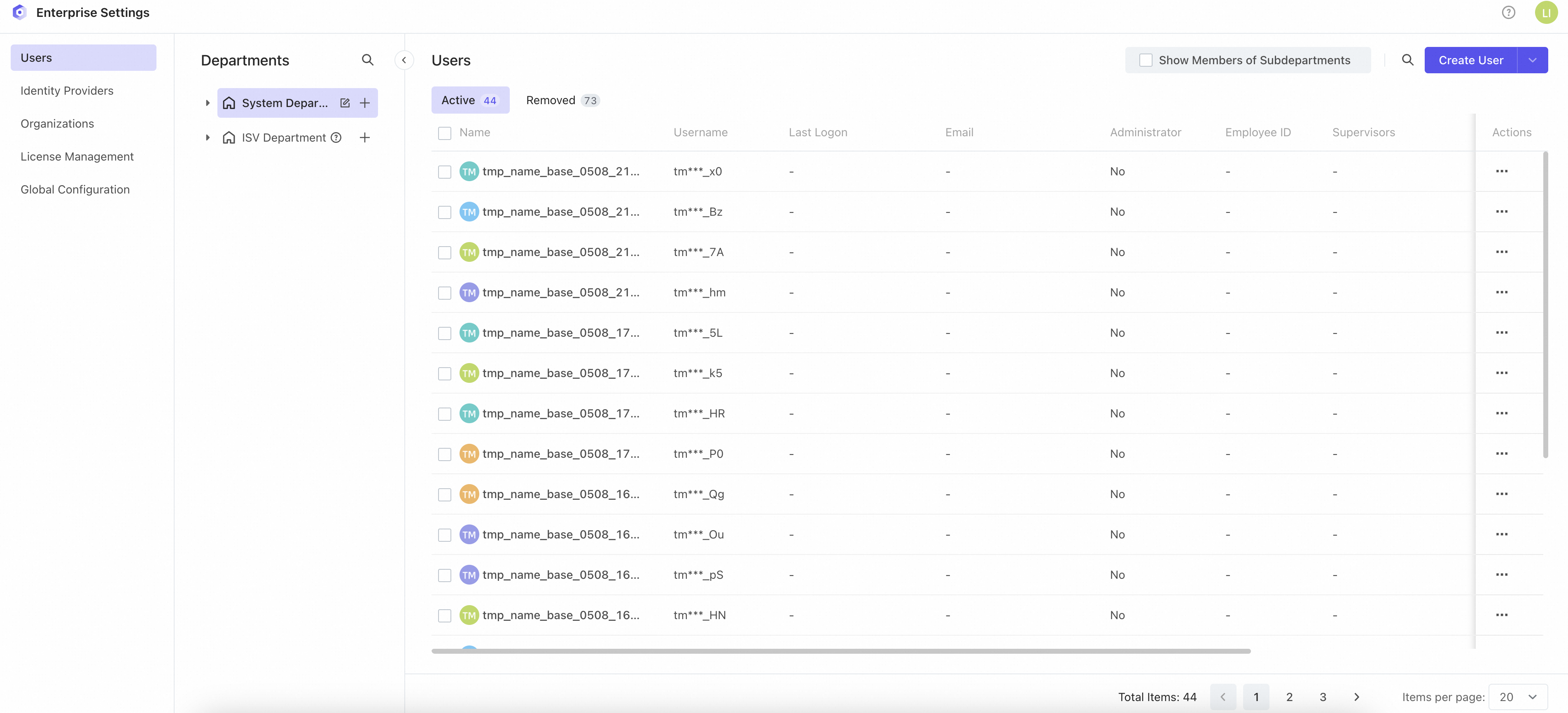
After you create an Enterprise Dedicated Edition instance, a default enterprise administrator account is provided. You can use this account to access the enterprise management backend and perform the following actions:
Manage users, organizations, and licenses.
Manage information for all organizations within the enterprise instance.
Configure third-party identity provider integration (for example, with your company's user system).
For details on user management, department management, and third-party identity provider integration, see User and department management and Third-party integration.
Step 3: Assign licenses in enterprise management
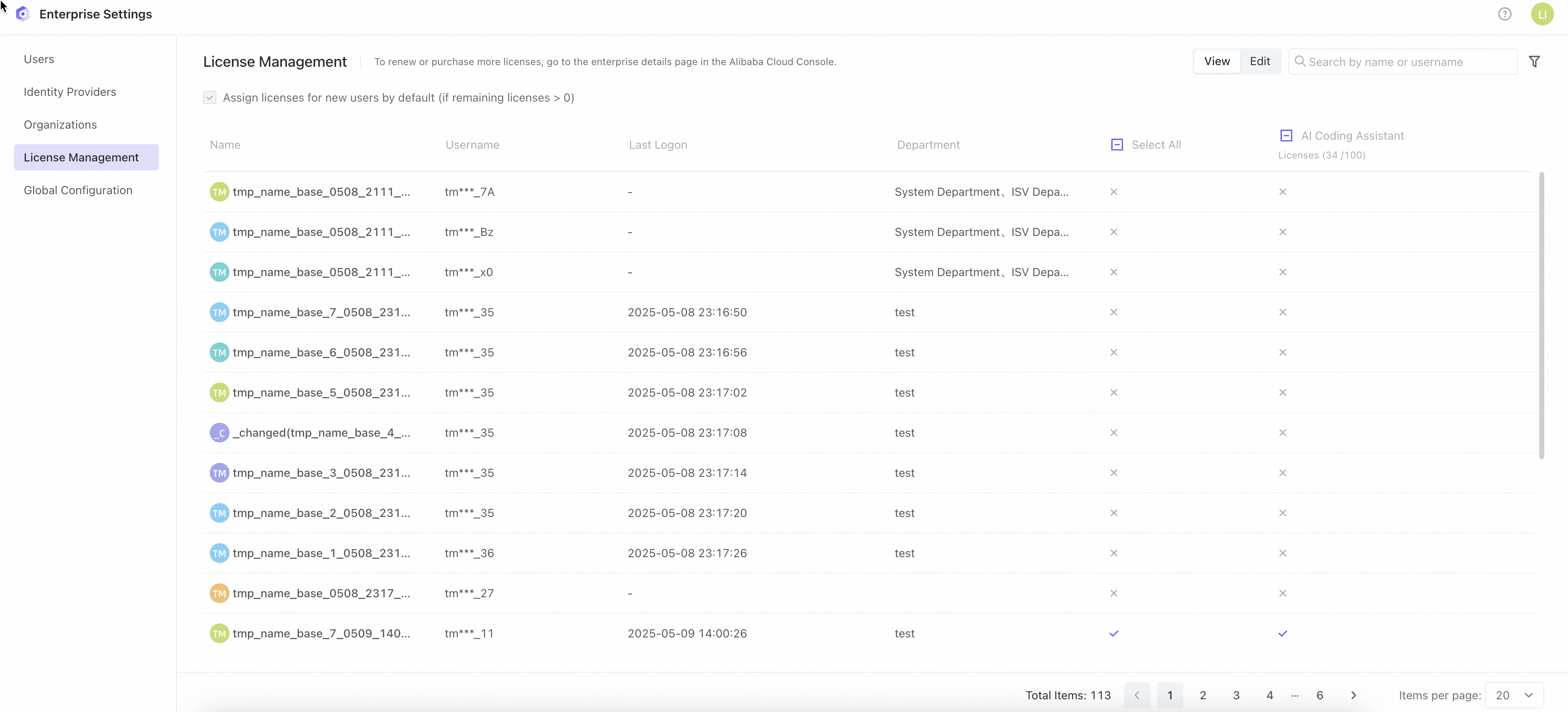
After creating users, you can assign them Qoder CN licenses. If a user belongs to multiple organizations, you only need to assign one site-level license, consuming one license seat. When logging in, they can select their developer identity for a specific organization.
For details on license management, see License management.
Step 4: Create an organization and synchronize users
Enterprise management lets you manage multiple organizations to isolate usage permissions and statistical data. When creating an organization, you can select which users to synchronize.
For details on organization management, see Organization management.

Step 5: Grant developer identities within an organization
After you create an organization, the system automatically synchronizes the selected users. Then, go to the organization to manage developer identities within it by following these steps:
In the enterprise management console, choose Organization Management. In the organization list, click an organization's name to go to the Qoder CN console.

In the left-side navigation pane of the Qoder CN console, choose Authorization Management. Click Add Developers to grant developers usage permissions within the organization. For details, see Authorization management. Enable automatic synchronization to automatically add users from enterprise management.

Step 6: Log in to Qoder CN
Download the latest Qoder CN IDE plugin from your IDE marketplace, or download the Qoder CN IDE directly. For details, see Installation Guide.
Configure the dedicated domain URL to log in to the Enterprise Dedicated Edition.
In the Qoder CN intelligent Q&A window, click the login button to go to the Qoder CN login page. If your enterprise has configured SSO login, you will be automatically redirected to your company's login page.
If you have the necessary permissions, you will see a login success page. You can start using Qoder CN in your IDE.
For details, see Log in to Qoder CN for Enterprise Dedicated Edition.
Log out of Qoder CN
Click your account information at the top of the Qoder CN intelligent Q&A window, and then click Log out.