Batch purchasing
To enable this feature, submit your Business ID to LinkedMall technical support for configuration. Also, ensure that your Alipay account has a sufficient balance and is enabled for payment withholding.
In the LinkedMall enterprise marketplace, go to the Business Management > Batch Purchasing page. In the upper-right corner, click Add Purchase Order. Select a Business ID. Enter a Name and a Task Description for your reference. Set Purchase Order Import Method to Anonymous Ordering. Click Next.
Click
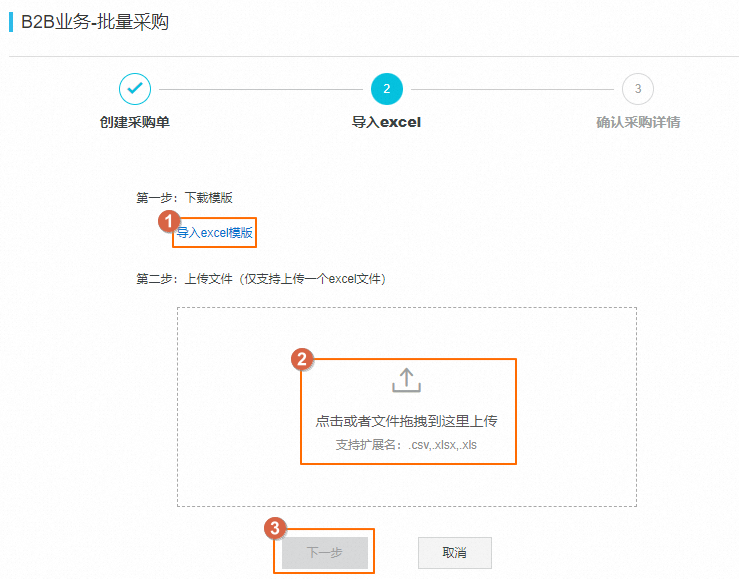
 Download Template and fill it out. Then, upload the file and click Next.Note
The products in the order must be from your product library. For more information about adding products to your product library, see Product selection.
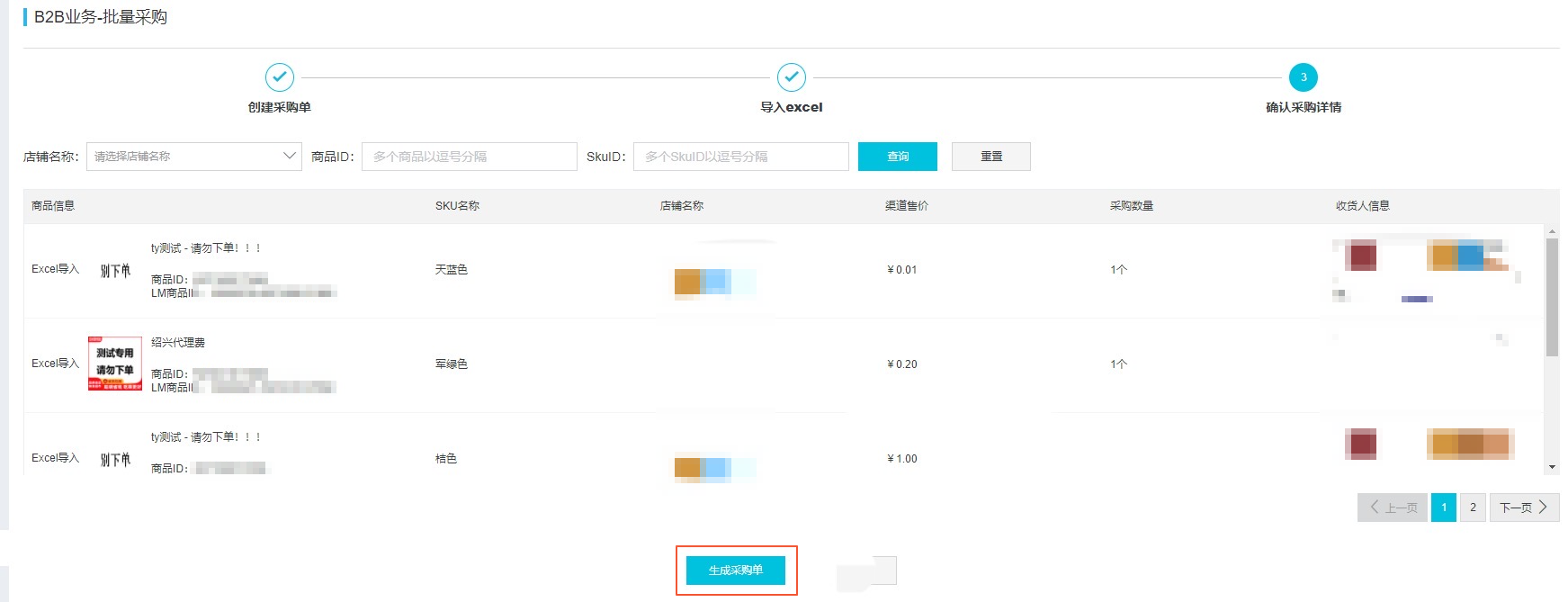
After the file is imported, review the generated line items. Each line item corresponds to a row in the Excel file. If the information is correct, click Generate Purchase Order.
Once the purchase order is generated, click Start Execution on the right. The system then automatically creates orders based on the file. After execution starts, you can click Pause to pause the task.
You can also cancel the purchase order or click View Details to review it.

Check the status of the purchase order. A status of Succeeded means the orders have been placed. Your payment is then deducted and held in a guaranteed transaction account, and the orders are generated in the supplier's system. If the status is Failed, check the details for the cause of the failure.
NoteAfter the status changes to Succeeded, click Confirm Receipt to release the payment to the supplier immediately. If you do not perform this action, the system automatically confirms receipt and releases the payment in accordance with Tmall rules, typically 15 days after shipment.