Console configuration
This topic describes how to configure required items, such as ingest domains, streaming domains, and messaging applications, in the ApsaraVideo Live console. These configurations ensure that your interactive classroom project functions correctly. This topic covers the configuration items in the following order: Prerequisites, Configure an ingest domain, Configure a streaming domain, Configure interaction scenarios, and Configure a whiteboard.
Prerequisites
You have an Alibaba Cloud account and have completed identity verification.
Ensure that the ApsaraVideo Live service is activated. For more information, see Activate Service.
Prepare two domain names: one for stream ingest and one for streaming. The domain names must have an Internet Content Provider (ICP) filing. For more information, see Register an Alibaba Cloud domain name and ICP filing.
NoteIf your live center is outside China and you set the acceleration region to Outside Chinese Mainland, your domain names do not require an ICP filing.
If the ingest domain and streaming domain are second-level domains under the same top-level domain, you only need to obtain an ICP filing for the top-level domain.
The AliyunFCFullAccess, AliyunLiveFullAccess, and AliyunVODFullAccess system policies are attached to a RAM user. For more information, see Create a RAM user and grant permissions.
Configure an ingest domain
Configure the ingest domain in the ApsaraVideo Live console.
Add an ingest domain
In the navigation pane on the left, choose Domain Names. On the Domain Management page, click Add Domain.
In the Add Domain Name step, configure the parameters.
Set Domain Type to Ingest Domain.
For more information about how to select an acceleration region, see How do I select an acceleration region for a domain name?
For Accelerated Domain Name, enter the ingest domain that you prepared.
For more information about how to select a live center, see How do I select a live center?
ImportantThe ingest domain and the streaming domain must be in the same live center. You cannot change the live center after the initial configuration.
NoteWhen you add a domain name to ApsaraVideo Live for the first time, you must verify the ownership of the domain name. Follow the on-screen instructions. For more information, see Verify the ownership of a domain name.
Click Next. Configure a CNAME record to enable live streaming acceleration. The CNAME record directs end-user requests to Alibaba Cloud Points of Presence (POPs) for acceleration. Follow the on-screen instructions. After the configuration is complete, the CNAME validation result is displayed as shown in the following figure.
After you complete the preceding steps, the ingest domain is configured. The result in the console is shown in the following figure.

There may be a delay before the CNAME status changes to Configured in the console. The CNAME configuration is successful after the CNAME record is validated.
View the URL signing information
URL signing protects your content from being downloaded or used by unauthorized sites. URL signing is enabled by default when you add a domain name.
On the Domain Names page of the ApsaraVideo Live console, find the target ingest domain and click Domain Settings.
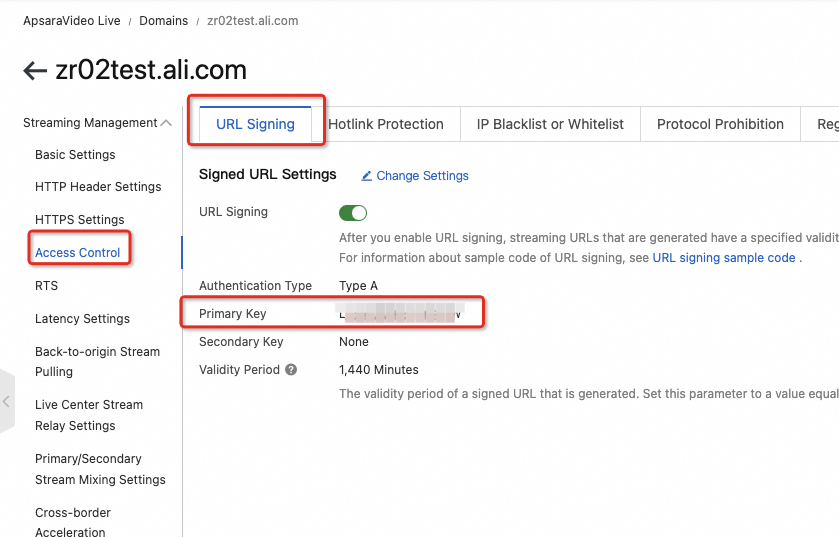
Choose Streaming Management > Access Control.
Record and save the Primary KEY for the ingest domain. You will need this key for server-side deployment. The following figure shows the location of the primary key in the console.
Configure a streaming domain
Configure the streaming domain in the ApsaraVideo Live console.
Add a streaming domain
The steps to add a streaming domain are the same as for adding an ingest domain. Set the Domain Type parameter to Streaming Domain.
The streaming domain and the ingest domain must be in the same live center region.
After you add the streaming domain, the streaming domain is configured and available. The result in the console is shown in the following figure.

View the URL signing information
URL signing is enabled by default. Record and save the Primary KEY for the streaming domain. The steps are the same as for viewing the URL signing information for the ingest domain.
Associate the ingest domain
Associate the ingest domain with the corresponding streaming domain.
In the navigation pane on the left, choose Domain Names to go to the Domain Management page.
Find the target streaming domain and click Domain Settings.
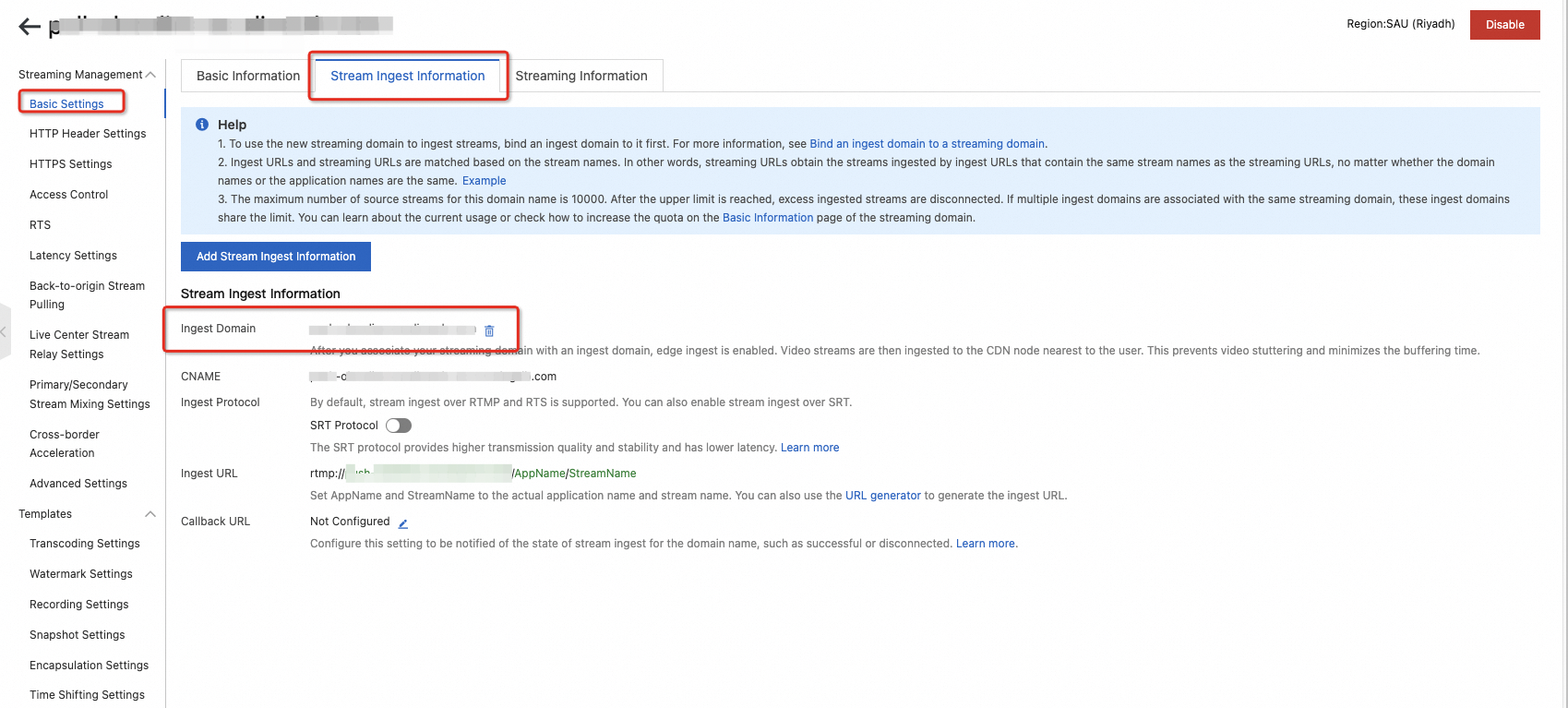
Choose Streaming Management > Basic Settings. Click the Stream Ingest Information tab, and then click the Add Stream Ingest Information button.
Select the ingest domain that is in the same live center and click OK.
The preceding steps associate the streaming domain with the ingest domain. The result in the console is shown in the following figure.

Configure cross-origin resource sharing
Cross-origin resource sharing (CORS) is a standard HTML5 solution that allows web pages to access resources from different domains. This ensures secure data transmission. For more information, see Cross-Origin Resource Sharing. This project requires web clients to play classroom live streams. Therefore, you must configure the HTTP response header of the streaming domain to allow CORS.
In the navigation pane on the left, click Domain Names. On the Domain Management page, find the target streaming domain and click Domain Settings.
Choose Streaming Management > HTTP Header Settings and click Add.
Set the parameter to Access-Control-Allow-Origin and the value to *.
For more information, see Configure HTTP headers. The result in the console is shown in the following figure.
Enable HTTPS
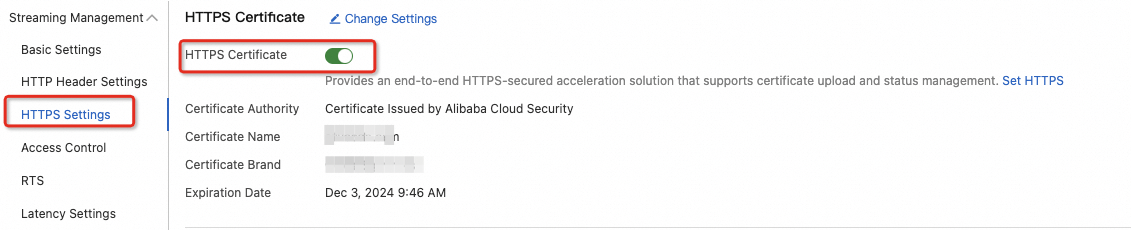
HTTPS secure acceleration encrypts critical user information during transmission. This prevents security risks, such as sensitive information leakage that can occur if an attacker captures session IDs or cookies. It also verifies data integrity during transmission to prevent man-in-the-middle (MITM) attacks, such as DNS hijacking, content hijacking, or content tampering. For more information, see Configure HTTPS secure acceleration.
After you purchase an SSL certificate, you must log on to the console to apply for it. You can use the certificate only after the application is approved. For more information, see Purchase a commercial SSL certificate.
After the configuration is successful, the following result is displayed in the console.
Configure a transcoding template
Live stream transcoding can resolve issues such as poor playback quality or video stuttering caused by unsuitable bitrates of the ingest stream. For more information about how to configure default transcoding, see Configure default transcoding.
Record the AppName. The transcoding template is applied only when the AppName in the ingest URL matches the AppName of the transcoding template.
Enable Real-Time Streaming
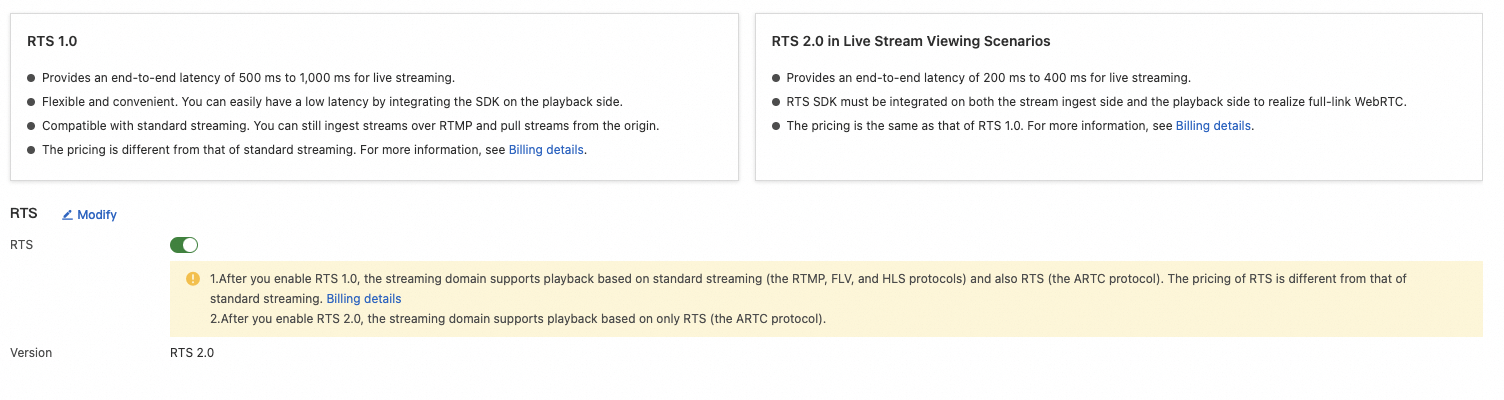
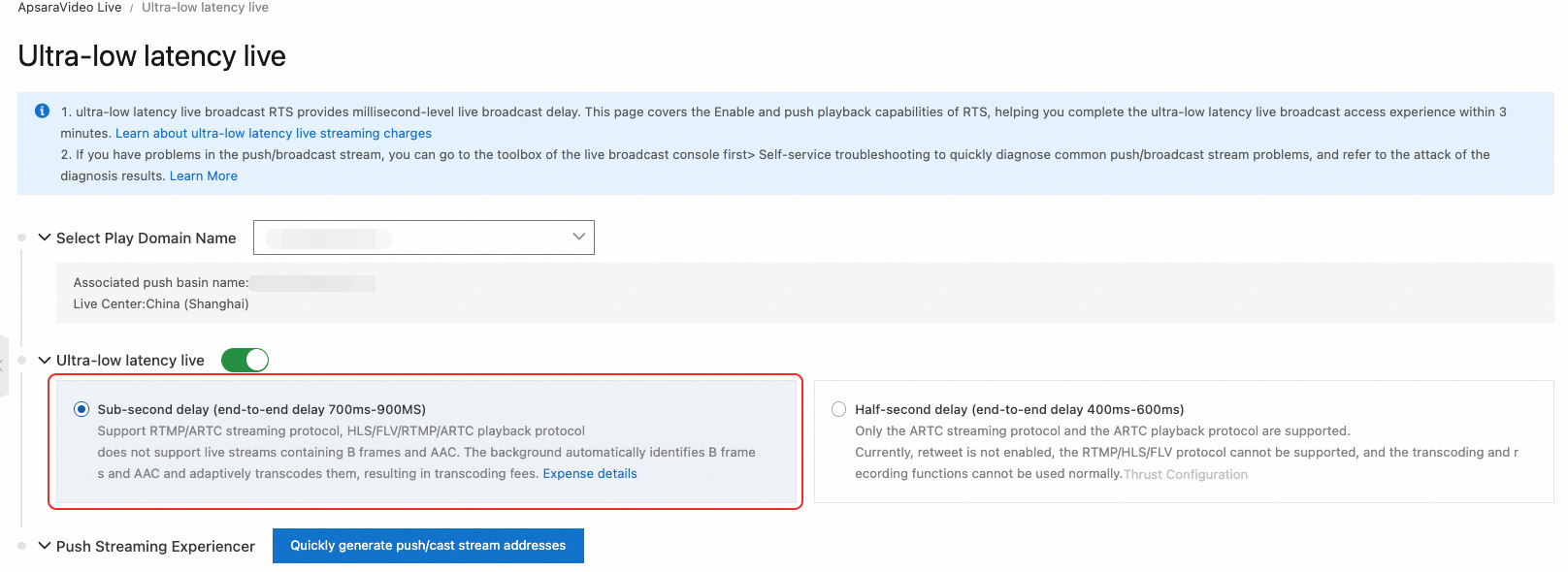
Real-Time Streaming (RTS) is a premium feature of ApsaraVideo Live that provides a live streaming service with ultra-low latency, high concurrency, and high-definition, smooth playback. For more information, see Overview of Real-Time Streaming (RTS).
Log on to the ApsaraVideo Live console.
In the navigation pane on the left, choose Live+ > Real-Time Streaming.
Select a streaming domain.
Turn on the Real-Time Streaming switch and select Sub-second Latency (700 ms to 900 ms end-to-end latency).
Configure recording and playback
You can use the recording feature of ApsaraVideo Live to record live streams for playback in your audio and video applications. For more information, see Recording management.
Record to ApsaraVideo VOD (Recommended)
In the left-side navigation pane, click Domain Names. The Domain Management page appears.
Find the streaming domain that you want to configure and click Domain Settings in the Actions column.
-
In the left-side navigation pane, choose .
-
Select the streaming domain that you want to configure. On the VOD tab, click Add.
In the dialog box that appears, select a transcoding template and click OK. For more information about the parameters of the recording template, see Store recordings in VOD.
NoteWe recommend transcoding audio to the AAC format in the transcoding template to ensure compatibility.
If you have not configured a transcoding template in ApsaraVideo VOD, you can go to the ApsaraVideo VOD console to configure one.
Record to OSS
- Log on to the ApsaraVideo Live console.
-
In the left-side navigation pane, choose .
-
Select the streaming domain that you want to configure. Click the OSS tab, and then click Add.
Configure the recording template.
Click OK. For more information about recording template parameters, see Store recordings in OSS.
Configure interaction scenarios
Create an IM application for live streaming
This project requires interaction. Therefore, you must create an interactive messaging (IM) application. Follow these steps:
In the navigation pane on the left of the ApsaraVideo Live console, choose .
Click Create Application.
In the Create Application dialog box, select a region, enter an application name, and leave Callback Settings and Security Audit disabled for now.
Click Create. The new application is added to the application list. The AppId, AppKey, AppSign, and creation time are automatically generated.
After successful creation, the console displays the following information.

Click View Details to view and save the AppId, AppKey, and AppSign. You will need these credentials for the server-side deployment.
Create an ApsaraVideo Real-time Communication application
This project requires audio and video co-streaming and stream mixing. Therefore, you must create an ApsaraVideo Real-time Communication application. This feature enables video Q&A sessions between students and the teacher during a live class. The teacher can invite students to co-stream to ask questions, which enhances the interactivity and real-time experience of the class. The following figure shows the audio and video co-streaming model. When a student and a teacher are co-streaming, other viewers receive the mixed stream.

Create an ApsaraVideo Real-time Communication application in the console. Follow these steps:
In the navigation pane on the left of the ApsaraVideo Live console, click Live+ > ApsaraVideo Real-time Communication > Application Management.
On the Application Management page, click Create Application. Enter a custom Instance Name, select Terms of Service, and then click Buy Now.
NoteCreating an application is free of charge. You are charged on a pay-as-you-go basis for your actual usage. For more information about billing, see Billing of audio and video calls.
After a success message appears, refresh the Application Management page to view your new ApsaraVideo Real-time Communication application.
Click the ApsaraVideo Real-time Communication application. On the Bypass Live Streaming page, in the Global Bypass Live Streaming to ApsaraVideo Live section, enable Bypass Live Streaming. Configure the streaming domain for bypass live streaming. Set it to the streaming domain that you added in the Add an ingest domain step. Do not use a sub-streaming domain. Enable Single-stream Forwarding. If you want to configure recording or snapshots, you must configure them for this domain.
When the creation is complete, the console displays the following result.
In the management section, view and save the Application ID and AppKey. You will need these values for the server-side deployment.
Configure a whiteboard
This project includes an interactive whiteboard feature from CommsEase that supports basic teaching tools such as doodling, text, lines, and a laser pointer. Enable and configure the interactive whiteboard feature in the CommsEase console. After you enable the whiteboard service, in the Application Configuration navigation bar, click the AppKey Management tab. View and record the AppKey and AppSecret for the application. You will need them for server-side deployment. For more information about configuring the interactive whiteboard, see the Interactive whiteboard quick start guide.
Summary
This topic describes the preliminary steps for the interactive classroom project, including Prerequisites, Configure an ingest domain, Configure a streaming domain, Configure interaction scenarios, and Configure a whiteboard. You must record the following information for server-side deployment:
The domain names and primary keys of the ingest domain and streaming domain.
The AppId, AppKey, and AppSign of the interactive messaging application.
The Application ID and AppKey of the ApsaraVideo Real-time Communication application.
The AppKey and AppSecret of the interactive whiteboard.