Configure and run the server
The AUI Kits classroom AppServer provides backend services, such as login and classroom (live room) management. When used with the AUI Kits interactive classroom scenario-specific SDK, you can quickly build interactive live streaming applications and accelerate your business innovation. This document describes how to build and deploy the AUI Kits classroom AppServer from its Java source code.
How it works
Purpose of the AppServer

When you use the AUI Kits framework to build an interactive classroom application, the scenario-specific SDK integrates with the following product capabilities. The AppServer encapsulates these capabilities and provides a standardized set of HTTP APIs for the scenario-specific SDK, reducing your development costs.
-
ApsaraVideo Live: Enables live stream ingesting, viewing, and video co-streaming.
-
Interactive messages: Transmits signaling messages in a classroom (live room).
-
ApsaraVideo VOD (Optional): Records and provides playback for live streams.
-
Interactive whiteboard: Used in scenarios such as online tutoring. Teachers can use basic tools like drawing, text, straight lines, and a laser pointer to highlight key points while presenting courseware. This feature is provided by the NetEase CommsEase Interactive Whiteboard service.
In addition to encapsulating the four product capabilities above, the AppServer also implements interactive classroom management services, such as creating, modifying, and deleting classrooms, and starting and ending sessions. The AppServer does not directly rely on ApsaraVideo Live APIs. Instead, it constructs ingest and streaming URLs based on the ApsaraVideo Live ingest and streaming protocols. The AppServer also listens for ingest status callbacks from ApsaraVideo Live to resolve state inconsistencies that can occur when a host disconnects from the classroom (live room) unexpectedly.
Project framework
-
Built with a mainstream stack: Java 8 and Spring Boot 2.
-
Uses MyBatis-Plus for the repository layer.
-
Implements access control using Spring Security and JSON Web Tokens (JWT).
Project deployment
Prerequisites
-
You have completed the steps in Console Configuration.
-
Java 8 is installed in your environment.
-
When using this service on the web, configure Cross-Origin Resource Sharing (CORS) to allow cross-origin requests. For details, see Configure and Run on the Web.
Create the database
Using MySQL as an example, create a database and execute this SQL file.
After you create the database, the following seven tables should exist.
mysql> show tables;
+-------------------------+
| Tables_in_classweb      |
+-------------------------+
| assistant_permit        |
| class_check_in          |
| class_check_in_record   |
| class_infos             |
| class_kick_member       |
| class_member            |
| doc_infos               |
+-------------------------+
Deployment methods
-
Method 1 (Recommended): Deploy from source code.
This guide focuses on building and deploying the AppServer from the source code. Follow the instructions in the source code documentation to configure and run the project. For details, see AUI Kits Classroom AppServer.
-
Method 2: Deploy using a serverless platform.
You can use the Serverless App Center to deploy this application with one click. For more information, see Manage Applications.
When you deploy the server for the first time, you must edit the code/src/main/java/com/aliyuncs/aui/common/utils/JwtUtils.java file and set the `SECRET` property to a random string.
Parameter configuration
-
Download the interactive classroom source code to your server.
-
Open the
application.ymlfile in theServer/Java/code/src/main/resourcesdirectory and configure the parameters.Parameter
Description
server:
  port: 8080
The default listening port is 8080. You can change it as needed.
# DB connection information, connects to the MySQL database url: jdbc:mysql://******:3306/*****?useUnicode=true&characterEncoding=UTF-8&useSSL=false&serverTimezone=Asia/Shanghai username: "******" password: "******"jdbc:mysql://Hostname or IP address of the MySQL server:3306/Database name?useUnicode=true&characterEncoding=UTF-8&useSSL=false&serverTimezone=Asia/Shanghai-
username: Database username
-
password: Database password
# pop configuration. You need to configure the account's AccessKey ID and AccessKey Secret to call IM and VOD related services
  openapi:
    access:
      key: "*********"
      secret: "*********"
To call Alibaba Cloud IM and ApsaraVideo VOD service APIs, you must use an AccessKey for authentication. An AccessKey includes an AccessKey ID and an AccessKey Secret.
-
AccessKey ID: Used to identify the user.
-
AccessKey Secret: Used to authenticate the user's identity. You must keep your AccessKey Secret confidential.
For more information, see Create an AccessKey.
# Application ID for the IM service
  new_im:
    appId: "*********"
    appKey: "*********"
    appSign: "*********"
The appId, appKey, and appSign for interactive messages. For more information, see Create an application for interactive messages.
# Live stream configuration live_stream: #ingest domain name push_url: push.*****.vip #streaming domain name pull_url: pull.*****.vip #authkey for the ingest domain push_auth_key: zJl4****** #authkey for the streaming domain pull_auth_key: mDZs******** app_name: live auth_expires: 604800-
push_url: The ingest domain name.
-
pull_url: The streaming domain name.
-
push_auth_key: The authentication key for the ingest domain name.
-
pull_auth_key: The authentication Primary Key for the streaming domain name.
-
app_name: The AppName in the republished stream URL. The default value is live. You can customize this value.
NoteTo apply transcoding, recording, or snapshot templates to the republished stream, the AppName must match the AppName specified in the template.
For more information, see View Authentication Details.
# Video co-streaming application information
  live_mic:
    app_id: 7c61********
    app_key: c461b*********
The app_id and app_key for video co-streaming. For more information, see Create a real-time audio and video application.
 # authKey for ingest status callback
  live_callback:
    auth_key: avdsd*******
If you need to monitor the ingest status for a specific ingest URL, configure this parameter. For instructions on how to obtain the key, see Callback settings.
# Whiteboard information
room:
  boards:
    app_key: "*********"
    app_secret: "*********"
The app_key and app_secret for the NetEase CommsEase Interactive Whiteboard service application. For more information, see Whiteboard Configuration.
# Configure allowed cross-origin domains
http:
  cors:
    host: "*"
When using this service on the web, configure CORS correctly to allow cross-origin requests.
-
Service authentication
This project requires you to first call the /login API to obtain an authentication token. This token must be included in the request header of subsequent API calls. The token generation method in this project is simple and intended for testing purposes only. When developing your application based on this demo, you must implement your own authentication strategy. You can customize the authentication configuration and the token generation algorithm to meet your business requirements. Ensure that the same algorithm is used for both generating and verifying tokens.
The code related to authentication tokens is located in the code/src/main/java/com/aliyuncs/aui/common/utils/JwtUtils.java file.
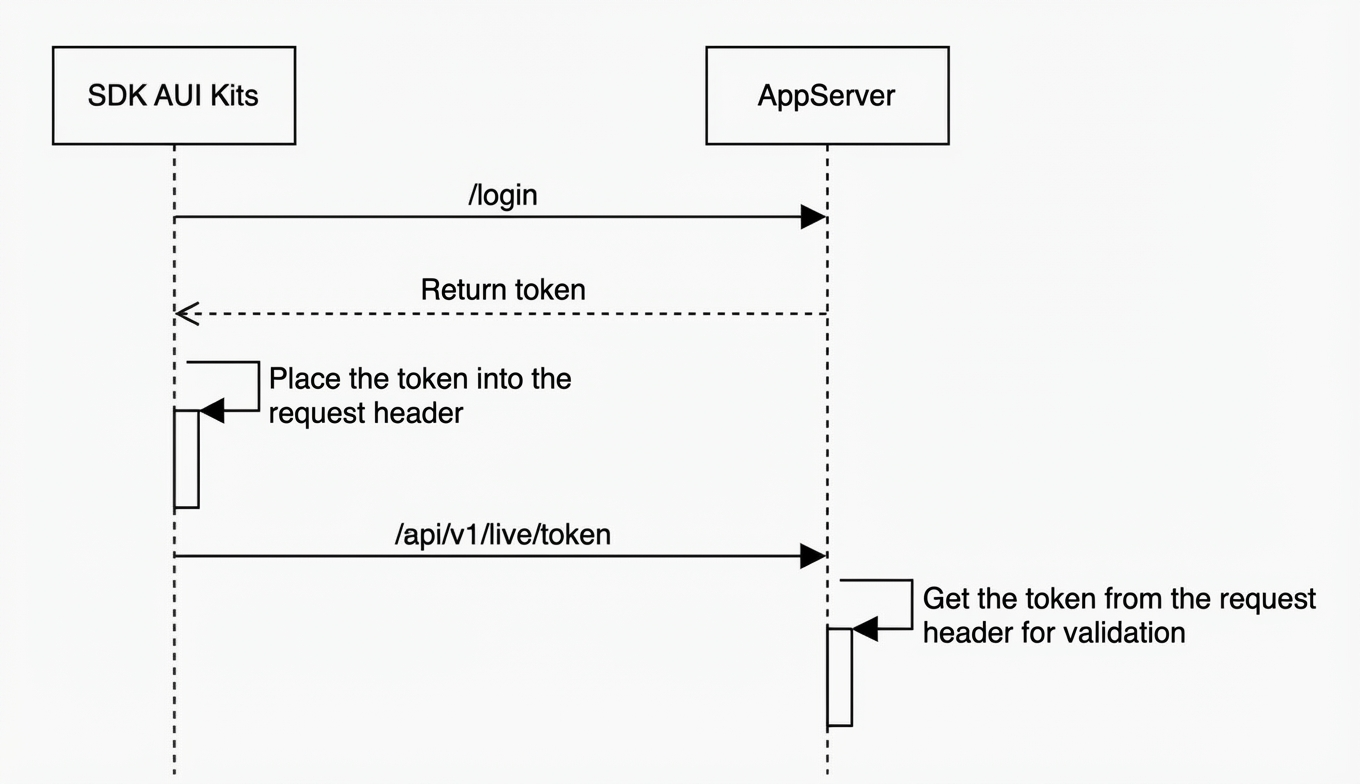 For the
 /login API definition, see Login API Definition.
Packaging and running
Packaging
-
Use the built-in Maven in IntelliJ IDEA to package the project. The JAR file is generated in the
targetdirectory. -
In the
Server/Java/codedirectory, run the following command to package the project.mvn package -DskipTests -
Copy the JAR file from the
targetdirectory to your server.scp xxx.jar root@ip:/root
Running
Open a terminal in the directory where the JAR file is located.
-
Run in the foreground. Logs are printed to the terminal.
java -jar ***.jar -
Run in the background. Logs are written to the
nohup.outfile.nohup java -jar ***.jar & -
Verify that the project started successfully.
Access an API endpoint. If you see the following response, the AppServer has started successfully.
{
  "success": true,
  "data": "Deployment successful. The service is accessible at http://xxx.ost"
}