Dual-stream disaster recovery configuration
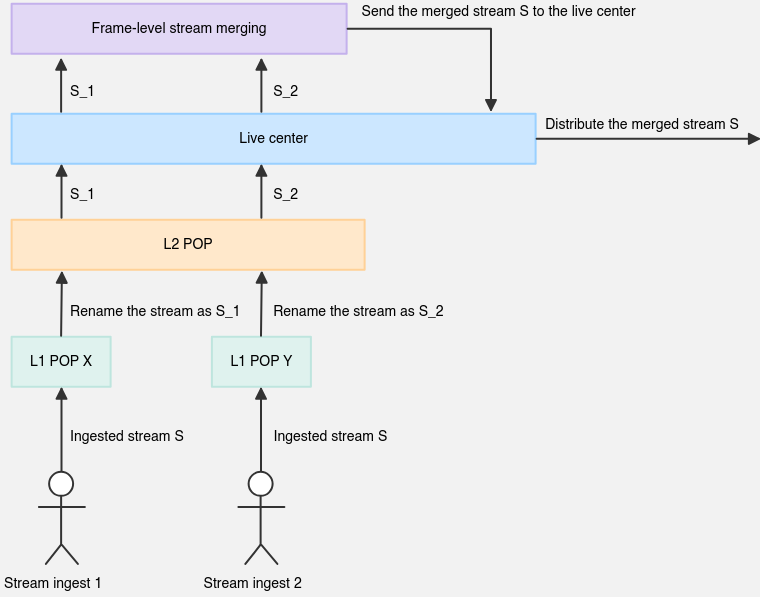
Push two identical live streams to the same URL path during critical live events or high-traffic scenarios. The system continuously monitors the availability and quality of both streams and automatically switches between them to ensure uninterrupted, stable playback and a seamless viewing experience.
Key features
-
Distributed stream ingest: Use different carriers to distribute multiple streams with the same name across different L1 nodes, enhancing the effectiveness and robustness of your disaster recovery setup.
-
Multi-stream merging configuration: Central nodes support flexible configuration to manage and merge multiple in-flight streams with the same name, adapting to various disaster recovery needs and policies.
-
Implicit stream management: Backup streams remain invisible in querying, callbacks, recording, and transcoding, avoiding interference with existing business logic.
-
Automatic primary stream recovery and switching: The system continuously monitors the availability and quality of both streams. If one stream becomes abnormal, it automatically switches to the other without interruption.
-
Manual stream switching: Switch streams manually from the console or through an API operation. After a manual switch, the system uses the newly selected stream. Automatic switching remains active — if the switched-to stream becomes abnormal, the system automatically switches back to the original stream.
Usage notes
After you enable dual-stream disaster recovery, push two streams simultaneously to the same URL. If one stream becomes unavailable or starts stuttering, the system automatically switches to the other. You can also switch streams manually from the API or console.
-
This feature is currently free of charge.
-
To perform a manual switch using an API operation, see Set dual-stream disaster recovery switch.
-
Manual switching does not affect the system’s automatic switching capability.
Procedure
Enable and use dual-stream disaster recovery
-
Log on to the ApsaraVideo Live console.
-
In the navigation pane on the left, click Domain Names to go to the Domain Management page.
-
Click Streaming Domain in the Actions column, then click Domain Settings.
-
In the left-side navigation of the domain configuration page, choose Streaming Management > Dual-stream Disaster Recovery.
-
Click the Dual-stream Disaster Recovery toggle to enable Dual-stream Disaster Recovery. On the Dual-stream disaster recovery configuration page, the Dual-stream disaster recovery status shows as Enabled. You can click the Disable link to disable this feature.
-
Click Stream Management to open the Stream Management page.
-
In the Actions column, click Switch to Active Stream to perform a manual stream switch.
Monitor dual-stream disaster recovery streams
Monitor the primary and backup streams and query related data on the Real-time Monitoring page in the console.
- Log on to the ApsaraVideo Live console.
-
In the navigation pane on the left, choose to go to the Real-time Monitoring page.
-
On the Stream-based Data tab, enter the exact StreamName to query.
-
View real-time monitoring details. On the Live Center Stream Quality Data sub-tab, view real-time line charts for video frame rate and audio frame rate to verify that the disaster recovery stream frame rates are normal.
Manage dual-stream disaster recovery streams
Manage dual-stream disaster recovery streams on the Stream Management page in the console. For detailed instructions, see Dual-stream disaster recovery management.