Local mode
MaxCompute Spark supports the native Spark local mode, allowing you to validate small data sets and debug jobs. This topic describes how to use local mode in IntelliJ IDEA and with the shell, using Spark 3.1 as an example.
Debug with IntelliJ IDEA
Step 1: Download and decompress the Spark client
Click this link or run the following commands in a terminal to download and extract the Spark client. This example uses Spark client version
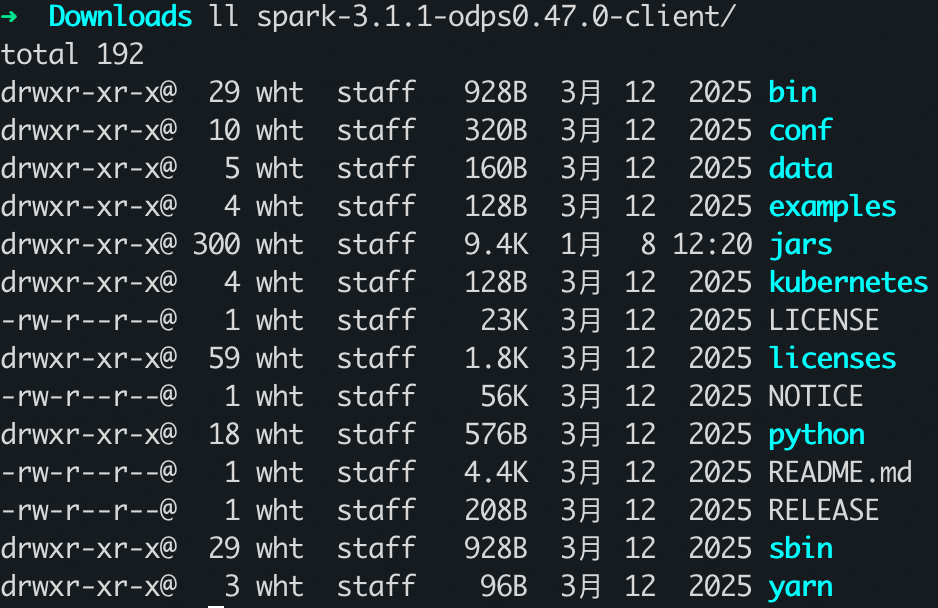
3.1.1-odps0.47.0.wget https://odps-repo.oss-cn-hangzhou.aliyuncs.com/spark/3.1.1-odps0.47.0/spark-3.1.1-odps0.47.0-client.tar.gz tar zxvf spark-3.1.1-odps0.47.0-client.tar.gzVerify that the client is downloaded and extracted to the correct directory.
Step 2: Create and modify the odps.conf configuration file
In the spark-3.1.1-odps0.47.0-client/conf directory, create an odps.conf file:
touch odps.conf
vim odps.conf
Add the following configurations to the file:
odps.project.name = [Replace with your actual project]
odps.end.point = [Replace with your actual endpoint]
odps.access.id = [Replace with your actual access ID]
odps.access.key = [Replace with your actual access key]
Step 3: Open the sample project in IntelliJ IDEA
On the IntelliJ IDEA welcome screen, click Get from VCS and paste the following repository URL:
https://github.com/aliyun/MaxCompute-Spark.git.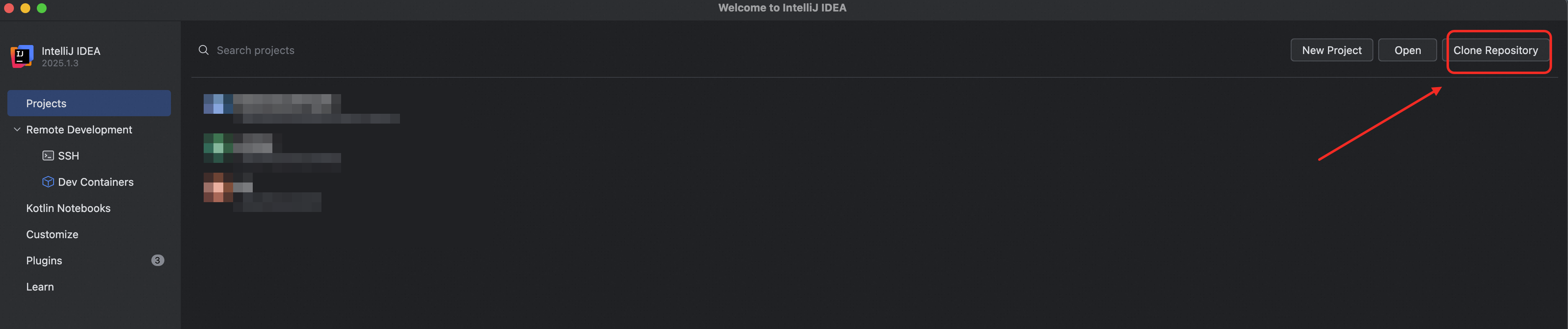
If a security warning prompts you to trust the project, click Trust Project.
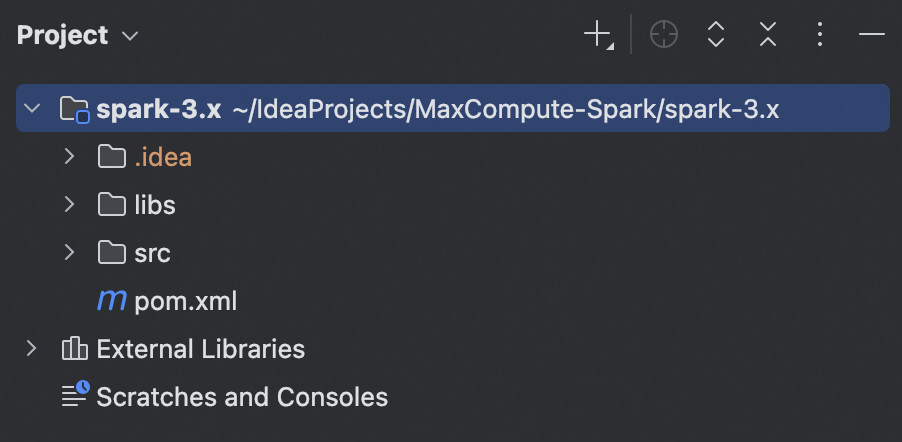
After the repository is cloned, IntelliJ IDEA automatically opens the project at its root directory,
MaxCompute-Spark. Close the current project and reopen it from the correct subdirectory.Close the current project:
From the menu bar, choose
File>Close Projectto return to the welcome screen.
Open the project from the subdirectory:
On the welcome screen, click
Open.In the file browser that opens, navigate to the folder that you cloned.
In the
MaxCompute-Sparkfolder, select thespark-3.xsubdirectory and clickOpen.
Step 4: Add the MaxCompute Spark Jars dependency
Navigate to File > Project Structure.
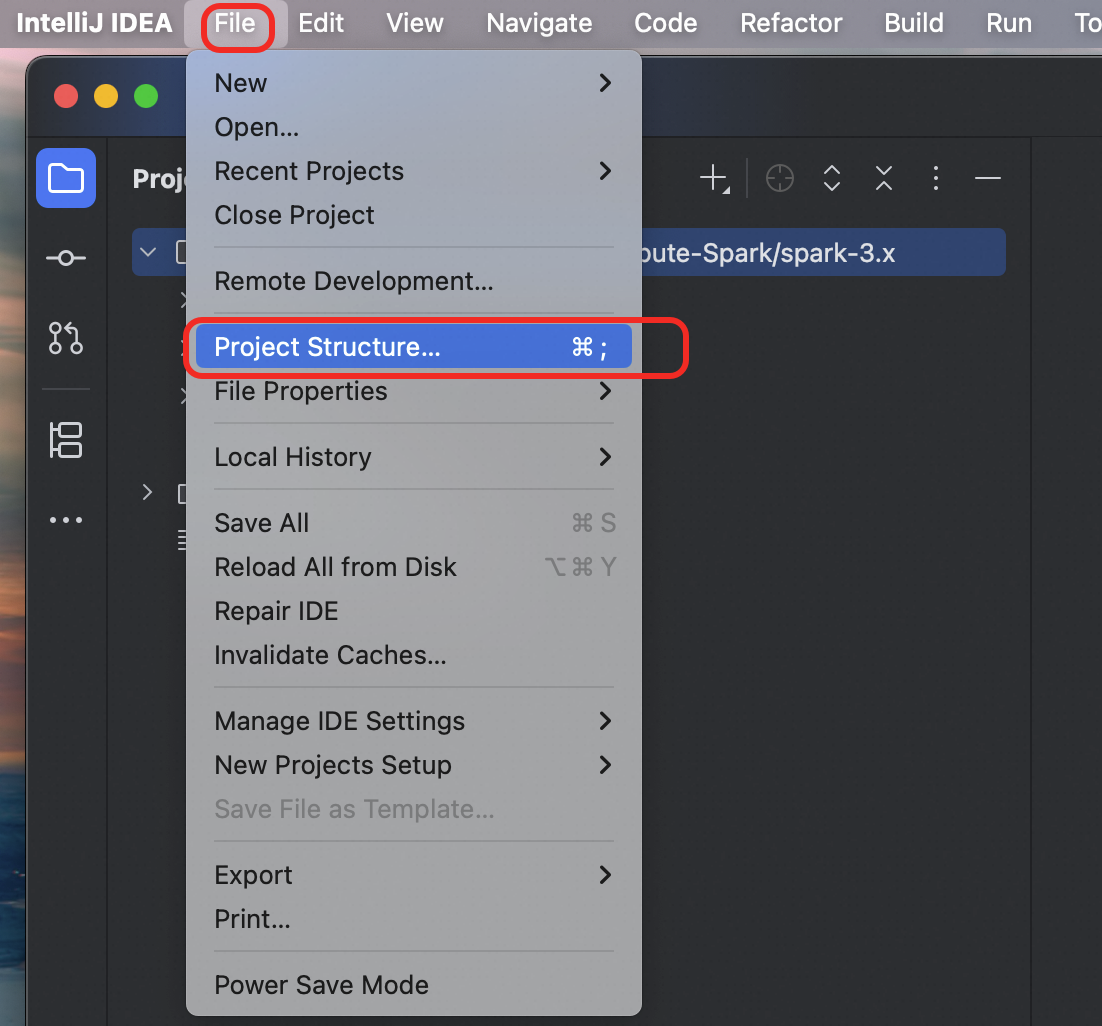
In the left-side navigation pane, select
Modules, click the+icon, and then selectJARs or Directories.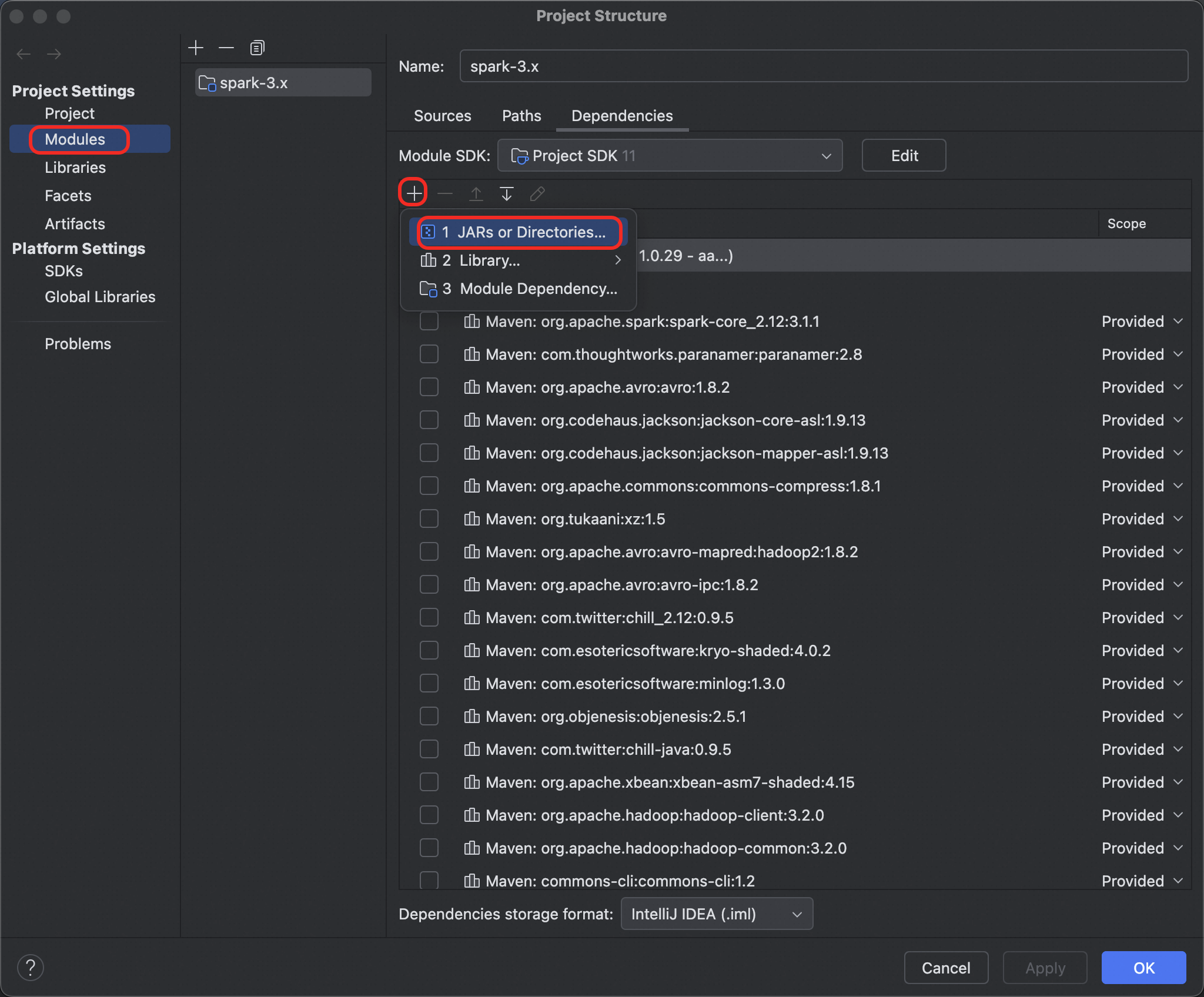
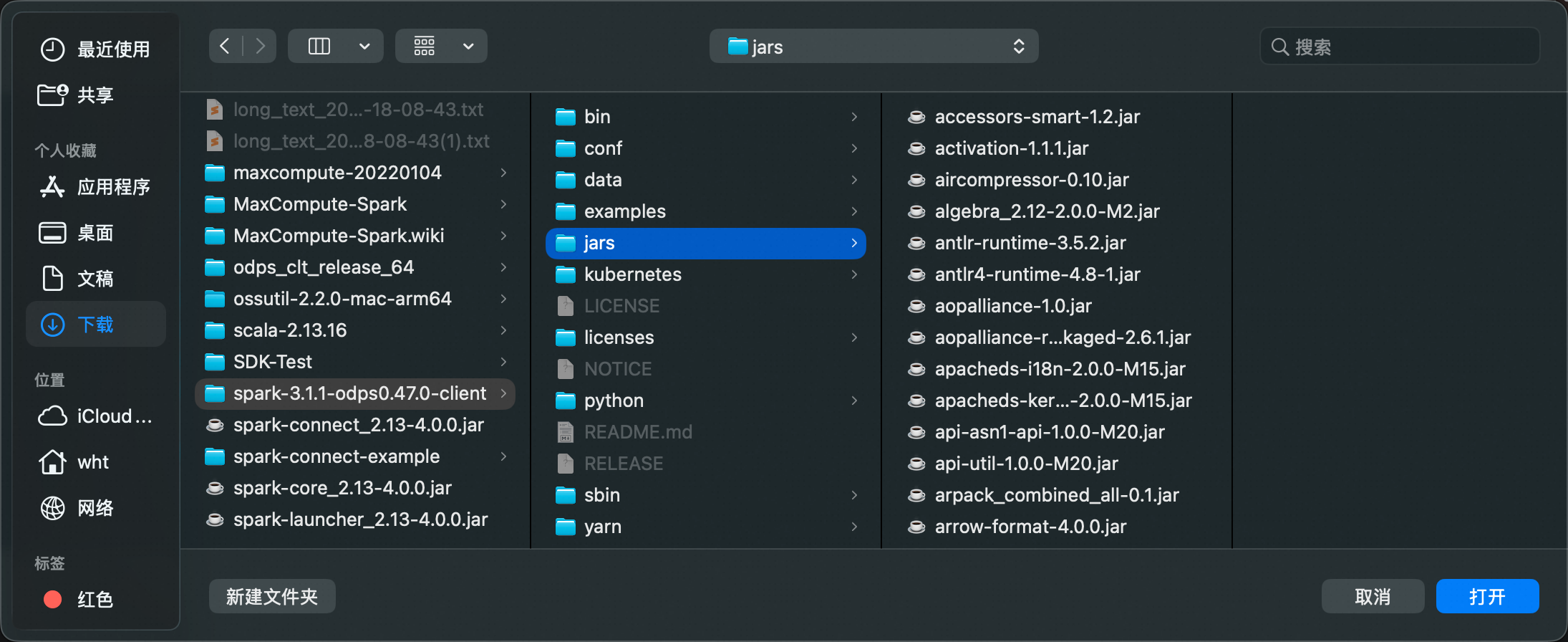
Select the
spark-3.1.1-odps0.47.0-client/jarsdirectory that you extracted in Step 1.
Click OK.
Step 5: Add the ODPS_CONF_FILE environment variable
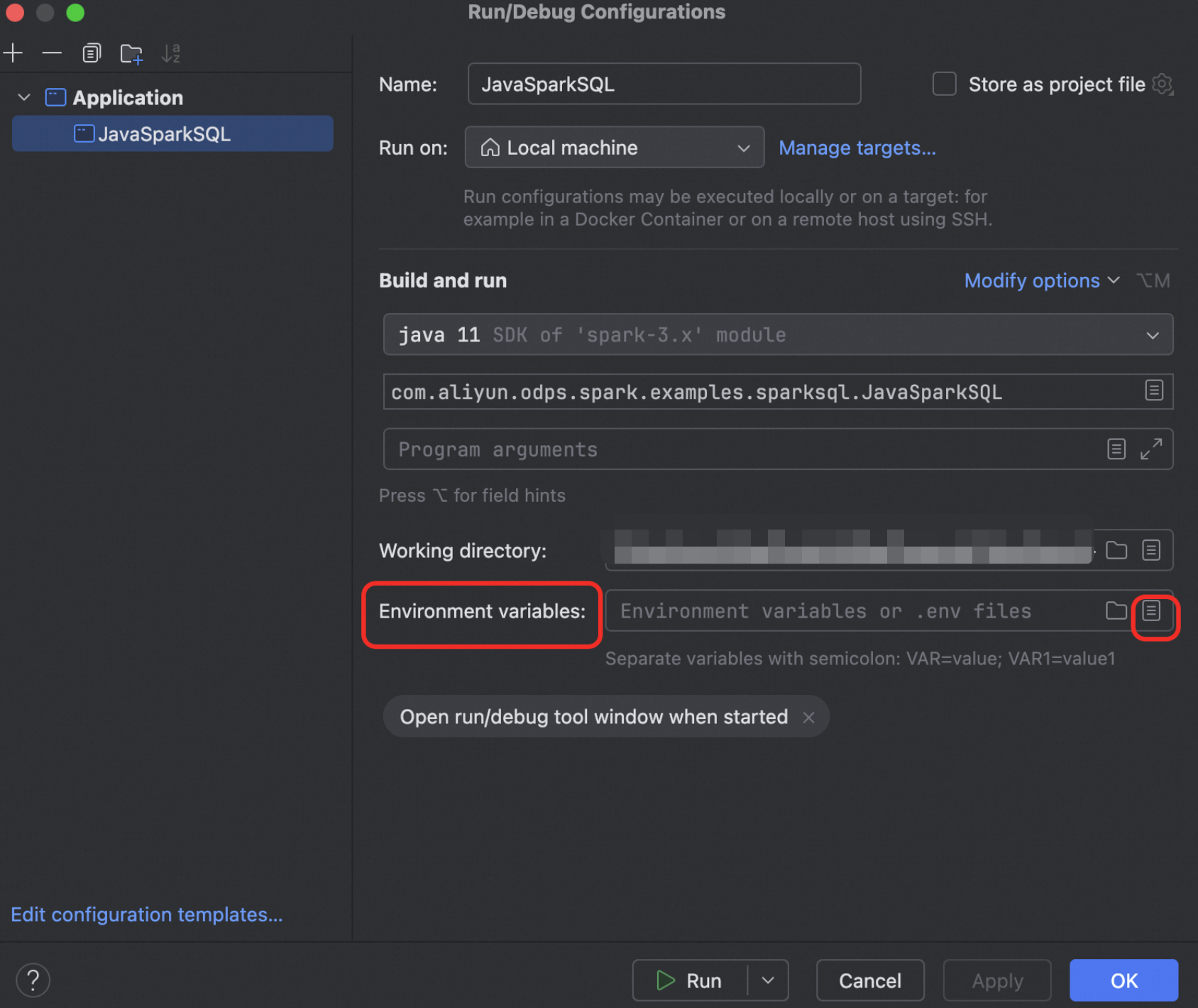
In the upper-right corner of IntelliJ IDEA, click
Edit Configurations.Set environment variables
Add
ODPS_CONF_FILE. Set Name toODPS_CONF_FILEand Value to the path to theodps.conffile that you created in Step 2.Click OK.


Step 6: Run the JavaSparkSQL.java task
On line 48, add the following code to configure local mode:
.config("spark.master","local[*]")On line 113, add the following code to manually add a partition:
spark.sql("ALTER TABLE " + ptTableName + " ADD IF NOT EXISTS PARTITION (pt1='2018', pt2='0601')");Comment out the code on line 118. local mode does not support overwriting dynamic partitions.
ptDf.write().mode("overwrite").insertInto(ptTableName);Run the task.



Debug with the shell
Step 1: Download and decompress the Spark client
Click this link or run the following commands in a terminal to download and extract the Spark client. This example uses Spark client version
3.1.1-odps0.47.0.wget https://odps-repo.oss-cn-hangzhou.aliyuncs.com/spark/3.1.1-odps0.47.0/spark-3.1.1-odps0.47.0-client.tar.gz tar zxvf spark-3.1.1-odps0.47.0-client.tar.gzVerify that the client is downloaded and extracted to the correct directory.
Step 2: Create and modify the odps.conf configuration file
In the spark-3.1.1-odps0.47.0-client/conf directory, create an odps.conf file:
touch odps.conf
vim odps.conf
Add the following configurations to the file:
odps.project.name = [Replace with your actual project]
odps.end.point = [Replace with your actual endpoint]
odps.access.id = [Replace with your actual access ID]
odps.access.key = [Replace with your actual access key]
Step 3: Modify the spark-defaults.conf configuration file
Open the spark-defaults.conf file located in the spark-3.1.1-odps0.47.0-client/conf directory.
cd spark-3.1.1-odps0.47.0-client/conf
vim spark-defaults.conf

# Comment out the following configurations
#spark.master = yarn
#spark.submit.deployMode = cluster
#spark.eventLog.enabled = true

# Add the following configuration
spark.master = local[*]
Step 4: Add the HADOOP_CONF_DIR environment variable
export HADOOP_CONF_DIR=/PATH/TO/spark-3.1.1-odps0.47.0-client/confStep 5: Open the PySpark shell
cd spark-3.1.1-odps0.47.0-client
./bin/pyspark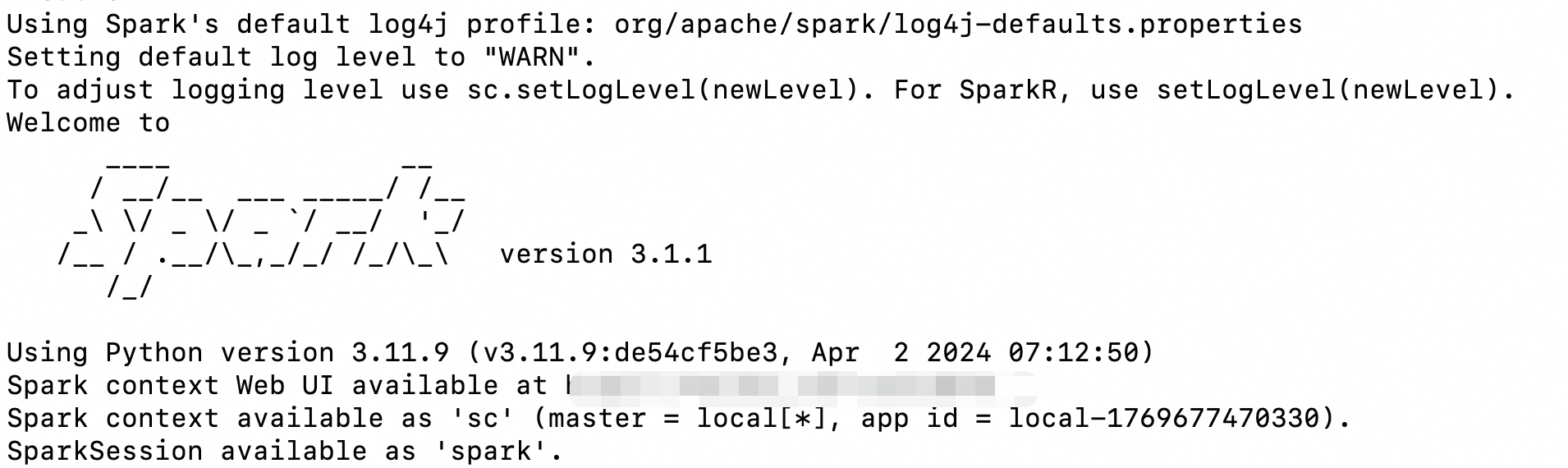
Step 6: Run Spark SQL
Query a table in the MaxCompute project specified in the configuration file.
spark.sql("SELECT * FROM xxxx").show();