Multi-source, multi-engine DataAgent
Multi-source, multi-engine DataAgent provides the multi-source analysis capability of AI Query in the AI Data Explorer client. It jointly analyzes data from multiple data engines and local business materials in a single conversation, and returns query results, knowledge references, and visualizations.
Feature overview
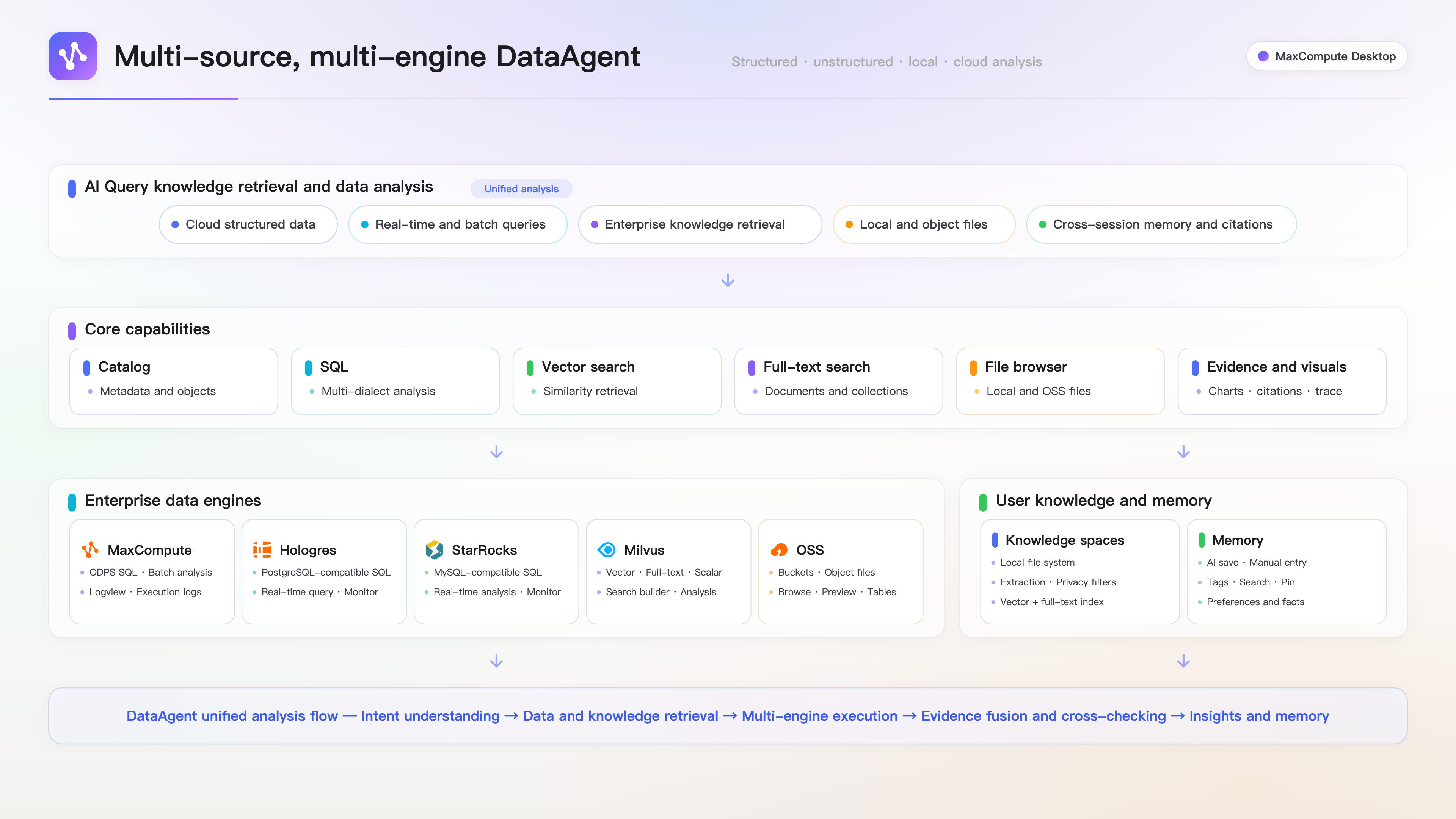
Multi-source, multi-engine DataAgent is designed for scenarios that require joint analysis of enterprise data, object files, and local knowledge. It integrates MaxCompute, Hologres, StarRocks, Milvus, Object Storage Service (OSS), knowledge spaces, and My Memories into the AI Query analysis process. Based on the question, it invokes SQL queries, vector retrieval, full-text search, or file reading, and combines query results, knowledge references, and visualizations. DataAgent consists of an interaction layer, a capability layer, and a data layer. The following figure shows the relationships among these layers.
Prerequisites
The Get started with the AI data exploration client is installed.
The connection addresses and access credentials for the required data sources are available.
The built-in MaxCompute AI service is enabled or a Model Studio API key is configured in Settings > AI Configuration.
Quick start
Click Data Source Connections in the left-side activity bar and create a connection to a MaxCompute, Hologres, StarRocks, Milvus, or OSS data source.
In Knowledge and Memory, add the local folder that stores materials for joint analysis to build a knowledge space.
View and analyze data by using the Catalog, SQL editor, Milvus Retrieval Builder, or OSS bucket management page.
Continuously ask business questions of interest in AI Query and view the query, retrieval, and visualization results.
Connect to data sources
Create a connection
Click Data Source Connections in the left-side activity bar.
Click + at the top of the panel.
Select a data source type and an authentication method.
Configure the connection parameters and click Test Connection.
Click Save and Connect.
After the connection is established, view its status and details in the Data Source Connections panel, or connect, disconnect, and delete the data source.
Configure data sources
MaxCompute
Authentication method | Parameters | Scenario |
OAuth | Region or endpoint, project name, account site (China site or international site); complete browser authorization and sign in upon first use | No AccessKey is required. After browser authorization, the credentials are automatically refreshed based on their validity period. |
AccessKey authentication | Region or endpoint, project name, AccessKey ID, and AccessKey Secret | Connect to a project by using long-term credentials |
STS temporary credential authentication | Region or endpoint, project name, STS AccessKey ID, STS AccessKey Secret, and Security Token | Connect to a project by using temporary credentials |
Hologres
Parameter | Description |
Connection name | Identifies the connection in the connection list |
Host address | Domain name of the Hologres instance |
Port | Default: |
Database name | Database to connect to |
AccessKey ID | AccessKey ID that has permissions to access the database |
AccessKey Secret | AccessKey Secret that corresponds to the AccessKey ID |
StarRocks
Parameter | Description |
Connection name | Identifies the connection in the connection list |
Host address | Address of the StarRocks FE node |
Port | Default: |
Database name | Specify a database name to limit access to a single database. Leave this parameter empty to select a database in the Catalog. |
Username | Database username |
Password | Database password |
Milvus
Parameter | Description |
Connection name | Identifies the connection in the connection list |
Host address | Milvus service address |
Port | Default: |
Database name | Specify a database name to limit access to a single database. Leave this parameter empty to browse all databases. |
Username | Milvus username |
Password | Milvus password |
Enable TLS | Enable this option when connecting to a service address on which TLS is enabled |
Object Storage Service (OSS)
Parameter | Description |
Connection name | Identifies the connection in the connection list |
Authentication method | AccessKey authentication or STS temporary credential authentication |
Region or endpoint | Region in which the bucket resides or a custom endpoint |
AccessKey ID | AccessKey ID or STS AccessKey ID |
AccessKey Secret | AccessKey Secret or STS AccessKey Secret |
Security Token | Security token of the STS temporary credentials |
Bucket | Specify a bucket name to limit access to a single bucket. Leave this parameter empty to browse accessible buckets. |
To use S3-compatible storage, select a custom endpoint in the region options and enter the service address.
Browse the Catalog
The Catalog displays different levels based on the data source type. Expand nodes to view tables, collections, fields, buckets, and object directories.
Data source | Catalog hierarchy | Common operations |
MaxCompute | Project > Schema > Table > Column | Generate a query, open table details, and preview data |
Hologres | Database > Schema > Table > Column | Generate a SELECT statement and open table details |
StarRocks | Database > Table > Column | Generate a SELECT statement and open table details |
Milvus | Database > Collections > Collection > Field | View fields, open details, and generate a query |
OSS | Bucket > Directory > Object | Open the bucket management page and browse files |
Query, retrieve, and analyze data
Run SQL queries
Data source | Script location | SQL |
MaxCompute | SQL script root directory | ODPS SQL |
Hologres |
| PostgreSQL-compatible SQL |
StarRocks |
| MySQL-compatible SQL |
Create or open an SQL file.
Select a connection at the top of the editor.
Enter an SQL statement or generate a query from the Catalog.
Run the entire script, the selected content, or the statement at the cursor position.
View data and diagnostic information in the results section.
Run Milvus retrieval
Retrieval Builder generates Milvus JSON operation scripts from a form. A collection must be selected in all modes. After selecting a collection, adjust the output fields as needed.
Mode | Scenario |
Retrieve by ID | Find data similar to existing primary key records |
Full-text search | Return full-text matches based on text keywords |
Conditional query | Query records based on scalar conditions |
Get by ID | Read records based on one or more primary keys |
Select a Milvus connection at the top of the editor.
Expand Retrieval Builder and select a collection.
Select a retrieval mode and configure the required inputs.
Select the output fields for the results as needed.
Click Generate Script to write the JSON script to the editor, or click Run to run it directly.
Manage OSS objects
On the OSS bucket management page, browse objects in column, list, or grid view; create folders; upload, download, rename, or delete files; and view transfer progress and preview content. AI Query can list buckets and objects, read file samples, and generate MaxCompute query SQL or external table DDL.
View results and visualizations
After running an SQL query or retrieval, switch views based on the result type:
Table and JSON: View raw rows and columns or structured responses.
Charts: Display results in bar charts, line charts, area charts, pie charts, scatter charts, radar charts, treemaps, funnel charts, Sankey diagrams, relationship diagrams, 3D charts, metric cards, and other chart types.
Pivot and quality analysis: Aggregate dimensions and metrics, and view null values, distributions, and anomalies.
Vector analysis: View distance distributions, nearest neighbors, principal component analysis, and heatmaps.
Execution diagnostics: View MaxCompute execution logs and Logview, or view Hologres, StarRocks, and Milvus job monitoring information.
After configuring a chart, pin it to a dashboard for further analysis. For more information, see Create dashboards.
Knowledge and Memory
A knowledge space converts local materials into a searchable knowledge source. My Memories stores preferences, facts, and business conventions that can be reused across conversations.
Create a knowledge space
Open Knowledge and Memory in the left-side bar.
Click + and select the folder that contains the materials.
Confirm the space name, vector model, file types, and scheduled synchronization option.
Click Create and Sync.
Wait until the space status displays the number of synchronized sources.
After synchronization is complete, search the materials in the space by using natural language, view referenced snippets grouped by document, preview original files, and manually or periodically synchronize changed files.
Manage My Memories
Memories can be saved by AI during conversations or manually created in My Memories.
Open Knowledge and Memory > My Memories.
Click New Memory and configure the subject, relationship, content, and tags.
Click Save.
The memory list supports search, tag-based filtering, date-based grouping, and pinning. After selecting a memory, edit its content and tags, or delete the memory if it is no longer needed. Source labels distinguish manually added content from content written by AI.
Use AI Query for joint analysis
AI Query is the natural-language entry point for DataAgent. Based on the question, it uses available data source connections, the Catalog, knowledge spaces, and memories to run queries, perform retrieval, or read files, and then combines results from multiple sources.
Scenarios
Joint analysis of business data and policy materials: Query data warehouse metrics while retrieving metric definitions and policy descriptions from business documents.
Comparison of real-time and offline data: Compare MaxCompute offline results with Hologres and StarRocks real-time data to identify differences in definitions or data timeliness.
Semantic retrieval and detail verification: Retrieve relevant content from Milvus or a knowledge space, and then query data tables to verify conclusions.
Analysis of object files and data warehouse data: Read OSS file samples and perform joint analysis with cloud table data.
Continuous reuse of business context: Use common definitions, preferences, and facts in My Memories to interpret subsequent results.
Start a multi-source analysis
Specify the analysis objective and time range in AI Query.
Specify the data engines, knowledge spaces, or OSS objects to use.
Review the approval card for write, delete, or file modification operations.
View the query results, referenced snippets, and visualizations returned by DataAgent.
Ask follow-up questions about metric definitions, anomaly sources, or breakdown dimensions.
Example questions:
Explain the change in gross profit this month based on the MaxCompute sales details and the promotion rules in the knowledge space.Compare Hologres real-time orders with the MaxCompute daily settlement table and identify the channel with the largest difference.First, find similar complaints in Milvus. Then, use StarRocks to calculate the trend over the past 7 days for the corresponding causes.Read a sample of the sales file in OSS and aggregate the data based on the regional definitions in My Memories.