Integration flow triggers
The Mobi platform provides a powerful trigger feature for integration flows. You can use simple configurations to automatically activate an integration flow or a user task node when a specific event occurs or a condition is met. This topic describes how to use integration flow triggers.
What is an integration flow trigger
In the Mobi low-code platform, an integration flow trigger automatically activates an integration flow or a user task node when a specific event occurs or a condition is met. Triggers are often used to interact with other systems or services to immediately respond to and process signals. This helps businesses achieve more efficient automation and integrate flows between different applications and services.
Trigger types
Webhook
User task
Scheduled task
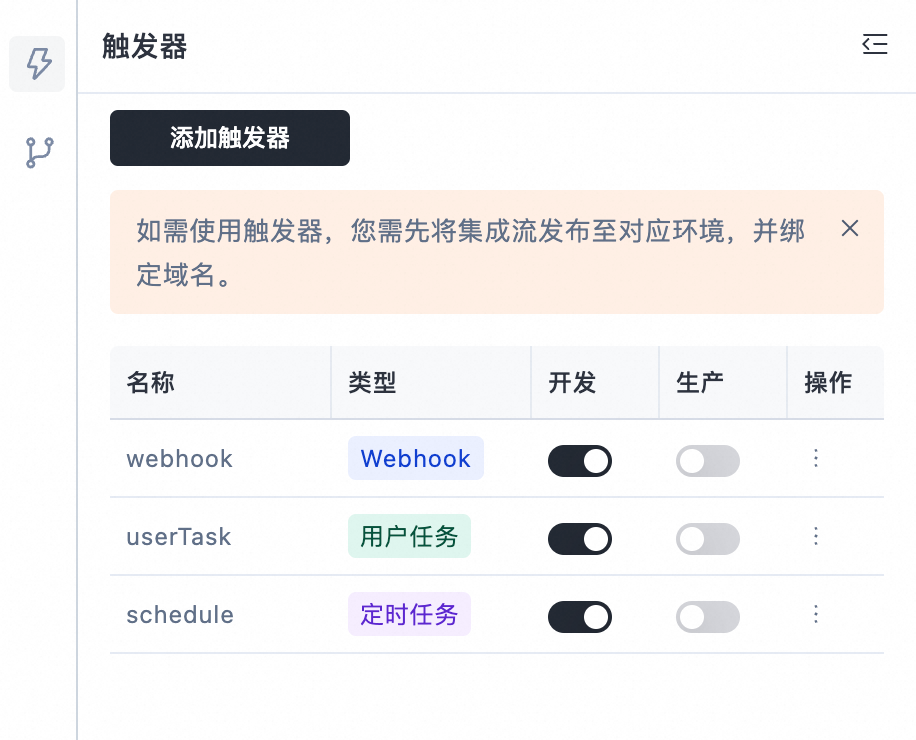
Webhook
A webhook trigger is used to execute an integration flow.
Configuration panel
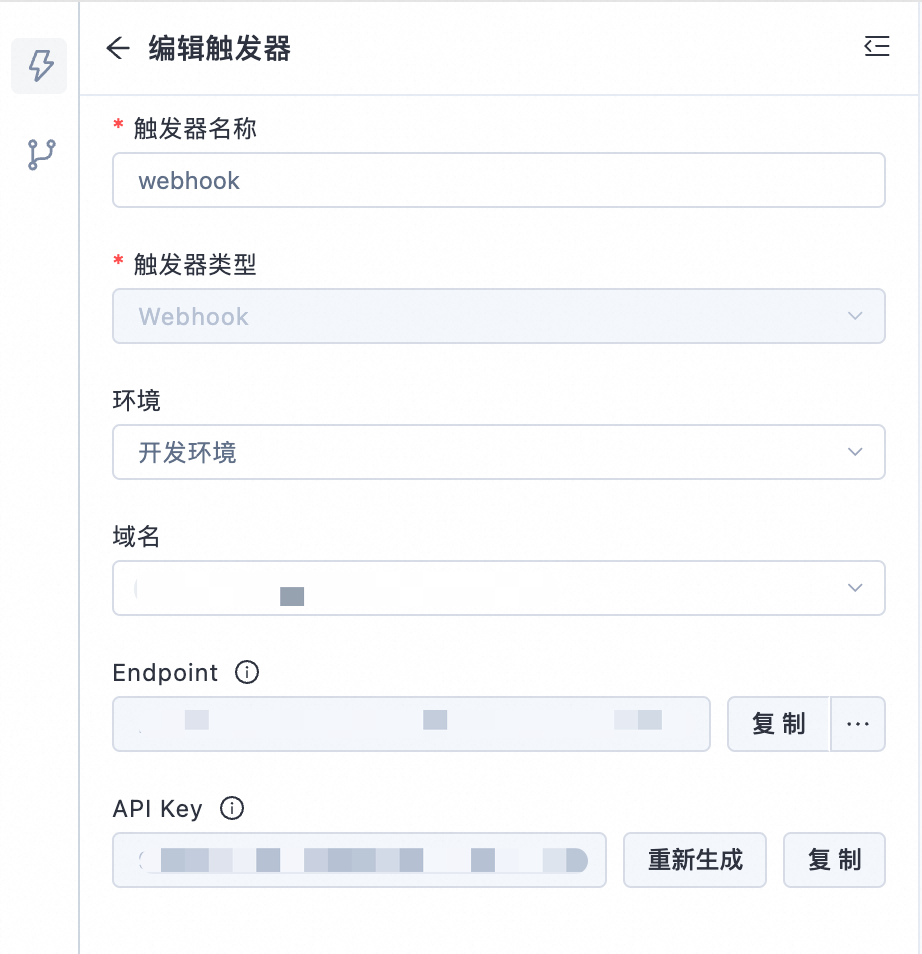
Trigger name
Trigger type: The options are
Webhook,User task, andScheduled task. SelectWebhook.Environment: The options are
Development environmentandProduction environment.Domain name: The Mobi 2.0 development environment provides a default domain name. In the production environment, you must configure a custom domain name.
Endpoint
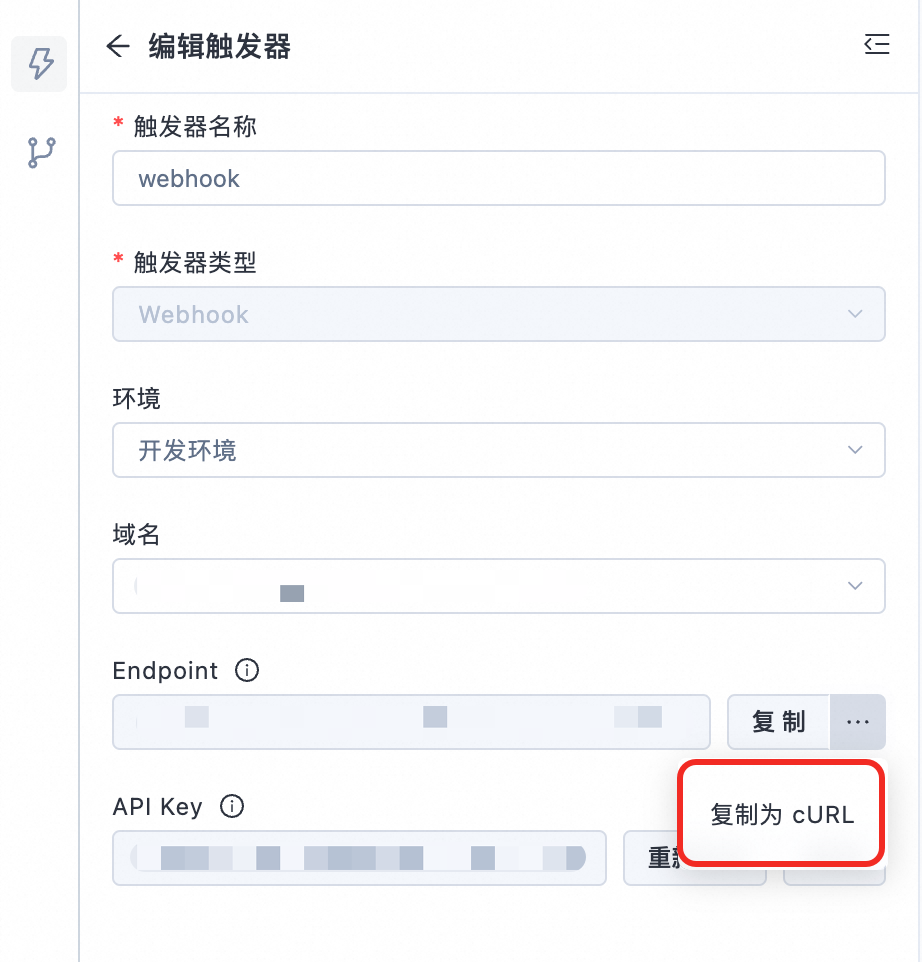
Copy the Endpoint as a cURL command. Sending this request triggers the integration flow.
API key: The request header must include the API key. Otherwise, the request fails.
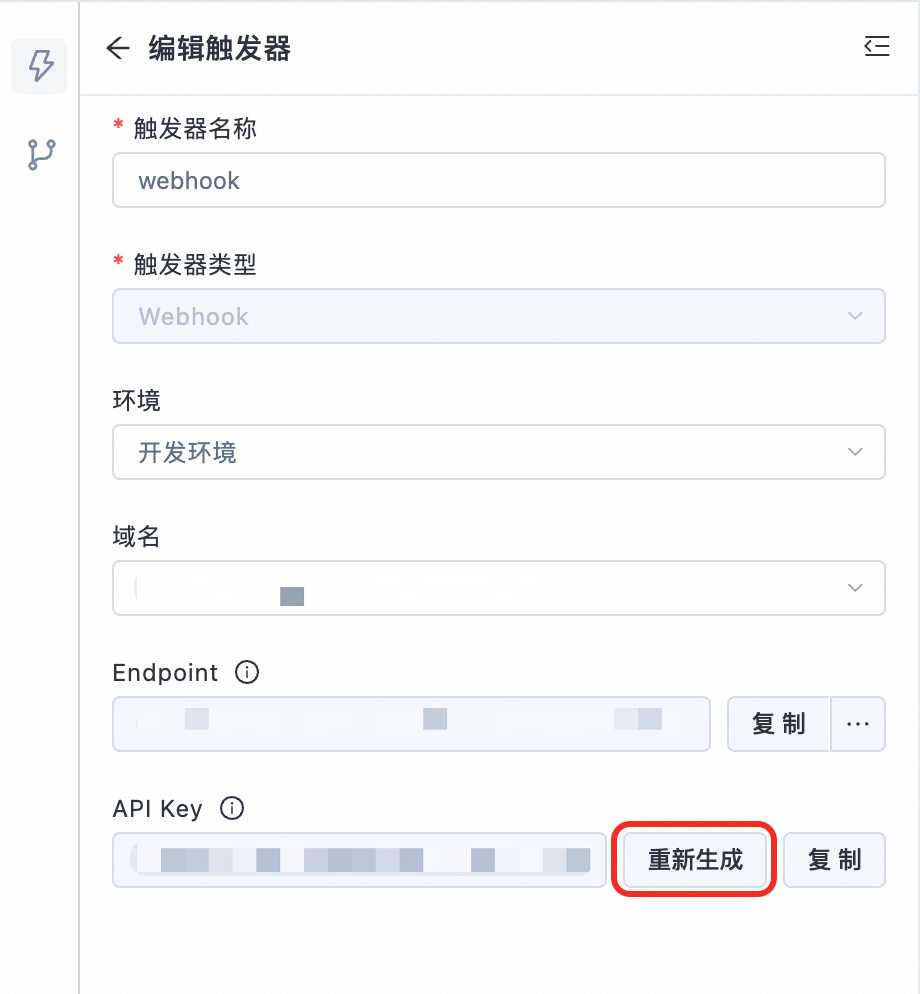
Click the Regenerate button to update the API key.
Asynchronous invocation
The POST request body contains the isAsync parameter.
curl -vvv -XPOST "https://runtime.mobiapp.cloud/{spaceId}/api/v1/webhooks/{resourceId}/startFlow?envId={envId}&triggerId={triggerId}" -H 'X-Mobi-Api-Key: {apiKey}' -H 'Content-Type: application/json' -d '{"isAsync": true}'User task
A user task trigger is used to change the state of a user task node.
Configuration panel
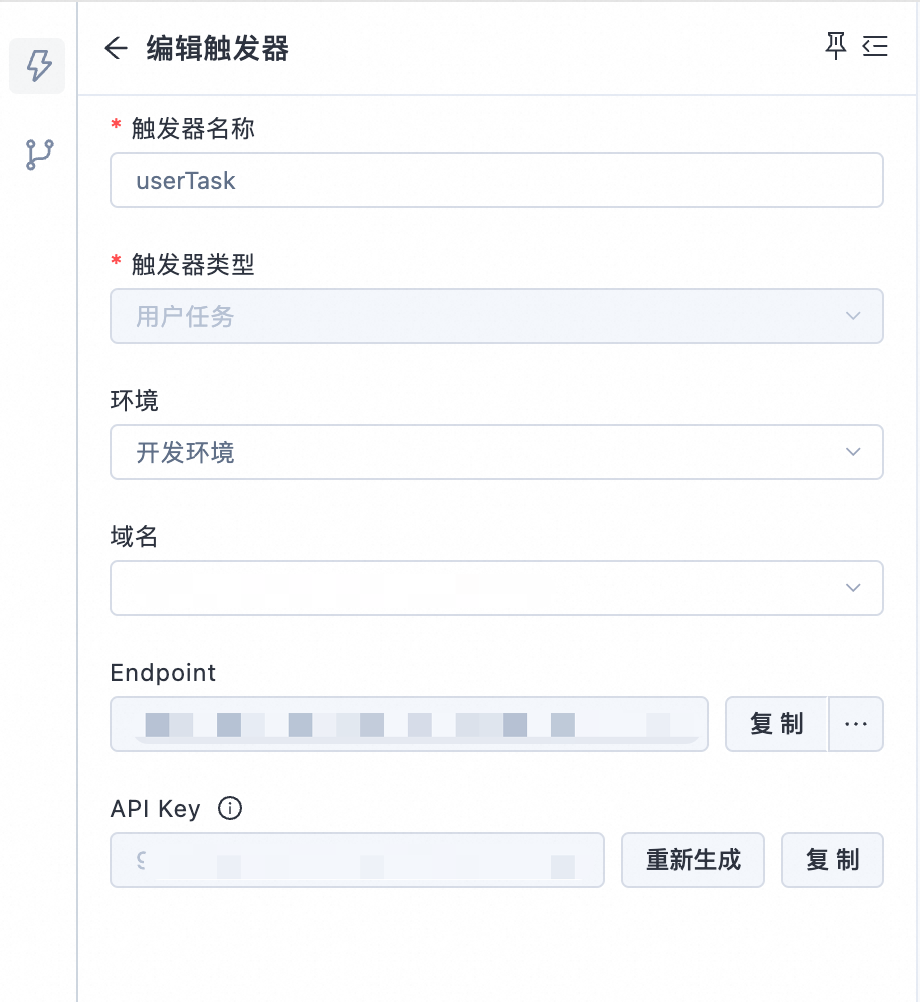
Trigger name
Trigger type: The options are
Webhook,User task, andScheduled task. SelectUser task.Environment
Domain name
Endpoint: Copy the Endpoint as a cURL command. Sending this request changes the state of the user task node in the integration flow.
Parameter
Description
Example
operationStatus
The operation to change the state of the user task node.
Valid values:
CANCELandCOMPLETE.flowInstanceId
The ID of the integration flow execution instance.
userTaskName
The name of the user task node.
taskOutput
The result information when submitting the task.
reason
The reason for canceling the task.
API key
Scheduled task
A scheduled task trigger is used to automatically execute an integration flow at a set time.
Configuration panel
Trigger name
Trigger type: The options are
Webhook,User task, andScheduled task. SelectScheduled task.Input parameters: The input parameters for the integration flow.
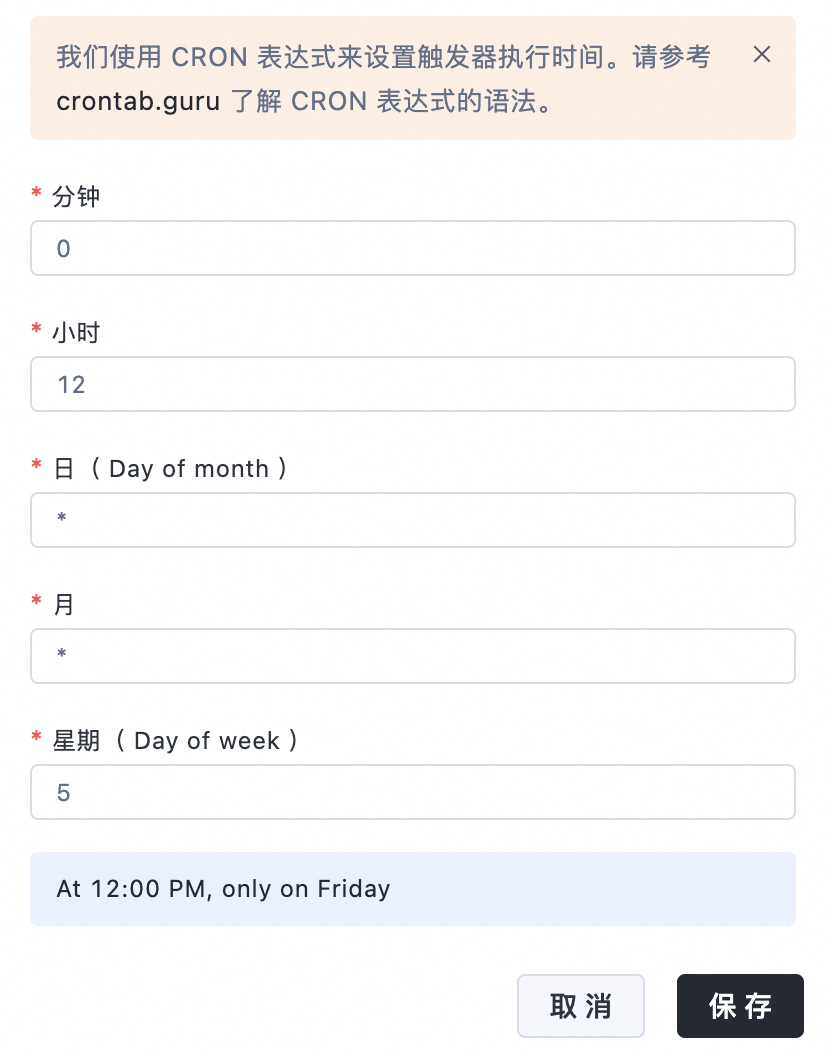
CRON expression
NoteUse a CRON expression to schedule the trigger's execution time. For more information about CRON expression syntax, see crontab.guru.
For example, the following figure shows an expression that executes the integration flow at 12:00 PM every Friday.

Use an integration flow trigger
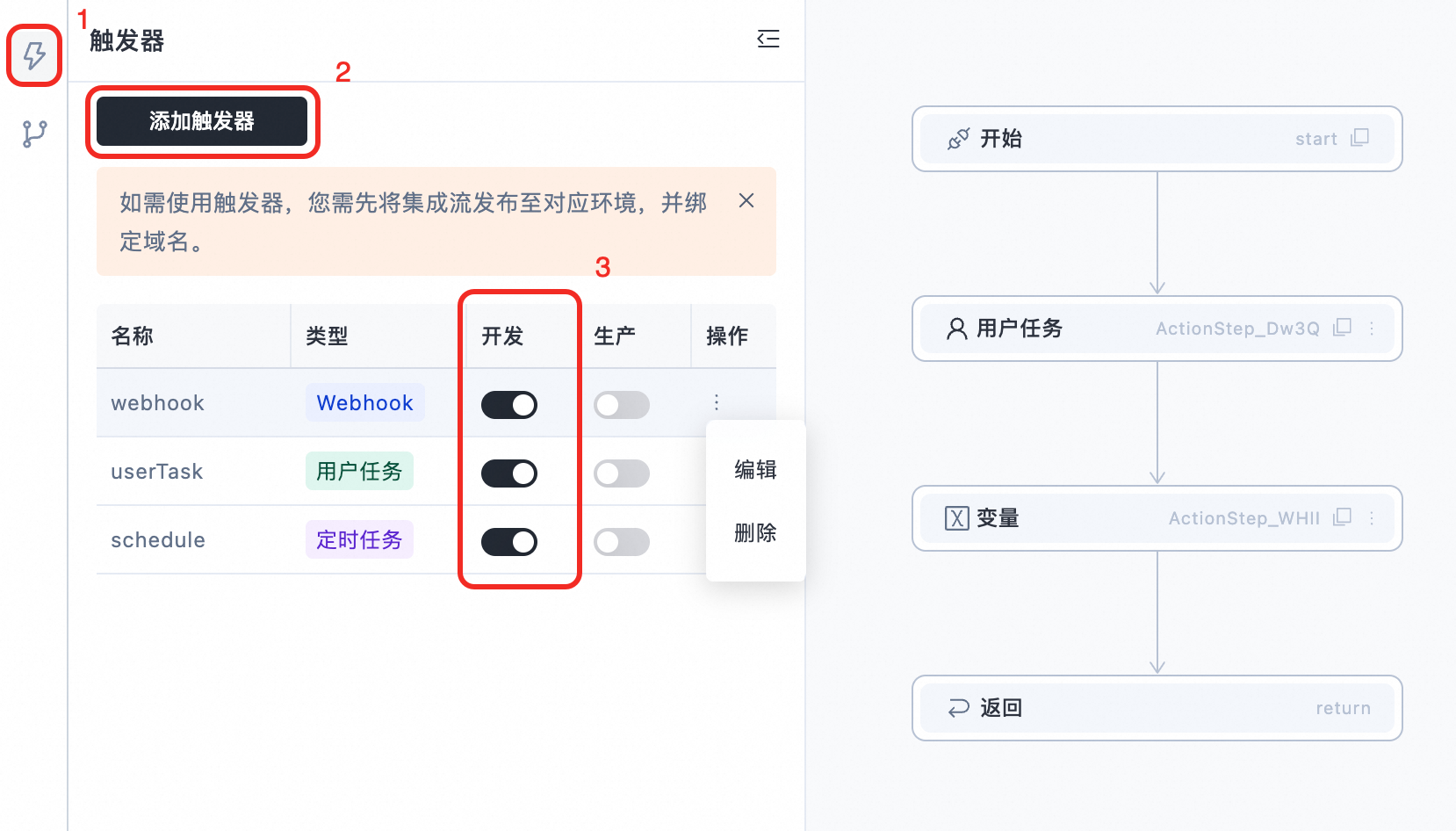
Log on to the Mobi platform and go to the console.
Navigate to Resources > Integration Flows and click Create Integration Flow.
Enter a name and description for the integration flow.
Click OK to create the integration flow.
Go to the newly created integration flow. Combine and orchestrate nodes to build the integration flow.
Create a trigger. After the trigger is created, you can enable or disable it for a specific environment. To modify the trigger, click Edit in the Actions column. To delete the trigger, click Delete in the Actions column.