Automatic evaluation
Manually evaluating agent applications requires building evaluation datasets by hand—a time-consuming and labor-intensive process. Results also depend on domain experts’ judgment. While this ensures expertise, the process is hard to quantify and may introduce personal bias. Alibaba Cloud Model Studio provides an automatic evaluation feature that uses a Large Language Model (LLM) to automatically generate evaluation datasets from your application’s knowledge base, assess the agent’s responses, and produce evaluation reports with optimization suggestions. Automatic evaluation supports two modes:
- Single-application evaluation: Deeply evaluates the performance of one agent application and generates a detailed report with scores, error analysis, and optimization suggestions to quickly identify issues and apply targeted improvements.
- Multi-application comparative evaluation: Compares multiple applications (or different versions of the same application) against the same evaluation benchmark to support selection decisions or validate version iteration results.
Prerequisites
- Automatic evaluation only works with published agent applications. For how to publish an application, see Share applications.
- Automatic evaluation generates evaluation datasets from your knowledge base. Ensure your application has a knowledge base configured. For details, see Create and use a knowledge base.
- Evaluating agent applications relies on runtime inference data. Enable the
Application Observabilityfeature and add the applications you want to evaluate to the observability list. For details, see Usage monitoring and App Performance Analytics. - RAM users must have either
AdministratororApplication Evaluation - Operationpermissions to use automatic evaluation. For details, see Page permissions.
Workflow
A complete automatic evaluation involves four stages: create an evaluation task, set up the evaluation dataset, configure evaluation rules, and run the evaluation.
Create an evaluation task
-
Go to the Alibaba Cloud Model Studio console Automatic evaluation page and click Create Evaluation Task.
If Application Observability is not enabled, click Go now in the pop-up window to enable it.
-
Select the agent application(s) to evaluate. You can select one application for single-application evaluation or up to eight applications for comparative evaluation.
Note
- You can only select applications that are published and have a knowledge base configured.
- Different versions of the same agent are treated as separate, independent applications.
- For multi-application comparative evaluation, all selected applications must share at least one common knowledge base.
On the Select agent page, the left panel shows the agent list. After selecting your target agent, the right panel automatically displays available versions. Select the version(s) to evaluate, then click Next to proceed to dataset setup.
-
Select the knowledge base for evaluation. For single-application evaluation, choose one or more knowledge bases associated with the application. For multi-application comparative evaluation, the system lists all shared knowledge bases across the selected applications—choose one or more to generate the evaluation dataset.
On the first step of the Create evaluation task page (Select evaluation applications), first select your target applications in the Selected agents section, then check the desired knowledge bases in the Select knowledge base scope section below. Click Next when done.
-
After confirming your selections, click Next Step. If any selected application does not have Application Observability enabled, click Activate and Continue in the pop-up window.
Set up the evaluation dataset
You can set up your evaluation dataset in two ways: Generate Evaluation Set or Select an existing evaluation set:
- Generate evaluation dataset: The LLM automatically creates an evaluation dataset based on the knowledge base selected in the previous step. All generated datasets are available on the Evaluation datasets page.
- Select existing evaluation dataset: Reuse an existing dataset. Ensure all reference answers in the selected dataset can be found in the currently specified knowledge base. Otherwise, evaluation results may be inaccurate. For dataset format details, see Evaluation datasets.
The following steps use “Generate evaluation dataset” as an example.
-
Enter a name for the evaluation dataset.
-
Select task types. When generating a dataset, choose 2 to 8 task types. The system provides four default types: “Factual,” “Analytical,” “Comparative,” and “Tutorial.” You can also define custom types by clicking Add task type and entering a name, description, and example.
After selecting “Generate evaluation dataset,” enter a Dataset name, confirm the Selected knowledge bases, configure task types, and click Generate evaluation dataset to submit.
-
Select the model used to generate evaluation tasks. To ensure quality, only
qwen-maxandqwen-plusare supported. For model capabilities, see Select a model. For billing rules, see Model invocation billing. -
After selecting a model, the page shows estimated average and maximum Token consumption. After evaluation completes, view actual Token usage details on the Automatic evaluation page.
Note
- Estimated average consumption is a reference value. Final usage is based on your actual bill.
- Estimated maximum consumption is a hard cost cap to prevent unexpectedly long outputs. Actual usage is usually much lower.
-
Click Generate Evaluation Set. In the confirmation dialog, review your settings and click Continue generation.
The confirmation dialog shows three settings: Selected knowledge bases, Task types (Factual, Tutorial, Comparative, Analytical), and Evaluation model selection. It also notes that changes aren’t allowed after generation starts and that the process consumes significant Tokens.
-
Wait for the dataset to generate. Check generation status on the Evaluation datasets management page. Generation time depends on the number of selected knowledge bases and total document volume. After completion, click Next Step.
On the View evaluation dataset page, the dataset name and version appear. Click Edit evaluation dataset to make changes. The dataset appears as a table with columns: Task type, User query, Reference answer, Coarse-grained keywords, and Fine-grained keywords. After verifying content, click Next to configure evaluation rules.
Configure evaluation rules
-
Set category sampling counts. This defines how many questions to sample per task type. The system randomly selects the specified number from each type for final evaluation.
Sampling counts include four types: Factual, Tutorial, Comparative, and Analytical. Use sliders to set counts individually. In this example, set Factual and Analytical to 1 each and others to 0, resulting in a Total evaluation count of 2.
-
Select the evaluation model. For accuracy, only
qwen-maxandqwen-plusare supported. For model capabilities and billing rules, see Select a model and Model invocation billing. -
After selecting a model, the page shows estimated average and maximum Token consumption. More sampled data means higher Token usage. After evaluation, view actual Token usage on the Automatic evaluation page.
Note
- Estimated average consumption is a reference value. Final usage is based on your actual bill.
- Estimated maximum consumption is a hard cost cap to prevent unexpectedly long outputs. Actual usage is usually much lower.
After configuration, click Test run to verify the evaluation flow. If everything looks correct, click Start evaluation task to begin formal evaluation.
-
Before formal evaluation, run a test to preview results. Test runs only support previewing results for a single application. The system randomly selects one question and runs a full evaluation, consuming a small number of Tokens. Click Trial Run, select the application to test in the pop-up, then click Trial Run again.
Review test results.
The test results pop-up shows each evaluation case’s User query, Reference answer, Actual output, Task type (e.g., Tutorial, Analytical, Factual), and LLM score (star rating).
Run evaluation
-
After confirming dataset and rule settings, click Initiate Evaluation Task.
On the Configure evaluation rules page, adjust weight values (0–1) for each evaluation dimension using sliders. Select a model (e.g.,
qwen-max) from the Evaluation model dropdown. The page shows estimated average and maximum Token consumption. Click Test run to preview results. -
In the confirmation pop-up, review settings and estimated consumption, then click Evaluate.
Wait for evaluation to complete. Duration depends on total evaluation sample size.
After starting, the task status shows as Evaluating (X%) in the task list. To stop early, click Stop in the Actions column.
-
After evaluation completes, click Additional Evaluation in the task list to include new applications for comparison. This works for both single- and multi-application evaluations. Total applications cannot exceed 8.
Evaluation report analysis
Scoring mechanism
The system uses an LLM to score each response (1–5 points). Scoring compares the agent’s output against the reference answer in the evaluation dataset, assessing accuracy, completeness, and relevance. Scoring rules are:
- 5 points: Correct answer with excellent quality.
- 4 points: Correct answer with good quality.
- Below 4 points: the answer is incorrect, and the system will automatically perform a Key Driver Analysis.
Result analysis
-
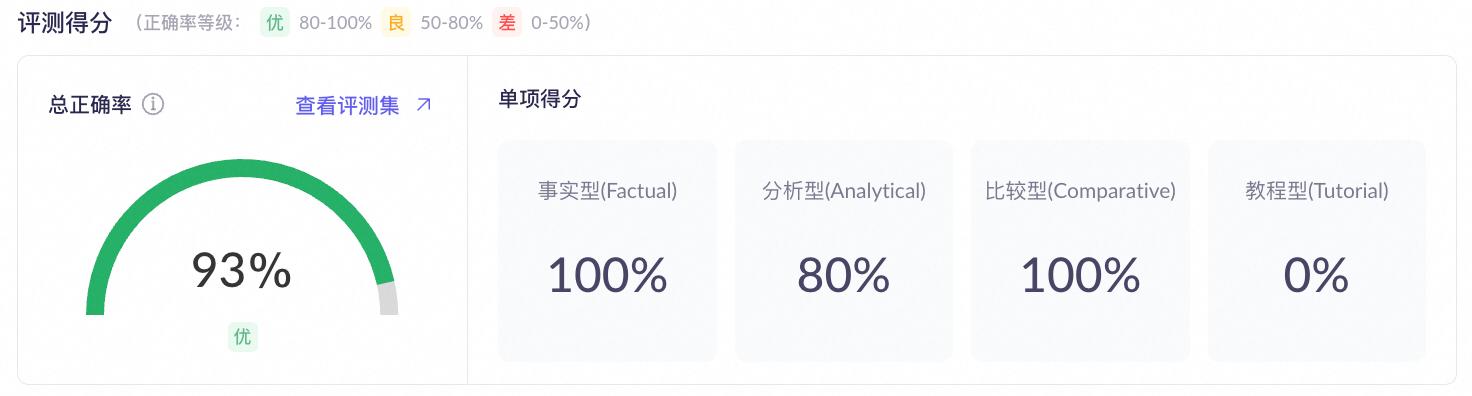
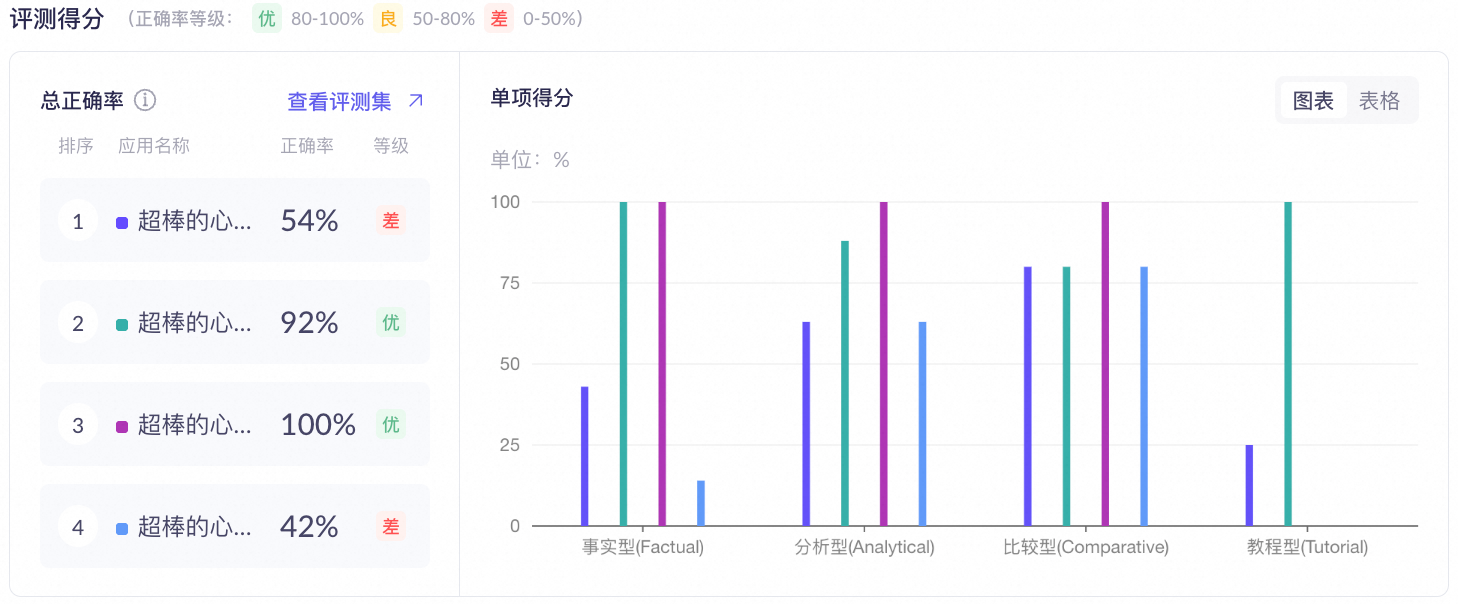
Overall accuracy rate: Shows the application’s overall performance. Formula: Overall accuracy rate = (Number of responses scoring ≥4) / (Total responses) × 100%. Multi-application evaluations display comparisons in charts.
Single application:
Multi-application:
-
BadCase analysis: By default, the BadCase list shows the top 5 lowest-scoring error cases. Click View All Data to see all error cases.
If no BadCases exist, the list remains empty. To view all results, click Download Results in the top-right corner.
The left side of the BadCase analysis page shows summary tabs: LLM score and Issue categorization. Ring charts display BadCase counts by score range (2–4 points, below 2 points). The right-side list includes columns: Task type, User input, Application output, and Score/Issue category.
-
Optimization suggestions: Based on Key Driver Analysis, the system provides specific recommendations for improving prompts, retrieval settings, or knowledge base segmentation.
For example, for Incomplete segmentation (often caused by inappropriate chunking during knowledge base creation, splitting key information across multiple segments), the system suggests: 1. Adjust max segment length and overlap based on reference answer length; 2. Use custom segmentation to freely adjust strategy (e.g., by page, heading, or regex); 3. Manually edit incorrectly split segments to keep semantically related content together.
-
RAG agent evaluation: Shows individual scores by question type (e.g., Factual, Analytical).
Performance tiers: Excellent (≥4), Good (2–4), Needs improvement (<2). Factual and Comparative types show 100.0% Excellent. Analytical shows 80.0% Excellent and 20.0% Good. Tutorial shows 0.0% across all tiers.
Key Driver Analysis
For BadCases scoring below 4, the system automatically performs Key Driver Analysis to pinpoint where the RAG pipeline failed. Definitions and optimization suggestions for each root cause are:
- Model misunderstanding: Correct knowledge was retrieved, but unclear prompts or limited model inference led to errors. Add clearer response instructions or switch to a stronger model.
- Poor reranking: Correct segments were retrieved but ranked too low to be included in the final context passed to the LLM. Adjust reranking settings or increase the number of segments passed to the model.
- Ineffective retrieval: Usually caused by inappropriate retrieval settings, leading to too many or too few segments recalled. Adjust retrieval strategy based on data characteristics.
- Incomplete segmentation: Usually caused by overly fine-grained chunking during knowledge base creation, splitting a single semantic unit across multiple segments. Increase segment length or enable semantic segmentation.
- Knowledge not retrieved: Likely due to empty retrieval results or missing relevant content in the knowledge base. Add the missing knowledge to the knowledge base.
Best practices
A single evaluation only reflects an application’s performance at a specific point in time. To consistently maintain agent application quality, integrate automatic evaluation into your daily development and O&M workflows.
Establish continuous evaluation
Trigger an evaluation in these scenarios:
- After knowledge base updates: Adding, modifying, or deleting knowledge may affect retrieval and response quality.
- After prompt adjustments: Prompt changes directly affect model output behavior.
- After model replacement or upgrade: Different models vary in understanding and generation capabilities.
- After adjusting retrieval/reranking strategies: These settings directly impact RAG recall quality.
- Regular regression (weekly or monthly): Even without active changes, run periodic evaluations to monitor potential quality drift.
Build an optimization loop
Follow this iterative process:
- Identify BadCases: In evaluation reports, focus on responses scoring below 4.
- Analyze root causes: Use the system’s Key Driver Analysis labels and refer to Key Driver Analysis to quickly diagnose each BadCase.
- Apply targeted optimizations: Modify configurations based on root cause findings.
- Publish new version and re-evaluate: Publish the optimized application as a new version and evaluate it using the same dataset.
- Compare results and confirm improvements: Compare new and old evaluation reports to verify optimization effectiveness. If results fall short or new issues appear, return to step one and start a new optimization cycle.
FAQ
What’s the difference between estimated average and estimated maximum Token consumption? Why doesn’t actual consumption match estimates?
- Estimated Average Consumption is a reference value. Final usage is based on your actual bill.
- Estimated Maximum Consumption is a theoretical upper limit calculated based on the model’s maximum input/output Token length. Actual consumption will never exceed this value.
Why does evaluation dataset generation or application evaluation stay at 0% for a long time?
Both dataset generation and application evaluation are offline tasks that run in a background queue. Progress remains at 0% while waiting in queue. It updates automatically once execution begins.
What happens if I disable Application Observability during evaluation?
To ensure evaluation tasks run properly, do not disable Application Observability during evaluation. Doing so may cause task failure, data loss, or inaccurate final reports.
Why does the number of test cases in the evaluation report differ from what I set?
Automatic evaluation may fail for some cases. The report only shows successfully evaluated cases. Failed cases are excluded from final accuracy calculations.
Why are Tokens consumed even when an evaluation task fails?
Evaluation tasks run in steps. Each successfully completed step consumes Tokens and incurs charges. If the task fails in a later step, previously consumed Tokens still count toward your usage.