In-car hotspot Q&A
This intelligent cockpit product meets the demand for news while driving by using a large model to automatically process, categorize, and aggregate news content. It delivers a rich, interactive, and personalized media experience. The product processes and clusters large volumes of your content, extracting key topics and aggregated summaries to provide users with a quick overview and a guided reading experience.
ImportantThe Interactive Q&A on In-car Network Hotspot Information application is free for a limited time. Once the free quota is exhausted, you are charged on a pay-as-you-go basis for the input and output tokens used in model calls.
- For more information on the limited-time free offer for new users, see New User Limited-Time Free Offer.
- For details on token calculation and model pricing, see Billing Items and Pricing.
Entry point
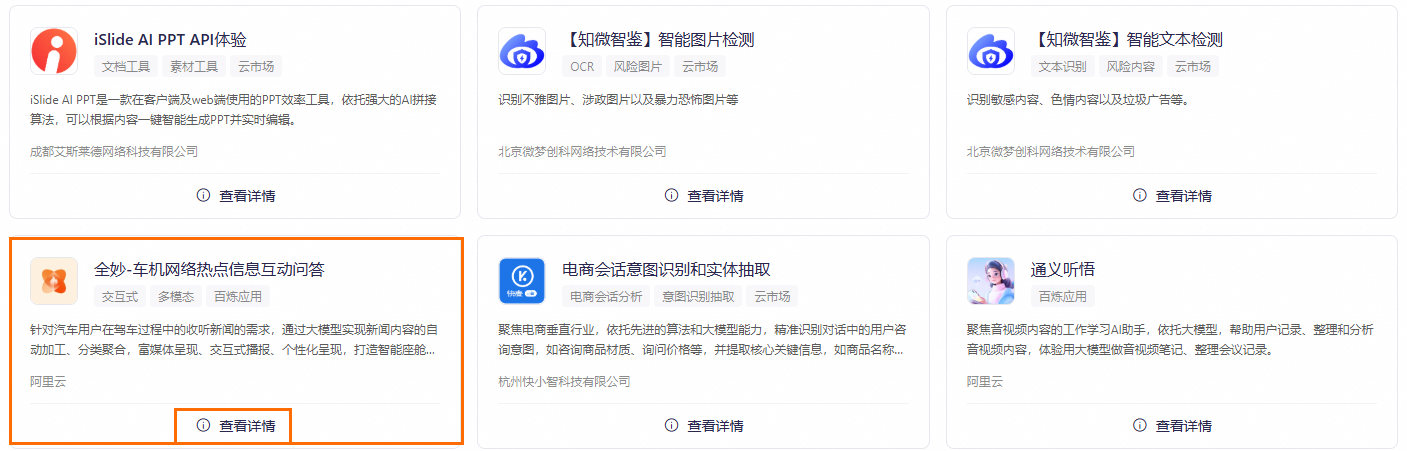
Go to the App Gallery page, find the Quanmiao - Interactive Q&A on In-car Network Hotspot Information card, and click View Details to open the light application console.
Features
Application details
On the Application Details tab of the Interactive Q&A on In-car Network Hotspot Information application, you can view the feature description, target audience, best practices, billing rules, and more.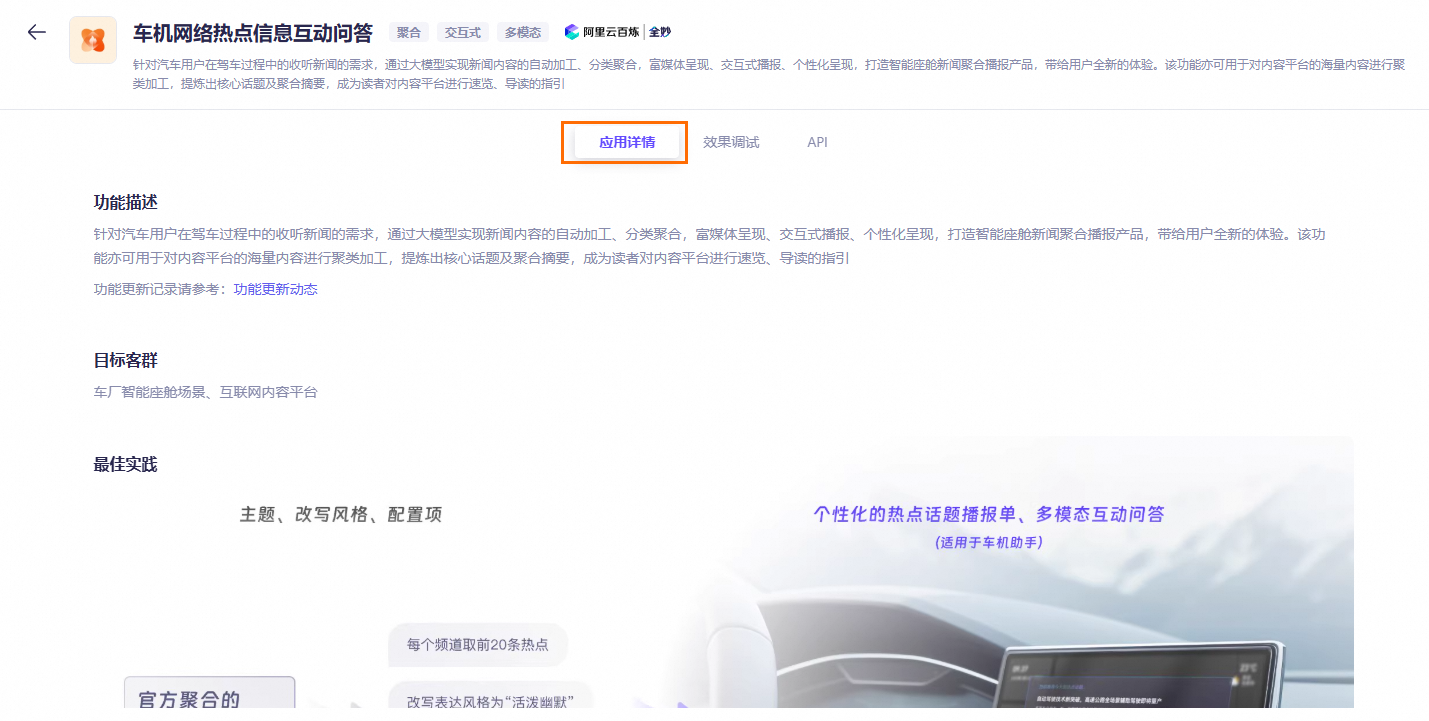
Effect tuning
Step 1: Configure the playlist content
-
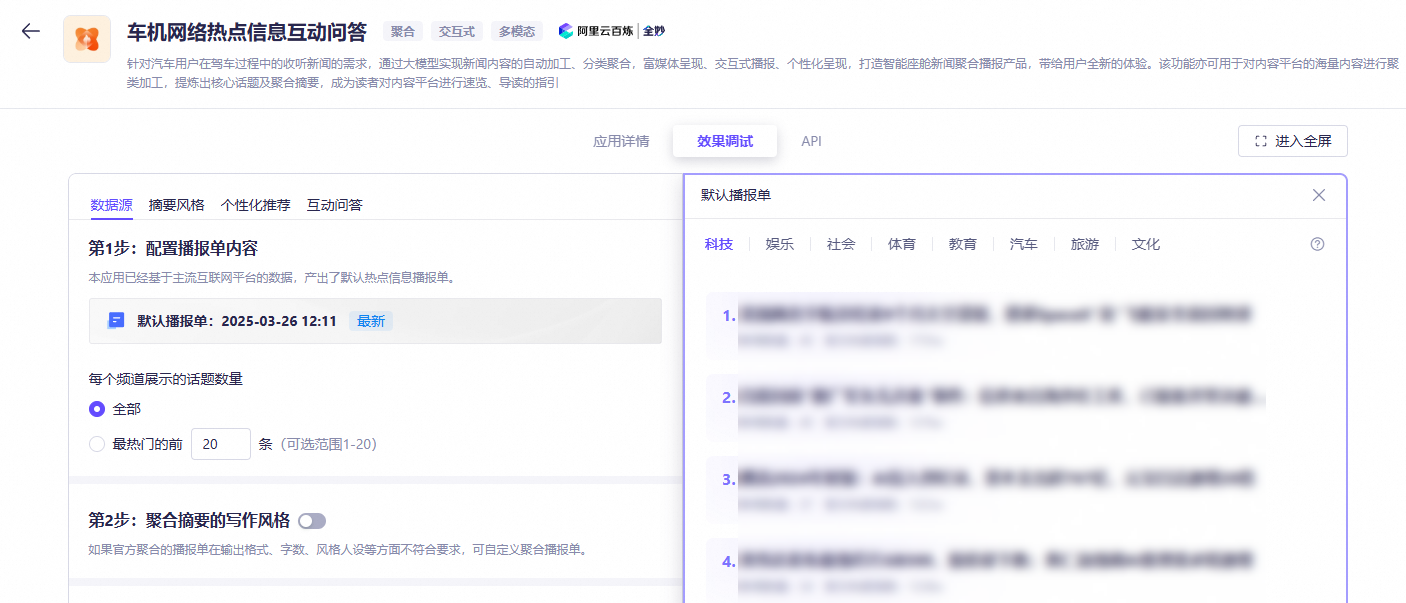
The Interactive Q&A on In-car Network Hotspot Information application uses data from major internet platforms to create an official aggregated news playlist, which is refreshed every 4 hours. Click default playlist to view it.
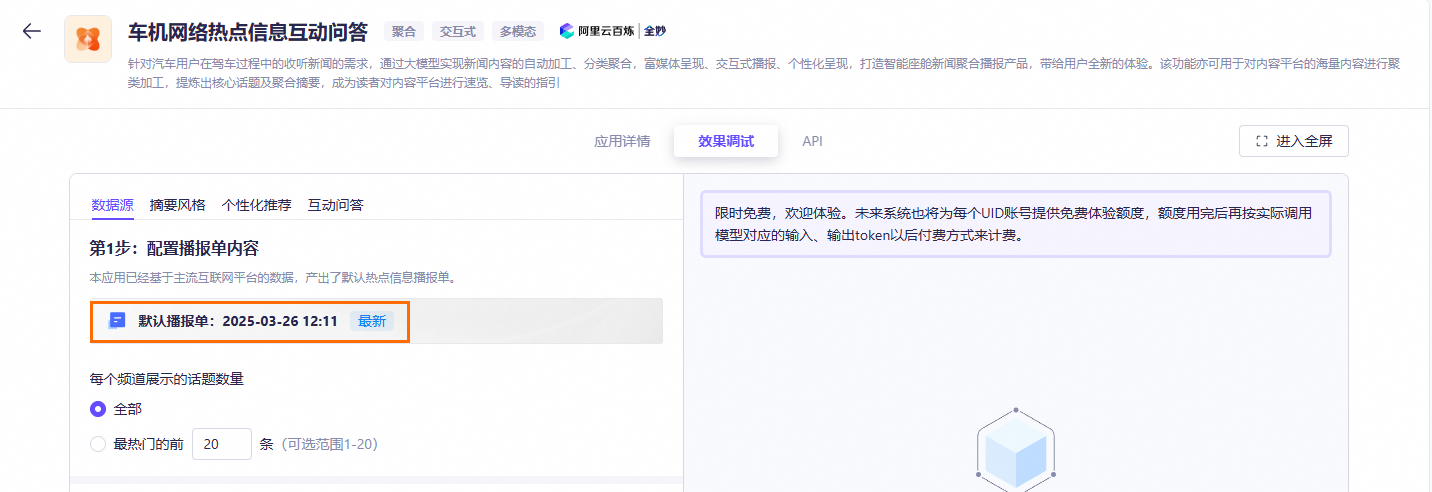 The aggregated news playlist analyzes top news stories from eight categories: technology, entertainment, economy, society, sports, education, travel, and culture. Each playlist item includes the hotspot name, the number of news articles, and the official popularity index.
-
Customize the aggregated news playlist:
Configure the number of news articles to generate for each category. You can generate all articles (default: Total) or customize the number of articles, for example, by selecting the top 20 most popular ones.
Step 2: Configure writing style
-
Click the
 icon to enable the Writing Style for Aggregated Summary switch.
If the default output format, word count, tone, or persona of the aggregated summary does not meet your requirements, you can customize these settings.
-
Enter a prompt in the Writing Style and Requirements for Aggregated Summary field.
-
If you do not modify the prompt or the hotspot images, the output follows the format of the default aggregated summary.
-
If the default persona, output format, word count, or images do not meet your requirements, you can customize the output format of the aggregated summary.
- You can change the prompt to adjust the output format of the aggregated summary, including the task description, persona, output format, and word count.
Example prompt
[Task Description]
You are a senior news editor. Given a hot topic and a list of related article titles or summaries, your task is to identify the most important core themes discussed in these articles. For each theme, create a descriptive name (which must be a complete, coherent sentence) and a brief introduction of about 100 words summarizing its key content.
[Hot Topic]
{hotTopic}
[List of Article Titles and Summaries]
{titleSummaries}
[Persona]
Use the persona of an intelligent in-car assistant.
[Output Format]
Do not output any extra content. Do not return anything else. Do not fabricate any data.
Using the [Persona], strictly follow the format below:
Core Theme Name: xxx
Core Theme Summary: xxx
Core Theme Name: xxx
Core Theme Summary: xxx
-
Step 3: Configure personalized recommendations
To test the personalized recommendation feature, join our DingTalk group (ID: 116015001424) for offline testing support.
Step 4: Configure interactive Q&A
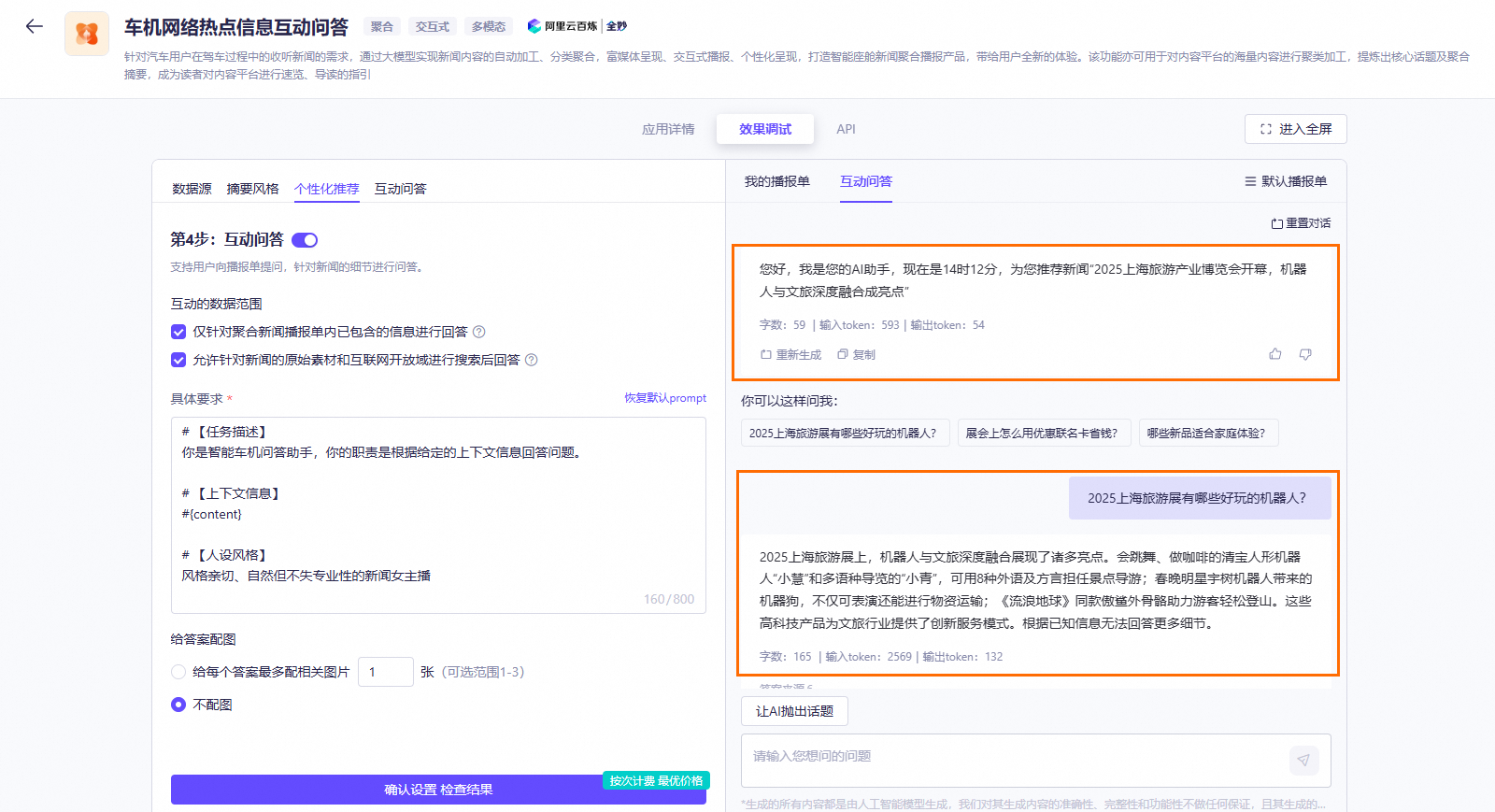
The Q&A for News Content toggle is on by default, which lets you ask questions about the details of the news playlist.
-
Set the data scope. You can select multiple options.
- Answer based only on information in the aggregated news playlist: When a user enters a query, the API returns segments of the aggregated news, such as all hotspots in a category or a specific hotspot. The system also proactively suggests a query about the playlist to encourage interaction. If the user responds, the system presents a relevant news segment.
- Allow searching original news materials and the open web for answers: When a user enters a query, the system provides details from the original source articles for the hotspot and suggests three follow-up queries.
-
In the Prompt text box, enter a prompt with details such as the task description, context, and persona. You can also use the pre-configured examples.
-
Add images to answers. You can select No Images or choose to add 1 to 3 images.
-
Click Confirm and Check Result to test the Q&A for the news content.
Choose between AI Initiates Topic and Wait for User to Ask First.

API example
Click Confirm and Check Result to generate the corresponding API call. Then, copy the code to use the API.
When you call the official aggregated news playlist, the API retrieves data that has been prepared offline. This data is refreshed every 4 hours, at approximately 00:30, 04:30, 08:30, 12:30, 16:30, and 20:30. Schedule your API calls according to this update cycle.