Create an application using a Conversation Analysis Agent
This document describes how to create an application using a Conversation Analysis Agent.
Create an application
-
Step 1: Click the My Applications button, and then click the Create Application button.

-
Step 2: In the Create Application dialog box, edit the application name and select a creation method. Click OK. The debugging window appears.
-
Application Name: You can change the application name as needed.
-
Creation Method:
- Select Create with Conversation Analysis Agent. This method lets you use preset best practice examples or upload conversation data to experience the full range of application capabilities, such as generative summaries and service quality inspection, from the Large Language Model (LLM).

- Select Create with Conversation Analysis Agent. This method lets you use preset best practice examples or upload conversation data to experience the full range of application capabilities, such as generative summaries and service quality inspection, from the Large Language Model (LLM).
-
Create with a Conversation Analysis Agent
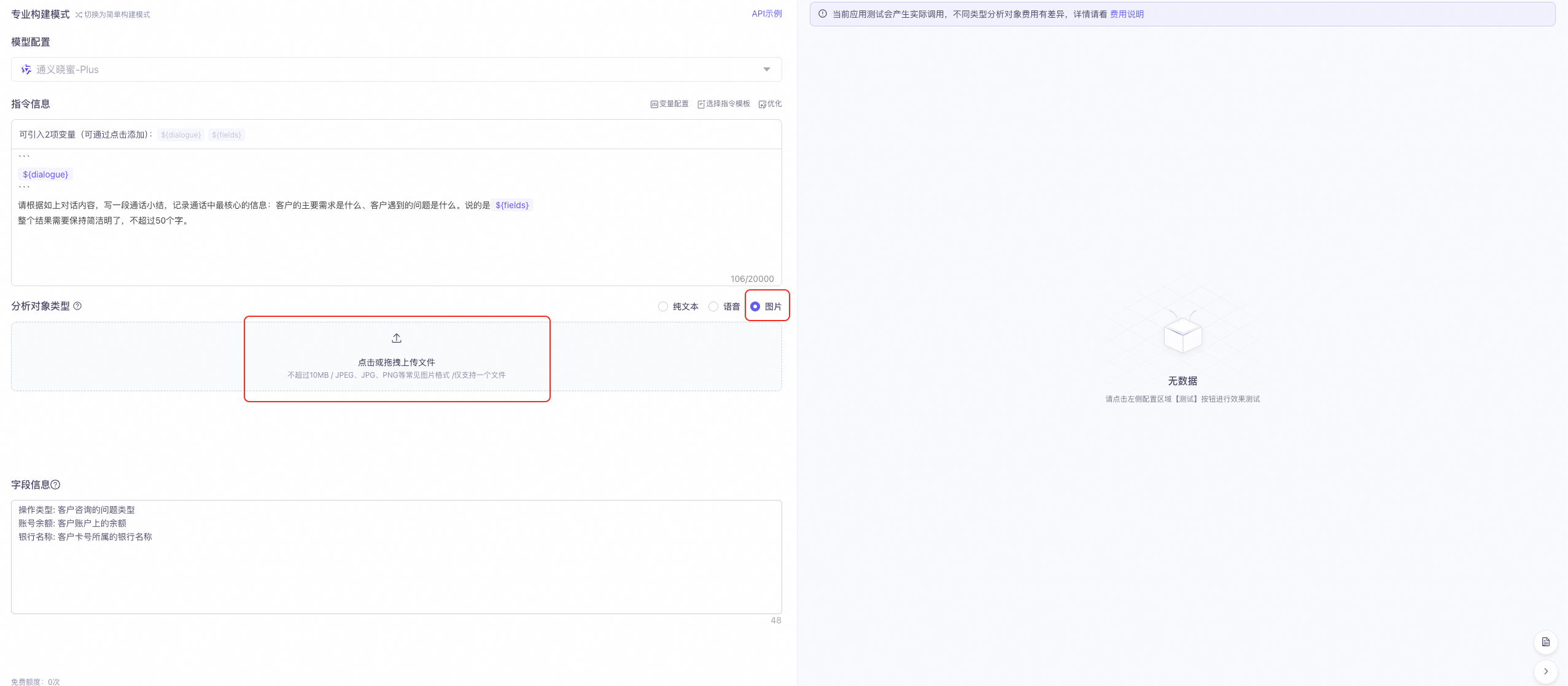
NoteWhen you create an application with a Conversation Analysis Agent, image analysis is only available if you select Custom Instruction > Professional Mode. Other methods do not support image analysis.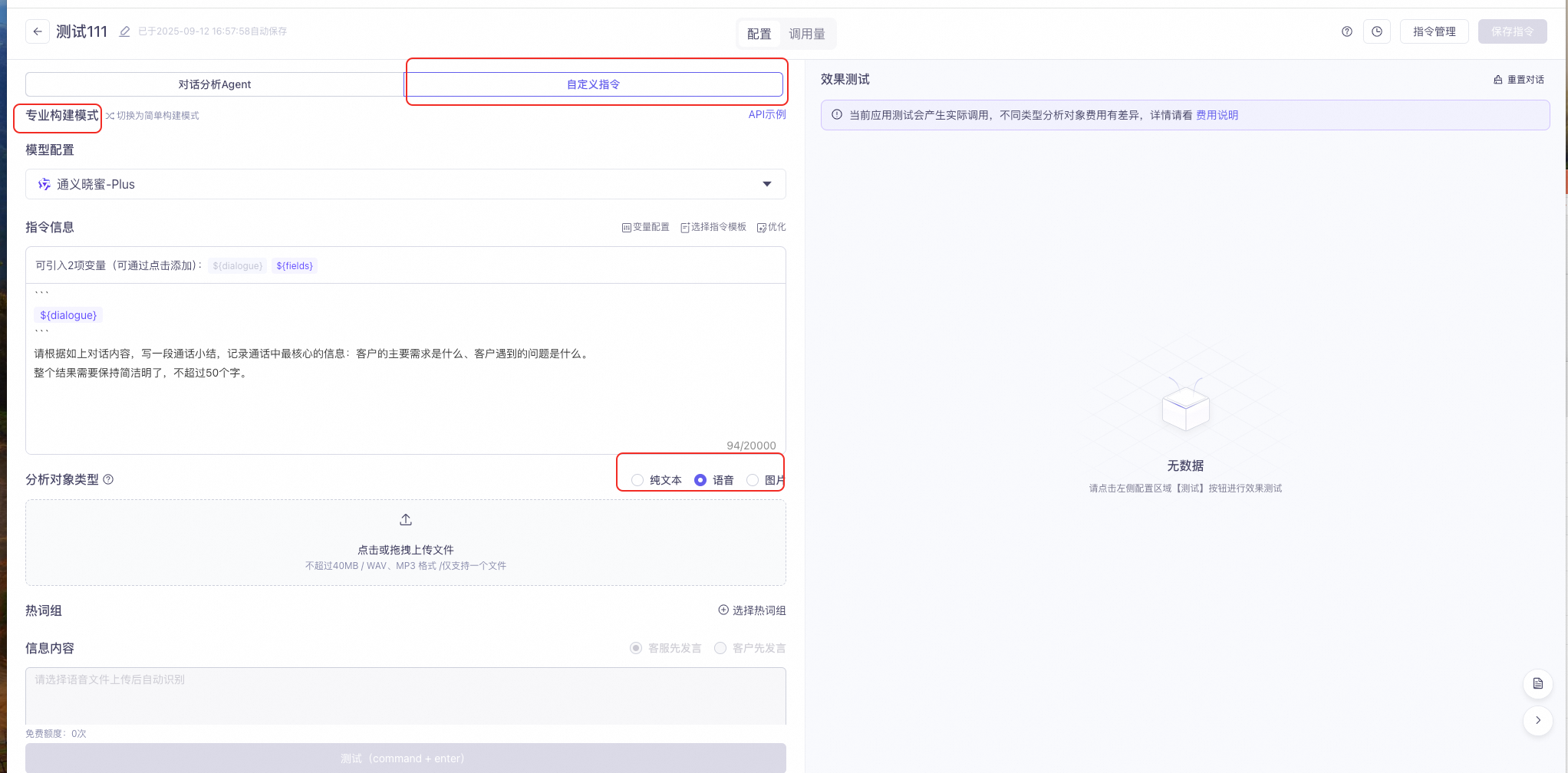
After you open the created application, you can select either the Conversation Analysis Agent or Custom Instruction method.
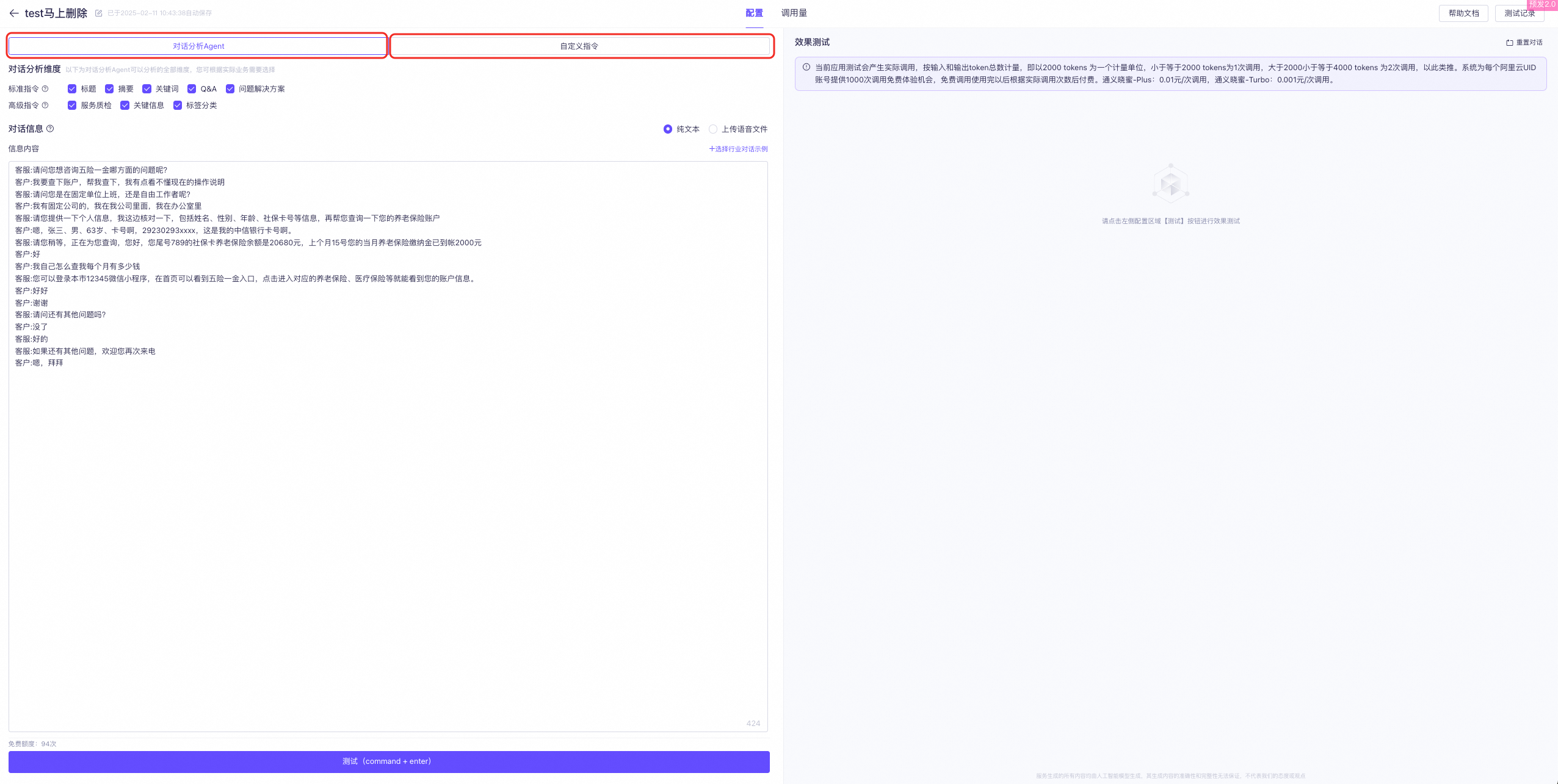
-
Select the Conversation Analysis Agent method
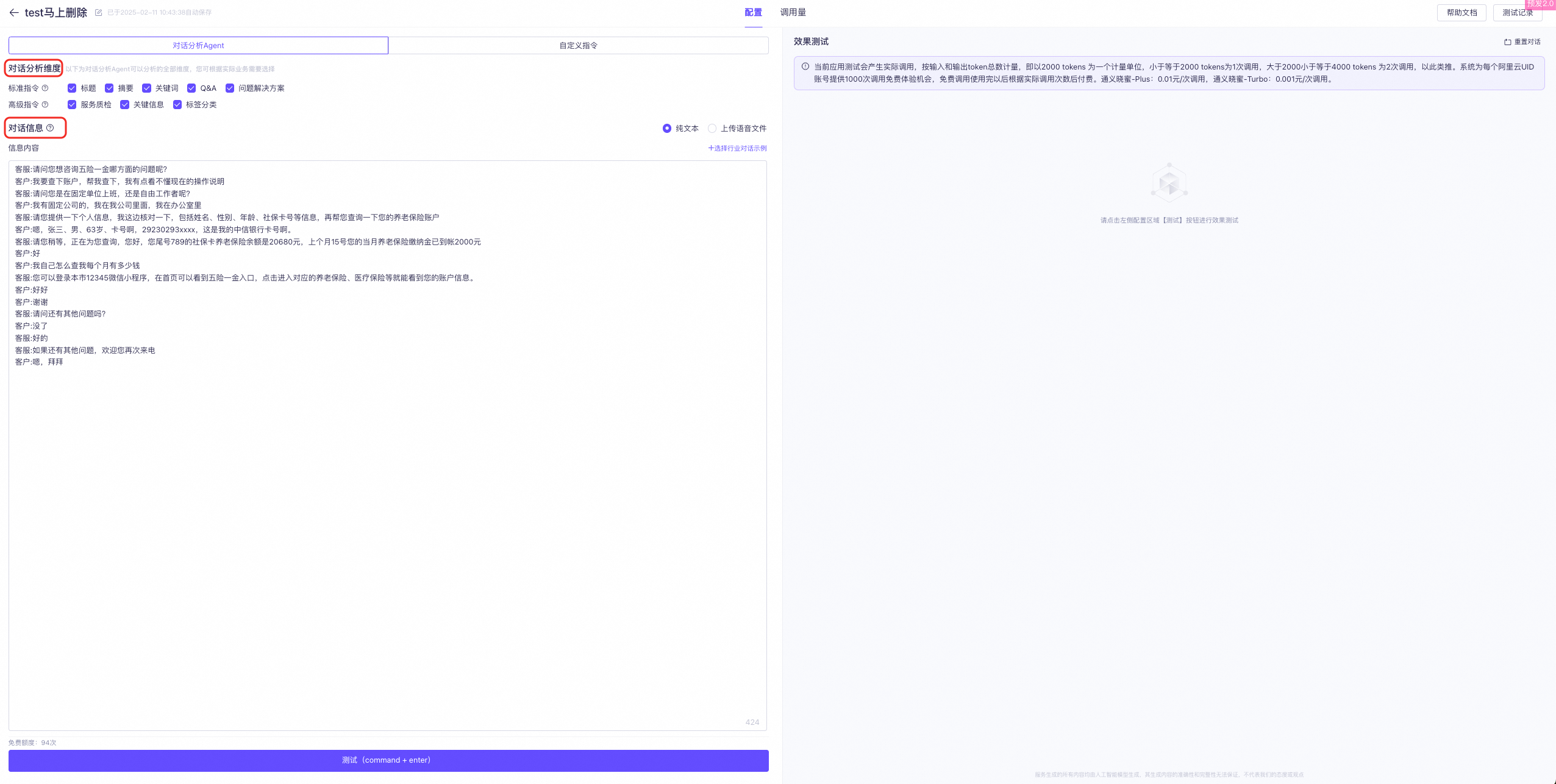
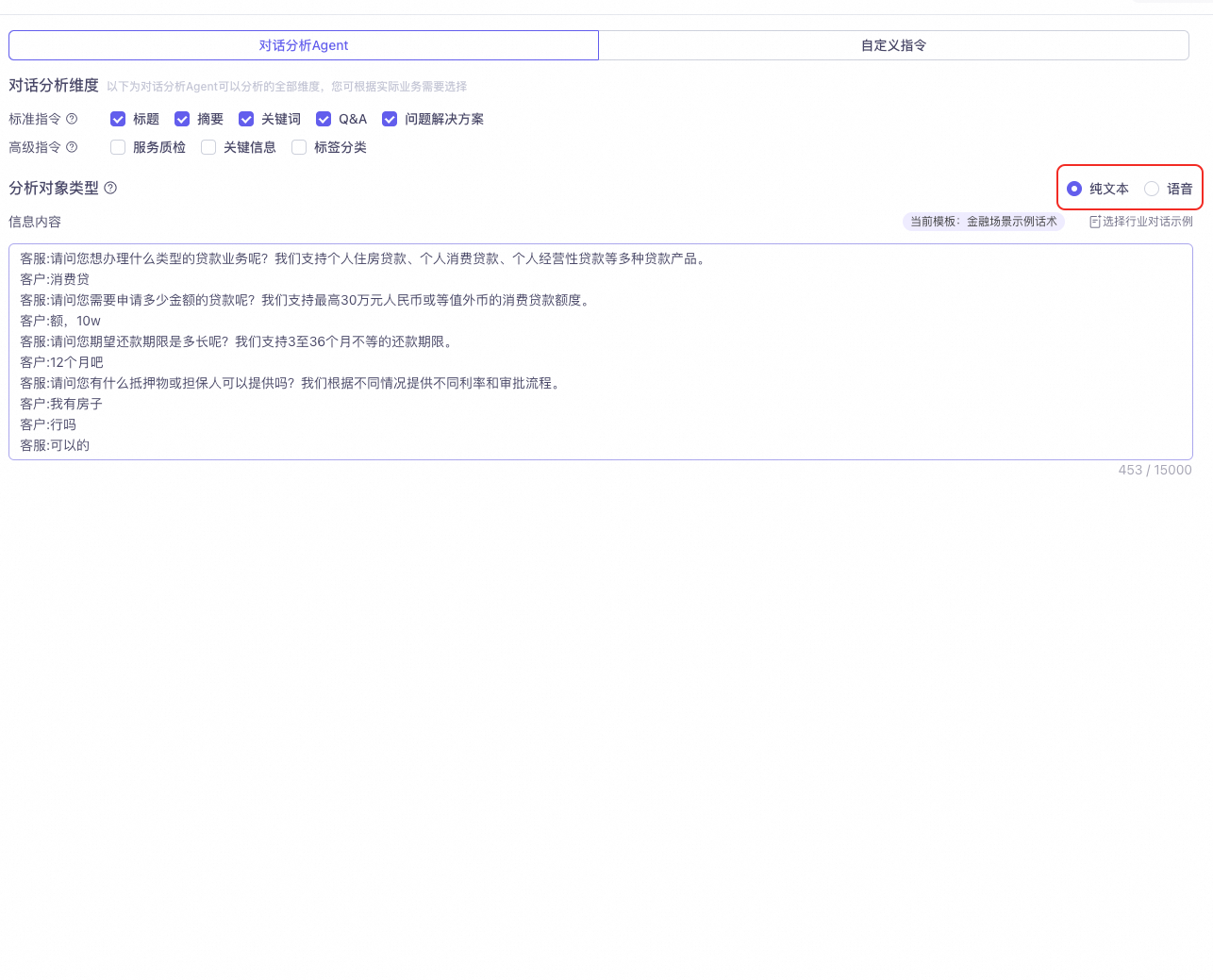
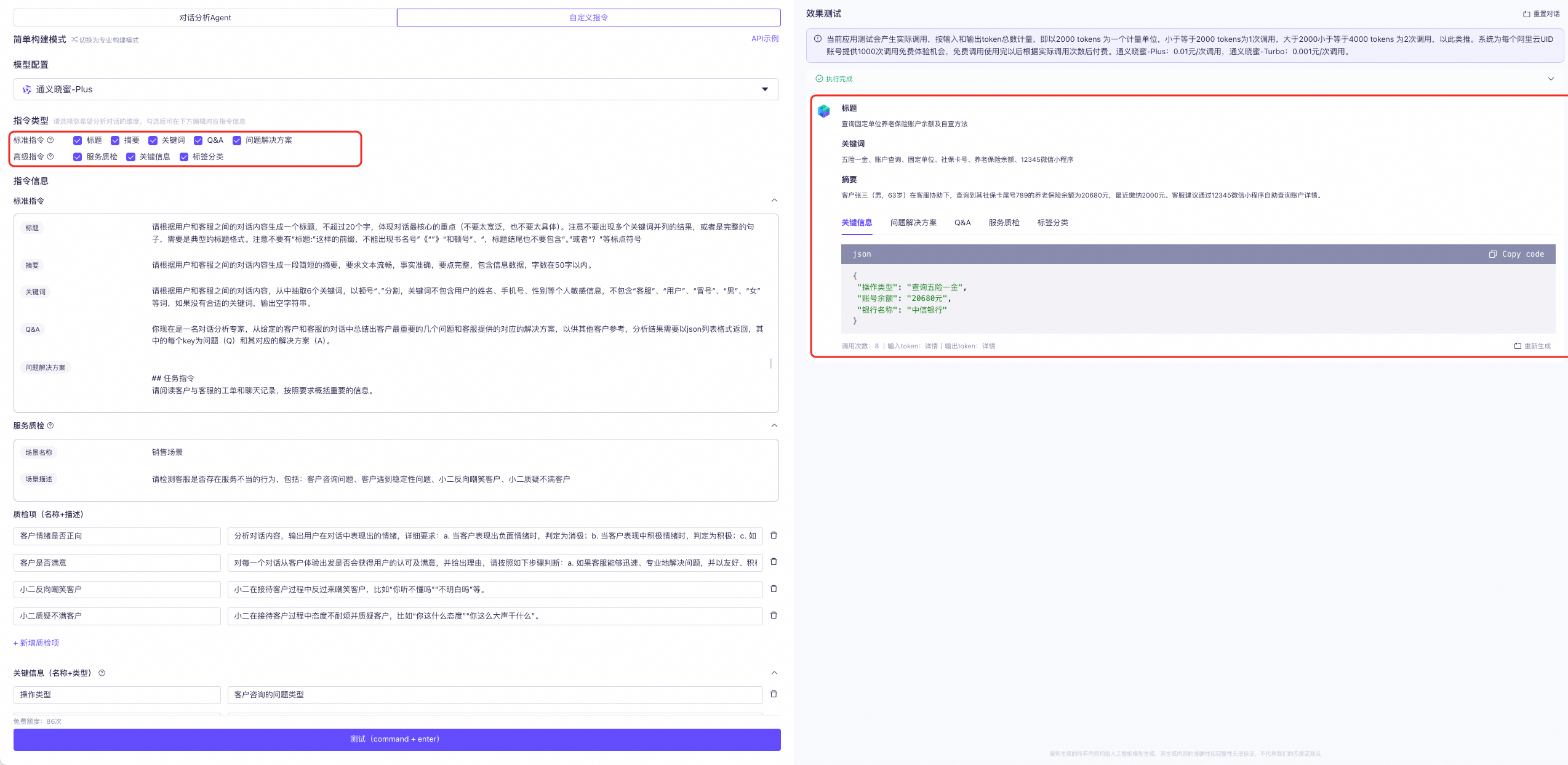
Analysis Dimensions: Select the dimensions for the Conversation Analysis Agent based on your business needs.
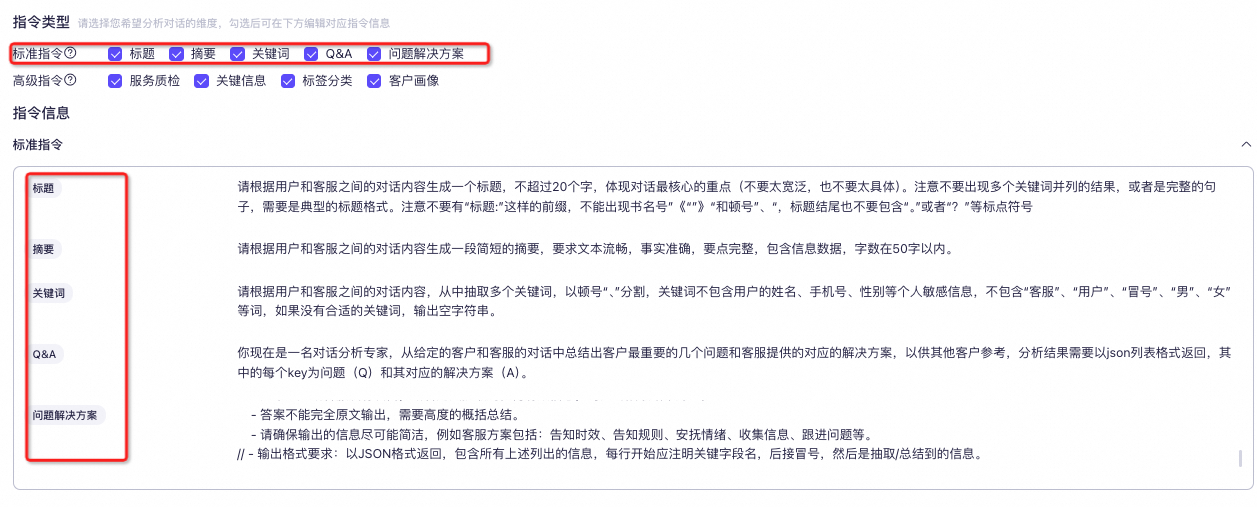
- Standard Instructions: Use preset standard prompts to quickly generate ideal results. The available options are Title, Summary, Keywords, Q&A, and Problem and Solution. You must select at least one option.
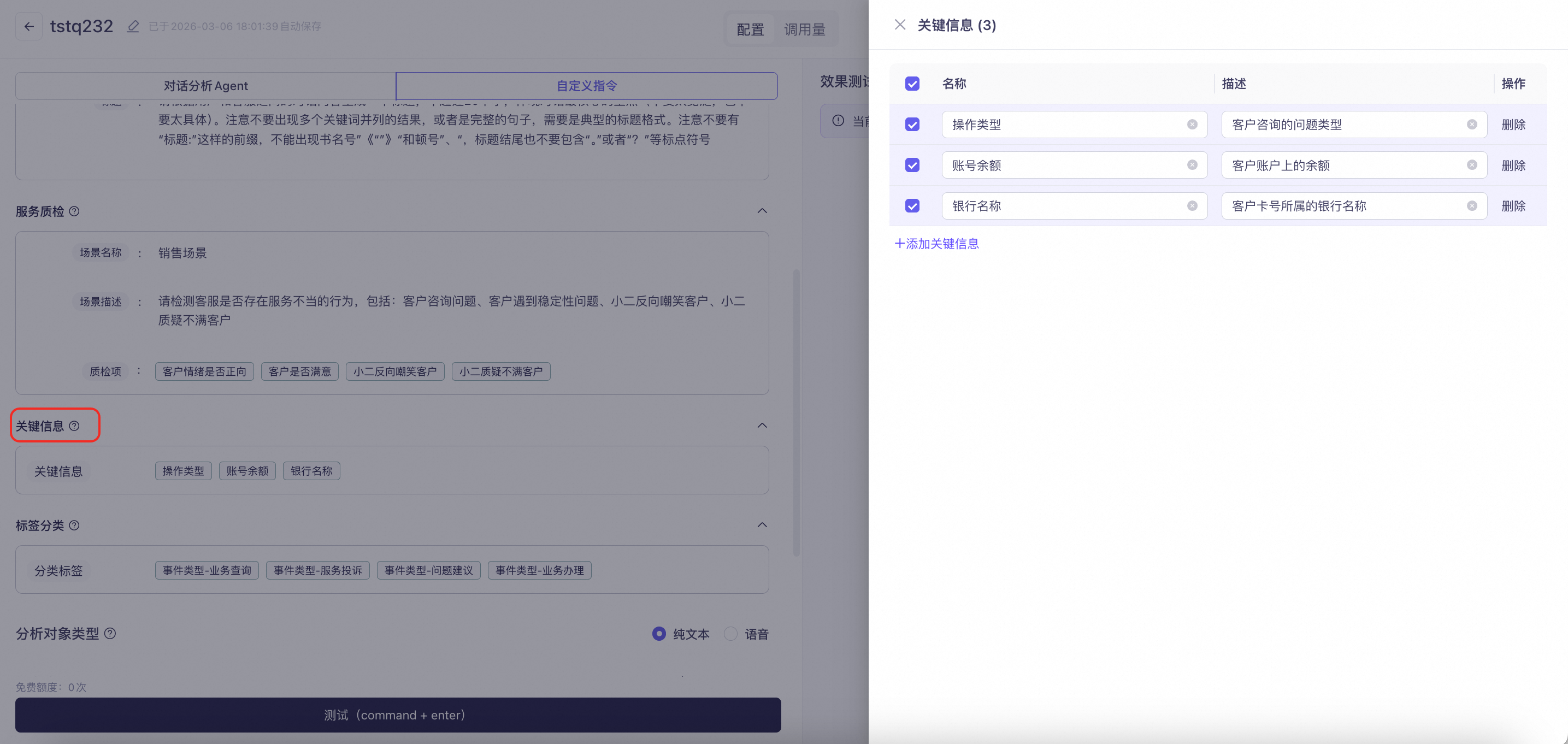
- Advanced Instructions: Advanced instructions, such as service quality inspection and tag categorization, have specific business properties. Standard prompts for these instructions are preset in the sample conversations. If you upload your own conversation data and have specific requirements for the results, you can edit the custom instructions in Preset Instruction Template > Professional Mode to test them. The available options are Service Quality Inspection, Key Information, and Tag Categorization.
Analysis Object Type: Select the data type to analyze based on your business needs: Plain Text or Voice. If you select Plain Text, you can upload text content of up to 15,000 characters. We also provide sample industry conversations for testing. If you select Voice, you can upload a single WAV or MP3 file of up to 40 MB. After the upload is complete, the file is automatically transcribed into text.

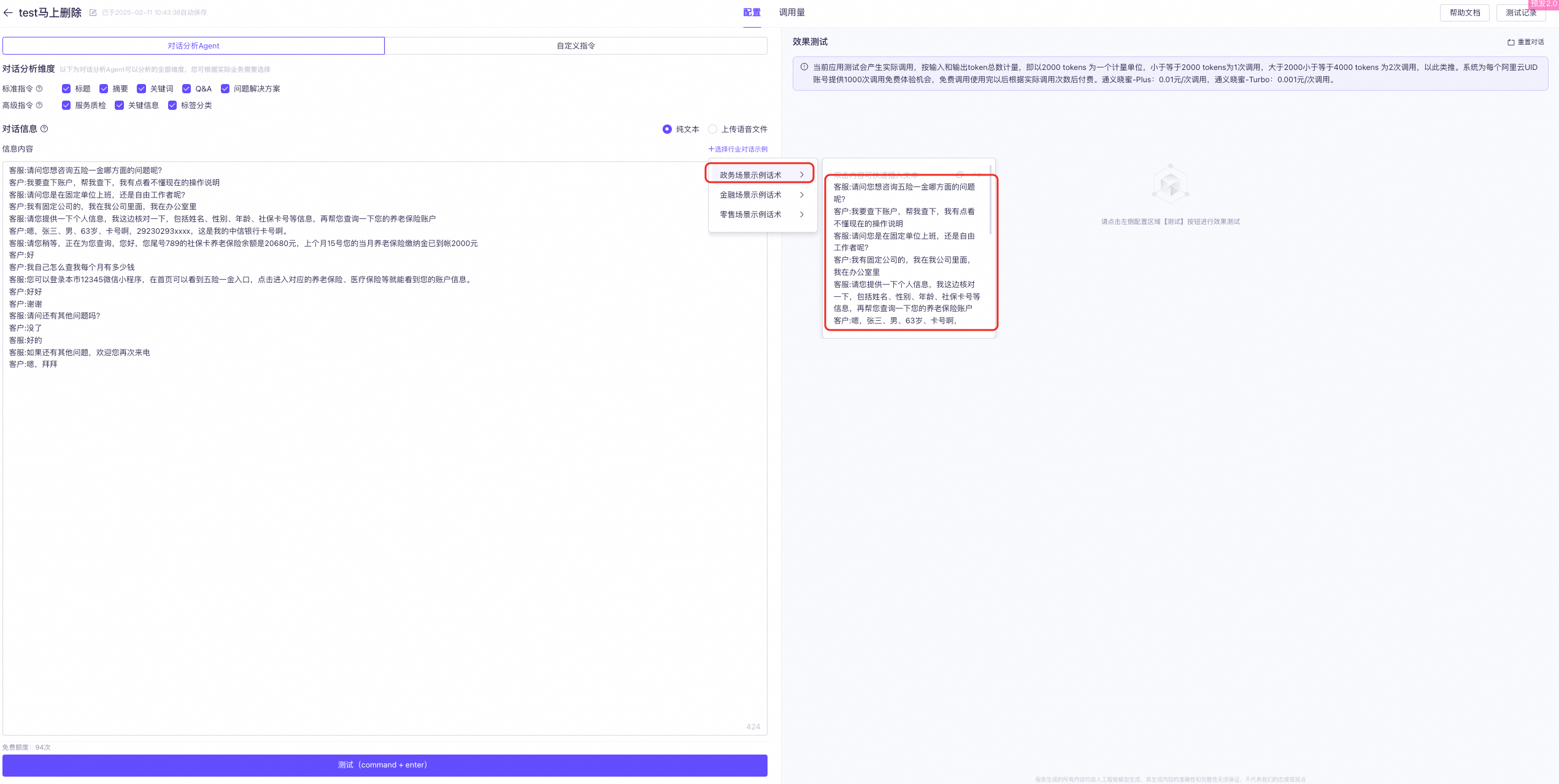
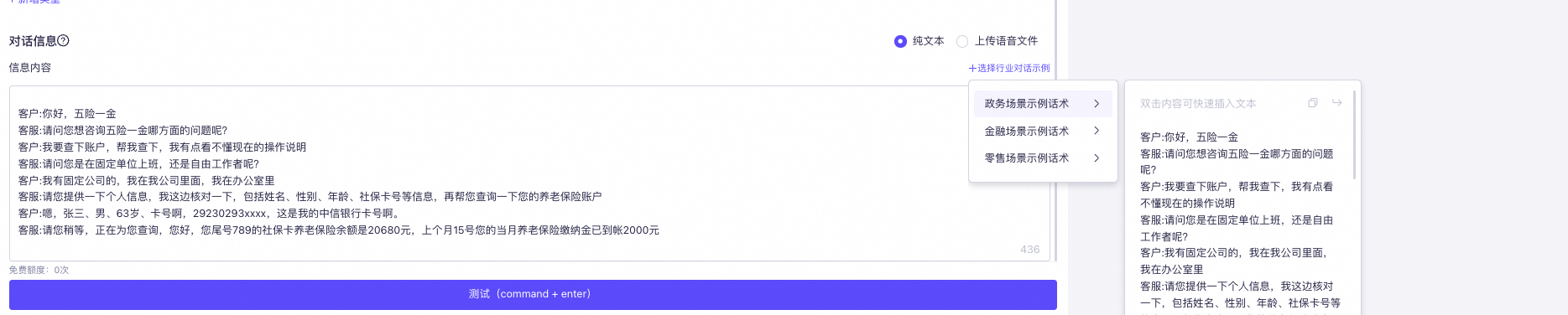
Content: Enter the conversation information in the following format. You can also use the provided sample industry conversations.
-
Enter the conversation information in the following format:
Customer: xxx
Agent: xxx
Customer: xxx
Agent: xxx
-
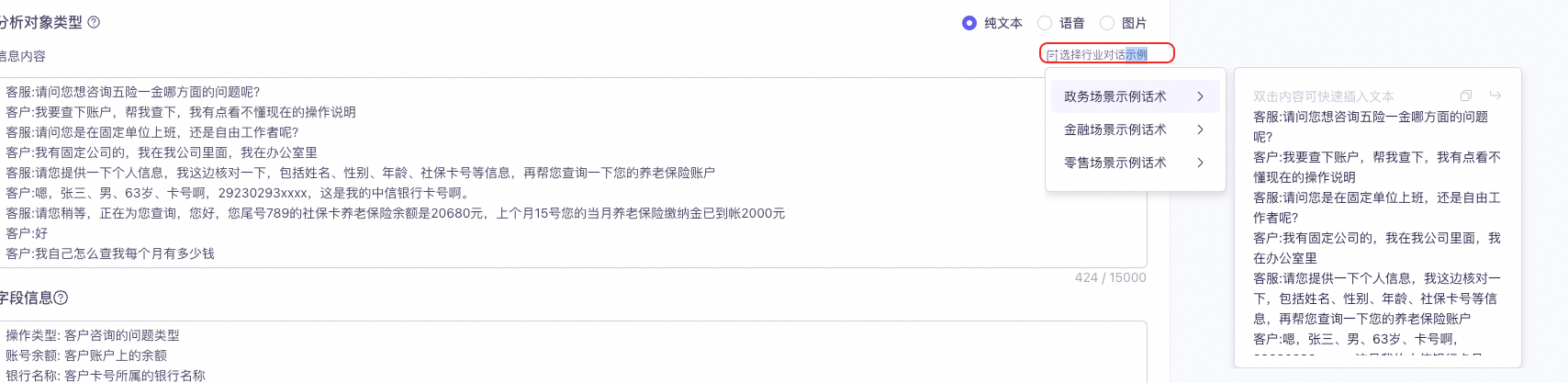
You can directly insert the built-in sample industry conversation text.
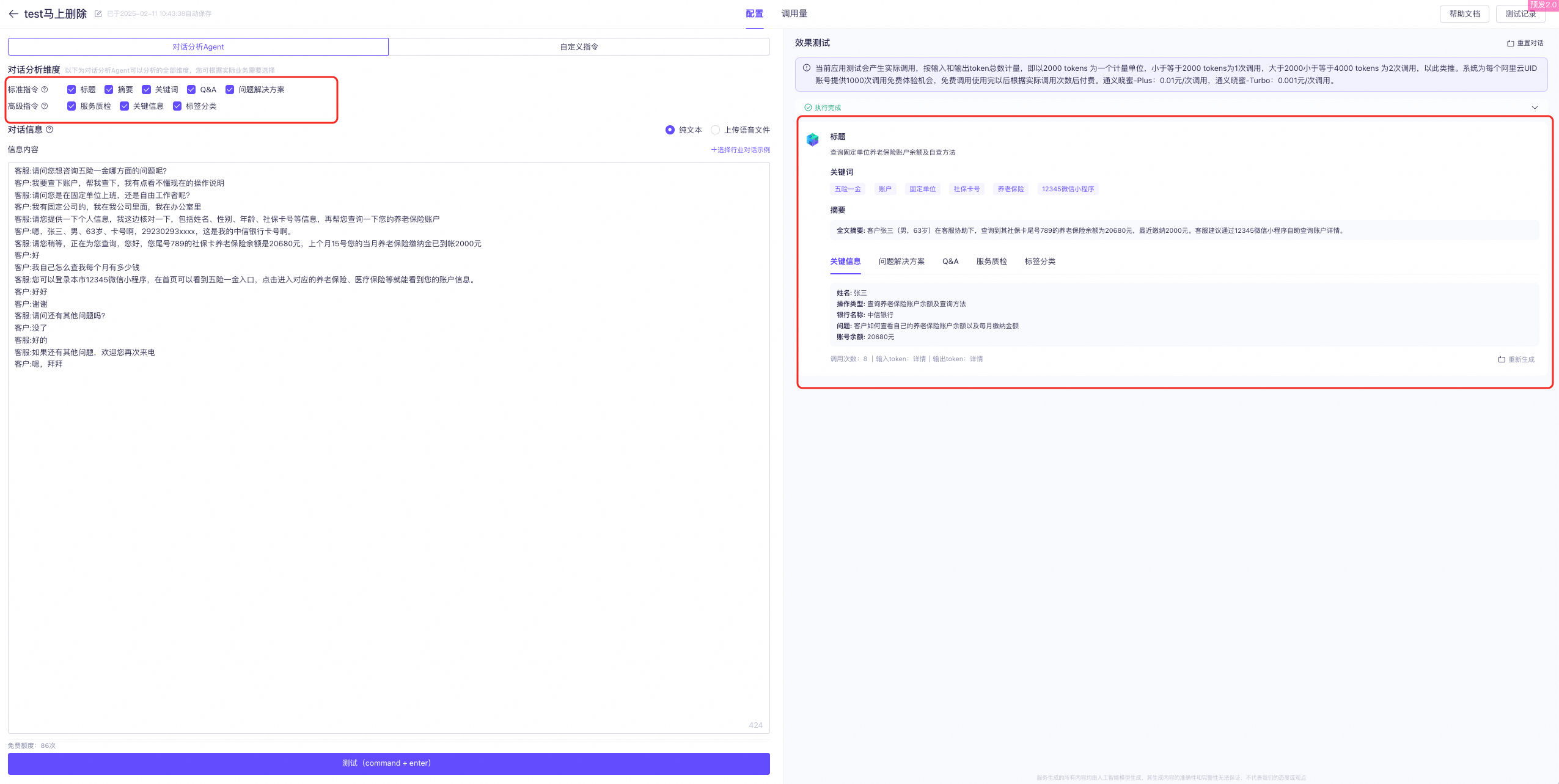
Click the Test button to view the output: The generated instructions in the test results correspond to the analysis dimensions you selected.
-
Select the Custom Template method
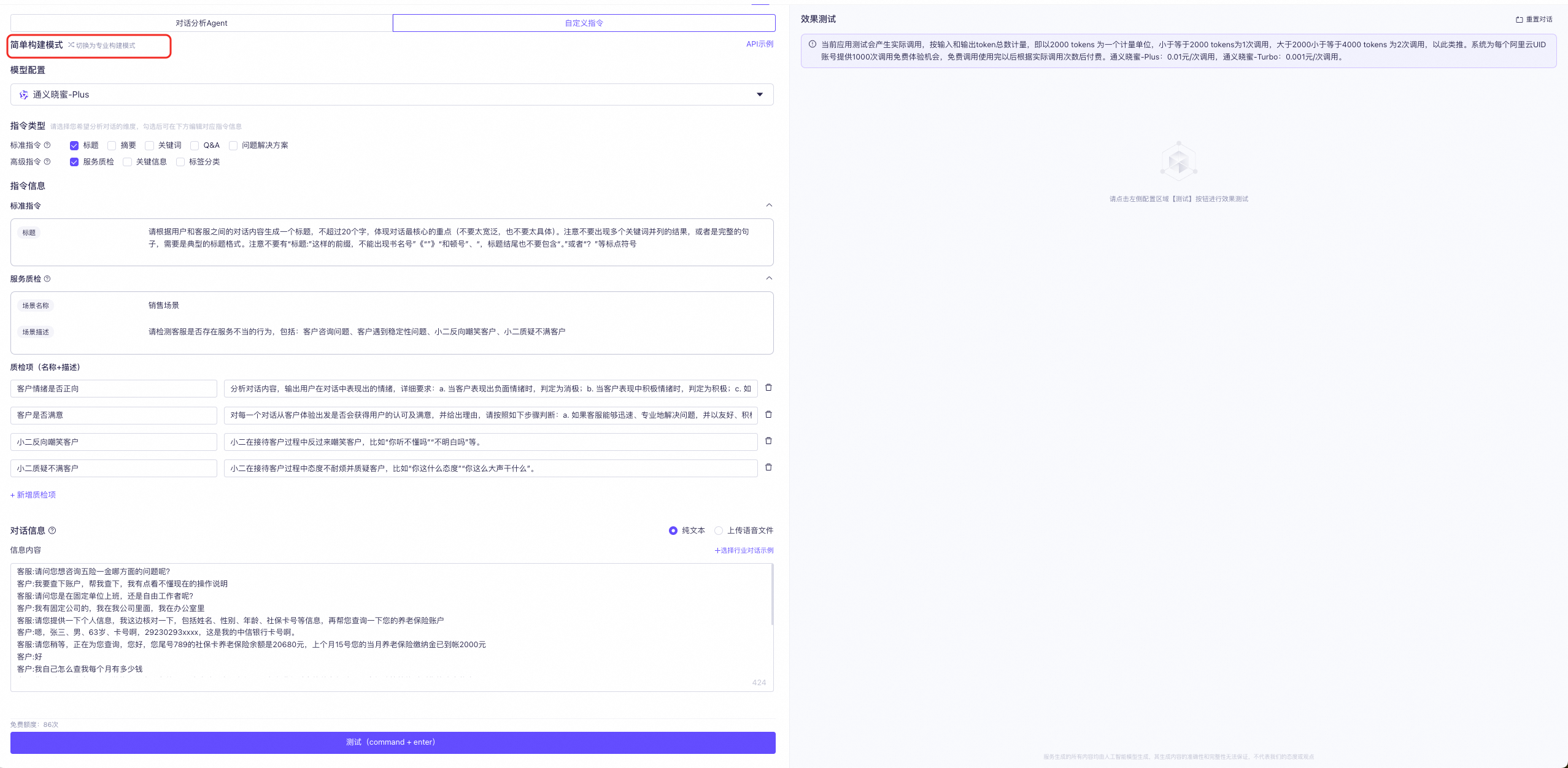
You can choose between Simple Mode and Professional Mode.
-
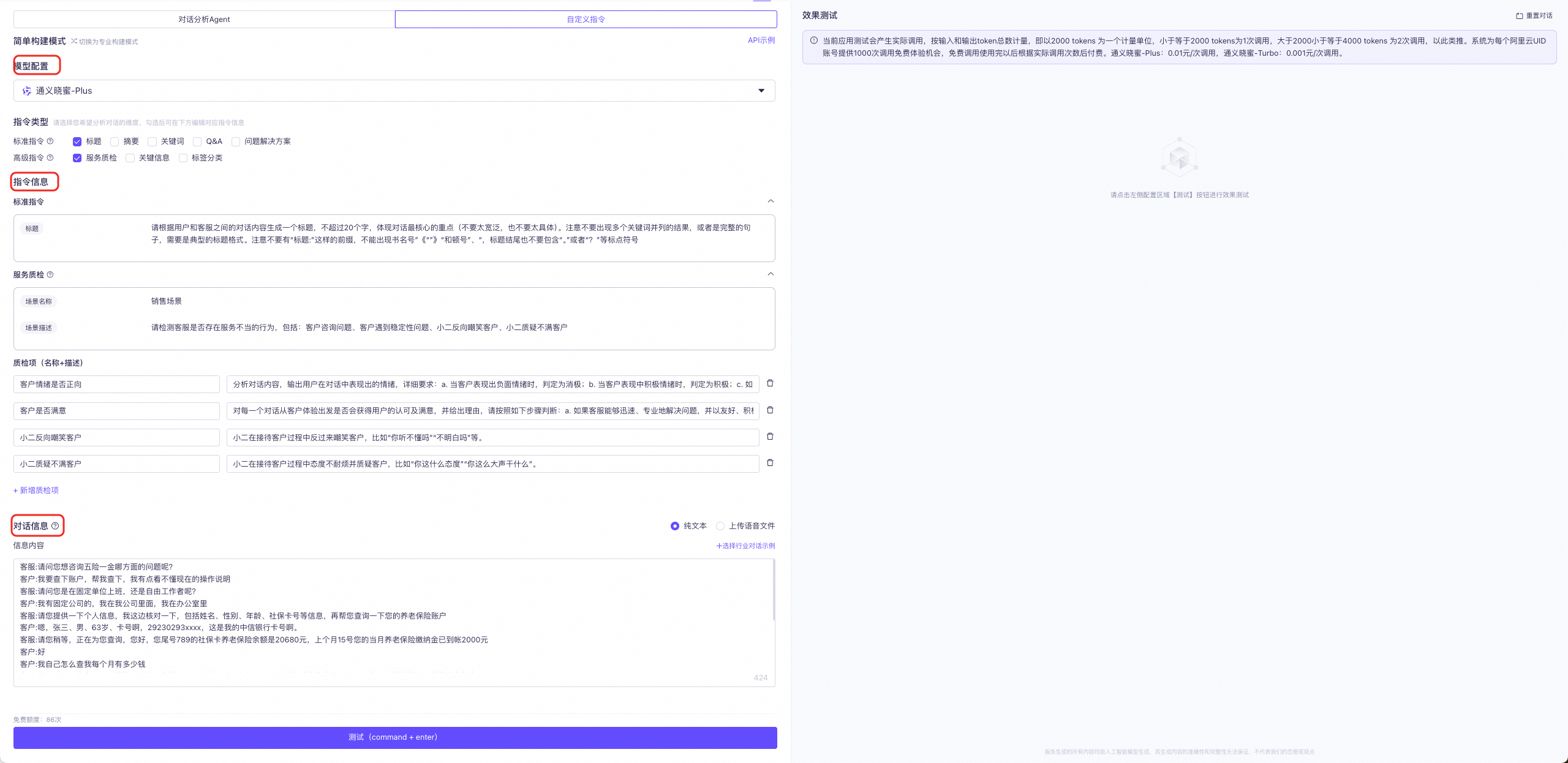
Simple Mode
-
Model Configuration: Tongyi Xiaomi-Plus, Tongyi Xiaomi-Turbo.
-
Instruction Type: Based on the analysis dimensions required for your business, you can edit the instruction prompts in the instruction information section according to the selected standard and advanced instructions.
-
Standard Instructions: You can select Title, Summary, Keywords, Q&A, and Problem and Solution. The system's built-in prompts are displayed in the instruction information section below, where you can customize them.
-
Advanced Instructions: You can select Service Quality Inspection, Key Information, and Tag Categorization. The corresponding configurations are displayed in the instruction information section below, where you can customize them.
- Service Quality Inspection: Detects content in the conversation, such as customer sentiment, sensitive words, and service quality. You can define inspection scenarios and items based on your business needs.
- Inspection Item (Name + Description): Set the name and description for the items to be checked during service quality inspection.
- Key Information (Name + Type): Extract key information configured for the conversation by setting the name and type.
- Tag Categorization (Name + Description): Define categories for the conversation content. The tag length cannot exceed 10 characters.
-
-
Analysis Object Type: Enter the conversation information in the following format. You can choose either plain text or voice.
-
Enter the conversation information in the following format:
Customer: xxx
Agent: xxx
Customer: xxx
Agent: xxx
-
You can select a sample industry conversation to insert built-in conversation text.
-
-
Click the Test button to view the test results.
-
-
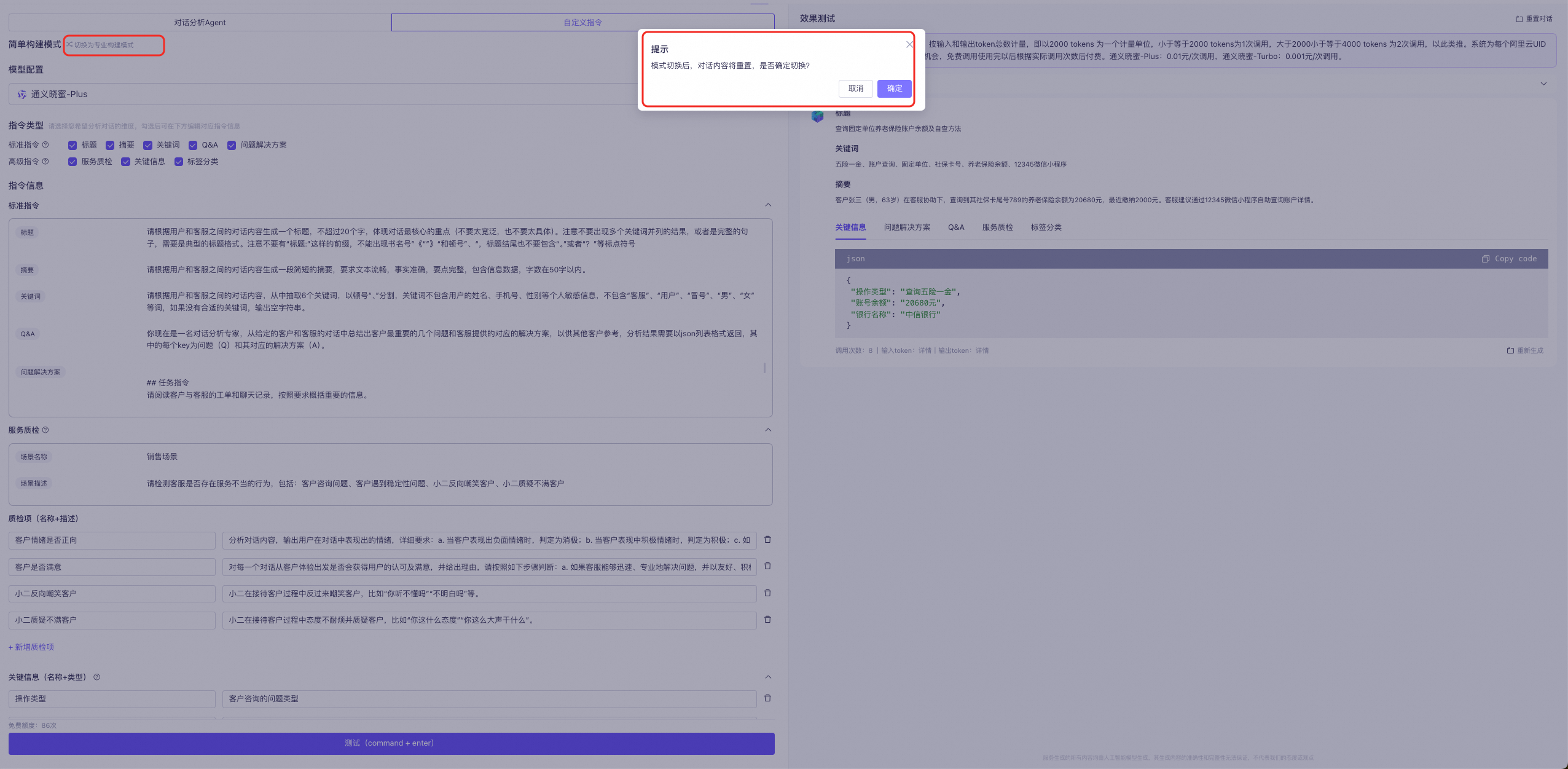
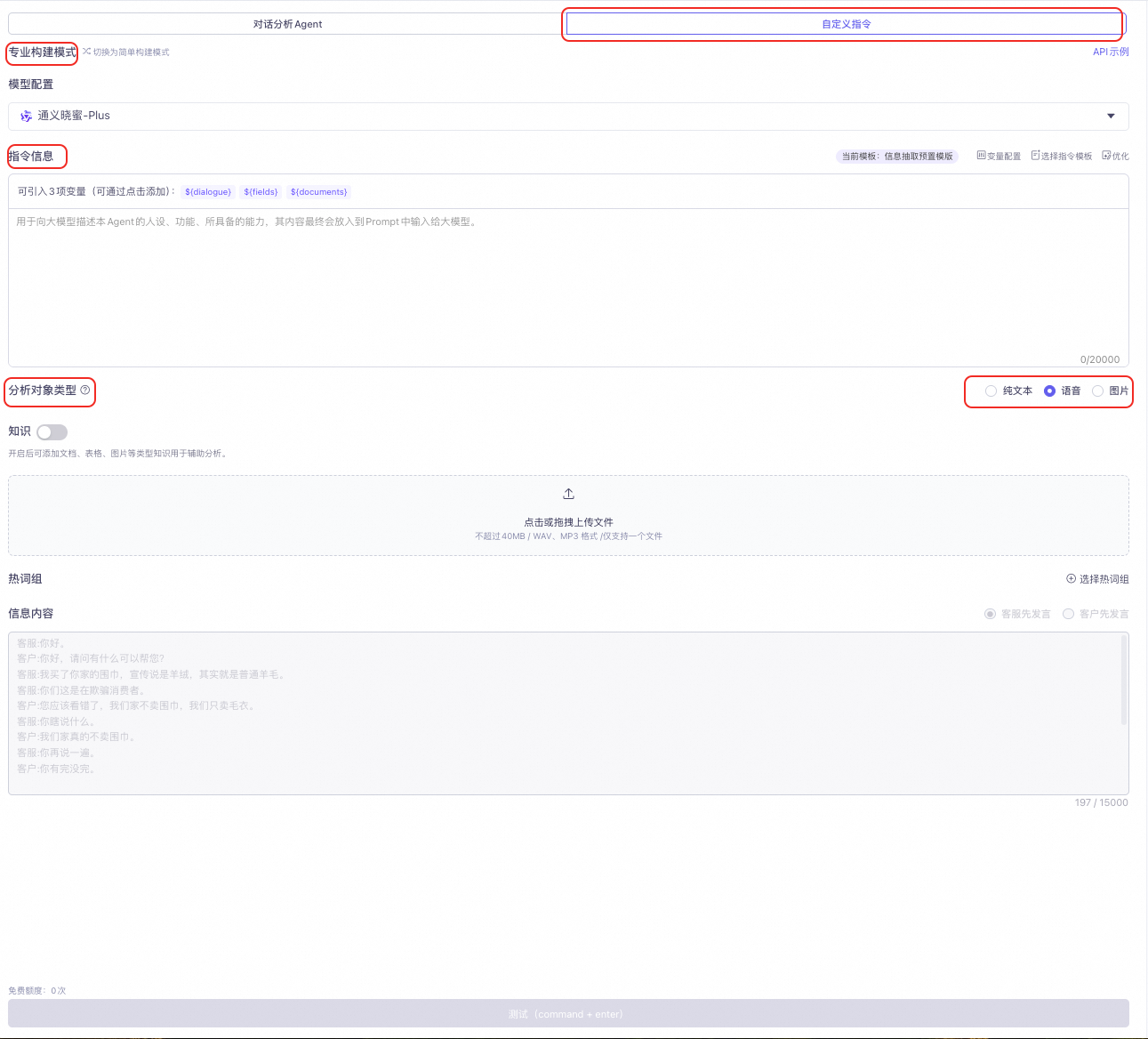
Professional Mode
NoteWhen you switch modes, the content edited in the current mode is discarded, and the conversation content is reset.
-
Model Configuration: Tongyi Xiaomi-Plus, Tongyi Xiaomi-Turbo.
-
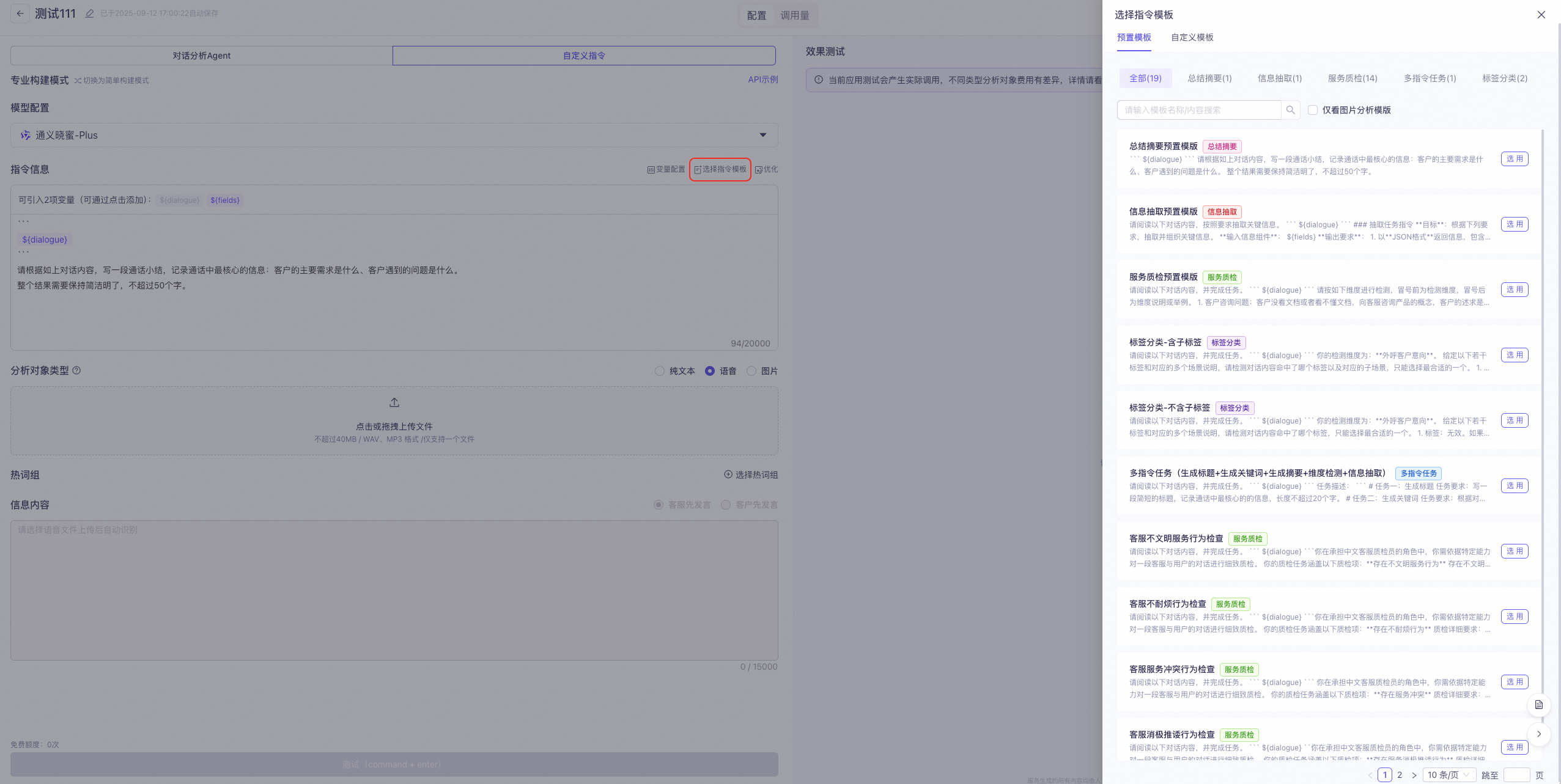
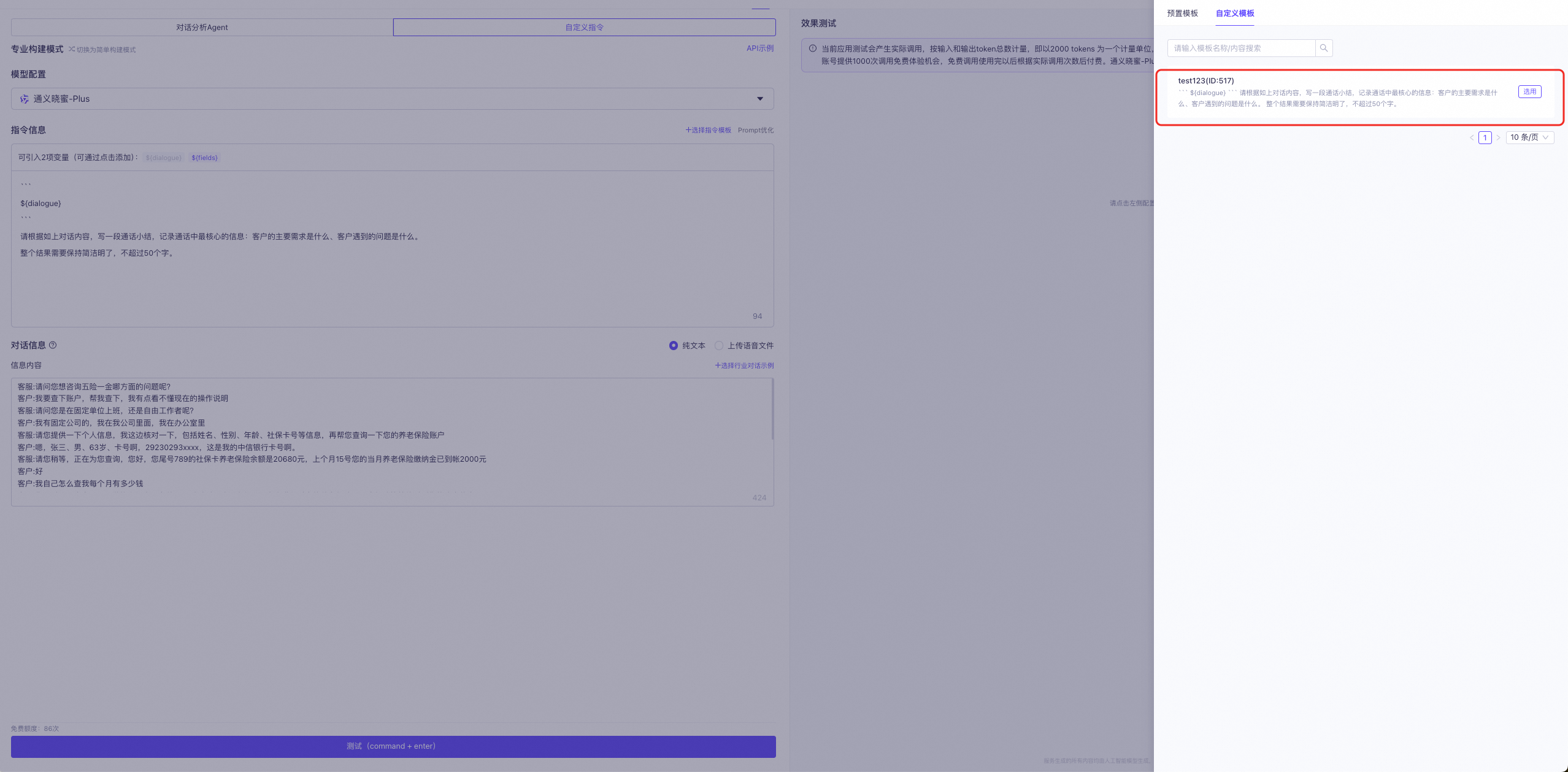
Select Instruction Template: Select an instruction template. You can use an official preset template directly. Five types of templates are currently available: Summary, Information Extraction, Service Quality Inspection, Tag Categorization, and Multi-instruction Task. You can also use custom instruction templates or templates that you have modified from the official presets.
-
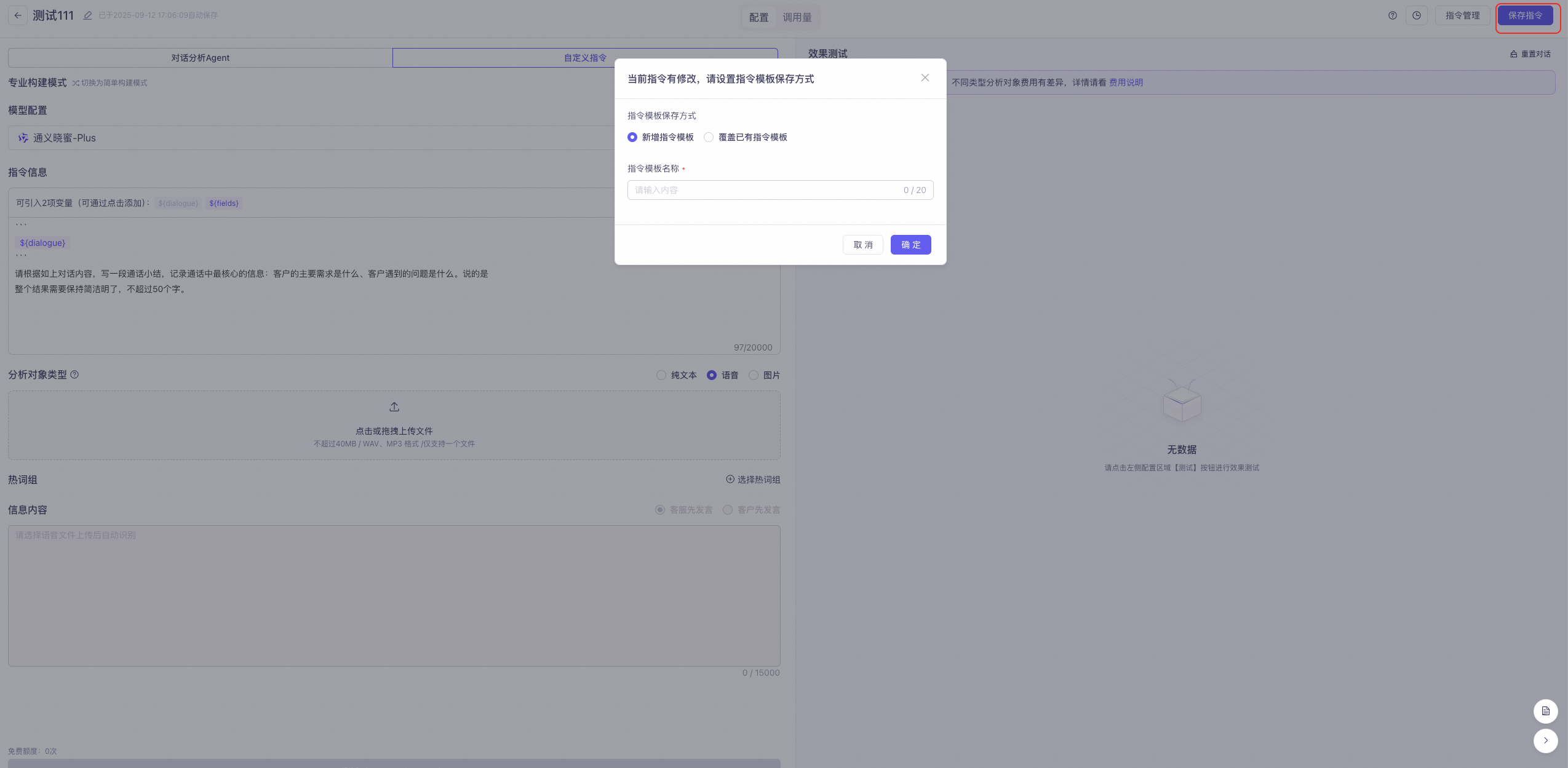
Save Instruction Template: After you write a custom instruction or modify a system industry example, click the Save Instruction Template button. Select a save method: Create New Instruction Template or Overwrite Existing Instruction Template. You can view saved templates in Instruction Template Management.
-
Instruction Template Management: View preset templates and custom saved instruction templates.
-
Variable Configuration: In addition to the built-in
${field}and${dialogue}variables, you can configure more variables to reference during the analysis. Test data can be used as temporary analog data during the testing process.- After you finish editing, you can insert the saved variables into the instruction information using "/".
- After you finish editing, you can insert the saved variables into the instruction information using "/".
-
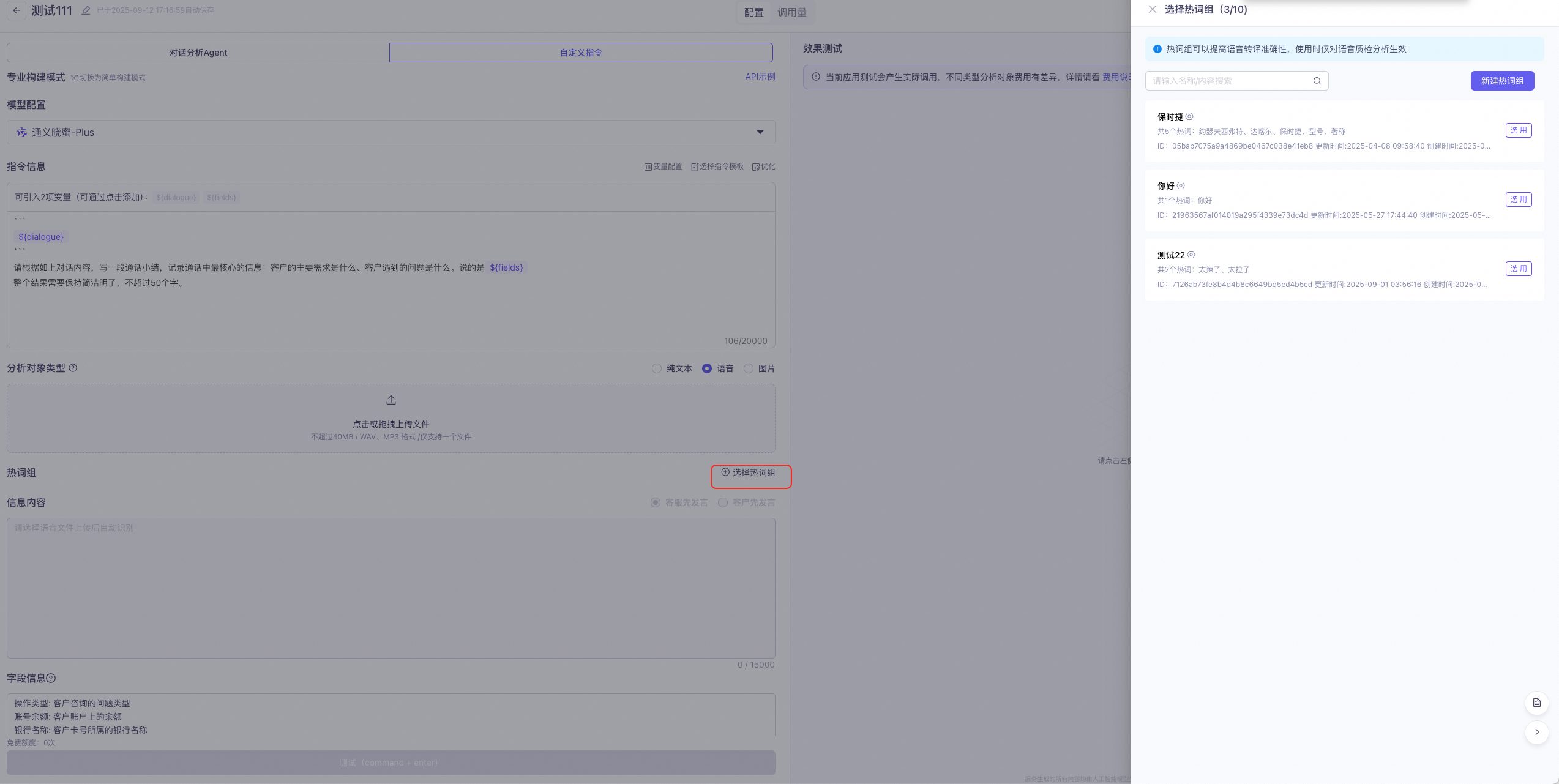
Analysis Object Type: There are three types: Plain Text, Voice, and Image. You can also add a knowledge base to assist with the analysis and add hotword groups to improve the accuracy of voice transcription.
-
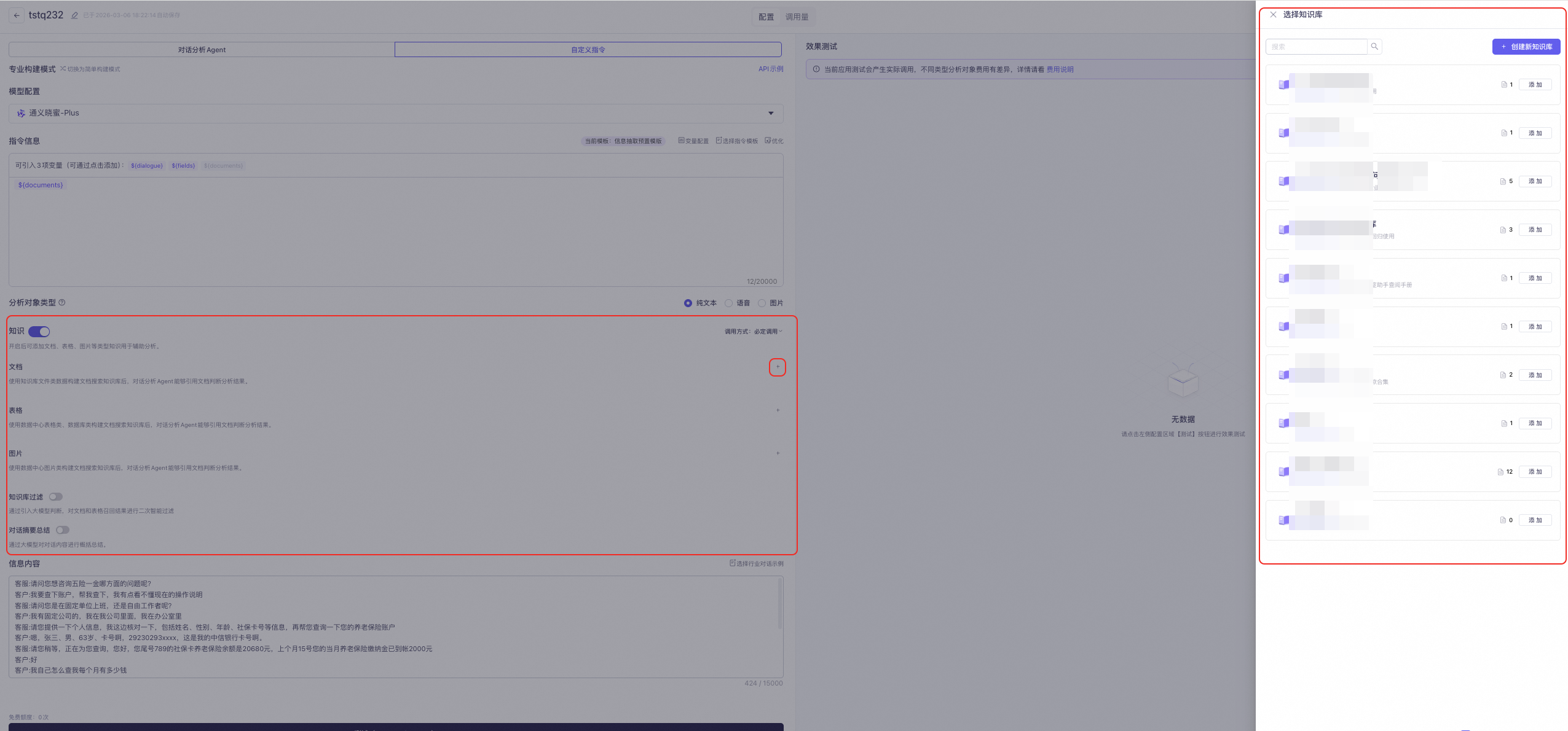
Knowledge Base: After you enable this feature, you can add knowledge in formats such as documents, tables, and images to assist with the analysis. The knowledge base cannot be used when the analysis object type is set to Image. For more information, see Use a knowledge base.
-
When you select Text: Enter the conversation information in the following format. You can also use the provided sample industry conversations.
Customer: xxx
Agent: xxx
Customer: xxx
Agent: xxx
-
When you select Voice: Upload a custom WAV or MP3 file that does not exceed 40 MB. You can also add or create a hotword group to improve the voice transcription results.
After the upload is complete, the voice content is automatically recognized. You can then set whether the customer or the agent speaks first.
-
When you select Image Recognition: Click to upload an image in a common format, such as JPEG, JPG, or PNG, that does not exceed 10 MB. After the upload is successful, you can use the instruction information to detect and analyze the image.
-
-
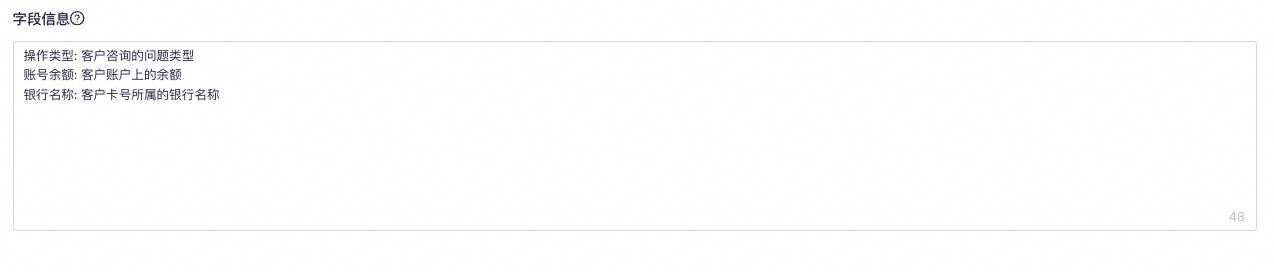
Field Information: When you use the Information Extraction Preset Template or Multi-instruction Template to create an instruction task, you can introduce the
${fields}variable to fill in field information.Use the following format: Field Name: Field Description.
-
Click the Test button to view the output.
-
-