Using a knowledge base
This feature uses retrieval-augmented generation (RAG). It retrieves information from external sources that you upload and integrates the retrieved content into your input. This helps the Large Language Model (LLM) generate more accurate answers.
Knowledge base
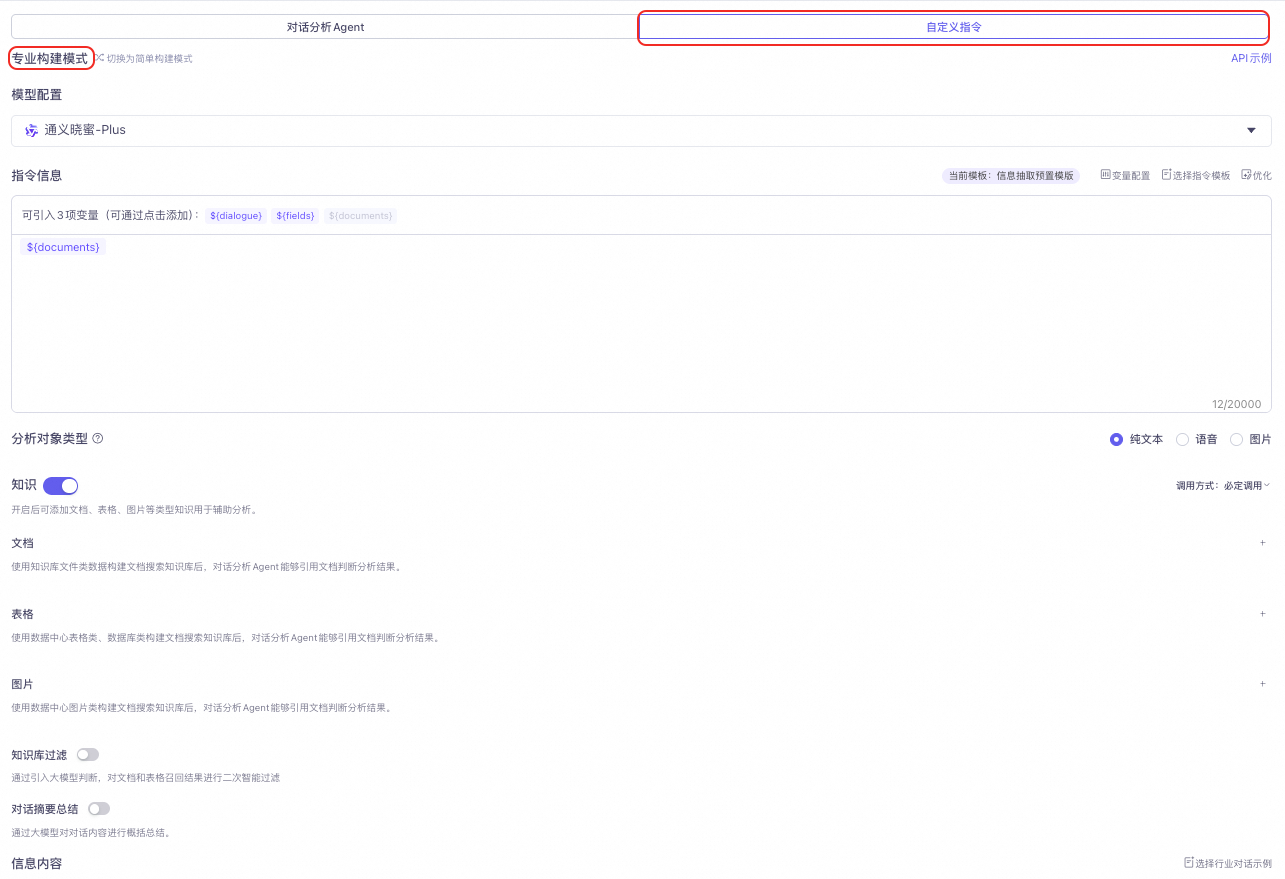
A knowledge base works only with the professional mode of custom instructions or with plain text and voice analysis scenarios in custom applications. It improves the accuracy of answers generated by the LLM.
1. Knowledge base configuration
-
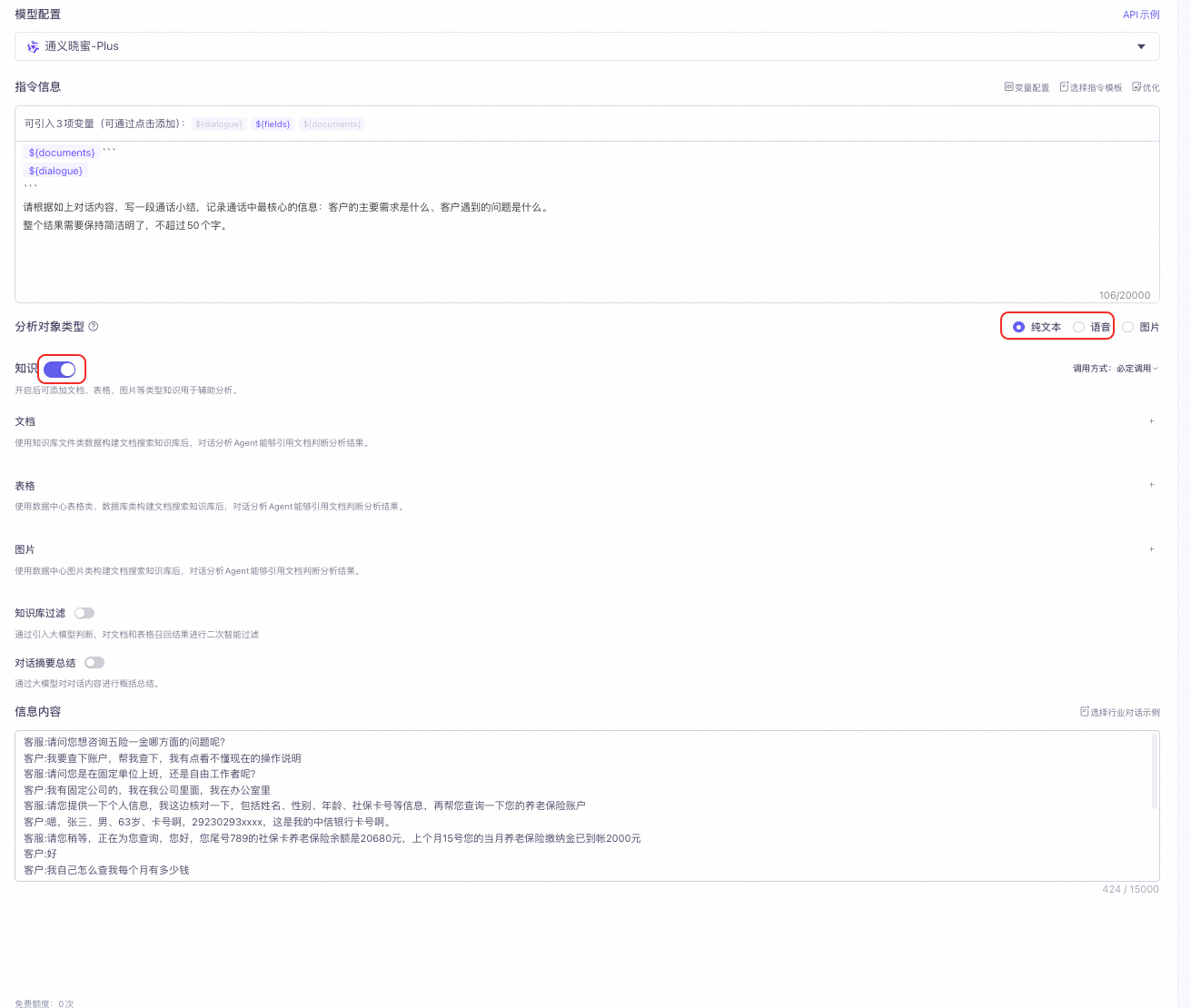
Enable the knowledge base configuration
In a custom application, turn on the Knowledge switch. You can then add document, table, and image knowledge to assist with analysis.
-
Invocation methods for a knowledge base
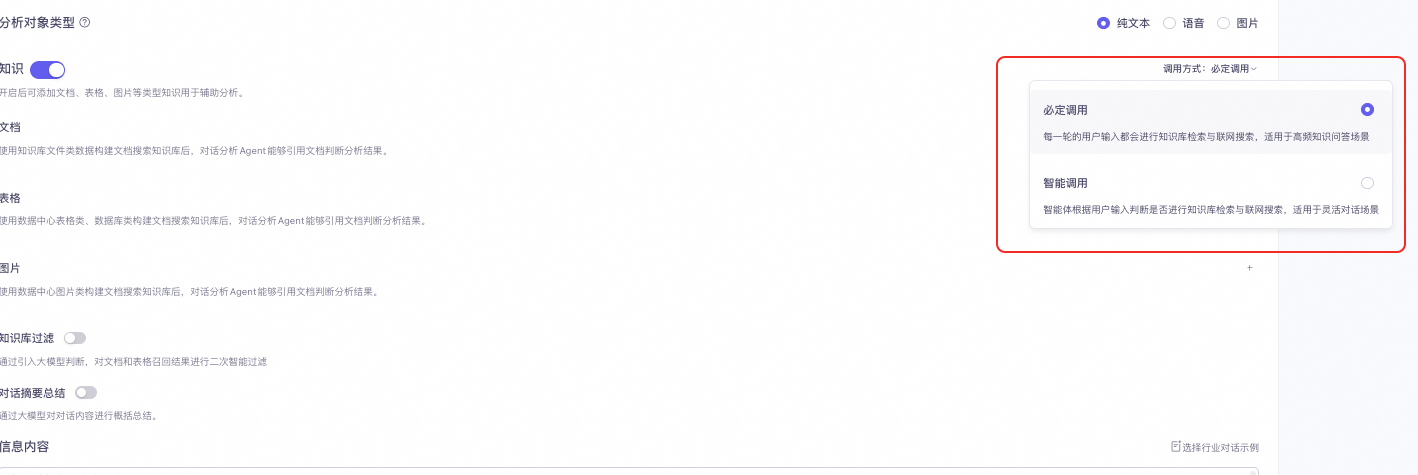
- Always invoke: The system sends user input to the knowledge base and web search in every turn. This method is suitable for high-frequency Q&A scenarios.
- Intelligent invocation: The system intelligently determines whether to use knowledge base retrieval or web search based on the user's input. This method is ideal for flexible conversational scenarios.
-
Available knowledge types
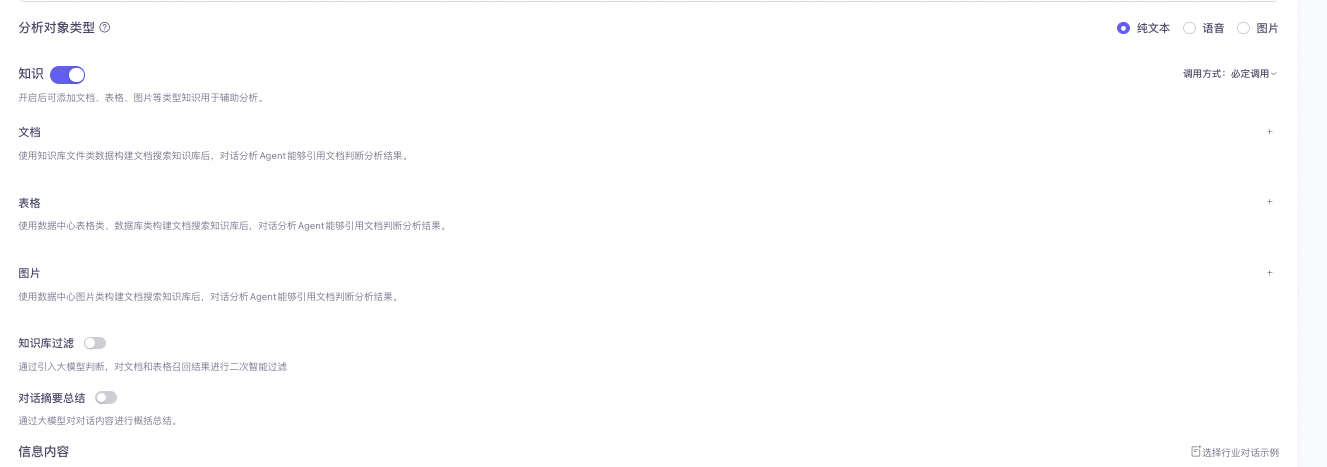
- Document knowledge: After you build a document search knowledge base using file data, the conversation analysis agent can reference the knowledge base content to evaluate analysis results.
- Tables: After you build a document search knowledge base using table or database data from the data center, the conversation analysis agent can reference the knowledge base content to evaluate analysis results.
- Images: After you build a document search knowledge base using image data from the data center, the conversation analysis agent can reference the knowledge base content to evaluate analysis results.
-
Other knowledge base configurations
- Knowledge base filtering: When enabled, this feature uses a configured prompt to have the LLM perform a second, intelligent filtering of the retrieval results from documents and tables.
- Conversation summary: When enabled, the LLM can generate a summary of the conversation content.
-
Select a knowledge base
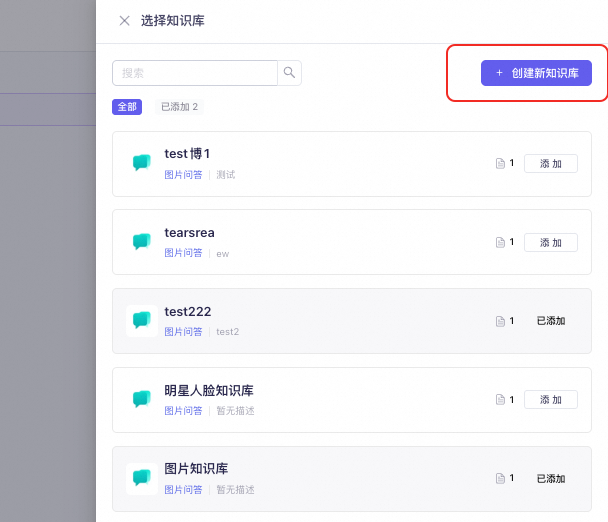
After you enable the knowledge base, click the + button in the document, table, or image knowledge category. A list of knowledge bases appears on the right. Select an existing knowledge base to add.
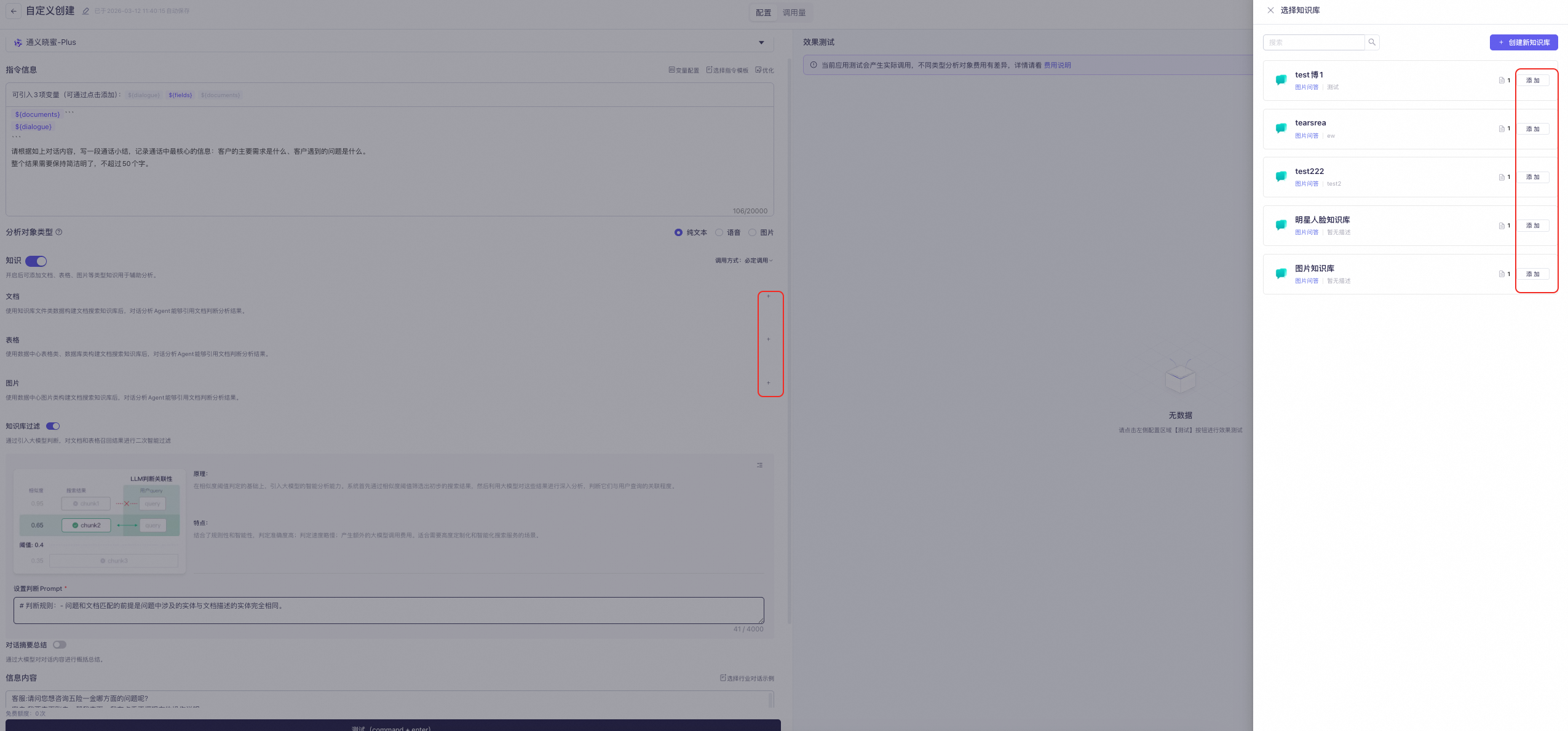
-
Similarity threshold and weight of a knowledge base
After you select a knowledge base, you can configure its similarity threshold and weight. These settings control the filtering of retrieval results and the recall order.
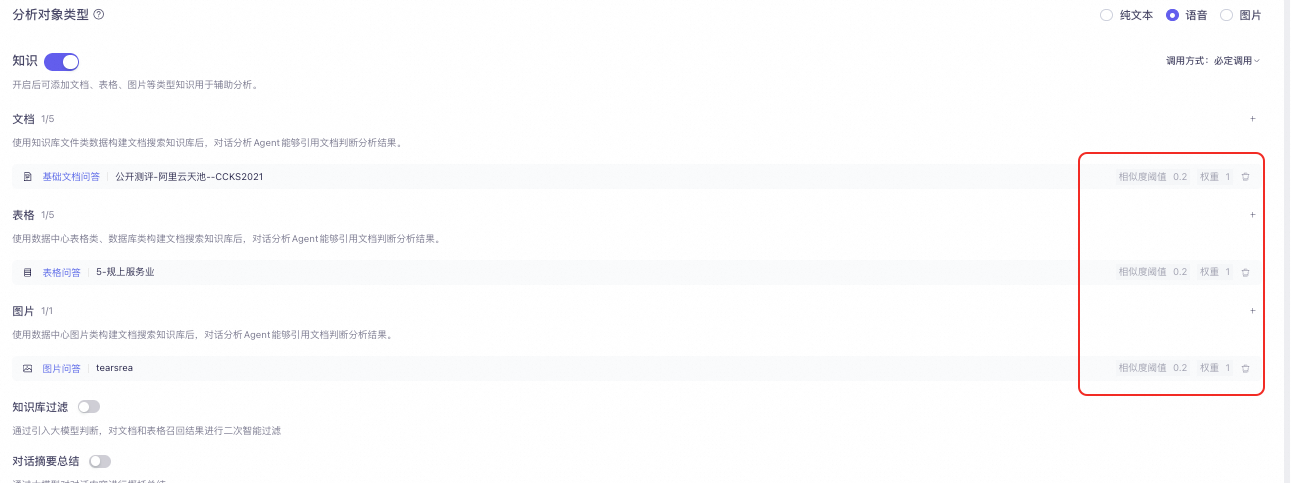
-
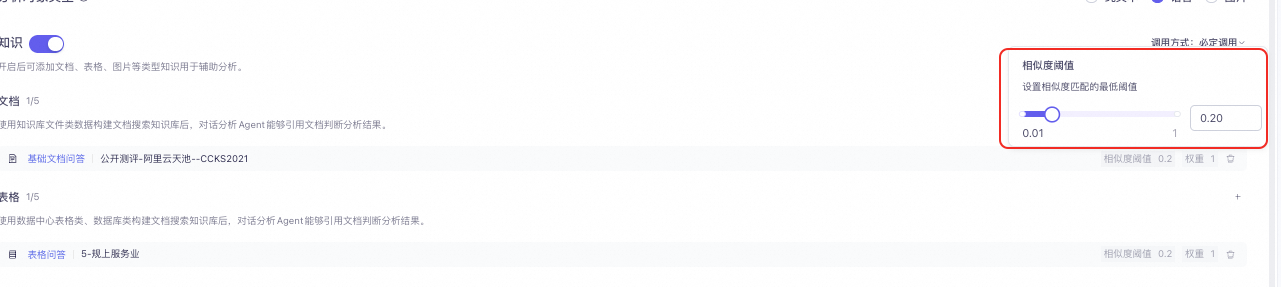
Similarity threshold of a knowledge base:
The threshold ranges from 0.01 to 1, with a default value of 0.2. Adjust this value as needed for your scenario. Only text with a semantic similarity score higher than this value is recalled. If you set this value too high, the knowledge base discards all relevant text.

-
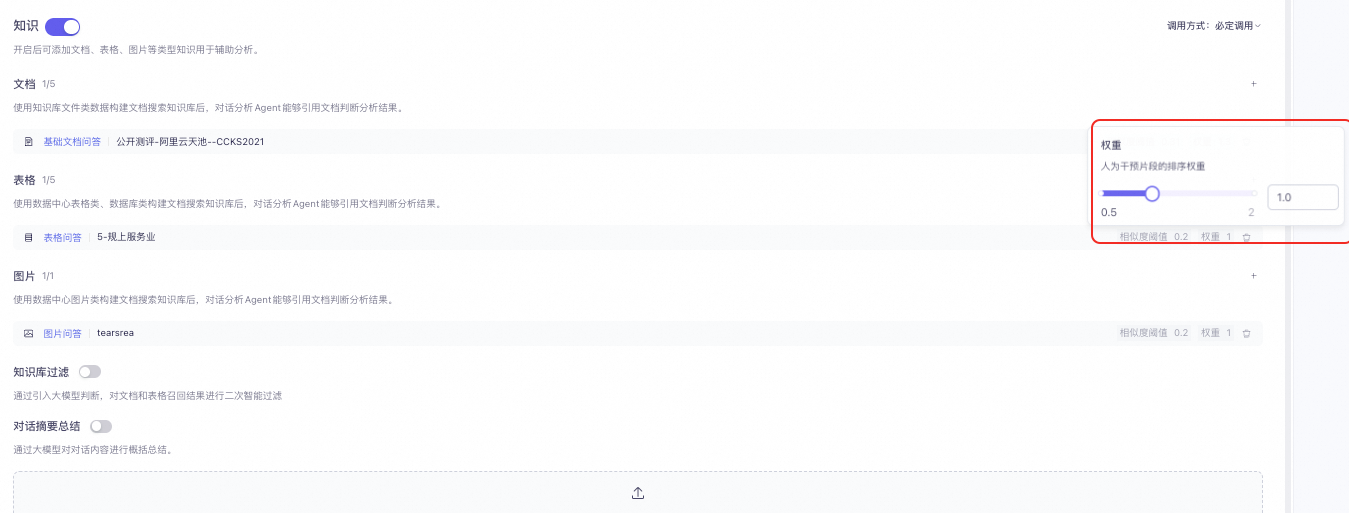
Weight of a knowledge base:
The weight ranges from 0.5 to 2, with a default value of 1. Adjust this value as needed for your scenario. In multi-channel recall, if text segments from multiple knowledge bases have the same similarity score, the system prioritizes the text segment from the knowledge base with the higher weight.
-
Similarity threshold of a knowledge base:
-
Create a knowledge base
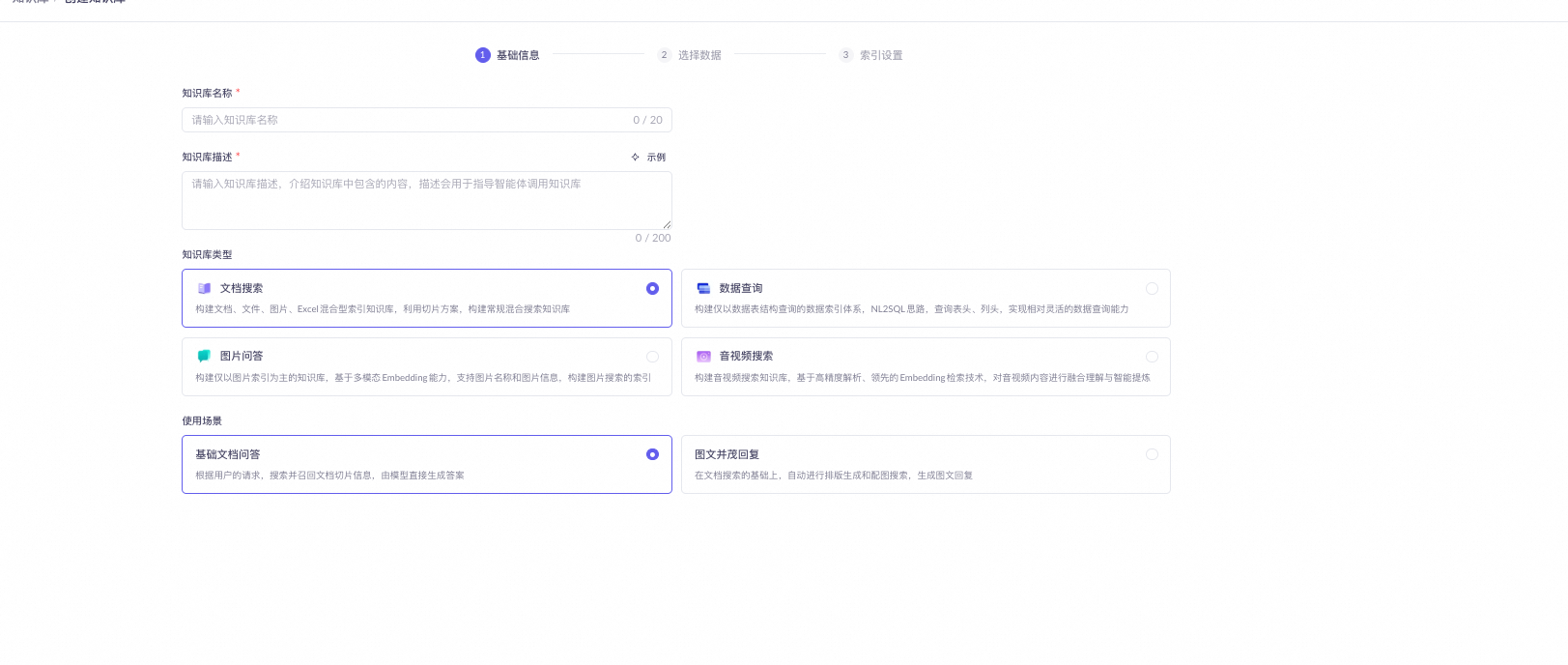
Click the Create New Knowledge Base button to go to the creation page. For more information, see Create and use a knowledge base.
NoteThe knowledge bases attached to the Tongyi Xiaomi CCAI-AIO product support only document search, data query, and image Q&A. Audio and video search are not supported.
2. Use a knowledge base in an application
-
The usage differs based on the two methods for creating an application:
- The dialogue analysis Agent creation method is supported only in Professional Build Mode for custom instructions, and requires the analysis object type to be plain text or speech.
- Custom Creation: For Analysis Object Type, select Plain Text or Voice to use the knowledge base.
- The dialogue analysis Agent creation method is supported only in Professional Build Mode for custom instructions, and requires the analysis object type to be plain text or speech.