Screenplay creation for film and entertainment
The screenplay creation application helps you write long screenplays. It offers an interactive writing experience with open-ended instructions. You can use these instructions to build your screenplay step by step, including creating character profiles, designing scenes, defining themes, and structuring the story. The application provides inspiration for your writing.
ImportantThe screenplay creation application is free for a limited time. After you use the free quota, you are billed on a pay-as-you-go basis for the input and output tokens of the called model.
- For more information about the limited-time free trial for new users, see New user limited-time free benefits.
- For more information about how tokens are calculated and model billing details, see Billing items.
Benefits
This application supports open-ended instructions and interactive writing.
- The API standards align with OpenAI specifications. The process is similar to calling a Large Language Model (LLM). You can input a prompt to start, which allows for a flexible and free creative process.
- A built-in agent chain helps maintain logical consistency in the screenplay's context and prevents the loss of details.
Feature Access
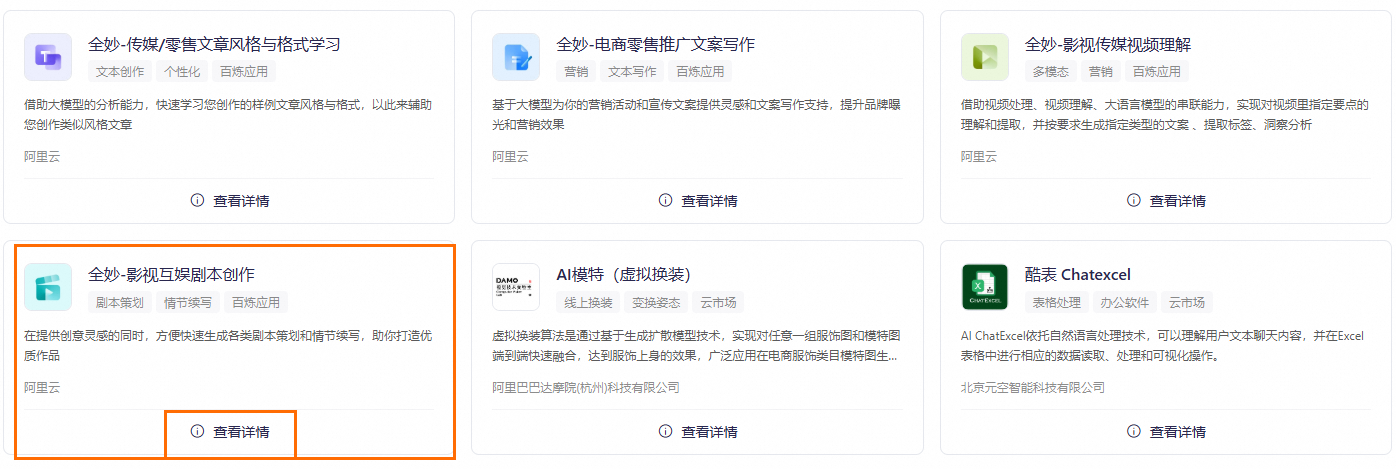
Go to the App Square page. On the Quanmiao - Screenplay Creation for Film and Entertainment card, click View Details to open the application console.
Features
Write a screenplay
You can build your screenplay by clicking the How to ask? button for guided instructions, or by entering your requirements directly into the dialog box.
-
Method 1: Build the screenplay by clicking the How to ask? button.
-
On the Test tab of Screenplay Creation for Film and Entertainment, click the How to ask? button.

-
Enter the required content as instructed, and then click the
 icon to generate the screenplay content.

The following figure shows an example of the generated screenplay content.

-
-
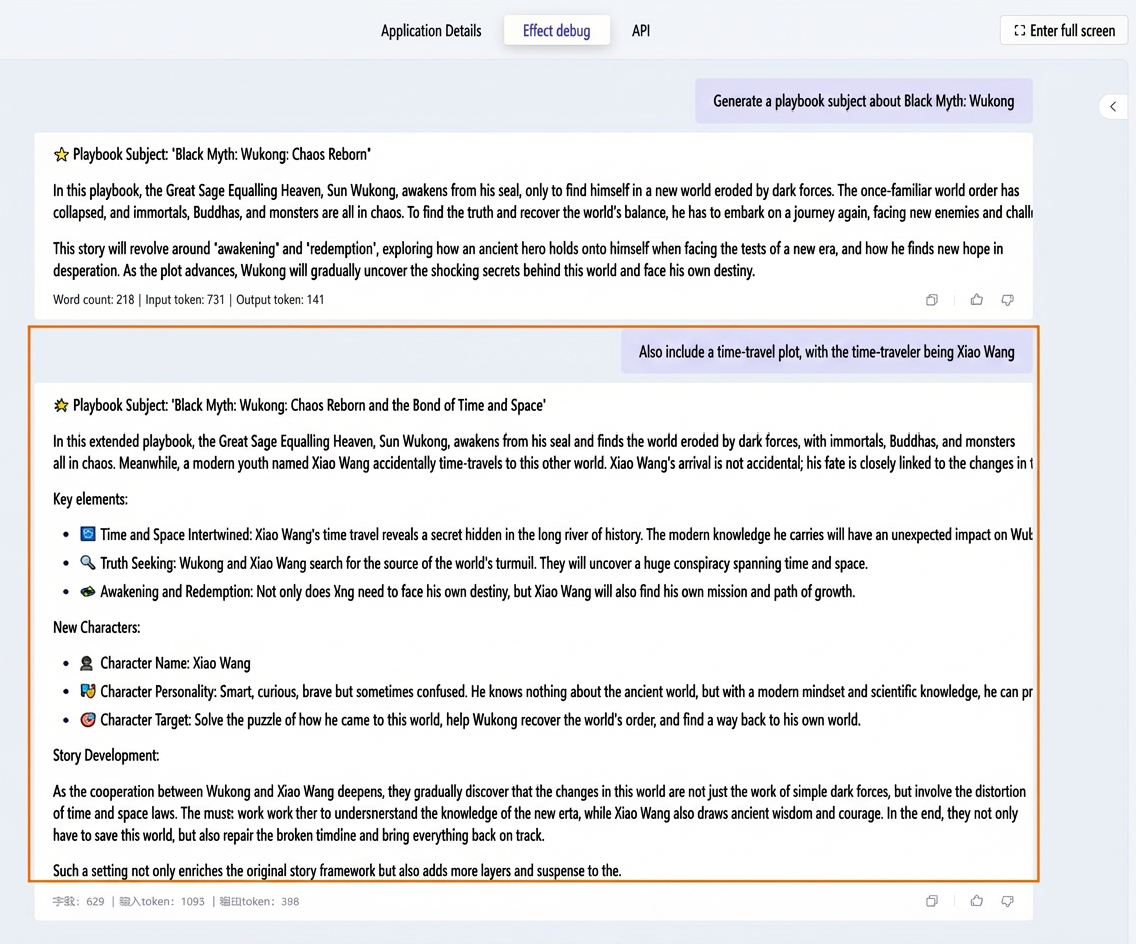
Method 2: Enter screenplay requirements directly in the dialog box.
The following figure shows an example of the generated screenplay content.


Organize screenplay content
-
On the Test tab of Screenplay Creation for Film and Entertainment, click Organize Screenplay to sort the content into the appropriate modules. The Organize Screenplay feature lets you write and merge content simultaneously.
-
View the details of the organized screenplay in the window on the right.
You can also click the
icon to open the organized screenplay window.


 icon to open the organized screenplay window.
Download and copy the screenplay
-
Click Download Screenplay to download the screenplay content.
A confirmation dialog box appears.
-
To copy the content of a screenplay segment, click the
icon.


 icon.
icon.
Start a new screenplay
Click Start New Screenplay. In the confirmation dialog box, click Start New Screenplay again. This action clears the current screenplay content and lets you start writing a new one.
API calls
After you finish testing, go to the API tab to view a sample API call.