This guide shows you how to use the Android SDK for real-time multimodal interaction with the Alibaba Cloud Model Studio large model service, covering SDK installation, key interfaces, and code examples.
Alibaba Cloud's MultiModalDialog SDK enables end-to-end, real-time multimodal interaction using audio and video. By integrating with the Qwen large model and various backend agents, the SDK offers a wide range of capabilities, including voice conversations, weather, music, news, and visual conversations based on video and image inputs.
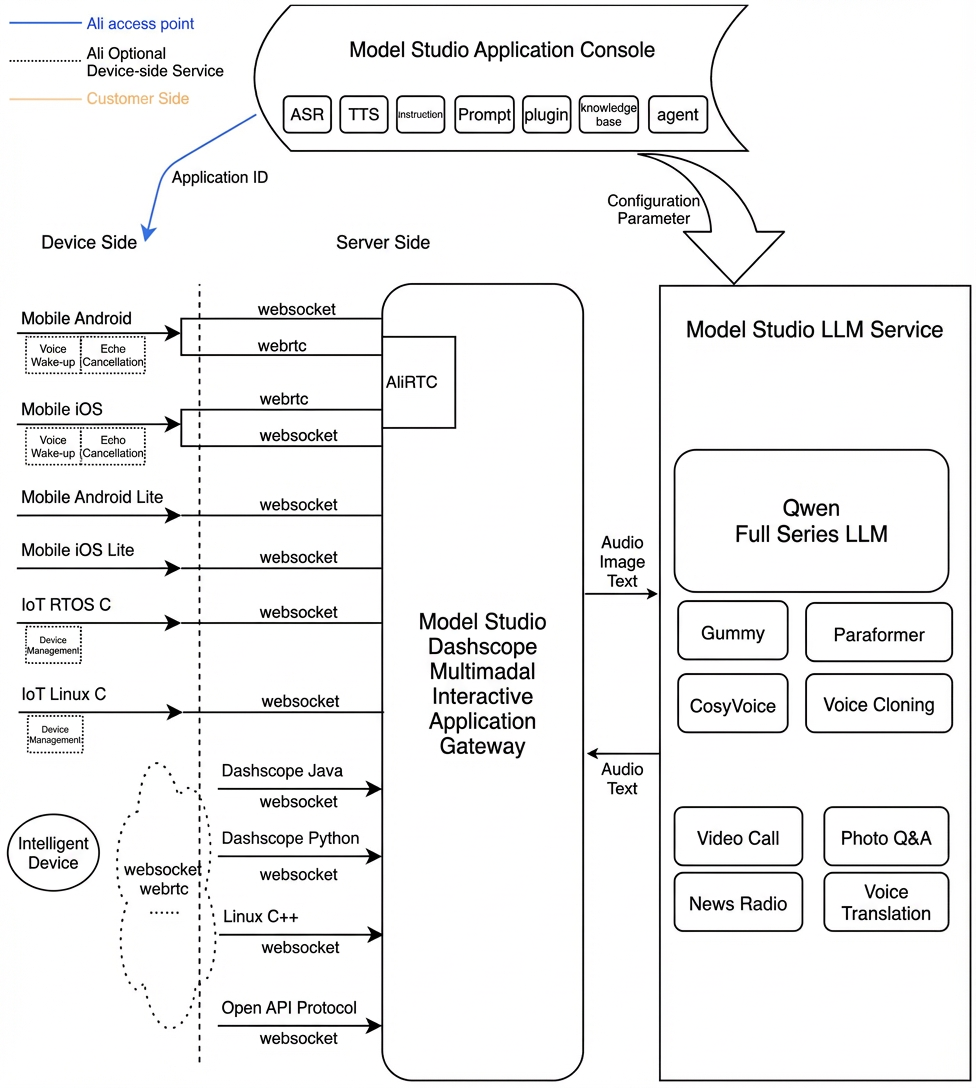
Multimodal real-time interactive service
Prerequisites
Activate the real-time multimodal interactive application in Alibaba Cloud Model Studio and get your Workspace ID, APP ID, and API key.
Download the SDK and demo, and configure the required environment and dependencies.
Import the sample code and follow the call flow to integrate the SDK.
Run the APK test program directly from the compressed package and enter the three required parameters.
Package | Version |
1.0.6.6 |
SDK integration
Interactive data links
The SDK communicates with the server via the WebSocket protocol and supports two modes: AudioOnly and AudioAndVideo.
audio interaction: Enables audio and text conversations only.
audio-video interaction: Allows you to enter video call mode using commands, where the client continuously sends an image sequence to the server to enable end-to-end, multimodal audio-video interaction.
Interactive mode description
The SDK features three interaction modes: Push2Talk, Tap2Talk, and Duplex (full-duplex).
Push2Talk: Press and hold to speak, and release to end recording.
Tap2Talk: Tap to start speaking; recording stops automatically when speech ends.
Duplex: Full-duplex interaction that lets you speak at any time once connected and supports barge-in.
Usage
SDK and Demo
SDK reference
Import the required library.
app/src/main/libs
convsdk-release_*.aar // Alibaba Cloud Voice Chat SDK
multimodal_dialog_sdk.aar // Alibaba Cloud Multi-modal Dialog SDK
multimodal_dialog_tongyimetathings.aar // Authentication SDK for the license mode.
Other dependencies for the demo app:
Refer to
app/build.gradlefor the complete list.implementation libs.androidbootstrap implementation libs.okhttp implementation libs.okio // Handles I/O for OkHttp3 on Android implementation libs.http.logging.interceptor implementation libs.core.ktx
Key parameters
Parameter | Required | Value | Description |
url | Yes | String | The endpoint for the request. WebSocket endpoint: wss://dashscope.aliyuncs.com/api-ws/v1/inference |
api_key | Yes | String | The API key for accessing Model Studio. You can create this key in the Model Studio console. For enhanced security on mobile clients, you can also generate a short-lived token on the server-side and pass it to the client. |
workspace_id | Yes | String | The workspace ID from the Model Studio console. |
app_id | Yes | String | The application ID that you created in the Model Studio console. |
chain_mode | Yes | String | The value must be |
Demo
EntranceActivity: The entry page for modifying information such as
url,api_key, andapp_id.On this page, you can select a dialog mode, such as
Tap2TalkorDuplex.To use license mode, see Integrate the Android SDK using license mode.
MultimodalDialogActivity: The class that implements the dialog interaction.
The demo uses
TYAudioRecorderfor audio input. You can replace it with your own implementation.The demo uses
AudioPlayerfor audio playback. You can replace it with your own implementation.In
audio interaction mode, the demo supports VQA. For example, a voice command such as "take a photo and identify xxx" triggers the service to send atake photo intent. Then:You can take a photo locally and upload it to OSS (or another content service) to generate a public URL. You then use this URL to trigger single-image recognition and a dialog.
Alternatively, you can directly upload the image's
base64data to the service to receive a recognition result and start a dialog.
In the
VideoAndAudiomode, the demo accepts an image sequence from an external capture source. This approach simplifies integrating capture and video dialog for IoT devices like smart glasses.
API design
MultimodalDialog
MultiModalDialog
Initializes the dialog class.
/**
     * Initializes the class.
     * @param context The context.
     * @param url The server URL.
     * @param chainMode The chain mode.
     * @param workspaceId The workspace ID.
     * @param appId The app ID.
     * @param dialogMode The dialog mode.
     * */
    fun MultiModalDialog(
        context: Context,
        url: String?,
        chainMode: ChainMode?,
        workspaceId: String?,
        appId: String?,
        dialogMode: DialogMode?
    )
createConversation
Creates a conversation.
/**
     * Creates a conversation after successful initialization.
     * @param params The initialization parameters.
     * @param chatCallback The main callback. Receives all messages from the conversation, except for those sent during initialization.
     */
    fun createConversation(@NonNull MultiModalRequestParam params,chatCallback: IConversationCallback)
start
Starts the conversation.
/**
     * Establishes a connection and starts the conversation.
     */
    fun start()
stop
Stops the conversation.
/**
     * Disconnects and stops the conversation.
     */
    fun stop()
destroy
    /**
     * Destroys the instance.
     */
    fun destroy()
setConversationTimeout
Sets the conversation timeout.
    /**
     * Sets the conversation timeout. If the service does not detect user speech within the specified time, it reports a timeout event.
     * @param timeout The timeout in milliseconds (ms).
     */
    fun setConversationTimeout(timeout: Long)
interrupt
Interrupts the AI's speech.
    /**
     * Interrupts the AI's speech.
     */
    fun interrupt()
startSpeech
Notifies the server to start uploading audio. This method is required only in Push-to-Talk mode and must be called while in the Listening state.
/**
 * Notifies the server to start uploading audio. This method must be called when in the Listening state.
 * It is only required in Push-to-Talk mode.
 */
fun startSpeech()
sendAudioData
Sends audio data to the server.
/**
 * Sends audio data to the server.
 * @param audioData The audio frame data.
 */
fun sendAudioData(audioData: ByteArray?)
stopSpeech
Notifies the server to stop uploading audio. This method is required only in Push-to-Talk mode.
/**
 * Notifies the server to stop uploading audio. This method is only required in Push-to-Talk mode.
 * In Push-to-Talk mode, this indicates that the user has finished speaking.
 */
fun stopSpeech()
requestToRespond
Requests the server to answer a question or play a response using text-to-speech (TTS).
/**
     * Requests the server to answer a specific question or play a response by using text-to-speech (TTS).
     * @param type Use 'transcript' to convert the text directly to speech, or 'prompt' to get an answer from the large model.
     * @param text The corresponding text.
     * @param params Additional parameters.
     */
    fun requestToRespond(type: String, text: String, params: JSONObject)
Other methods
    /**
     * Checks if the current configuration is in duplex mode.
     */
    fun isDuplexMode(): Boolean

    /**
     * Cancels the user's speech in Push-to-Talk mode.
     */
    fun cancelSpeech()

    /**
     * Notifies the system that the voice response has ended.
     * */
    fun sendResponseEnded()

    /**
     * Notifies the system that the voice response has started.
     * */
    fun sendResponseStarted()

    /**
     * Pushes a video frame.
     *
     * @param videoFrame The video frame.
     * @param callback The callback for the frame push result.
     */
    fun sendVideoFrame(videoFrame: TYVideoFrame,callback: IVideoChatPushFrameCallback)
Key parameters
Parameter | Value | Description |
ChainMode | WebSocket | Supports AudioOnly and AudioAndVideo interactions. |
DialogMode | TAP2TALK | Manual start, automatic end. |
PUSH2TALK | Manual start, manual end. | |
DUPLEX | Full-duplex interaction. |
MultiModalRequestParam
The client sends this message to request the start of a session. After the server receives a Start message, it sends a Started message to the client.
Level 1 Parameter | Level 2 Parameter | Type | Required | Description |
task_group | string | Yes | The name of the task group. This parameter is fixed to | |
task | string | Yes | The name of the task. This parameter is fixed to | |
function | string | Yes | The function to call. This parameter is fixed to | |
model | string | Yes | The name of the Alibaba Cloud Model Studio model. This parameter is fixed to | |
input | directive | string | Yes | The name of the instruction: Start |
workspace_id | string | Yes | Your workspace ID from Alibaba Cloud Model Studio (Workspace ID). To find this ID, go to the multimodal interaction console, click the workspace name in the lower-left corner, and look in Workspace Details. Currently, only the default workspace of an Alibaba Cloud account is supported. | |
app_id | string | Yes | Your App ID (App ID). You can find this on the My Applications page of the multimodal interaction console. | |
dialog_id | string | No | The dialog ID. Omit this parameter to start a new session. The server generates a dialog ID and returns it in an event. The format is a 36-character string, for example: "12345678-1234-1234-1234-1234567890ab". To continue a previous conversation, pass the | |
parameters | upstream | object | Yes | For details, see the parameters.upstream table below. |
downstream | object | No | For details, see the parameters.downstream table below. | |
client_info | object | Yes | For details, see the parameters.client_info table below. | |
biz_params | object | No | For details, see the parameters.biz_params table below. |
The following table describes the parameters for parameters.upstream.
Parameter | Type | Required | Description |
type | string | Yes | The upstream type.
|
mode | string | No | The mode the client uses. Default is Options:
For a comparison of the three client modes, see the Comparison of the three client modes table below. |
audio_format | string | No | The audio format. Supported formats are |
sample_rate | int | No | The sample rate for speech recognition. Supported values:
The default is 16000. |
vocabulary_id | string | No | The custom vocabulary ID. If you set this parameter, it overrides the custom vocabulary configuration in the console. If the custom vocabularies in the console do not meet your needs, you can manage them programmatically by using the OpenAPI. For more information, see the custom vocabulary API documentation. |
The following table describes the parameters for parameters.downstream:
Parameter | Type | Required | Description |
voice | string | No | The voice for speech synthesis. The supported voices depend on the speech synthesis model that you select in the console. |
sample_rate | int | No | The sample rate for speech synthesis. Supported values:
The default is 24000. The Qwen-TTS and Qwen3-TTS models support only 24000. |
audio_format | string | No | The audio format. Supported formats are The Qwen-TTS model supports only Note: The difference between |
frame_size | int | No | The frame size of the synthesized audio, in milliseconds. Valid values:
The default is 60. This parameter applies only when the audio format for speech synthesis is |
volume | int | No | The volume of the synthesized audio. Valid range: 0–100. Default: 50. |
speech_rate | int | No | The speech rate of the synthesized audio, as a percentage of the normal speed. Valid range: 50–200. Default: 100. |
pitch_rate | int | No | The pitch of the synthesized audio. Valid range: 50–200. Default: 100. |
bit_rate | int | No | The bit rate of the synthesized audio, in kbps. Valid range: 6–510. Default: 32. This parameter applies only when the audio format for speech synthesis is |
intermediate_text | string | No | Controls which intermediate text is returned to the user:
You can specify multiple types, separated by commas. The default is |
word_timestamp_enabled | boolean | No | Specifies whether to return timestamps for the synthesized audio. If set to This parameter requires Timestamps are returned only for cloned voices and for voices that are specified to support timestamps in the CosyVoice voice list. |
transmit_rate_limit | int | No | The rate limit for sending downstream audio, in bytes per second. |
incremental_response | boolean | No | Specifies whether to stream results from the large model. If |
instruction | string | No | Sets instructions to control synthesis effects such as dialect and emotion. This feature applies to The |
The following table describes the parameters for parameters.client_info:
Parameter | Sub-parameter | Type | Required | Description |
user_id | string | Yes | The end-user ID. Generate this ID based on your business rules to implement customized features for different end users. The maximum length is 36 characters. | |
device | uuid | string | No | A globally unique ID for the client device. You must generate this and pass it to the SDK. The maximum length is 40 characters. An end user can have multiple devices, each with a different |
network | ip | string | No | The public IP address of the caller. |
location | latitude | string | No | The latitude of the caller. Submit this for business scenarios that require the client's precise location. |
longitude | string | No | The longitude of the caller. Submit this for business scenarios that require the client's precise location. | |
city_name | string | No | The city where the caller is located. This indicates the client's approximate location. |
The following table describes the parameters for parameters.biz_params:
Parameter | Type | Required | Description |
user_defined_params | json object | No | Pass-through parameters for the agent. For parameters required by different agents, see the Call an Official Agent documentation. You can set dialog extension parameters in the |
user_prompt_params | json object | No | User-defined variables for the prompt. You can define the keys and values in the JSON object. For details on how to configure custom prompt variables in the console, see Application Configuration - Prompts. |
user_query_params | json object | No | User-defined dialogue variables. You can define the keys and values in the JSON object. For details on how to configure dialogue variables in the console, see Application Configuration - Dialogue Variables. |
Comparison item | push2talk | tap2talk | duplex |
Type | Client-controlled mode | Tap-to-talk mode | Duplex mode |
Audio upload method | On-demand | Continuous An error occurs if the client does not upload audio for more than 20 seconds in the | Continuous An error occurs if the client does not upload audio for more than 20 seconds in any state. |
VAD detection | Client | Server | Server |
Interruption method | Interruption via a | Interruption via a | Voice interruption |
Use case | The client application controls when to send audio for recognition. This is suitable for push-to-talk scenarios where the user presses a button to speak and releases it to stop. | The client continuously uploads audio, and the server detects voice activity. This mode does not support voice interruption; you must send a | The client continuously uploads audio, and the server detects voice activity. The user can interrupt the model's output by speaking at any time. |
Example:
{
    "header": {
        "action":"run-task",
        "task_id": "f894c16f-f20e-4c1d-837e-89e0fbc63a43",
        "streaming":"duplex"
    },
    "payload": {
        "task_group":"aigc",
        "task":"multimodal-generation", // Task: multimodal generation
        "function":"generation",
        "model":"multimodal-dialog", // Model: multimodal dialog (note this is different from the task)
        "input":{
          "directive": "Start",
          "workspace_id": "llm-***********",
          "app_id": "****************"
        },
        "parameters":{
          "upstream":{
            "type": "AudioOnly",
            "mode": "duplex"
          },
          "downstream":{
            "voice": "longxiaochun_v2",
            "sample_rate": 24000
          },
          "client_info":{
            "user_id": "bin********207",
            "device":{
              "uuid": "432k*********k449"
            },
            "network":{
              "ip": "203.0.113.10"
            },
            "location":{
              "city_name": "Beijing"
            }
          },
          "biz_params":{
            "user_defined_params": {
                "extra_config": {
                    "enable_web_search": false
                },
                "agent_id_xxxxx": {
                    "name": "value"
                }
            },
            "user_prompt_params": {
                "name": "value"
            },
            "user_query_params": {
                "name": "value"
            }
          }
        }
    }
}
IConversationCallback
    /**
     * Invoked after the client successfully authenticates and joins the channel.
     */
    fun onStartResult(isSuccess: Boolean, errorInfo: TYError?)

    /**
     * Invoked when an interruption occurs, including manual and voice interruptions.
     */
    fun onInterruptResult(isSuccess: Boolean, errorInfo: TYError?)

    /**
     * Invoked when the conversation is ready, after all endpoints (client, VoiceChat, and video understanding) have joined the channel. Call business APIs only after this callback is invoked.
     */
    fun onReadyToSpeech()

    /**
     * Invoked on a conversation state transition.
     * Possible states include DIALOG_IDLE, DIALOG_LISTENING, DIALOG_RESPONDING, and DIALOG_THINKING.
     */
    fun onConvStateChangedCallback(state: DialogState)

    /**
     * Reports the current sound level.
     * @param audioType See {@link Constant.TYVolumeSourceType}.
     * @param audioLevel The sound level, ranging from 0 to 100.
     */
    fun onConvSoundLevelCallback(audioLevel: Float, audioType: Constant.TYVolumeSourceType)

    /**
     * Invoked when a speech timeout occurs. You must then either restart or end the conversation.
     * @param timeout The timeout duration.
     */
    fun onSpeechTimeout(timeout: Long)

    /**
     * Provides loopback audio data for client-side Acoustic Echo Cancellation (AEC).
     * @param bytes The audio data.
     */
    fun onPlaybackAudioData(bytes: ByteArray)

    /**
     * Invoked when an error occurs during the conversation.
     * @param errorInfo The error information.
     */
    fun onErrorReceived(errorInfo: TYError)

    /**
     * Invoked when an event occurs during the conversation.
     * @param var1 The event.
     */
    fun onConvEventCallback(var1: ConvEvent?)

    /**
     * Reports key log messages generated during runtime.
     * @param level The log level. See Android.Log for reference.
     * @param type The log type.
     * @param debugInfo The log message.
     */
    fun onDebugInfoTrack(level: Int, type: Constant.TYDebugInfoType, debugInfo: String)
onConvEventCallback: AI conversation response
EVENT_HUMAN_SPEAKING_DETAIL
Speech recognition content
SpeechContent - response
Level 1 parameter
Level 2 parameter
Level 3 parameter
Type
Required
Description
output
event
string
Yes
The event name. Always
SpeechContent.dialog_id
string
Yes
The dialog ID.
text
string
Yes
The text transcribed from the user's speech. The service streams the cumulative result.
finished
bool
Yes
Indicates whether the output is complete.
{
    "header": {
        "request_id": "9B32878******************3D053",
        "service_id": "368208df",
        "status_code": 200,
        "status_name": "Success",
        "status_message": "Success.",
        "attributes":{
          "user_id":"1234557879x"
        }
    },
    "payload": {
        "output":{
          "event": "SpeechContent",
          "dialog_id": "b39398c9dd8147********35cdea81f7",
          "text": "one two three",
          "finished": false
        },
        "usage":{
          "invoke":10,
          "model_x":10
        }
    }
}
EVENT_RESPONDING_DETAIL
Response from the large model
output
finished
bool
Yes
Indicates whether the output is complete.
dialog_id
string
Yes
The dialog ID.
event
string
Yes
The event type.
text
string
No
The text returned by the large model.
spoken
string
No
The text to be played back. This may differ from the
textfield.extra_info
object
No
Additional information. Currently supports:
commands: A command string.agent_info: Information about the agent.tool_calls: The results returned by tools.dialog_debug: Debug information for the dialog.timestamps: Timestamps for each node in the trace.Example:
{
    "header": {
        "event":"result-generated",
        "task_id": "9B32878******************3D053"
    },
    "payload": {
        "output":{
          "event": "RequestAccepted",
          "dialog_id": "b39398c9dd8147********35cdea81f7",
          "text": "You entered the number sequence '12345'. If you have any questions about these numbers or need me to perform a task with them, please provide more details, and I will do my best to help you.",
          "spoken": "You entered the number sequence '12345'. If you have any questions about these numbers or need me to perform a task with them, please provide more details, and I will do my best to help you.",
          "finished": true,
        "extra_info": {
          "commands": "[{\"name\":\"VOLUME_SET\",\"params\":[{\"name\":\"series\",\"normValue\":\"70\",\"value\":\"70\"}]}]",
          "tool_result": [{
            "id": "",
            "type": "function",
            "function": {
              "name": "function_name",
              "arguments": "{\"id\": \"123\", \"name\": \"test\"}",
              "outputs": "function call result",
              "status": {
                "code": 200,
                "message": "Success."
              }
            }
          }]
        }
        },
        "usage":{
          "invoke":10,
          "model_x":10
        }
    }
}
Exception handling
onErrorReceived - response
Common error codes
If an error occurs, refer to Multi-modal Interaction Suite - Error Codes.
If the issue persists, contact technical support with the complete request_id and dialog_id.
Call sequence
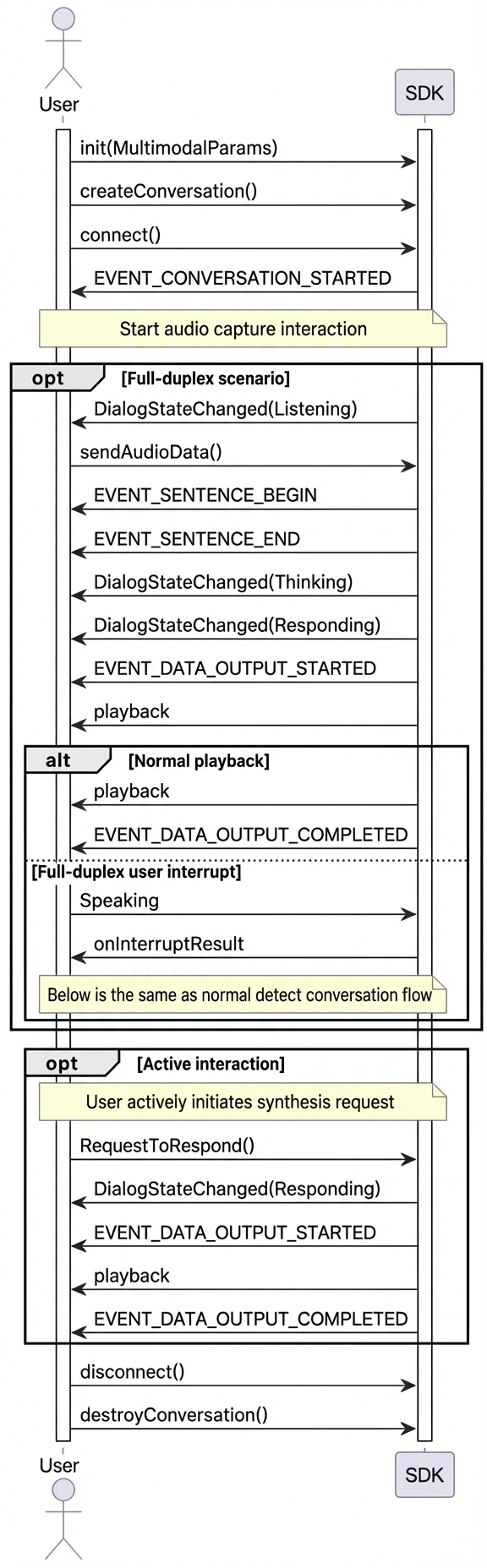
Full-duplex interaction
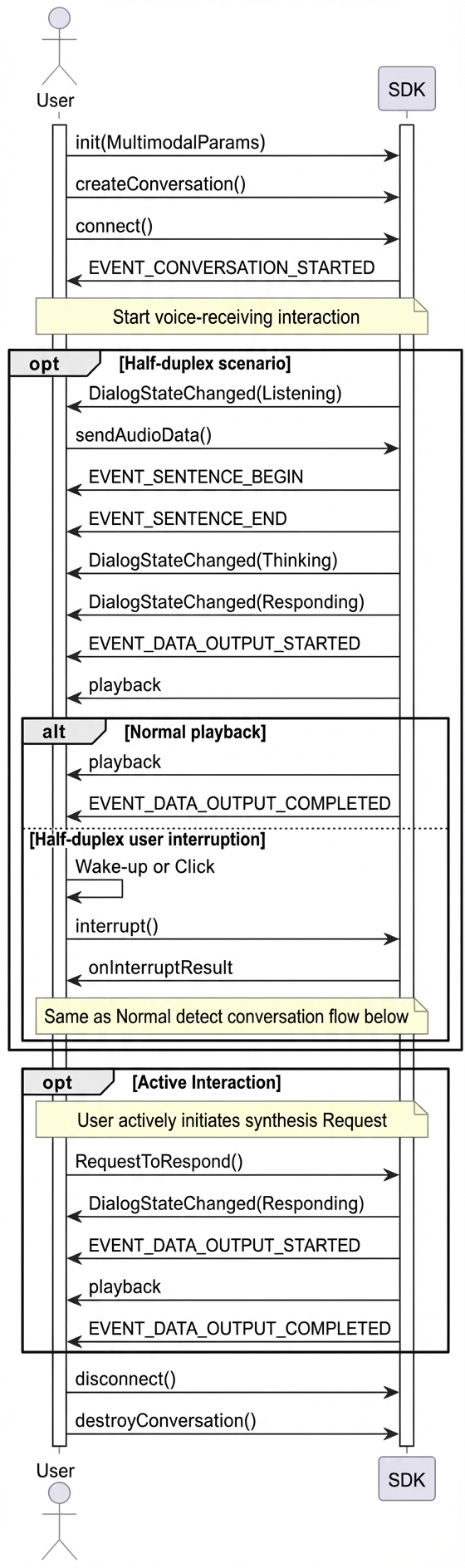
Half-duplex communication
Additional SDK API usage
Duplex interaction
The Android SDK supports duplex interaction mode. In this mode, the SDK can receive recorded audio data while playing a synthesized speech response. If the user speaks during playback, the service automatically interrupts the current response and starts a new one. Your application is responsible for handling the client-side player buffer.
Duplex interaction requires acoustic echo cancellation (AEC). The Android SDK includes a built-in AEC algorithm, but you must still configure it.
Input microphone audio
Use the following method to pass real-time recorded audio data to the SDK.
multiModalDialog.sendAudioData(data);Input reference channel audio
Use the following method to pass real-time playback audio data to the SDK. Ensure the data you pass is identical to the audio currently being played.
multiModalDialog.sendRefData(data);VQA interaction
VQA interaction enables multimodal interaction with both images and voice. To use it, send an image during a conversation.
A voice or text request with a photo-taking intent triggers the process and issues the "visual_qa" command.
When the client receives the "visual_qa" command through the onConvEventCallback callback function, it sends an image as a URL or base64-encoded data. The image must be smaller than 180 KB.
Handle the "visual_qa" command and upload the photo.
private void executeCmd(String cmd,String dialogId,String taskId){
  String cmdName = null;
  String cmdParamValue = null;
  try {
    cmdName = new JSONArray(cmd).getJSONObject(0).getString("name");
  }catch (Exception ex) {
    ex.printStackTrace();
  }
  switch (cmdName){
     case "visual_qa":
       JSONObject extraObject = new JSONObject();
       extraObject.put("images", imagesArray);
       multimodalConversation.requestToRespond(type, text, extraObject.toString());
       break;
  ......
}

// Upload the photo
public static JSONArray getMockOSSImage() {
    JSONObject imageObject = new JSONObject();
    JSONArray images = new JSONArray();
    try{
      if (vqaUseUrl){
        imageObject.put("type", "url");
        imageObject.put("value", "https://help-static-aliyun-doc.aliyuncs.com/assets/img/zh-CN/7043267371/p909896.png");
      }else {
        imageObject.put("type", "base64");
        imageObject.put("value", getLocalImageBase64());
      }
      images.put(imageObject);

    }catch (Exception e){
      e.printStackTrace();
    }
    return images;
  }
LiveAI over WebSocket
LiveAI is an official agent from Model Studio for multimodal interaction, offering video call functionality. The full-featured Android SDK lets you use this feature over a WebSocket connection by recording and sending video frames.
Note: When you call LiveAI over WebSocket, you can send images only in base64 encoding. Each image must be smaller than 180 KB.
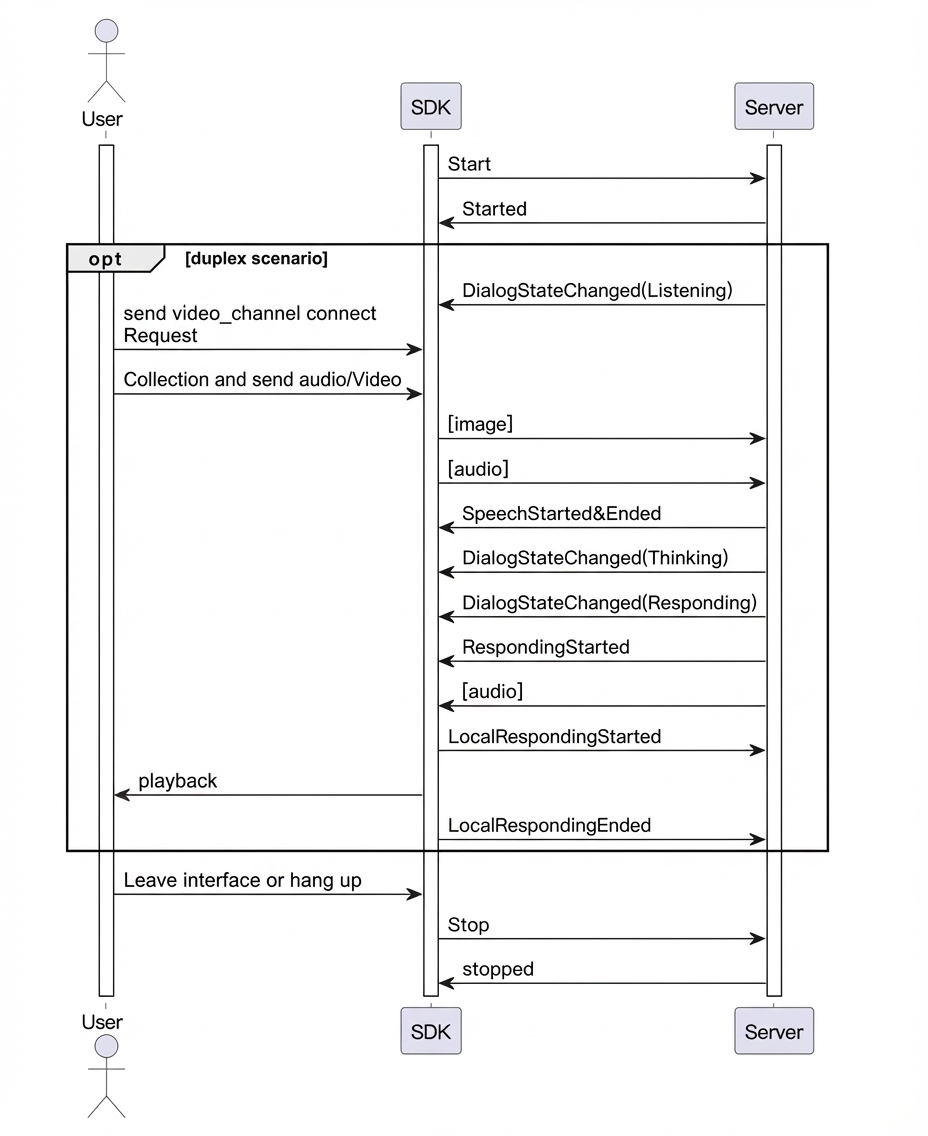
LiveAI call sequence
Key code examples
To call LiveAI over the WebSocket protocol, follow the sequence below.
// 1. Set the interaction type to AudioAndVideo.
MultiModalRequestParam.UpStream.builder().mode("duplex").type("AudioAndVideo").build();

// 2. After establishing a connection, send a voicechat_video_channel request.
private void startVideoMode() {
    if (isVideoMode) return;

    try {
        MultiModalRequestParam updateParams = MultiModalRequestParam.builder().build();
        JSONObject videoObj = new JSONObject();
        videoObj.put("action", "connect");
        videoObj.put("type", "voicechat_video_channel");

        List<JSONObject> videos = new ArrayList<>();
        videos.add(videoObj);

        updateParams.setBizParams(MultiModalRequestParam.BizParams.builder()
                .videos(videos).build());

        multiModalDialog.requestToRespond("prompt", "", updateParams.getParametersAsJson());
        multiModalDialog.setVideoContainer(videoContainer, uiHandler);

        isVideoMode = true;
        runOnUiThread(() -> videoContainer.setVisibility(View.VISIBLE));

    } catch (JSONException e) {
        Log.e(TAG, "Failed to start video mode", e);
    }
}

// 3. Submit a video frame every 500 ms. Note that the image size must be smaller than 180 KB.
/**
 * This flow is not called in the demo. It demonstrates how to implement LiveAI over a WebSocket connection.
 * Starts the video frame stream and sends a frame every 500 ms.
 */
private void startVideoFrameStreaming() {
    Thread videoStreamingThread = new Thread(() -> {
        try {
            while ( !Thread.currentThread().isInterrupted()) {
                Thread.sleep(500);

                JSONObject extraObject = new JSONObject();
                extraObject.put("images", getMockOSSImage());

                multiModalDialog.updateInfo(extraObject);
                }
        } catch (InterruptedException e) {
            Thread.currentThread().interrupt();
        } catch (JSONException e) {
            throw new RuntimeException(e);
        }
    });

    videoStreamingThread.setDaemon(true);
    videoStreamingThread.setName("LiveAI-VideoStreaming");
    videoStreamingThread.start();

}

/**
 * Builds the image list request.
 * */
private static JSONArray getMockOSSImage() {
    JSONObject imageObject = new JSONObject();
    JSONArray images = new JSONArray();
    try{

        imageObject.put("type", "base64");
        imageObject.put("value", getLocalImageBase64());

        images.put(imageObject);

    }catch (Exception e){
        e.printStackTrace();
    }
    return images;
}

// Reads a local image to a base64 string.
private static String getLocalImageBase64(){
    return "";
}
Text-to-speech (TTS)
The SDK can synthesize audio directly from text.
You must call the requestToRespond method when the client is in the Listening state.
If the client is not in the Listening state, you must first call the Interrupt method to stop the current playback.
conversation.requestToRespond("transcript","Happiness is a skill, a state of inner peace achieved by letting go of external desires.",null);
Custom prompt variables
In the console, configure custom variables in your project's prompt settings.
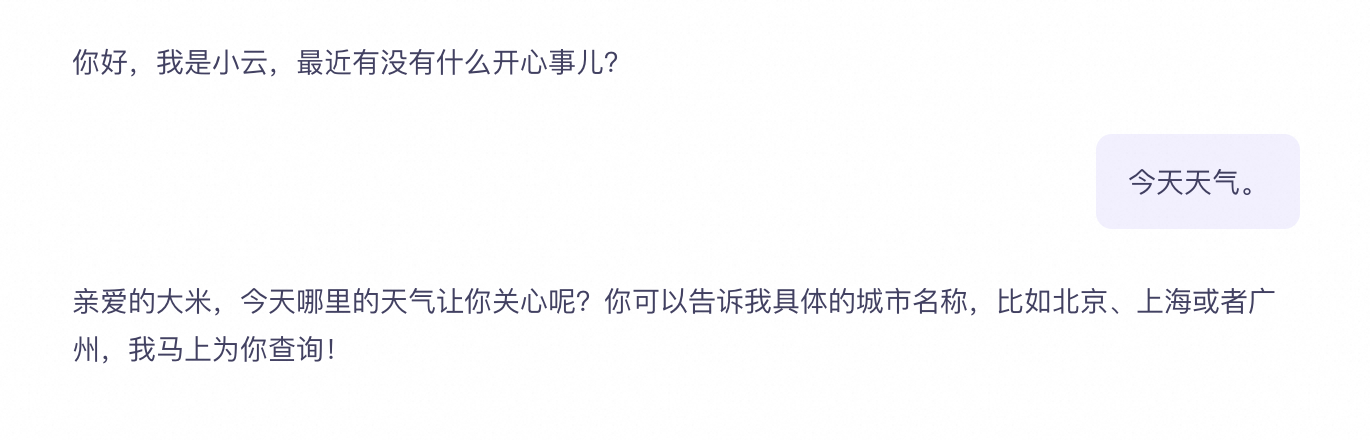
For example, you can define a user_name field to represent a user nickname. You can then insert the variable user_name into the Prompt as the placeholder ${user_name}.
At the top of the prompt editing page, click the {x} Custom variable button to add custom variables.
Set the variable in your code.
For example, set "user_name" = "rice".
// Pass biz_params.user_prompt_params when you build the request parameters.
HashMap<String, String> userPromptParams = new HashMap<>();
userPromptParams.put("user_name", "Da Mi");
        MultiModalRequestParam.BizParams bizParams = MultiModalRequestParam.BizParams
                .builder()
                .userPromptParams(userPromptParams)
                .build();
Request a response
Real-time ASR result correction
ASR results can be inaccurate. In addition to configuring hotwords, you can use the real-time ASR result correction API to upload a word list for immediate correction.
Parameter description
Set the AsrPostProcessing parameter in UpStream to configure the correction word list.
Parameter | First-level parameter | Second-level parameter | Type | Description |
AsrPostProcessing | Object | The ASR correction word list. | ||
ReplaceWord[] | List | A list of word replacement rules. Each ReplaceWord object defines one rule. | ||
source | String | The original text to be replaced. | ||
target | String | The text to use as the replacement. | ||
match_mode | String | The match mode. Defaults to exact. exact: A match occurs only if the input text is identical to the source text. partial: A match occurs if a part of the input text matches the source text. |
// Build the AsrPostProcessing object.
MultiModalRequestParam.UpStream.ReplaceWord replaceWord = new MultiModalRequestParam.UpStream.ReplaceWord();
    replaceWord.setTarget("one plus one");
    replaceWord.setSource("1 plus 1");
    replaceWord.setMatchMode("partial");
// Add the word replacement rules to the UpStream parameters.
.upStream(MultiModalRequestParam.UpStream.builder()
.asrPostProcessing(Collections.singletonList(replaceWord))
.build())