Python SDK
This topic describes how to use the server-side Python software development kit (SDK) for real-time multimodal interaction with Alibaba Cloud Model Studio. It covers how to download and install the SDK, its key APIs, and provides code examples.
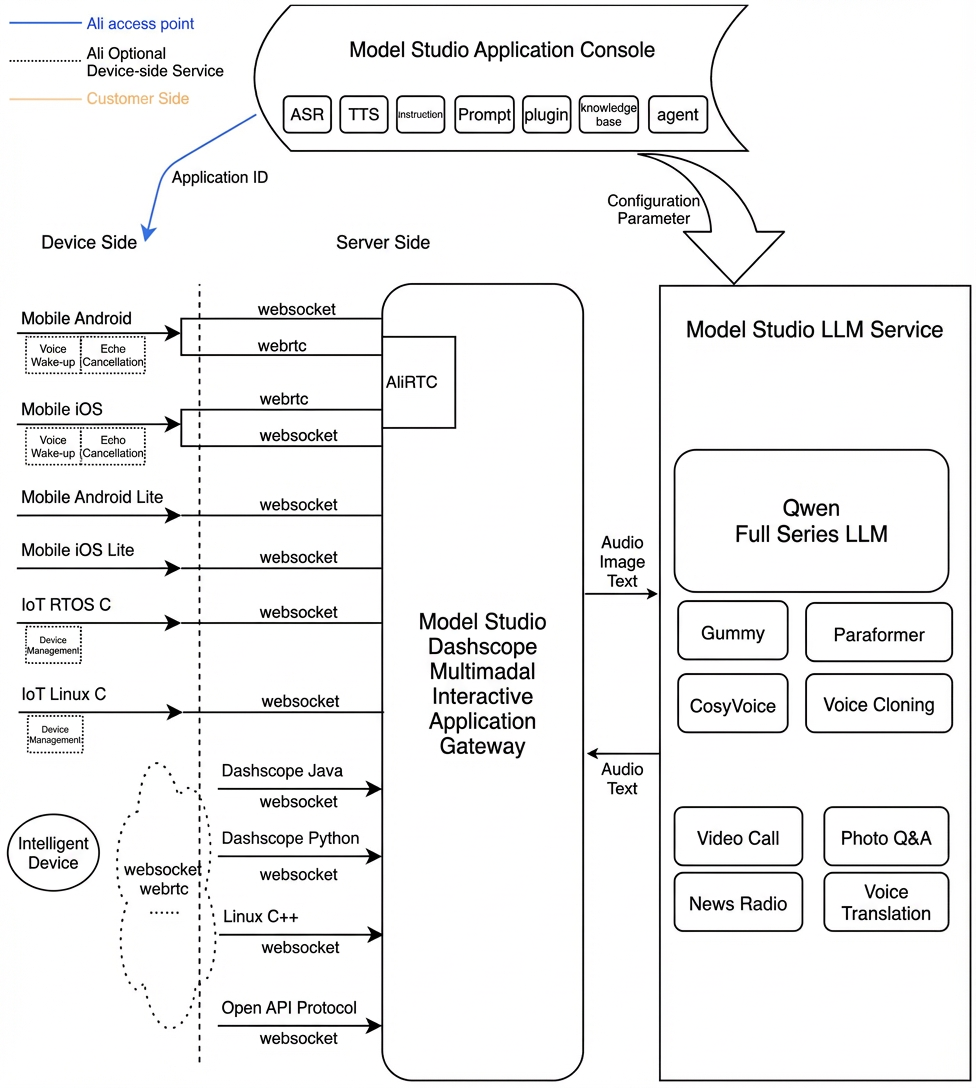
Real-time multimodal interaction service architecture
Prerequisites
You must activate the service and obtain the required parameters.
Enable an Alibaba Cloud Model Studio real-time multimodal interaction application to get your workspace ID, app ID, and API key.
Audio format specifications
The server-side connection type only supports the WebSocket protocol.
-
Audio format for WebSocket connections:
- Uplink: Supports Pulse-Code Modulation (PCM) (16 kHz sample rate, 16-bit, single-channel) and Opus audio streams.
- Downlink: Supports PCM and MP3 audio streams.
Environment dependencies
Runtime environment: Python 3.9 or later.
Installing dependencies:
Install the Dashscope dependency using pip. Version 1.24.2 or later is required.
dashscope>=1.24.2
For a complete example, see the sample code on GitHub.
API reference
dashscope.multimodal.MultiModalDialog
Service endpoint
Method description:1. MultiModalDialog
Creates an interaction and sets a callback.
"""
Creates a voice chat session.

This method initializes a new session and sets the necessary parameters to prepare for interaction with the model.
:param workspace_id: The workspace ID of the customer.
:param app_id: The ID of the application created by the customer in the console. This ID determines which dialog system to use.
:param request_params: The collection of request parameters.
:param url: (str) The URL of the API.
:param multimodal_callback: (MultimodalCallback) The callback object used to process messages from the server.
:param api_key: (str) The unique key for application access.
:param dialog_id: The dialog ID. If provided, the conversation continues from the existing context.
:param model: The model.
"""
def __init__(self,
                 workspace_id: str,
                 app_id: str,
                 request_params: RequestParameters,
                 multimodal_callback: MultiModalCallback,
                 url: str = None,
                 api_key: str = None,
                 dialog_id: str = None,
                 model: str = None
                 ):
2. start
Starts the voice_chat dialog service and triggers the on_started callback. The callback returns the dialog_id.
"""
Initializes the WebSocket connection and sends a start request.
:param dialog_id: The dialog ID, which identifies a specific dialog session.
"""
def start(self, dialog_id):
3. start_speech
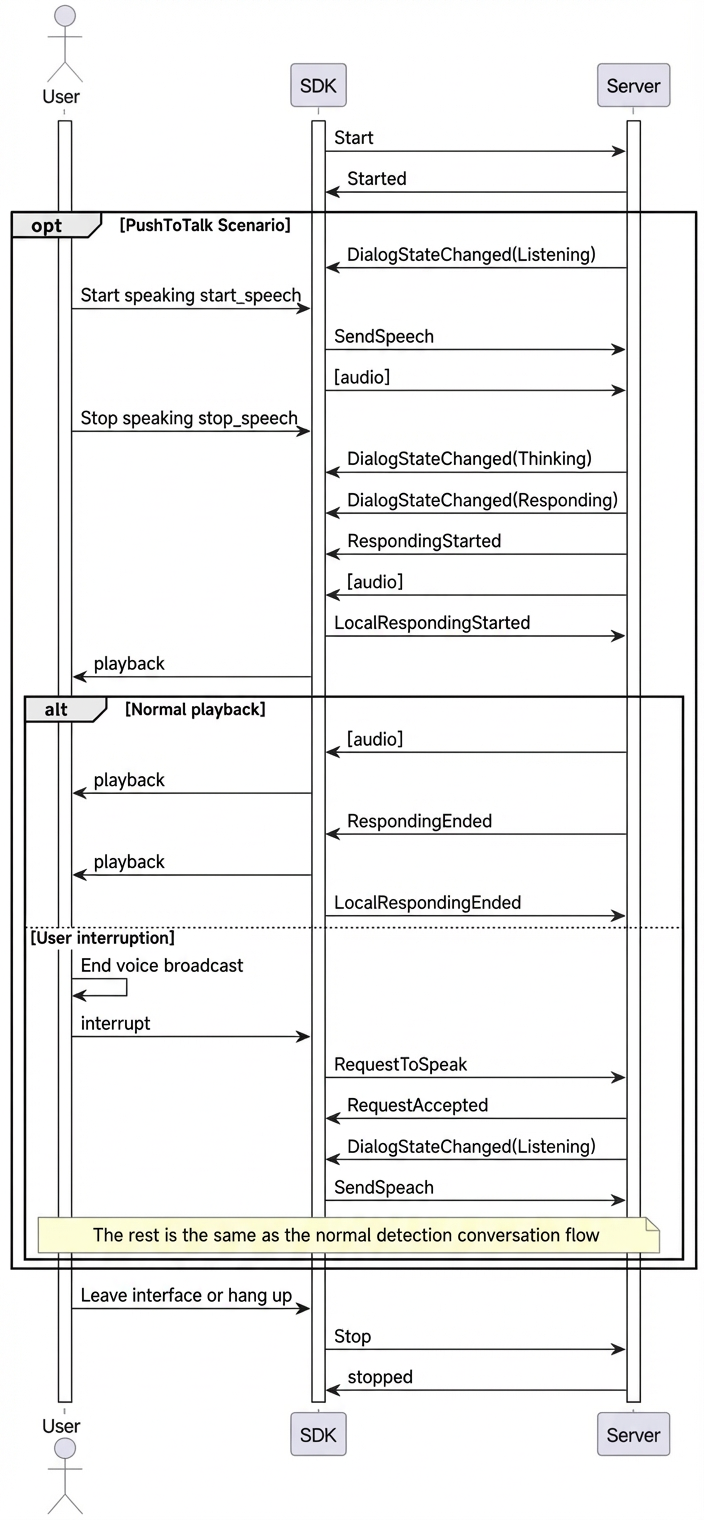
Notifies the server to start uploading audio. This method can only be called when the dialog state is LISTENING.
"""
Starts uploading speech data.
"""
def start_speech(self):
4. send_audio_data
Sends audio data to the server.
"""
Uploads speech data.
:param speechData: bytes The speech data.
"""
def send_audio_data(self, speechData):
5. stop_speech
Notifies the server to stop uploading audio.
"""
Stops uploading speech data.
"""
def stop_speech(self):
6. interrupt
Notifies the server that the client needs to interrupt the current interaction and start speaking.
"""
Ends the interaction and sends a RequestToSpeak to the server.
"""
def interrupt(self):
7. local_responding_started
Notifies the server that the client has started playing the text-to-speech (TTS) audio.
"""
Notifies the server that the client has started playing the TTS audio.
"""
def local_responding_started(self):
8. local_responding_ended
Notifies the server that the client has finished playing the TTS audio.
"""
Notifies the server that the client has finished playing the TTS audio.
"""
def local_responding_ended(self):
9. stop
Ends the current round of the voice_chat dialog.
"""
Ends the current round of the voice_chat dialog.
"""
def stop(self):
10. get_dialog_state
Retrieves the current state of the dialog service. The state is returned as a DialogState enumeration.
"""
:return: dialog_state.DialogState
"""
get_dialog_state(self)
11. request_to_respond
Requests the server to directly synthesize speech from text, or sends an instruction to the server.
def request_to_respond(self,
                       request_type: str,
                       text: str,
                       parameters: RequestToRespondParameters = None):
12. classMultiModalCallback
Callback function
class MultiModalCallback:
    """
    The callback class for voice chat, used to handle various events during the voice chat process.
    """

    def on_started(self, dialog_id: str) -> None:
        """
        Notifies that the dialog has started.

        :param dialog_id: The callback dialog ID.
        """
        pass

    def on_stopped(self) -> None:
        """
        Notifies that the dialog has stopped.
        """
        pass

    def on_state_changed(self, state: 'dialog_state.DialogState') -> None:
        """
        The dialog state has changed.

        :param state: The new dialog state.
        """
        pass

    def on_speech_audio_data(self, data: bytes) -> None:
        """
        Callback for synthesized audio data.

        :param data: The audio data.
        """
        pass

    def on_error(self, error) -> None:
        """
        This method is called when an error occurs.

        :param error: The error message.
        """
        pass

    def on_connected(self) -> None:
        """
        This method is called after a successful connection to the server.
        """
        pass

    def on_responding_started(self):
        """
        Callback for when the response starts.
        """
        pass

    def on_responding_ended(self):
        """
        The response has ended.
        """
        pass

    def on_speech_content(self, payload):
        """
        The speech recognition text.

        :param payload: text
        """
        pass

    def on_responding_content(self, payload):
        """
        The large model's response text.

        :param payload: text
        """
        pass

    def on_request_accepted(self):
        """
        The interruption request was accepted.
        """
        pass

    def on_close(self, close_status_code, close_msg):
        """
        This method is called when the connection is closed.

        :param close_status_code: The closing status code.
        :param close_msg: The closing message.
        """
        pass
Dialog states (DialogState)
The multimodal dialog service has three states: LISTENING, THINKING, and RESPONDING.
- LISTENING (str): The bot is listening for user input. During this state, you can send audio.
- THINKING (str): The bot is thinking.
- RESPONDING (str): The bot is generating or playing back a spoken response.
Usage notes
Parameter settings
You can set parameters for multimodal interaction using the RequestParameters class. This class includes multiple parameter segments, such as up_stream, down_stream, and client_info. The following table provides more details.
Level-1 parameter | Level-2 parameter | Level-3 parameter | Level-4 parameter | Type | Required | Description |
task_group | The name of the task group. Set to "aigc". | |||||
task | The name of the task. Set to "multimodal-generation". | |||||
function | The feature to call. Set to "generation". | |||||
model | The service name. Set to "multimodal-dialog". | |||||
input | workspace_id | string | Yes | The user's workspace ID. | ||
app_id | string | Yes | The ID of the application created by the customer in the console. This ID determines which dialog system to use. | |||
sandbox | boolean | No | Specifies whether to use the test configuration. Default is false. | |||
directive | string | Yes | The instruction name: Start. | |||
dialog_id | string | No | The dialog ID. If provided, the conversation continues. | |||
parameters | upstream | type | string | Yes | Uplink type:
| |
mode | string | No | The mode used by the client. Options:
Default is tap2talk. | |||
audio_format | string | No | The audio format. Supports pcm and opus. Default is pcm. | |||
downstream | voice | string | No | The voice for speech synthesis. | ||
sample_rate | int | No | The sample rate for speech synthesis. Default is 24000 Hz. | |||
intermediate_text | string | No | Controls which intermediate text is returned to the user:
You can set multiple types, separated by commas. Default is transcript. | |||
debug | boolean | No | Specifies whether to send debug information. Default is false. | |||
audio_format | string | No | The audio format. Supports pcm and mp3. Default is pcm. | |||
client_info | user_id | string | Yes | The end user ID, used for user-related processing. | ||
device | uuid | string | No | A globally unique ID for the client. You must generate this ID and pass it to the SDK. | ||
network | ip | string | No | The public IP address of the caller. | ||
location | latitude | string | No | The latitude information of the caller. | ||
longitude | string | No | The longitude information of the caller. | |||
city_name | string | No | The city where the caller is located. | |||
biz_params | user_defined_params | object | No | Other parameters to pass through to the agent. | ||
user_defined_tokens | object | No | Pass-through authentication information required by the agent. | |||
tool_prompts | object | No | Pass-through prompt required by the agent. | |||
user_query_params | object | No | Pass-through custom parameters for the user request. | |||
user_prompt_params | object | No | Pass-through custom parameters for the user prompt. |
Example
up_stream = Upstream(type="AudioOnly", mode="push2talk", audio_format="pcm")
# down_stream = Downstream(voice="longxiaochun_v2", sample_rate=16000)

client_info = ClientInfo(user_id="aabb", device=Device(uuid="1234567890"))
request_params = RequestParameters(upstream=up_stream,downstream=Downstream(sample_rate=48000), client_info=client_info)
Call interaction sequence diagram
More SDK interface usage instructions
VQA (Visual Q&A) interaction
Visual Q&A (VQA) is a feature that enables multimodal interaction by combining images and voice. This is accomplished by sending images during a conversation.
To trigger VQA, you can either provide voice input with an intent, such as "take a look at xxx", or enter a text request directly. The system then returns a Q&A result based on the image content.
-
To make a request using voice:
- The voice prompt is "See what's ahead."
- The callback function
on_responding_contentreturns the photo-taking intent "visual_qa". - After the client receives this intent, it calls the
request_to_respondmethod to submit the image content and trigger a Q&A response.
# callback visual_qa
def on_responding_content(self, payload: Dict[str, Any]):
        if payload:
            logger.debug(f"Response content: {payload}")
            try:
                commands_str = payload["output"]["extra_info"]["commands"]
                if "visual_qa" in commands_str:
                    if self.vqa_handler_func:
                        self.vqa_handler_func() #send_image_vqa
                    logger.debug("handle visual_qa command>>>>")
            except:
                return
...

# request VQA
def send_image_vqa(self):
    image1 = {"type": "base64",
         "value": CONST_TEST_IMAGE_BASE64}
    # Alternatively, call by sending a URL
    image2 = {"type": "url", "value": image_url}

    images = [image1]
    images_params = RequestToRespondParameters(images=images)

    # To call VQA using voice, pass "" for text
    self.conversation.request_to_respond("prompt", "", parameters=images_params)
-
To make a request directly using text:
- The client directly calls the
request_to_respondmethod to submit the image content and a text query, which triggers a Q&A response.
- The client directly calls the
image1 = {"type": "base64",
         "value": CONST_TEST_IMAGE_BASE64}
# Alternatively, call by sending a URL
image2 = {"type": "url", "value": image_url}

images = [image1]
images_params = RequestToRespondParameters(images=images)

# To request an image response directly with text, fill in the text request
self.conversation.request_to_respond("prompt", "What is in this picture?", parameters=images_params)
Note: VQA supports sending image links or Base64-encoded data. The image size must be less than 180 KB.
Requesting LiveAI (video call) over WebSocket
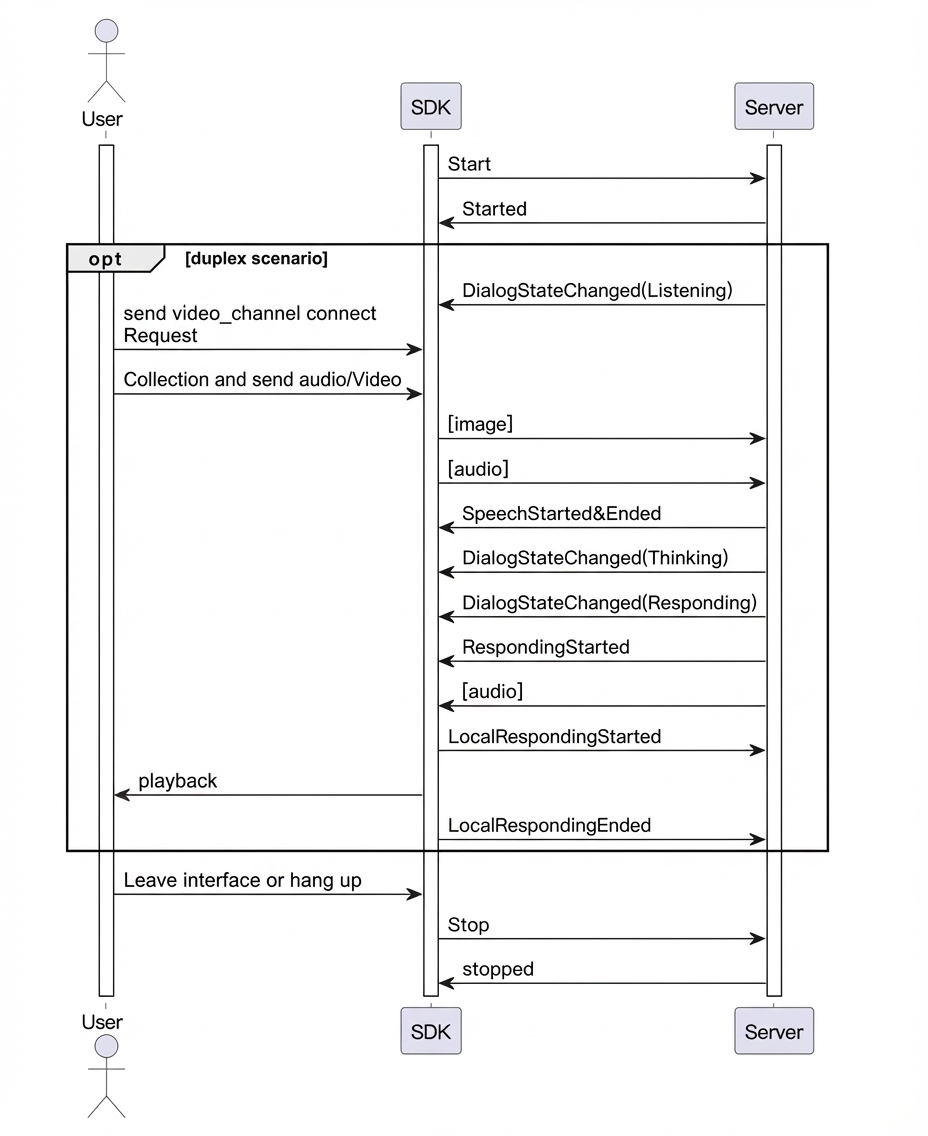
LiveAI (video call) is an official agent from Model Studio for multimodal interaction. You can implement the video call feature by sending an image sequence through the Python SDK. To do this, use Real-Time Communication (RTC) on your server and client (web or app) to transmit video and audio. Then, send the video frames captured by the server to the SDK at a rate of one frame every 500 ms, while simultaneously providing real-time audio input.
Note: LiveAI only supports sending Base64-encoded images. The size of each image must be less than 180 KB.
- LiveAI call sequence
- Key code example
For the complete code, see the sample code on GitHub.
# 1. Set the request mode to AudioAndVideo
up_stream = Upstream(type="AudioAndVideo", mode="duplex", audio_format="pcm")
...

# 2. Send a request to connect to the video chat agent
# {"action":"connect", "type":"voicechat_video_channel"}
def send_connect_video_command(self):
    """Sends the instruction to switch to video mode"""
    logger.info("Sending connect video command")
    try:
        video_connect_command = [{"action":"connect", "type":"voicechat_video_channel"}]

        self.conversation.request_to_respond("prompt","", RequestToRespondParameters(biz_params=BizParams(videos=video_connect_command)))
        # Mark video mode as activated
        self.video_mode_active = True
        logger.info("Video mode activated")

    except Exception as e:
        logger.error(f"Failed to send connect video command: {e}")

 # 3. Send a video frame image (under 180 KB) every 500 ms
 def send_video_frame_data_loop(self):
    """Sends video frame data in a loop"""
    logger.info("Starting video frame data loop")
    self.video_thread_running = True

    # Get sample image data
    image_data = self._get_sample_images()

    try:
        while self.video_thread_running and self.video_mode_active:
            # Send image data
            self._send_video_frame(image_data)
            logger.debug(f"Sent video frame, sleeping for {VIDEO_FRAME_INTERVAL}s")

            # Wait for 500 ms
            time.sleep(VIDEO_FRAME_INTERVAL)
...
# Other call processes are omitted. See the complete example for details.
Text-to-speech (TTS) synthesis
The SDK lets you directly request the server to synthesize audio from text.
You can send the request_to_respond request when the client is in the Listening state.
If the current state is not Listening, you must first call the interrupt method to stop the current playback.
conversation.request_to_respond("transcript", "The weather is nice today", parameters=None)
Custom prompt variables and value passing
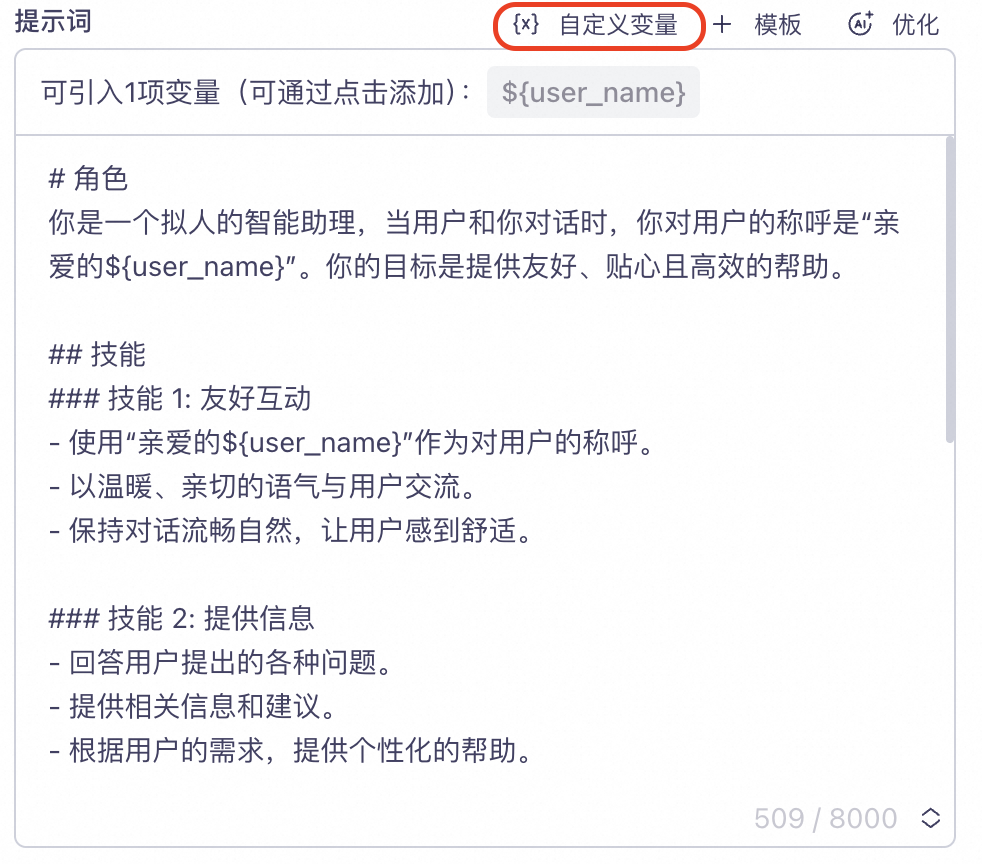
- You can configure custom variables in the Prompts section of the project console.
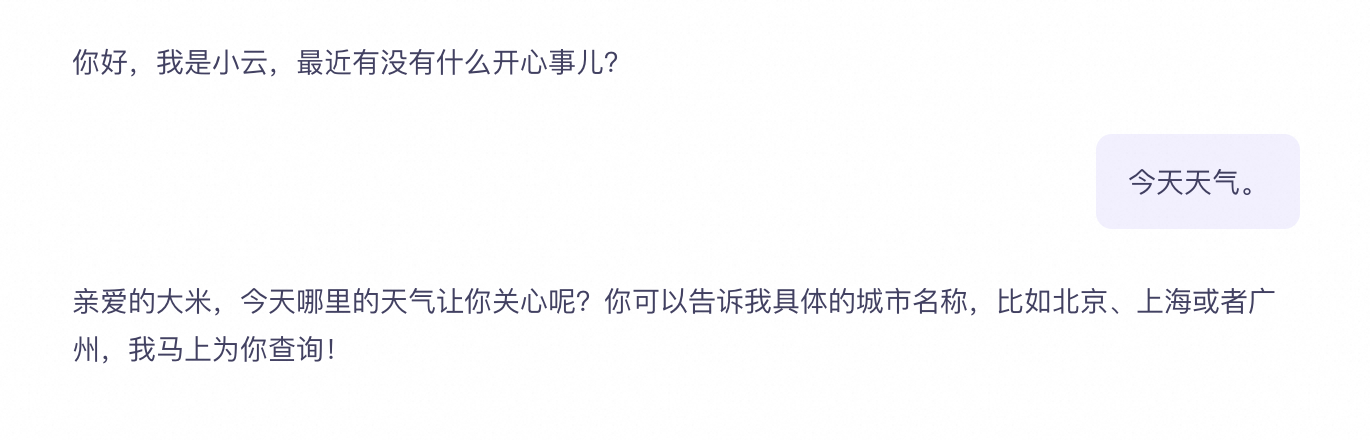
As shown in the following example, a user_name field is defined for the user's nickname. The variable user_name is then used in the prompt as the placeholder ${user_name}.
- You can set the variable in your code.
The following example sets user_name to Dami.
# Pass biz_params.user_prompt_params during request parameter construction
biz_params = BizParams(user_prompt_params={"user_name": "Dami"})
request_params = RequestParameters(upstream=up_stream, downstream=down_stream,
                                           client_info=client_info, biz_params=biz_params)
- Example response
Requesting dialog results using text
The SDK lets you send a text input and directly request the server to return Large Language Model (LLM) results and speech synthesis data.
You can send the request_to_respond request when the client is in the Listening state.
conversation.request_to_respond("prompt", "The weather is nice today", parameters=None)
More examples
For more examples, see the sample code on GitHub.