Use resource groups for fine-grained resource control
Using resource groups to organize your resources lets you integrate with RAM for resource isolation and fine-grained permission management within a single Alibaba Cloud account. This topic describes how ApsaraDB for MongoDB supports resource groups and provides instructions on how to grant permissions at the resource group level.
-
Resource group-level permissions apply only to resource types that support resource groups and Actions that support resource groups.
-
Permissions granted at the resource group scope do not apply to resource types that do not support resource groups. For these types, you must grant permissions at the account level. For more information, see Actions that do not support resource group-level permissions.
How resource group-based authorization works
You can use resource groups to organize and manage resources within your Alibaba Cloud account. For example, you can create a dedicated resource group for each project and move the project's resources into the group for centralized management. For more information, see What is a resource group?.
After grouping your resources, you can grant permissions to different RAM principals (such as RAM users, RAM user groups, or RAM roles) at the resource group scope. This ensures that a principal can only manage resources within the specified resource group. For more information, see Resource grouping and authorization.
This authorization method offers the following benefits:
-
Granular permissions: You can ensure that each identity has precisely the resource access it needs, preventing the mixed management of resources across multiple projects within an account.
-
Scalability: When you add new resources, simply assign them to the appropriate resource group. The RAM identity automatically gains the necessary permissions for the new resources, eliminating the need to grant permissions again.
Grant resource group-level permissions
This section shows how to grant a RAM user permissions on ApsaraDB for MongoDB resources within a specific resource group.
Prerequisites
-
Create a RAM user. For more information, see Create a RAM user.
-
Create a resource group and move your existing resources to it. For more information, see Create a resource group, Automatically transfer resources to a resource group, and Manually transfer resources to a resource group.
Grant permissions at the resource group level
You can grant resource group-level permissions by using one of the following methods.
Resource Management console
Use the permission management feature of a resource group to grant permissions to a RAM user. For detailed instructions, see Grant a RAM identity permissions within a resource group scope.
-
Log on to the Resource Management console.
-
On the Resource Groups page, find the target resource group and click Permissions in the Actions column.
-
On the Permissions tab, click Grant Permission.
-
In the Grant Permission panel, configure the principal and permission policy.
-
Principal: Select an existing RAM user.
-
Permission policy: Select a system policy or a custom policy. For more information, see Create a custom permission policy.
-
-
Click OK.
RAM console
Grant resource group-level permissions to a RAM user in the RAM console. For detailed instructions, see Manage RAM user permissions.
-
Log on to the RAM console by using your Alibaba Cloud account or a RAM user with administrative rights.
-
In the left-side navigation pane, choose . On the Users page, find the target RAM user and click Grant Permission in the Actions column.
-
In the Grant Permission panel, grant permissions to the RAM user.
-
Resource scope: Select Specific Resource Groups.
-
Principal: Select an existing RAM user or the RAM user created in the prerequisite steps.
-
Permission policy: Select a system policy or a custom policy. For more information, see Create a custom permission policy.
-
-
Click OK.
Resource types that support resource groups
The following table lists the ApsaraDB for MongoDB resource type that supports resource groups.
|
Cloud service |
Cloud service code |
Resource type |
|
ApsaraDB for MongoDB |
dds |
dbinstance: instance |
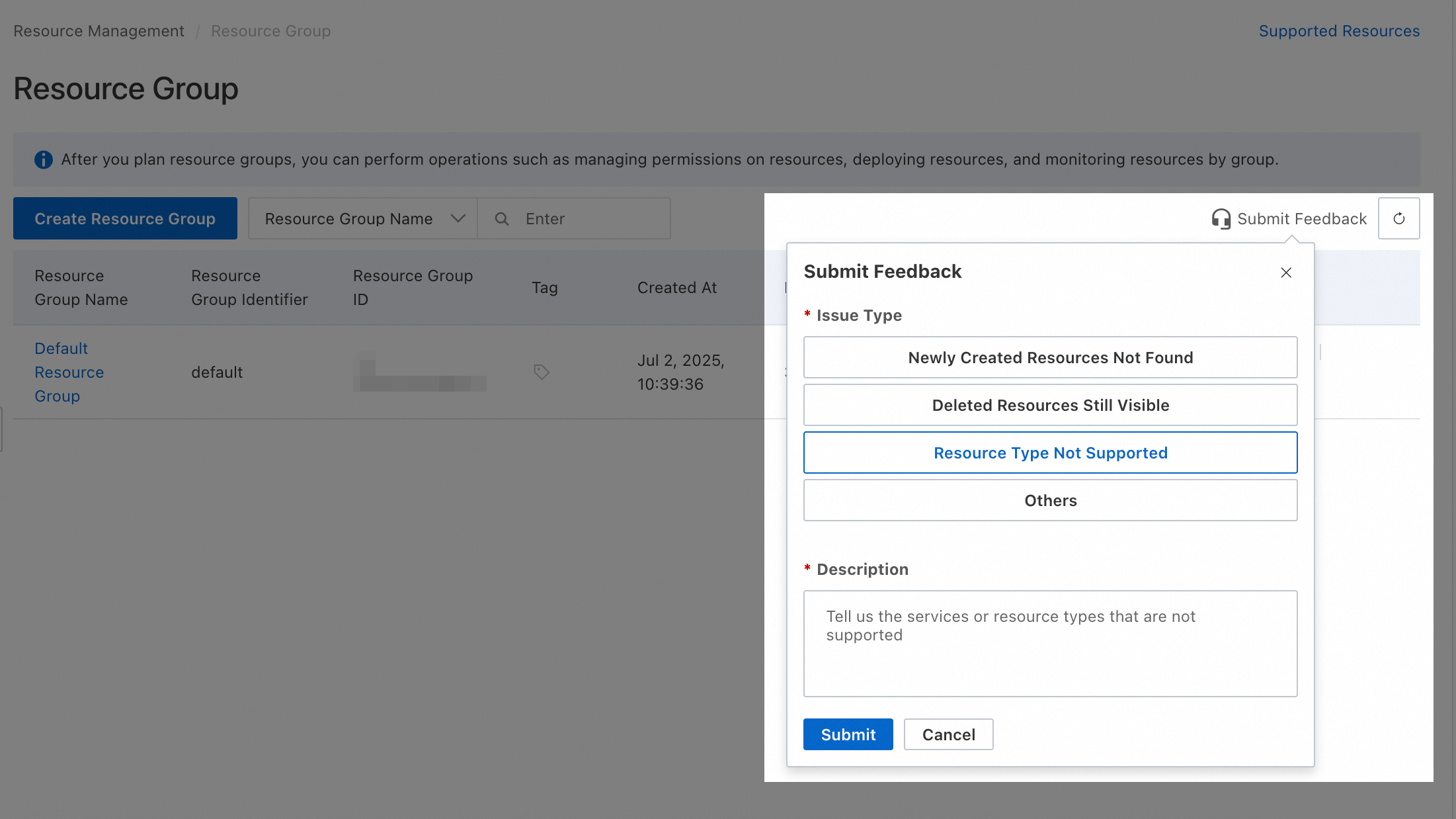
If a resource type you need does not yet support resource groups, you can submit feedback in the Resource Management console.
Actions without resource group permissions
The following ApsaraDB for MongoDB Actions do not support resource group-level permissions:
|
Action |
Description |
|
dds:CancelActiveOperationTasks |
Cancels O&M events in bulk. |
|
dds:CheckServiceLinkedRole |
Checks if a service-linked role (SLR) exists. |
|
dds:DescribeActiveOperationMaintenanceConfig |
Queries the O&M task configuration of an ApsaraDB for MongoDB instance. |
|
dds:DescribeActiveOperationTask |
Queries the details of an O&M task. |
|
dds:DescribeActiveOperationTaskRegion |
Queries the O&M task types and the number of tasks for an ApsaraDB for MongoDB instance. |
|
dds:DescribeAvailableZones |
- |
|
dds:DescribeDBInstanceByConnectionStringForInner |
- |
|
dds:DescribeDBInstanceSpecInfo |
Queries the details of instance specifications. |
|
dds:DescribeDetachedInstances |
- |
|
dds:DescribeEventMetaInfo |
- |
|
dds:DescribeHistoryEventsStat |
- |
|
dds:DescribeKmsKeys |
Queries the Key Management Service (KMS) keys available for disk encryption. |
|
dds:DescribeResourceQuota |
- |
|
dds:DescribeUserEventConfig |
- |
|
dds:InitializeDdsPermission |
- |
|
dds:ModifyActiveOperationMaintenanceConfig |
- |
|
dds:ModifyActiveOperationTask |
- |
|
dds:ModifyEventInfo |
- |
|
dds:ModifyTaskInfo |
Modifies the information of a task in the task center. |
|
dds:ModifyUserEventConfig |
- |
The Specific Resource Groups scope is not effective for Actions that do not support resource group-level permissions. To grant these permissions to a RAM user, create a custom policy and set the resource scope to Account Level.
 The following examples show two custom permission policies. You can modify the policies to suit your requirements.
-
Allows all read-only operations that do not support resource group-level authorization: The
Actionelement lists all read-only operations that do not support resource group-level authorization.{ "Version": "1", "Statement": [ { "Effect": "Allow", "Action": [ "dds:DescribeActiveOperationMaintenanceConfig", "dds:DescribeActiveOperationTask", "dds:DescribeActiveOperationTaskRegion", "dds:DescribeAvailableZones", "dds:DescribeDBInstanceByConnectionStringForInner", "dds:DescribeDBInstanceSpecInfo", "dds:DescribeDetachedInstances", "dds:DescribeEventMetaInfo", "dds:DescribeHistoryEventsStat", "dds:DescribeKmsKeys", "dds:DescribeResourceQuota", "dds:DescribeUserEventConfig" ], "Resource": "*" } ] } -
Allow all actions that do not support resource group-level authorization: The
Actionelement lists all actions that do not support resource group-level authorization.{ "Version": "1", "Statement": [ { "Effect": "Allow", "Action": [ "dds:CancelActiveOperationTasks", "dds:CheckServiceLinkedRole", "dds:DescribeActiveOperationMaintenanceConfig", "dds:DescribeActiveOperationTask", "dds:DescribeActiveOperationTaskRegion", "dds:DescribeAvailableZones", "dds:DescribeDBInstanceByConnectionStringForInner", "dds:DescribeDBInstanceSpecInfo", "dds:DescribeDetachedInstances", "dds:DescribeEventMetaInfo", "dds:DescribeHistoryEventsStat", "dds:DescribeKmsKeys", "dds:DescribeResourceQuota", "dds:DescribeUserEventConfig", "dds:InitializeDdsPermission", "dds:ModifyActiveOperationMaintenanceConfig", "dds:ModifyActiveOperationTask", "dds:ModifyEventInfo", "dds:ModifyTaskInfo", "dds:ModifyUserEventConfig" ], "Resource": "*" } ] }
A RAM user or RAM role with account-level permissions can operate on all resources within the account. Always follow the principle of least privilege and grant permissions cautiously to meet your security requirements.
FAQ
How to find a resource's resource group?
-
Method 1: Click the resource name to go to its details page. The resource group is listed on this page.
-
Method 2: Log on to the Resource Management console and choose . In the left-side pane, select the account to which the resource belongs (the default is Current Account). Use the filter criteria to locate the target resource and view its resource group.
View product resources in a resource group
-
Method 1: Log on to the Resource Management console and choose . In the left-side pane under the account to which the resource belongs (the default is Current Account), click the name of the target resource group. Then, select the product from the Select Resource Type list on the right side. This action lists all resources of the selected product in the specified resource group.
-
Method 2: Log on to the Resource Management console and choose . Find the target resource group and click Manage Resources in the Actions column. On the Manage Resources page, select the product from the Product drop-down list. This action lists all resources of the selected product in the specified resource group.
Bulk-move resources to a different resource group
Log on to the Resource Management console and choose . Find the target resource group and click Manage Resources in the Actions column. On the Manage Resources page, use the filter criteria to locate the target resources. Select the checkboxes for the resources you want to move, and then click Transfer Resources at the bottom of the page. Follow the prompts to complete the transfer.