Video snapshot
A video snapshot is an image captured from a video at a specified time and in specified dimensions. Snapshots are used to create assets such as video covers, sprites, and thumbnails for player progress bars. This topic describes how to submit a snapshot job in ApsaraVideo Media Processing (MPS).
Overview
Use cases
-
Video covers: Select the first frame of a short video in a feed as its cover, or capture a frame at a specific time point to use as the cover.
-
Video previews: Create thumbnails from your video content. When a user hovers over the player's timeline, the player displays a static thumbnail from that time point. This helps users quickly browse the video content and jump to sections of interest.
-
Video moderation: Sample video content by taking snapshots for manual or automated review.
Features
Feature | Description | Related API parameters | Console operation |
Static snapshot | Takes JPG snapshots of a specified size at specified time points in a video. The following sampling methods are available:
| SnapshotConfig | Supported |
Sprite snapshot | Stitches static snapshots into a single large image (sprite) based on layout rules. Output is in JPG format. Supports only asynchronous calls. A single sprite request retrieves multiple images, reducing request count and improving client performance. | TileOut, TileOutputFile | Not supported |
WebVTT snapshot | Generates a VTT file for static snapshots or a sprite, containing timestamps, file URLs, and coordinate information. To display an image, retrieve and parse the VTT file first. Useful for player progress bar thumbnails. | SubOut | Supported |
Keyframe snapshot | This feature takes snapshots only at keyframes. If a specified time point is not a keyframe, the service uses the nearest keyframe instead. | FrameType | Supported |
First-frame black screen detection | You can enable black screen detection for the first frame (time=0). A black screen is defined by the percentage of black pixels and a color value threshold. The service scans the first 5 seconds: if a non-black frame is found, it is captured. Otherwise, a single-snapshot job fails; a multi-snapshot job captures the first black frame. | BlackLevel, PixelBlackThreshold | Supported |
Billing
You are charged for API calls based on the number of snapshots generated. For more information, see Pricing for API calls.
Submit snapshot jobs in the console
In the MPS console, you can submit snapshot jobs only by using a workflow.
Log on to the MPS console.
In the top navigation bar, select a region from the drop-down list.

-
In the left-side navigation pane, choose .
-
Click Create Workflow.
-
Configure the Input node as required.
-
Add a Snapshot node. Click the + icon to the right of the Input node and select Snapshot from the drop-down menu.
-
Click the pen icon to the right of the Snapshot node to configure its parameters.
Parameter
Required
Description
Snapshot Mode
Yes
-
Single: Captures a single frame at a specific time.
-
Multiple: Captures frames at a set interval.
-
Average: Captures a specified number of frames, evenly spaced throughout the video.
Snapshot interval (seconds)
Required for 'Multiple' mode
Enter the interval between snapshots in seconds.
Snapshots
Required for 'Average' mode
Enter the number of snapshots.
Note-
If this parameter is not set, snapshots are taken at the specified interval until the end of the video.
-
If the number of snapshots is greater than 1, snapshots are taken at the specified interval until the specified number of images is reached.
-
If only the number of snapshots is set, snapshots are taken at an interval of Total Duration / Number of Snapshots.
Name
Yes
Enter a name for this node.
Output Path
Yes
Click Select. From the Bucket drop-down list, select a bucket. The Path section shows the folders that are created in the bucket. Select a folder as the output path.
Note-
Single snapshot path format:
http://bucket.oss-cn-hangzhou.aliyuncs.com/path/{RunId}/{SnapshotTime}.jpg. -
Multiple or Average snapshot path format: Requires the {Count} placeholder. The path must end with
/{RunId}/{SnapshotTime}/{Count}.jpg.
Start Time
No
Select the time from the drop-down lists for hour, minute, and second.
Width x Height
No
Enter the width and height values in their respective input boxes.
Note-
If you leave both width and height blank, the snapshot resolution matches the source video.
-
If you set only the width or height, the other dimension is scaled automatically to maintain the original aspect ratio.
Generate WebVTT Index File
Optional for Multiple and Average modes
Enable this option to generate a WebVTT index file.
Set as Thumbnail
No
Enable this to set the captured image as the cover for the media asset in the library. If multiple snapshots are taken, the first snapshot is set as the cover by default.
Keyframe
No
Enable this to ensure snapshots are taken only on keyframes. If a specified time point is not a keyframe, the nearest one is used instead.
Black Screen Detection
Optional for Multiple and Average modes
Enable this to detect and skip black frames at the start of the video. If a non-black frame is detected within the first five seconds, MPS captures the first non-black frame.
-
-
Click OK to finish configuring the snapshot node.
-
Click Save to complete the workflow configuration.
NoteAfter the workflow is created, it triggers automatically when a new file that meets the input criteria is uploaded to the specified path. For more information about how to trigger a workflow, see Trigger a workflow.
Submit snapshot jobs by API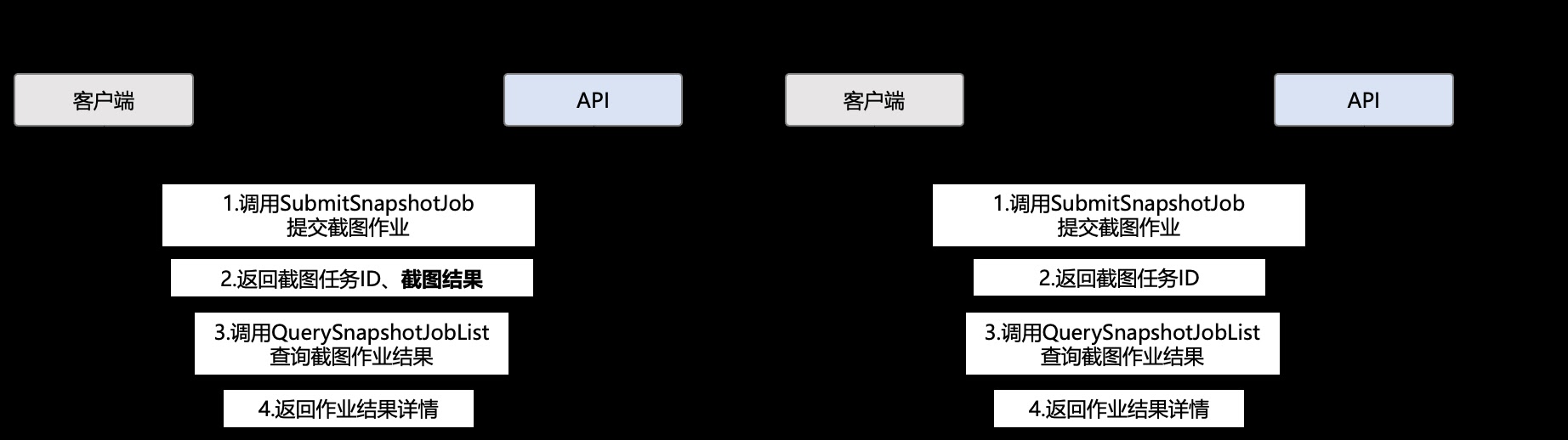
-
Upload a video to OSS.
-
Submit a snapshot job. Call the SubmitSnapshotJob API and configure the SnapshotConfig parameter to submit jobs for synchronous single snapshot, asynchronous single snapshot, sprites, or WebVTT snapshots. The following sections show examples of the SnapshotConfig parameter structure. For more information, see Parameter details.
Synchronous single snapshot
// Capture one keyframe at 100 ms into the video. The output image width is 1280 px, and the height is adaptive. The image is saved in JPG format.
// Synchronous mode does not support the Num or Interval parameters, nor does it support sprite or WebVTT output.
{
  "Time":"100",
  "FrameType":"intra",
  "Width":"1280",
  "OutputFile":{
  	"Bucket":"example-bucket",
  	"Location":"oss-cn-hangzhou",
  	"Object":"example.jpg"
	}
}
Asynchronous single snapshot
// Capture one keyframe at the beginning of the video, with first-frame black screen detection enabled. The output image has the same dimensions as the source video and is saved in JPG format.
{
  "Num":"1",
  "Time":"0",
  "FrameType":"intra",
  "BlackLevel":"100",
  "PixelBlackThreshold":"30",
  "OutputFile":{
  	"Bucket":"example-bucket",
  	"Location":"oss-cn-hangzhou",
  	"Object":"example.jpg"
	}
}
Sampled snapshot
// Starting from the beginning of the video, capture one normal frame every 10 seconds for a maximum of 200 frames or until the video ends.
// First-frame black screen detection is enabled. The output images have the same dimensions as the source video and are saved as example{Count}.jpg.
{
  "Num":"200",
  "Time":"0",
  "Interval":"10",
  "FrameType":"normal",
  "BlackLevel":"100",
  "PixelBlackThreshold":"30",
  // To prevent files from being overwritten, you must use the {Count} placeholder in the OutputFile object for multiple snapshots.
  "OutputFile":{
  	"Bucket":"example-bucket",
  	"Location":"oss-cn-hangzhou",
  	"Object":"example{Count}.jpg"
	}
}
Evenly-spaced snapshot
// Capture 200 normal frames, spaced evenly, from 100 ms to the end of the video. The output images are 1280 px wide and 720 px high. The images are saved as example{Count}.jpg.
{
  "Num":"200",
  "Time":"100",
  "Interval":"0",
  "FrameType":"normal",
  "Width":"1280",
  "Height":"720",
  // To prevent files from being overwritten, you must use the {Count} placeholder in the OutputFile object for multiple snapshots.
  "OutputFile":{
  	"Bucket":"example-bucket",
  	"Location":"oss-cn-hangzhou",
  	"Object":"example{Count}.jpg"
	}
}
Sprite
// Capture 200 normal frames, spaced evenly, from 100 ms to the end of the video. The output images are 1280 px wide and 720 px high.
// The small images are stitched into a sprite with a 10x10 layout. The sprite is saved in example-bucket002, and the individual small images are saved in example-bucket001.
{
  "Num":"200",
  "Time":"100",
  "Interval":"0",
  "FrameType":"normal",
  "Width":"1280",
  "Height":"720",
  // To prevent files from being overwritten, you must use the {Count} placeholder in the OutputFile object for multiple snapshots.
  "OutputFile":{
 		"Bucket":"example-bucket001",
	  "Location":"oss-cn-hangzhou",
	  "Object":"example{Count}.jpg"
	},
  "TileOut":{
    "Lines":10,
    "Columns":10,
    "Padding":"2",
    "Margin":"4",
    "Color":"black",
    "IsKeepCellPic":"true"
  },
  // To prevent files from being overwritten, set OutputFile and TileOutputFile to different buckets or object paths. You must also use the {TileCount} placeholder in the TileOutputFile object for the sprite.
  "TileOutputFile":{
  	"Bucket":"example-bucket002",
  	"Location":"oss-cn-hangzhou",
  	"Object":"example{TileCount}.jpg"
	}
}
WebVTT snapshot
// Capture 200 normal frames, spaced evenly, from 100 ms to the end of the video. The output images are 1280 px wide and 720 px high. A VTT file is generated. { "Num":"200", "Time":"100", "Interval":"0", "FrameType":"normal", "Width":"1280", "Height":"720", // To output a VTT file, the Object must have a .vtt extension. The corresponding image path is example/snapshot-tile-{Count}.jpg. "OutputFile": { "Bucket":"example-bucket", "Location":"oss-cn-hangzhou", "Object":"example.vtt" }, "Format":"vtt", "SubOut":{ "IsSptFrag":"true" } } -
For a synchronous single snapshot job, the API returns the result directly in its response. For asynchronous jobs, you must configure message notifications or proactively query the results.
NoteIf the input file is too large, the job may time out and fail. We recommend implementing a retry mechanism.
-
(Recommended) Receive callback notifications.
After an asynchronous job is completed, if message notifications are configured, the system sends a message to the specified queue or topic in Simple Message Queue (formerly MNS). For more information, see Receive message notifications.
-
Query the job results.
Call the QuerySnapshotJobList API to query the results of one or more snapshot jobs by specifying their IDs. Alternatively, you can perform a paged query by filtering jobs based on status, creation time, or the MPS queue, without specifying job IDs.
Submit snapshot jobs by SDK
|
SDK |
Guides |
|
Java SDK |
|
|
Python SDK |
|
|
PHP SDK |
|
|
PHP SDK (new version) |
|
|
Node.js SDK |
|
|
Go SDK |
FAQ
For frequently asked questions about snapshots, see Snapshot FAQ.