Video watermarks (visible watermarks)
Adding a visible watermark, such as a company logo or a TV station icon, to your videos helps enhance brand presence, protect copyrights, and increase product recognition. ApsaraVideo Media Processing (MPS) supports three types of watermarks: image watermark, animated watermark, and text watermark. You can select a type based on your business requirements. This topic describes the features and usage of visible watermarks.
Overview
Use cases
-
Short video platforms: To protect copyrights, videos that are downloaded and shared often include an image watermark (product logo) and a text watermark (user ID).
-
Online video services: Brand logos are typically added to videos during playback to claim copyright ownership. In entertainment shows, stickers are also used as watermarks to make content more engaging or to display advertisements.
Features
|
Type |
Description |
API parameters |
Console support |
|
Image watermark and animated watermark |
|
WaterMarks |
Supported |
|
Text watermark |
|
WaterMarks |
Not supported |
Add an image watermark in the console
The MPS console supports adding image watermarks, which include static and animated formats. To add a text watermark, use the API.
Add an image watermark during job submission
-
Create a watermark template in the console. For more information, see Watermark templates.
-
Create a transcoding job in the console. For more information, see Create a regular transcoding job. To configure watermark settings, follow these steps:
-
Turn on the Watermark template switch.
-
From the Watermark template drop-down list, select the watermark template that you created in step 1.
-
Next to Watermark Image, click Select. From the Bucket drop-down list, select a bucket. The folders in the bucket are displayed under Path. Select an image file to use as the watermark.
NoteSupported formats for image watermarks include static PNG images (.png), APNG images (.apng), MOV files (.mov), and GIF files (.gif).
-
Add an image watermark by workflow
-
Create a watermark template in the console. For more information, see Watermark templates.
-
Create a workflow in the console. For more information, see Create a workflow. To configure watermark settings, follow these steps:
NoteBoth transcoding workflows and packaging workflows support adding image watermarks. This section uses a packaging workflow as an example. The procedure is the same for a transcoding workflow.
-
In the workflow topology, click the
 icon on the Video Extraction node.
 -
Configure the Name and Transcoding Template parameters as needed.
-
Turn on the Watermark template switch.
-
From the Watermark template drop-down list, select the watermark template that you created in step 1.
-
Next to Watermark Image, click Select. From the Bucket drop-down list, select a bucket. The folders in the bucket are displayed under Path. Select an image file to use as the watermark.
NoteImage watermarks support PNG images, APNG images, MOV files, and GIF files.
-
Add watermarks by API
Add an image watermark during job submission
When you submit a transcoding job, specify the WaterMark parameter to add a watermark. You can use a watermark template for image watermarks.
-
Type
Set this parameter to
Imageto add an image watermark or an animated watermark. -
InputFile
Specify the OSS object URL of the image or animated watermark. Supported formats include static PNG (.png), APNG (.apng), MOV (.mov), and GIF (.gif).
-
WaterMarkTemplateId
-
A watermark template contains all watermark parameters but does not include the asset file.
-
You can create a watermark template in the console or by calling an API operation. For more information, see Watermark templates.
NoteIf you do not specify a template, the default parameters are used. Parameters specified in the
WaterMarkobject override the corresponding parameters in the watermark template. -
-
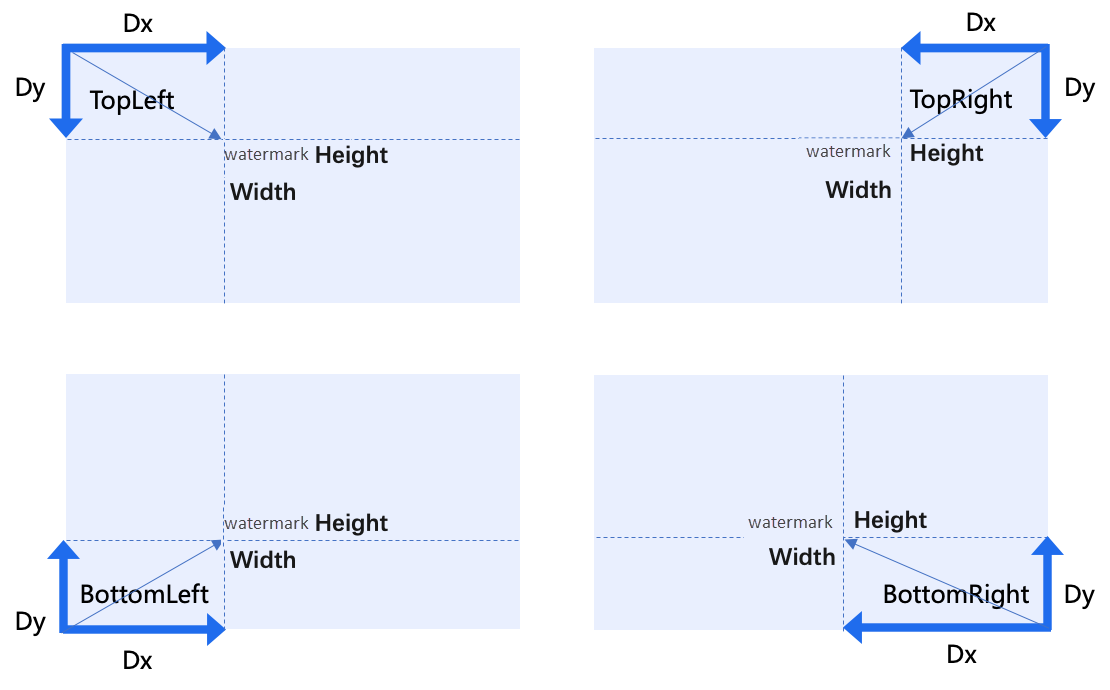
ReferPos, Dx, and Dy
Use
ReferPosto set the reference position of the watermark, such asTopLeft,BottomLeft,TopRight, orBottomRight.Then, use
DxandDyto specify the horizontal and vertical offsets from the reference position. You can set the values in absolute pixels or as a ratio of the output video's resolution. -
Width and Height
You can set the values in absolute pixels or as a ratio of the output video's resolution.
-
Timeline
Set the start time and duration for the watermark.
Add a text watermark during job submission
When you submit a transcoding job, specify the WaterMark parameter to add a watermark. You cannot use a watermark template to add a text watermark. You must specify the watermark parameters directly:
-
Type
Set this parameter to
Textto add a text watermark. -
TextWaterMark
-
Content: Use the
Contentparameter. Emojis and line breaks are not supported. Text that is too long is truncated. -
Font style: Use the
FontName,FontSize,FontColor,FontAlpha,BorderWidth, andBorderColorparameters to set the font, size, color, and other styles. -
Position: Use the
TopandLeftparameters to set the offset in absolute pixels from the top-left corner of the output video.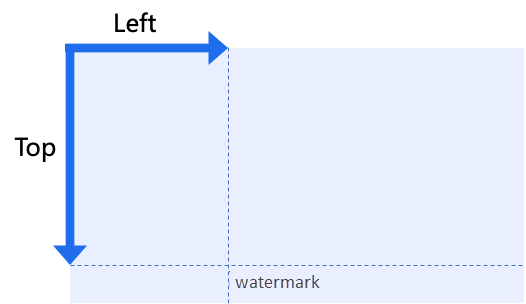
-
Example:
{"Content":"5rWL6K+V5paH5a2X5******","FontName":"SimSun","FontSize":"16","Top":2,"Left":10}
-
Sample code
This example shows how to add three watermarks when transcoding a video into a 720P (1280×720) MP4 file. The parameters for each watermark are explicitly specified, overriding any template settings:
-
Image watermark
An image watermark appears in the top-right corner. Its width is 5% of the output video's width, and its height scales automatically to maintain the aspect ratio.
-
Text watermark
A text watermark with the content Test text watermark appears in the top-left corner. The font is SimSun, the size is 16, the color is red, and the opacity is 50%.
-
Animated watermark
An animated watermark from a MOV file appears in the bottom-left corner. Its height is 240 pixels, and its width scales automatically to maintain the aspect ratio.
Sample code is available for the following SDKs: