End-to-end canary release with a cloud native API gateway
In a microservice architecture, calls between applications are random. When you deploy a new version of a Spring Cloud or Dubbo application, user traffic may be routed to either the baseline version or the canary version. To verify new versions quickly and safely, you need to implement an end-to-end canary release to control the risks and blast radius of a new software release. With the end-to-end canary release capability provided by MSE, you can implement end-to-end traffic control without modifying your business code. A lane isolates related versions of applications into an independent runtime environment. By setting lane rules, you can route requests that meet specific criteria to the target versions of applications. This topic describes how to configure a Cloud Native API Gateway to implement an end-to-end canary release.
End-to-end canary release workflow

Limitations
For more information about the limitations on Java applications for the end-to-end canary release capability, see Java frameworks supported by MSE microservices governance.
To use the end-to-end canary release capability, your Cloud Native API Gateway must be version 2.0.1 or later.
An end-to-end canary release using a Cloud Native API Gateway is supported only in certain available regions. For more information, see Available regions.
Scenario
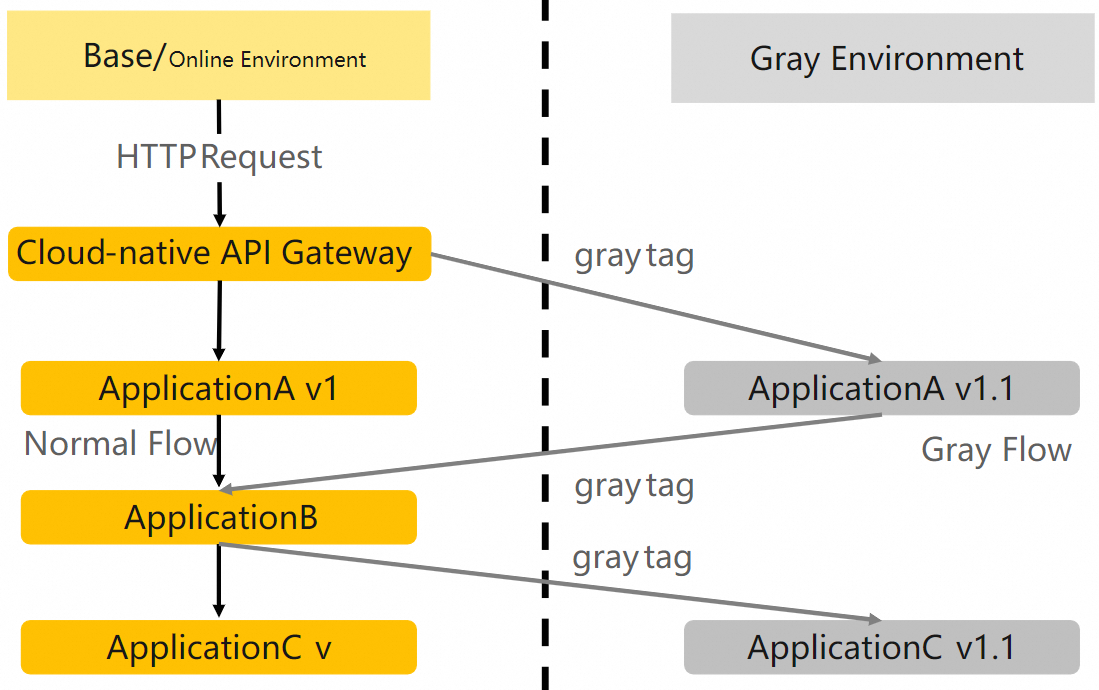
This topic uses an order placement scenario in an e-commerce architecture to demonstrate the end-to-end traffic control feature, from a Cloud Native API Gateway to microservices. Assume the application architecture consists of a Cloud Native API Gateway and backend microservices. The backend call chain includes three microservices: a trading center (A, using the Spring Cloud framework), a product center (B, using the Dubbo framework), and an inventory center (C). You can access the backend services through a client or HTML. These services use an MSE Nacos registry for service discovery.
When a customer places an order, traffic flows from the Cloud Native API Gateway to the trading center (A). Application A then calls the product center (B), and B calls the inventory center (C). In short, the call chain is: Client->Cloud Native API Gateway->A->B->C.
As the business evolves, releasing new features requires simultaneous updates to applications A and C. Before the new versions are officially launched, both application A and application C must undergo canary verification to confirm their stability.
With the end-to-end canary release capability provided by Cloud Native API Gateway and MSE microservices governance, you can build end-to-end canary environments from the gateway to multiple backend services. This ensures that traffic with specific characteristics is consistently routed to the corresponding canary environment, allowing you to validate multiple services at the same time. Additionally, if an application does not have a target canary version, traffic is automatically routed to the baseline environment for fault tolerance.
Key concepts
Cloud Native API Gateway: A cloud-native API gateway that integrates the features of a traffic gateway, microservice gateway, security gateway, and AI gateway. It unifies fragmented gateway architectures and provides capabilities such as service exposure, traffic management, AI application traffic ingress and integration, and full API lifecycle management. It is a high-performance, secure, and AI-friendly unified gateway that offers enhanced performance, reliability, multi-layered security, and high extensibility. For more information, see What is a Cloud Native API Gateway?.
Lane: A lane is an isolated environment defined for applications of the same version. Only traffic that matches the routing rules is routed to the tagged applications within the corresponding lane. An application can belong to multiple lanes, and a lane can contain multiple applications, forming a many-to-many relationship.
Lane group: A collection of lanes. Lane groups are primarily used to differentiate between different teams or scenarios.
Baseline environment: An environment that contains untagged applications. It serves as the fallback environment for all other environments.
Prerequisites
Create a Kubernetes cluster
For more information, see Create an ACK dedicated cluster (No longer available for new creation) or Create an ACK managed cluster.
Enable MSE microservices governance
Ensure that the MSE Java agent version is 3.2.3 or later and the ack-onepilot version is 3.0.18 or later. Otherwise, the end-to-end canary release may not function correctly.
On the MSE microservices governance activation page, activate the Professional Edition.
Connect your ACK microservice applications to the MSE Governance Center. You can choose the method that best suits your needs. For more information, see Connect ACK microservice applications to the MSE Governance Center.
Create a cloud native API gateway instance
For more information, see Create a Cloud Native API Gateway instance.
Associate a service source with the gateway
For more information, see Manage service sources.
End-to-end canary release using a Cloud Native API Gateway supports only Container Service for Kubernetes (ACK) and MSE Nacos as service sources.
The Cloud Native API Gateway and the Kubernetes cluster or MSE Nacos instance must be in the same VPC.
Step 1: Set up the baseline environment
Step 1: Deploy the baseline version
Log on to the ACK console.
In the left-side navigation pane, click Clusters. Then, click the name of the cluster that you want to manage.
In the left-side navigation pane, choose .
In the upper part of the page, select the namespace of the cluster, and click Create from YAML.
Deploy the baseline applications.
MSE Nacos service source
Copy the following YAML content to deploy the baseline versions of applications A, B, and C.
NoteReplace
{nacos server address}in the code with the internal endpoint of your MSE Nacos instance. Do not include the curly braces{}.ACK service source
Copy the following YAML file to deploy Nacos, simulating a self-managed service registry scenario.
Copy the following YAML file to deploy the baseline versions of applications A, B, and C.
Copy the following YAML file to create a Service for the entrypoint application A.
Step 2: Expose application A
If you have not added application A to the Cloud Native API Gateway, perform the following steps to expose it.
Log on to the API Gateway console.
In the left-side navigation pane, click . In the top navigation bar, select a region.
On the Instance page, click the target instance ID.
In the left-side navigation pane, click Service. Then, click the Services tab.
On the Services tab, click Create Service. For more information, see Create a service.
ACK service source
Service source: Select Container Service for Kubernetes (ACK).
Namespace: Select default.
Service List: Select sc-a.
MSE Nacos service source
Service source: Select MSE Nacos.
Namespace: Select public.
Service List: Select sc-A.
In the Cloud Native API Gateway console, choose APIs in the navigation pane on the left. Create an HTTP API or a REST API for the sc-a/sc-A service. For more information, see Create an HTTP API or Create a REST API and add an API.
Expose application A through a route or an API.
HTTP API
If you use an HTTP API, create a route for it. Go to the API that you created in the previous step and click Create Route. For more information, see Create a route.
Parameter
Description
Path
Select Prefix as the match condition and set the path to /a.
Environment
Select the environment of your target Cloud Native API Gateway instance.
Use Case
Select Single Service.
Backend Service
Select sc-a as the service name.
REST API
If you use a REST API, add an API to it. Go to the API that you created in the previous step and click Add API.
Parameter
Description
API Path
/a
Method
GET
After adding the API, publish it.
Parameter
Description
Environment
Select the environment of your target Cloud Native API Gateway instance.
Use Case
Select Single Service.
Backend Service
Select sc-a as the service name.
Step 3: Test baseline traffic
Log on to the API Gateway console.
Observe the traffic by debugging the route or API.
If you exposed application A by using an HTTP API and a route, click the target API, select the corresponding route, click Debug on the right, and then click Send Request.
If you exposed application A by using a REST API, click the target API, select the corresponding API, click Debug API on the right, and then click Send Request.
Test the baseline version traffic. The result shows that the traffic passes through the baseline versions of applications A, B, and C. The output for B and C does not include a version suffix in the application name, which indicates that the traffic is routed to their respective baseline versions. An example is as follows:
# Test result
A[10.0.3.178][config=base] -> B[10.0.3.195] -> C[10.0.3.201]
Step 2: Set up the canary environment
If you need to release a new feature that requires simultaneous updates to both application A and application C, you can use an end-to-end canary release to validate the canary versions of both applications simultaneously.
Step 1: Deploy the canary version
Log on to the ACK console.
In the left-side navigation pane, click Clusters. Then, click the name of the cluster that you want to manage.
In the left-side navigation pane, choose .
In the upper part of the page, select the namespace of the cluster, and click Create from YAML.
Copy the following YAML content to deploy the canary versions of applications A and C.
MSE Nacos service source
NoteReplace
{nacos server address}in the code with the internal endpoint of your MSE Nacos instance. Do not include the curly braces{}.ACK service source
Step 2: Create a lane group
Log on to the MSE console, and select a region in the top navigation bar.
In the left-side navigation pane, choose .
If no lane group has been created in the selected microservice namespace, click Create Lane Groups and Lanes. If a lane group already exists, click +Create Lane Group.
In the Create Lane Group panel, configure the following parameters and click OK.
Parameter
Description
Name of Lane Group
Enter a custom name for the lane group.
Entry Type
Select Cloud-native API Gateway.
Gateway
Select the target Cloud Native API Gateway.
Lane Group Application
Select spring-cloud-a, spring-cloud-b, and spring-cloud-c.
After the lane group is created, you can view it in the Lane Group section of the Full link Grayscale page. To modify the lane group information, click the
 icon and edit the relevant information.
Step 3: Create a lane
When using the end-to-end canary release feature, you must add a specific
tagto your canary applications to distinguish their nodes from baseline nodes. In a container environment, add the labelalicloud.service.tag: ${tag}underspec.template.metadata.labels. In an ECS environment, add the Java startup parameter-Dalicloud.service.tag=${tag}.When using a Cloud Native API Gateway as the entry point for an end-to-end canary release, MSE supports two canary modes for lanes.
By request content: This mode is recommended when the request content can be used for canary identification. If your requests do not contain a suitable identifier, we strongly recommend modifying your system to include one. This ensures consistent routing for user sessions and provides more reliable test results.
By percentage: This mode can be used as a fallback when the request content cannot be used for canary identification and legacy systems cannot be modified. This mode has a drawback: requests from the same source might be routed to different lanes, which can lead to an inconsistent user experience.
The routing mode must be consistent across all lanes within a lane group. You can only adjust the routing mode when creating the first lane in a lane group.
At the bottom of the Full link Grayscale page, if no lane has been created in the selected microservice namespace, click Click to create the first shunt Lane. If a lane already exists, click +Create swim lanes.
In the Create swim lanes panel, configure the lane parameters and click OK.
Route by request content
Parameter
Description
Node labels
You need to add a label to the canary application nodes to distinguish them from baseline nodes.
Lane information
Lane Name: Enter an easily identifiable name for the lane.
Lane Label: The target label for traffic routed to this lane.
Confirm matching relationship: Check whether the number of application nodes configured with this label meets your expectations.
Lane Status: Select Enable.
Routing and canary rules
Set the rules for traffic to enter this lane.
Canary Mode: Select By content.
Canary Condition: Select All of the following conditions are met.
The canary condition in this example is configured as follows:
Parameter Type: Header.
Parameter: canary.
Condition: ==.
Value: gray.
Canary routing mode
Canary condition
Result
All of the following conditions are met
Traffic is routed to the corresponding lane only if all specified conditions are met.
Any of the following conditions is met
Traffic is routed to the corresponding lane if any one of the specified conditions is met.
Conditions
Condition
Description
Example
==
Exact match. The traffic value must be exactly equal to the condition value.
For example, create a lane named mse with the lane label gray. The associated applications are
spring-cloud-a,spring-cloud-c, and the baseline route is sc-a. The request content match condition is set toheader: [name] == xiaoming. This means that traffic where thenameheader field has a value ofxiaomingis routed to this lane. The lane is enabled.!=
Not equal match. The condition is met if the traffic value is not equal to the condition value.
For example, if the request content match condition for the mse lane is set to
header: [name] != xiaoming, traffic is routed to this lane when the value of thenameheader field is notxiaoming.in
Contains match. The traffic value must be present in the specified list.
For example, if the request match condition for the lane is configured as
header: [name] in [xiaoming,xiaohong], the condition is met when the value of the name header is eitherxiaomingorxiaohong.percentage
Percentage match. The condition is met if hash(get(key)) % 100 < value is true.
For example, the request content match condition for the mse lane (label
gray) is configured asheader: [name] percentage 10. The condition logic is AND. The associated applications arespring-cloud-a,spring-cloud-c, the baseline route is sc-a, and the lane is enabled.regex
Regular expression match. The condition is met if the value matches the regular expression.
For example, configure the request content match condition as
header: [name]regex^[a-zA-Z0-9]{32}$. This means the condition is met when thenameheader field value is a 32-character alphanumeric string.prefix
Prefix match. The condition is met if the specified value is a prefix of the actual value.
Example: The request content match condition for the mse lane is configured with the condition relationship as AND and the match rule as
header: [name] prefix 10. The lane is enabled.Route by percentage
NoteTo create a lane for routing by percentage, you must use ack-onepilot version 3.0.18 or later and agent version 3.2.3 or later.
Parameter
Description
Node labels
You need to manually add a label to your canary application nodes to distinguish them from baseline nodes.
Lane information
Lane Name: Enter an easily identifiable name for the lane.
Lane Label: The target label for traffic that is matched to this lane.
Confirm matching relationship: Check whether the number of application nodes configured with this label meets your expectations.
Lane Status: Select Enable.
Routing and canary rules
Set the rules for traffic to enter this lane.
Canary Mode: Select By percentage.
Traffic Percentage: 30%.
NoteYou can also set different traffic percentages for each baseline gateway route. When you enable this feature, ensure that the total traffic percentage distributed across all its lane groups does not exceed 100%.
After the lane is created, you can view its details in the Traffic Allocation section of the Full link Grayscale page. You can also perform the following operations:
In the Actions column, select Enable to activate the lane. Traffic is then routed according to the lane rules. Traffic that meets the rules is prioritized to the application versions with the corresponding lane tag. If a matching tagged application is not found, the traffic falls back to the untagged baseline version.
In the Actions column, select Close to deactivate the lane. Subsequent traffic for this application is routed to the untagged application versions.
Click the
 icon to view the traffic percentage for the lane.
Click the
 icon to set the status of the applications in the lane.
Step 4: Test canary traffic
You can copy the URL from the route or API debugging section in the Cloud Native API Gateway console.
Click the Copy dropdown button to the right of the path and select Copy URL.
Test the route.
Test by request content
Test the canary traffic through the Cloud Native API Gateway. The test result shows that the traffic passes through the canary environments of applications A and C. Since application B does not have a gray environment, the traffic automatically falls back to its baseline version.
# Test result
Agray[10.0.3.177][config=base] -> B[10.0.3.195] -> Cgray[10.0.3.180]
Test by percentage
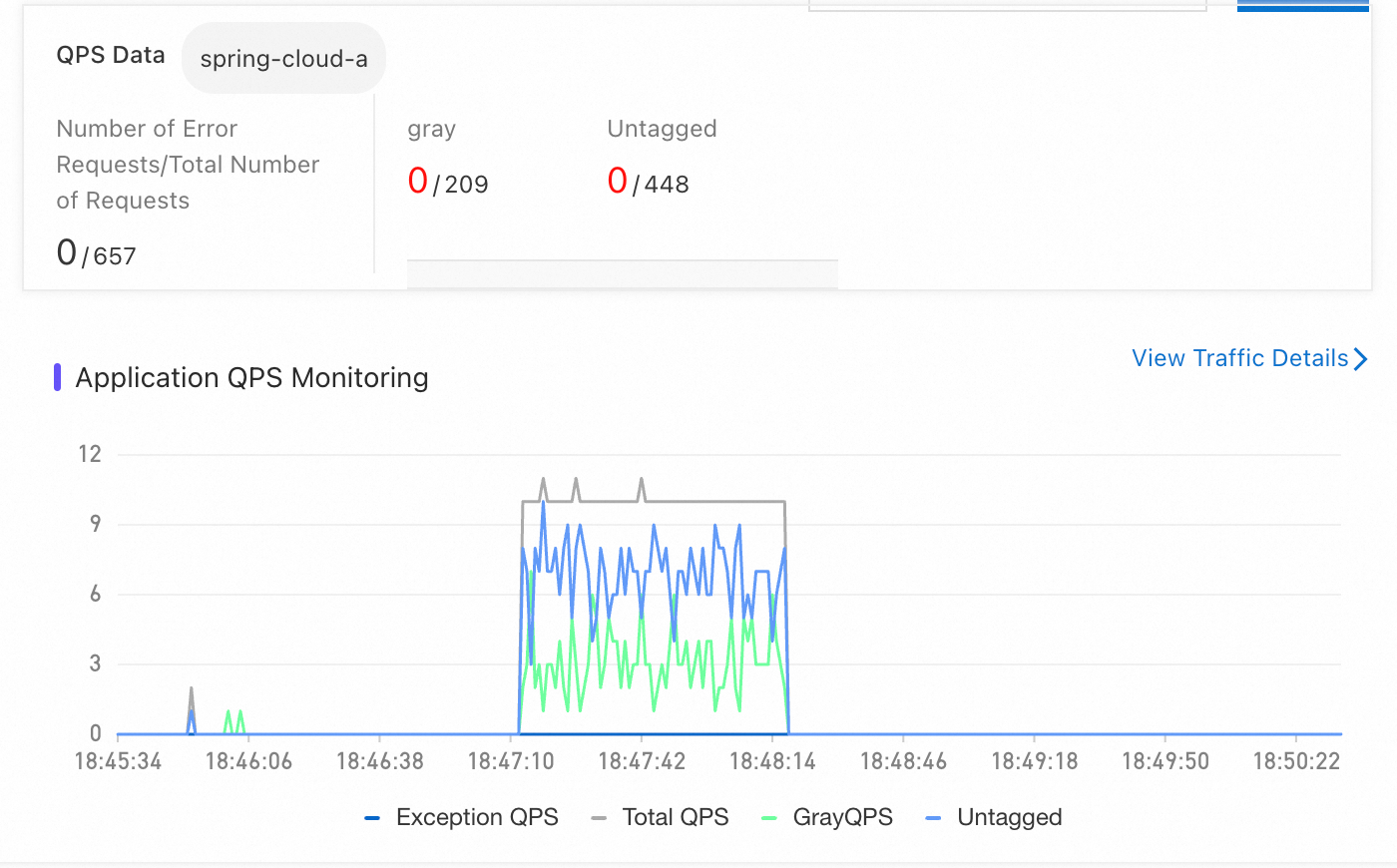
You can use Performance Testing Service (PTS) to initiate a test. For more information, see How to start a stress test in one minute? As shown in the figure, you can observe that 30% of the traffic is routed to the canary version.
 Note
NoteSet the QPS to a low value to quickly test with a small amount of traffic. On the End-to-end Canary Release page in MSE microservices governance, click the target application. In the Application QPS Monitoring section, you can view the traffic status for the baseline (untagged) and canary versions of the corresponding lane.
(Optional) Step 3: Observability
You can use the observability dashboard provided by MSE to monitor the end-to-end canary release and quickly locate issues.
MSE microservices governance observability
On the Full link Grayscale page in MSE microservices governance, click the target application. In the Application QPS Monitoring section, you can view the traffic for the baseline (untagged) and canary versions of the corresponding lane.
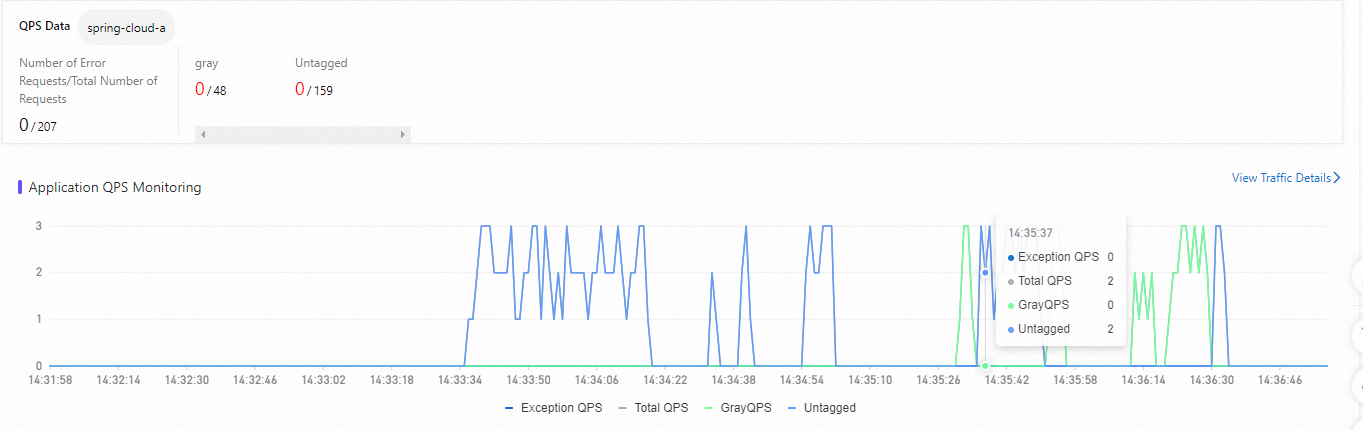
Total QPS: The total QPS for this application.
Abnormal QPS: The number of failed requests for this application.
GrayQPS: The QPS for the gray version of this application.
ARMS observability
If your application is also connected to ARMS, you can monitor the performance metrics of the canary environment on the canary release scenario page in ARMS. Based on these metrics, you can decide whether to roll back or proceed with the release.