Use dictionary configuration in Advanced Configuration to customize tokenization with user-defined dictionaries.
Introduction
Dictionary configuration lets you customize tokenization. If the default tokenizer does not produce the results your business requires, you can configure a custom dictionary to adjust how text is tokenized.
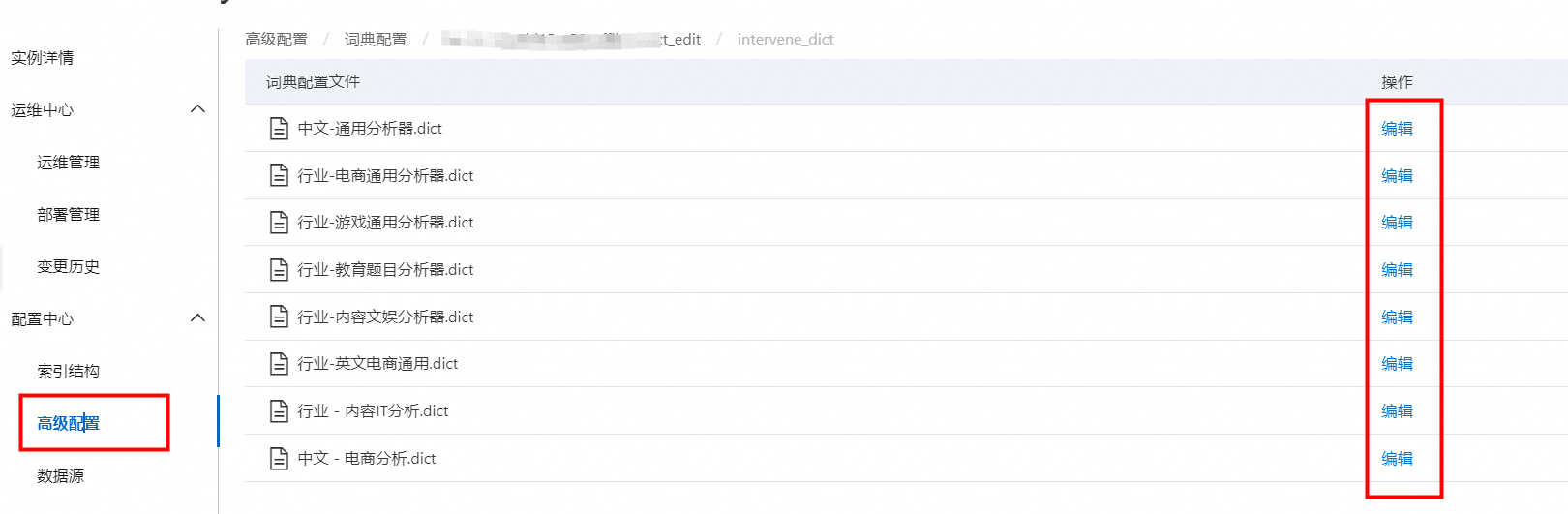
The system provides two default dictionary configuration versions. The version with the _offline_adv_v1 suffix is created by the system and contains six types of tokenizer dictionaries:
|
Dictionary Type |
|
Chinese - General Analyzer.dict |
|
Industry - E-commerce General Analyzer.dict |
|
Industry - Game General Analyzer.dict |
|
Industry - Education Question Analyzer.dict |
|
Industry - Content and Entertainment Analyzer.dict |
|
Industry - English E-commerce General.dict |
|
Industry - Content IT Analysis.dict |
|
Chinese - E-commerce Analysis.dict |
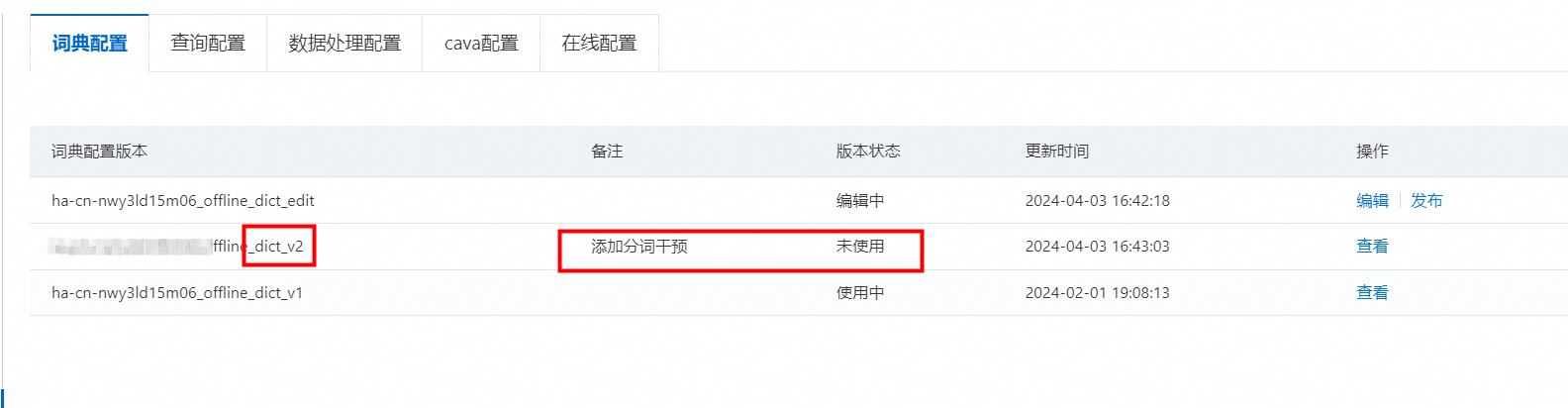
You can edit the version with the suffix _offline_adv_edit. After you add intervention entries and click Publish, a new version is created with an incremental suffix. For example, the second published version has the suffix _offline_adv_v2. Use remarks to distinguish the purpose of each version.
Add a custom intervention entry
Example of incorrect tokenization: A document contains a phrase about selling ping-pong rackets. The default tokenizer incorrectly splits "ping-pong racket" into unrelated words, causing a search for "racket" to fail.
Solution: Add a custom intervention entry to treat "ping-pong racket" as a single token.
-
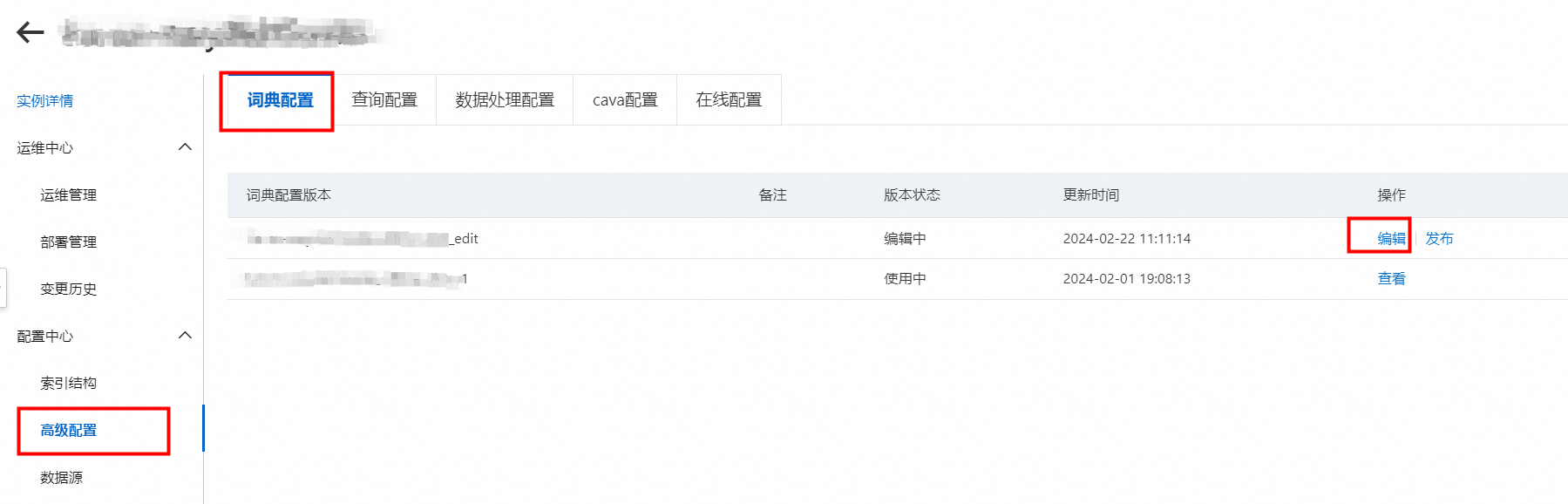
On the Configuration Center > Advanced Configuration page, find the advanced configuration version with the suffix "_offline_adv_edit" and click Edit in the Actions column.
-
In the corresponding index table, find the tokenizer type that is referenced by the index and click Edit.
-
You can add custom entries in two ways:
-
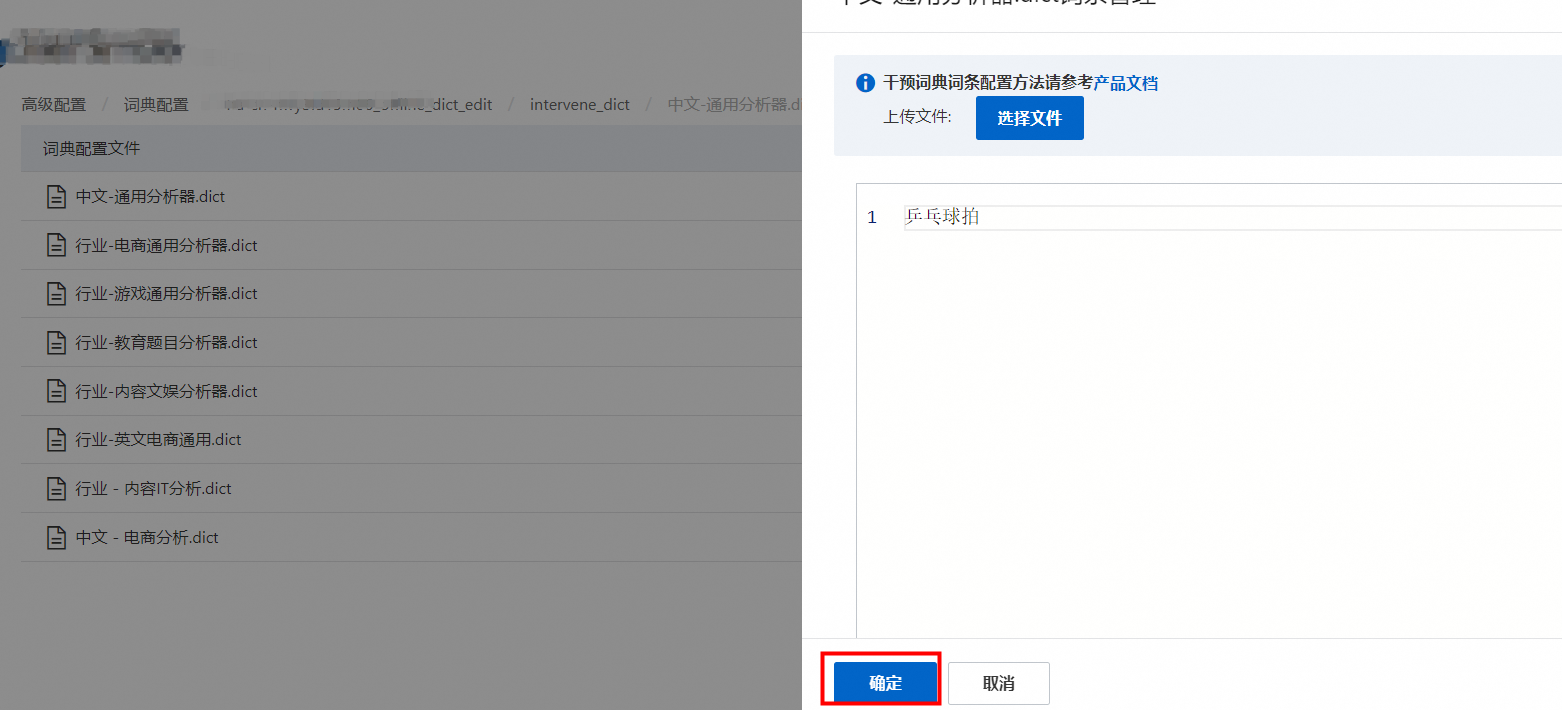
In the text box, enter 'ping-pong racket' and click OK.
-
Upload a new dictionary file. After you upload the file, you can edit its content in the text box. Then, click OK.
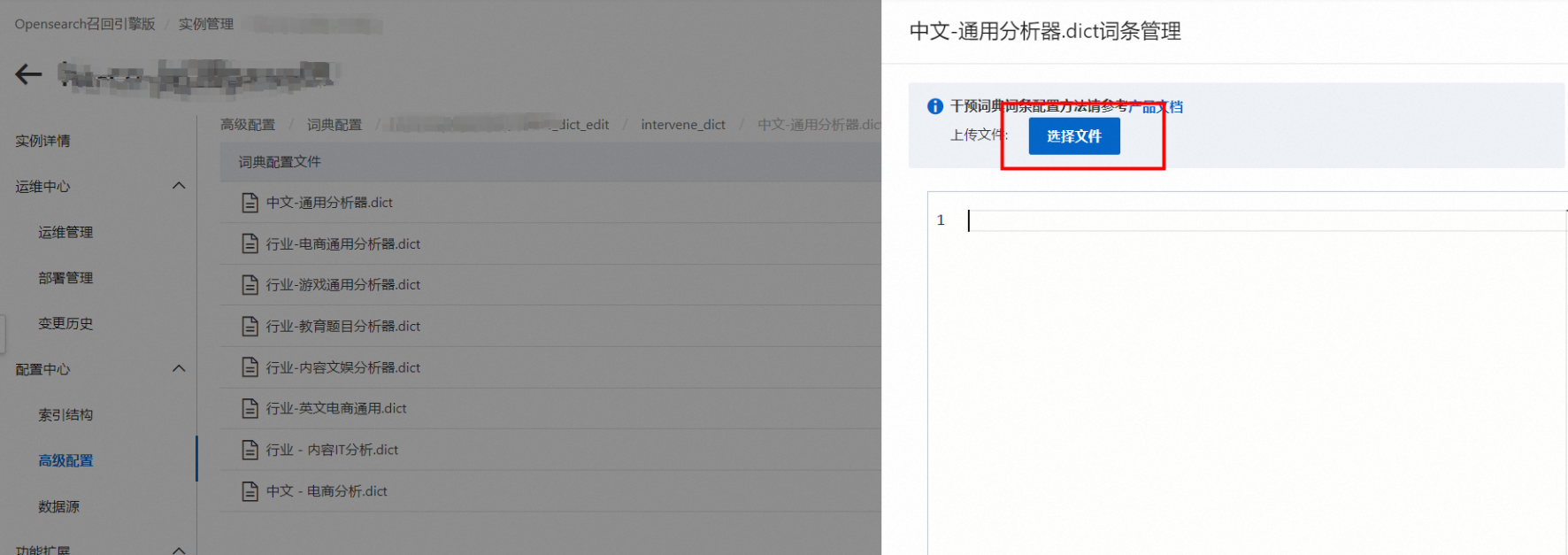
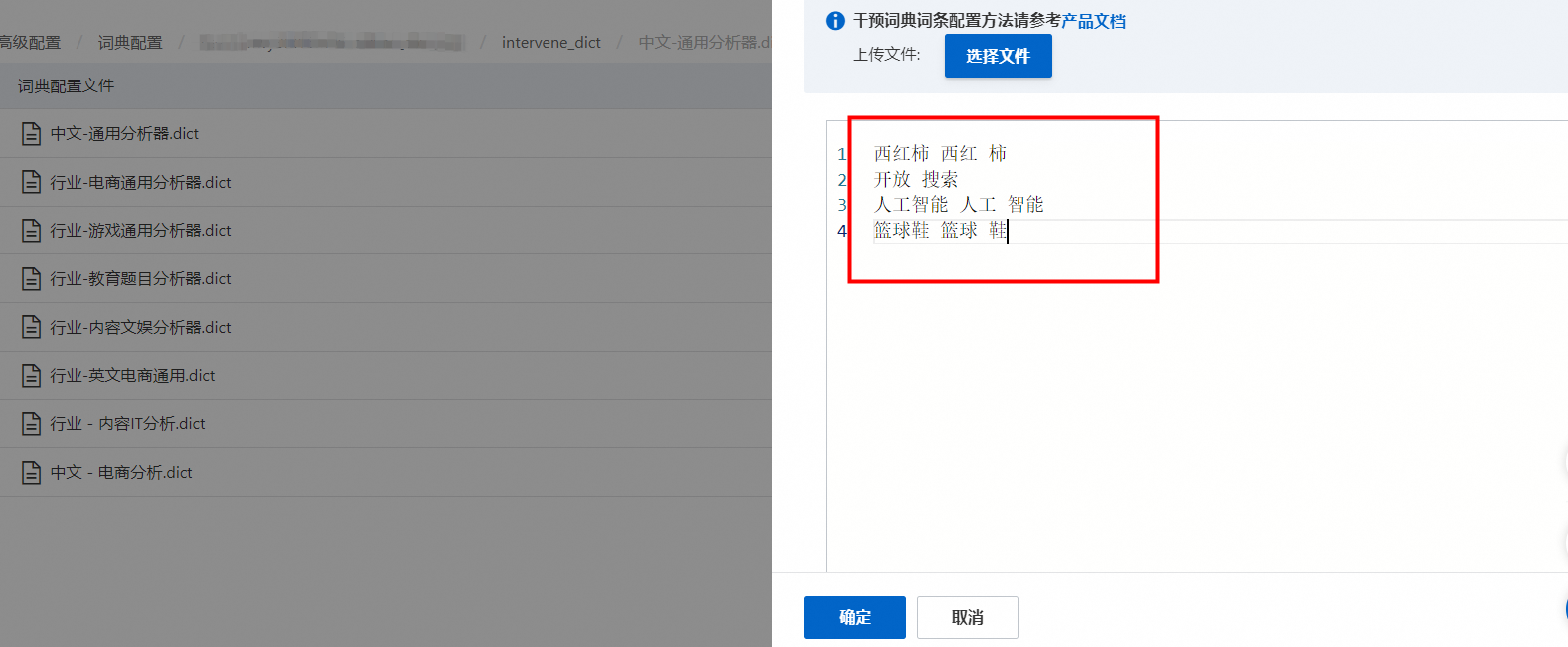
Note: The file must be smaller than 5 MB and in the .dict or .txt format.
-
Entries support the following two formats:
1) For an entry that does not need further chunking, enter one word per line in UTF-8 encoding. The entry cannot contain spaces or tab characters. For example:
OpenSearch
opensearch
2) For an entry that needs further chunking, specify the original word and the resulting tokens in UTF-8 encoding. Use a tab character to separate the original word from the tokens, and spaces to separate the tokens. For example:
OpenSearch	Open Search
opensearch open search-
Publish the updated dictionary configuration.
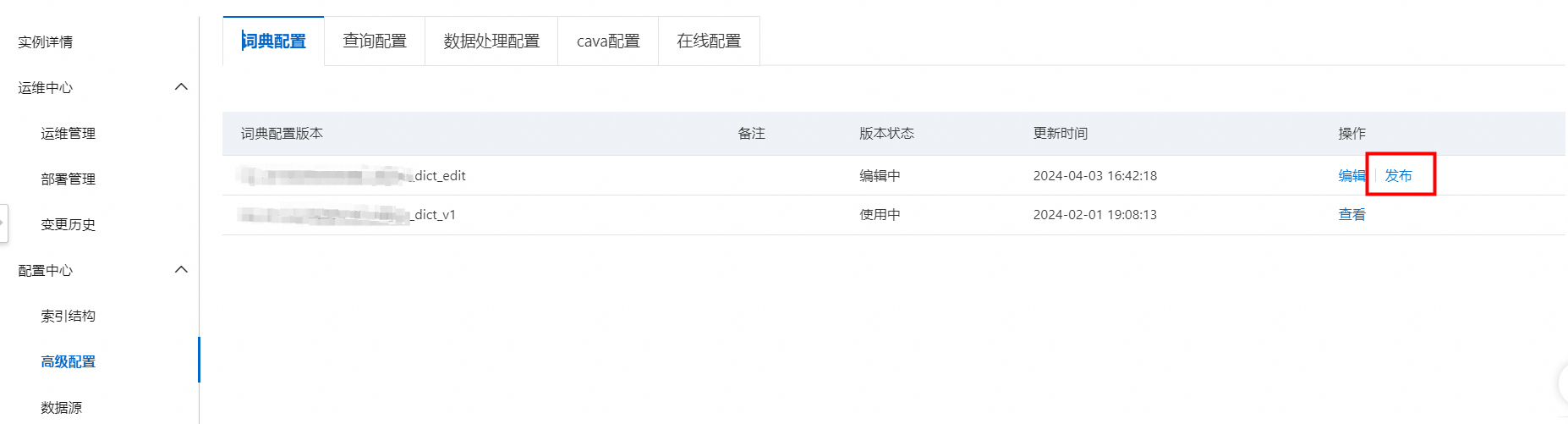
Enter a remark for the new dictionary configuration version.

After you publish, a new dictionary configuration version is automatically generated.
-
To apply the configuration to the cluster, push the offline configuration and trigger an index rebuild.
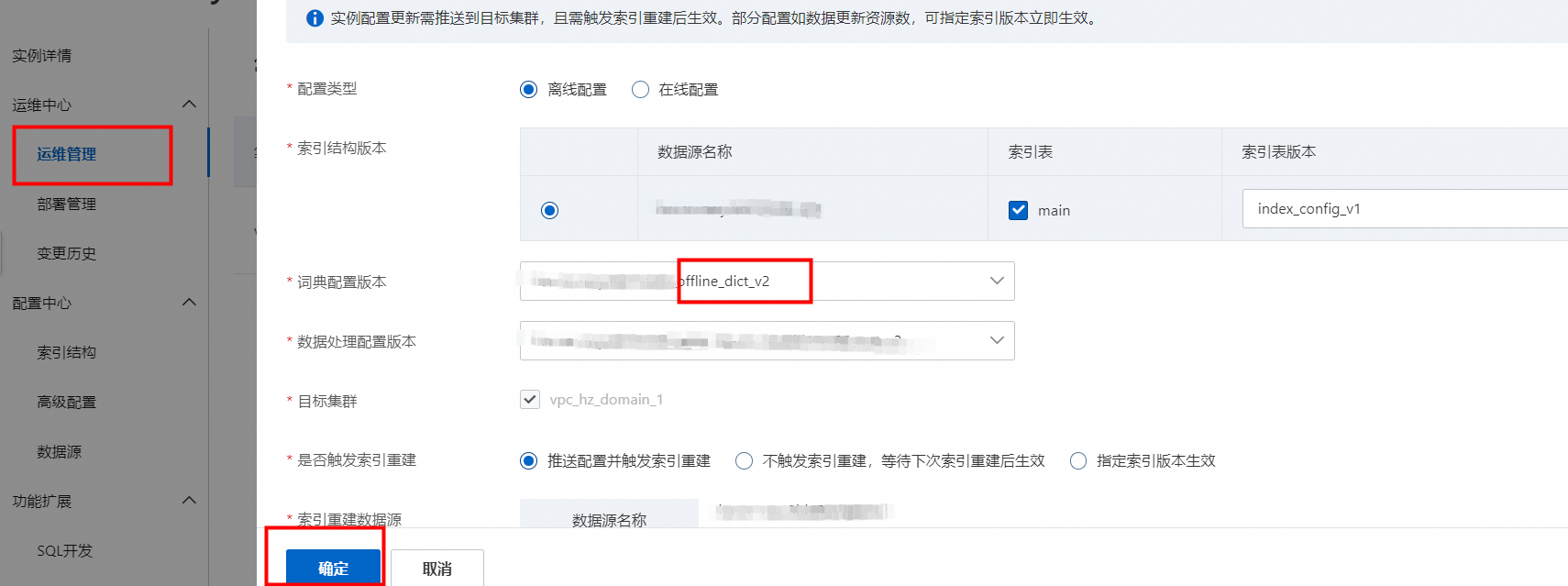
In Operation Center > Change History, view the data synchronization progress under Data Source Change.
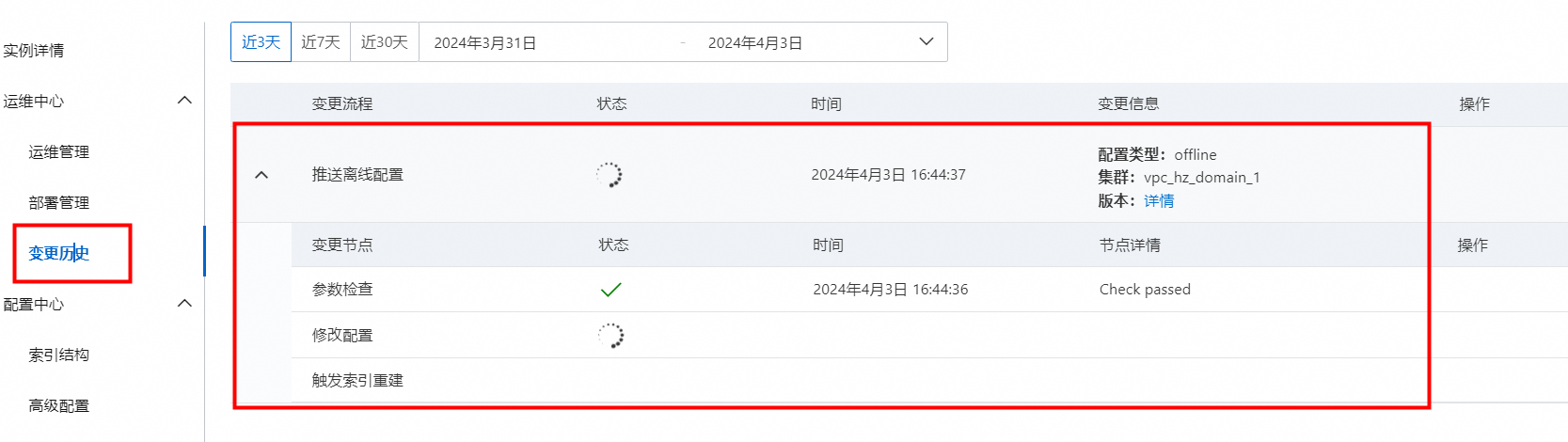
After the index rebuild completes, the changes take effect in online queries.
Delete a dictionary configuration version
On the Advanced Configuration > Dictionary Configuration page, directly delete versions with an "Unused" status.
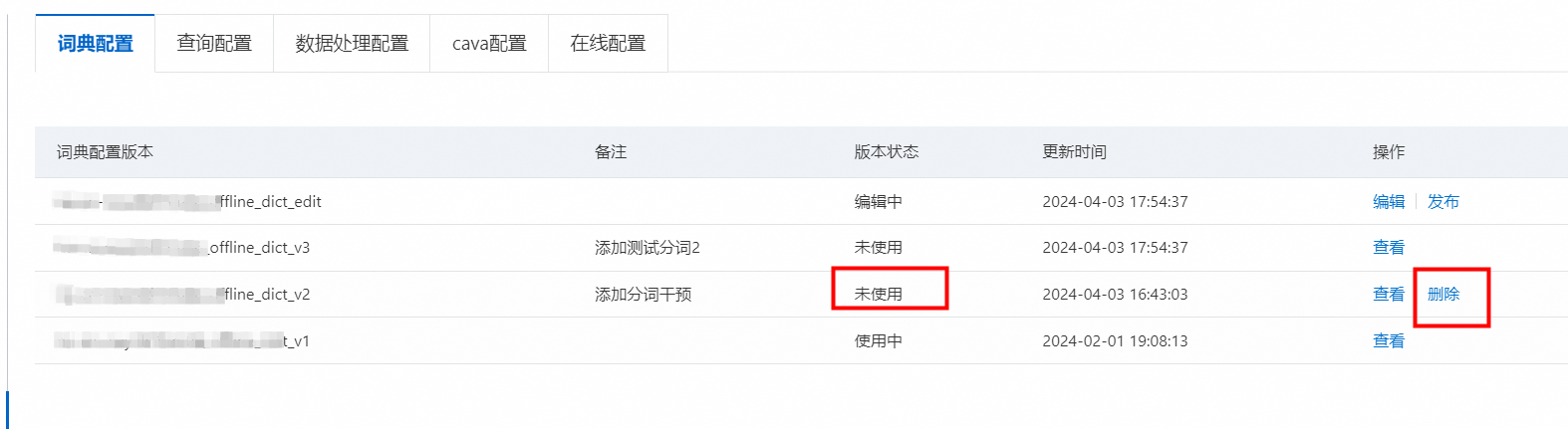
Versions with a status of "In Use" can only be viewed. To delete an in-use version, go to Operation Center > Operations Management > Configuration Update. For Dictionary Configuration Version, select a different version. Then, push the configuration and trigger an index rebuild. After the rebuild, the original version status changes to "Unused" and you can delete it.
Notes
-
Each instance can have only one dictionary configuration version in the editing state at a time.
-
Versions that are in use can be viewed but not deleted.
-
Advanced Configuration currently supports dictionary and query configurations.