Enable lake-stream integration
This topic describes how to enable the lake-stream integration feature.
Prerequisites
Service activation
A Flink workspace is created in the same VPC as Streaming Storage Fluss. For more information, see Activate Realtime Compute for Apache Flink.
The Data Lake Formation (DLF) service is activated and a catalog is created. The catalog must be in the same region as Streaming Storage Fluss. The VPC that is used by Flink must be added to the whitelist. For more information, see Grant permissions and activate DLF and Configure a VPC whitelist.
Version limitations
DLF-Legacy is not supported.
Permission requirements
Only the cluster owner can enable the lake-stream integration service.
The account used to enable the service must have the following permissions:
The Editor permission in Flink, which lets you create and manage lake-stream integration jobs. For more information, see Grant permissions in the development console.
The AliyunDLFFullAccess permission in DLF to create databases and tables, and to perform read and write operations on tables. For more information, see Authorize users.
Enable lake-stream integration
Step 1: Enable lake-stream integration for the cluster
Log on to the Realtime Compute for Apache Flink console.
On the Streaming Storage Fluss tab, click Console in the Actions column to access the Fluss cluster.
On the Cluster Overview page, click the
 toggle in the lower-right corner to enable the service and associate it with Flink.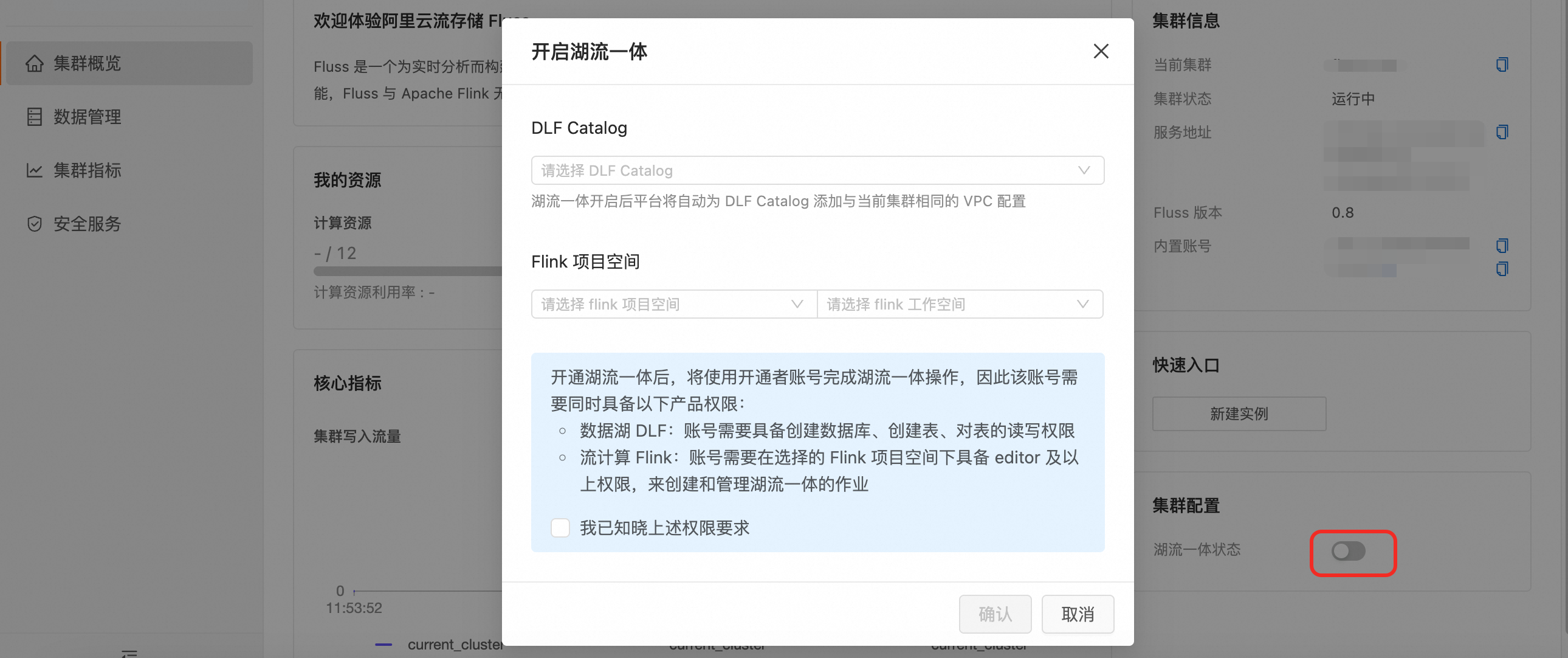
Click Confirm. After the service is enabled, you can view the sync task in the associated Flink project.
ImportantThe sync task requires 0.5 CU by default to run. Make sure the project has enough resources to start the task.
The task runs continuously and incurs fees. To stop the task and the associated fees, disable lake-stream integration.
(Optional) If the service fails to start or an unexpected error occurs, navigate to the page of the associated Flink workspace and locate the JAR job whose name starts with
tiering-fluss.If you cannot locate the job, the service submission may have failed or you may have insufficient permissions.
If the job exists but its status is abnormal, such as FAILED or CANCELED, check the job logs to identify the cause of the error.
Step 2: Enable lake-stream integration for a table
Table not created
In the Flink workspace, register a Fluss Catalog. Then, in , create a table.
CREATE TABLE `my-catalog`.`fluss`.`datalake_orders` (
  shop_id BIGINT,
  user_id BIGINT,
  num_orders INT,
  total_amount INT,
  PRIMARY KEY (shop_id, user_id) NOT ENFORCED
) WITH (
  'bucket.num' = '4',
  'table.datalake.enabled' = 'true',
  'table.datalake.freshness' = '30min'
);
Additional parameters for lake-stream integration
Parameter | Description | Default value | Notes |
table.datalake.enabled | Specifies whether to enable lake-stream integration. | false | If you do not add this parameter, you can enable the feature manually in the console. |
table.datalake.freshness | Defines the maximum allowed latency (data freshness) of the Paimon table data relative to the source Fluss table. | 3min | The Streaming Storage Fluss service automatically synchronizes data based on this configuration. A smaller value improves the real-time performance of the data lakehouse. If your business is not sensitive to latency, you can increase this value to reduce resource consumption. Important This parameter cannot be modified later. |
paimon.* | Any configuration item prefixed with | None | Lake-stream integration in Fluss uses the default Paimon parameters to create the underlying Paimon lake table. To configure other parameters for the Paimon lake table, such as setting the format to ORC, you can set For more information about parameter settings, see Paimon Configuration. |
Creating Paimon tables with deletion vectors enabled is not supported. Do not specify the 'paimon.deletion-vectors.enabled' = 'true' parameter.
For existing tables
Enable using SQL: Enable the feature using the
ALTER TABLEsyntax.ALTER TABLE datalake_orders SET ('table.datalake.enabled' = 'false');Enable in the console
In the navigation pane on the left of the Fluss console, click Data Management. Click the name of the target database. In the list of tables that appears, click the
toggle for the desired table to enable lake-stream integration.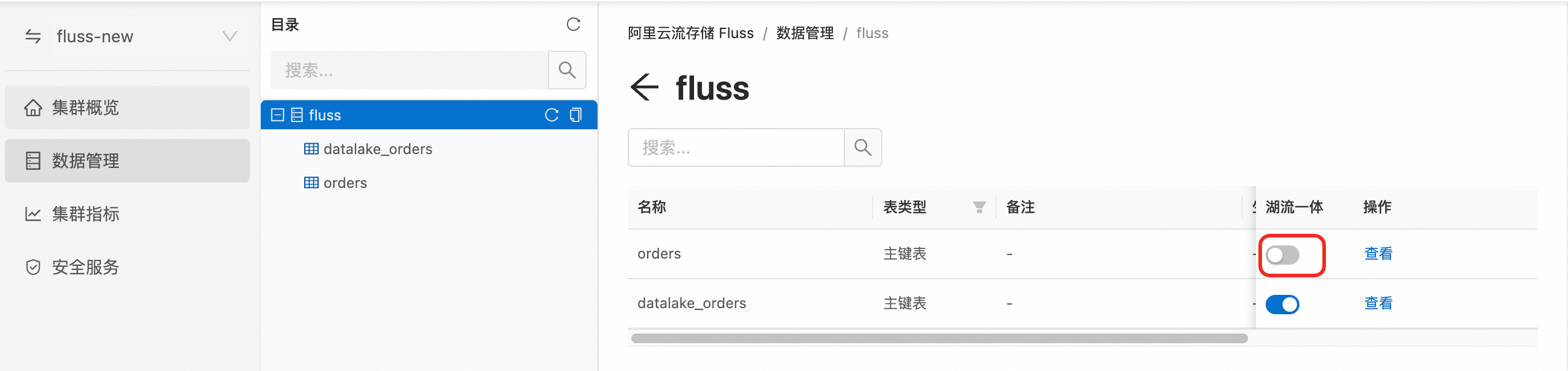
Query data synchronization
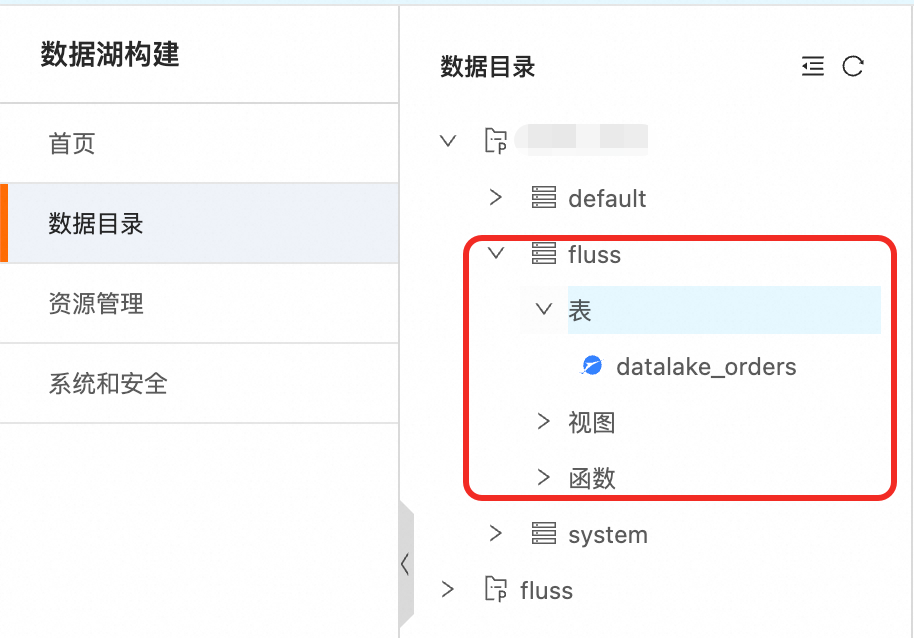
After you enable lake-stream integration for a data table, the system automatically synchronizes the table's metadata to DLF. In DLF, under the associated catalog, you can view a database that has the same name as the database in Fluss. This database contains the same table schema and metadata as the source table and is used for unified queries and management.
Before synchronization, make sure that no table with the same name exists in DLF. Otherwise, the synchronization may fail or cause conflicts.
Data consistency in lake-stream integration
After you enable lake-stream integration for a table, a Flink sync job continuously writes data from Streaming Storage Fluss to a Paimon-based data lake. The table schema and metadata are managed by DLF and are retained for long-term use.
If you delete a table in Streaming Storage Fluss for which lake-stream integration is enabled, the synchronized data lake table (Paimon table) in DLF is not deleted. You must manually delete the table in DLF.
For primary key tables, data changes are processed in changelog mode:
When a record is deleted, the system does not physically remove the historical data. Instead, it appends a
DELETEchange log record.When a Union Read query is executed, the Flink engine automatically merges real-time data from Streaming Storage Fluss with historical data from Paimon. The engine then removes duplicates and merges states based on the primary key and change logs.
Logically deleted records do not appear in the final result. This ensures the correctness and consistency of the query results.
Disable lake-stream integration
Disable lake-stream integration for a data table
In the console: In the navigation pane on the left of the Fluss console, click Data Management. Disable the lake-stream integration feature for each required table.
Using SQL: Disable the feature using the
ALTER TABLEsyntax.ALTER TABLE datalake_orders SET ('table.datalake.enabled' = 'false');
Disable lake-stream integration for the cluster
On the Cluster Overview page, click the toggle in the lower-right corner to disable the lake-stream integration service.
You cannot disable the service at the cluster level if lake-stream integration is still enabled for any tables.
When you disable the lake-stream integration service, the Flink sync job also stops.