Provided services
After you report application data to Managed Service for OpenTelemetry, Managed Service for OpenTelemetry starts to monitor the application. You can view details about the services provided by your application on the Provided Services page, including API calls, message queues, scheduled tasks, and internal methods.
Prerequisites
Before you begin, make sure that you have:
An application that reports data to Managed Service for OpenTelemetry. For details, see Integration guide
View provided services
Log on to the Managed Service for OpenTelemetry console. In the left-side navigation pane, click Applications.
-
On the Applications page, select a region in the top navigation bar and click the name of the application.
-
In the top navigation bar, click Provided Services.
-
Use the quick filters to narrow down the charts and service list by request type, operation, or application instance name.
-
The trend charts show time-series curves for the service's request count, error count, and average response time.
Click the
 icon to view or compare statistics for specific time periods. Use the
  icon to switch between a column chart and a trend chart.
 -
The service list details each operation's name, type, and RED metrics (request count, error count, and average response time).
From the service list, you can perform the following actions:
-
Click an operation name to view its details. For more information, see Operation details.
-
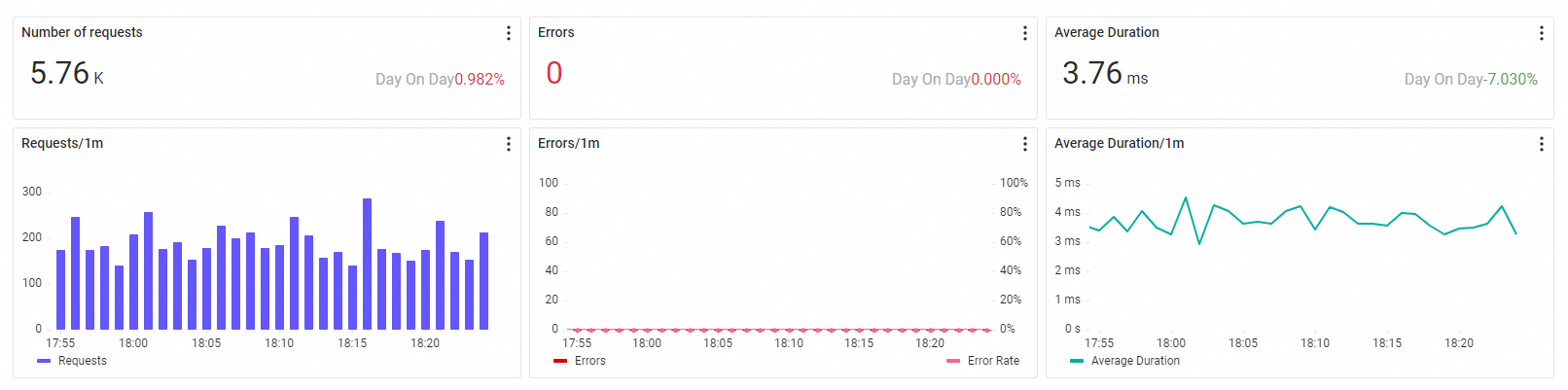
Click Overview in the Actions column to open a side panel showing the operation's request count, error count, and average response time.
-
Click Traces in the Actions column to view the trace details. For more information, see Trace Explorer.
-
-
Request types
Server request types:
-
HTTP: Handles HTTP protocol requests.
-
Dubbo: Handles Dubbo remote procedure call (RPC) protocol requests.
-
HSF: Handles High-Speed Service Framework (HSF) RPC protocol requests.
-
DSF: Handles Distributed Service Framework (DSF) RPC protocol requests.
-
gRPC: Handles gRPC RPC protocol requests.
-
Thrift: Handles Thrift RPC protocol requests.
-
Sofa: Handles SOFARPC protocol requests.
-
Server: A generic server-side request type.
Message middleware request types:
-
kafka: Consumes messages from a Kafka message queue.
-
Consumer: A generic message consumer type.
Scheduled task request types:
-
SchedulerX: A scheduled task executed by SchedulerX.
-
Spring_Scheduled: A scheduled task executed by Spring Scheduled.
-
JDK_Timer: A scheduled task executed by a Java Development Kit (JDK) timer.
-
XXL_Job: A scheduled task executed by XXL-Job.
-
Quartz: A scheduled task executed by Quartz.
Internal method request type:
-
user_method: An internal method call where the span type is
internal.
Generic request type:
-
Span: A generic span call. This type is used when the span's call type cannot be determined.
Operation details
Overview
The Overview tab displays the request count, error count, and average response time for the target operation, along with their corresponding time-series curves.
SQL and NoSQL analysis
The SQL analysis and NoSQL analysis tabs list the SQL and NoSQL requests initiated by the selected operation. You can also filter this list by application instance.
Click a database name to view its details. Click Traces in the row of an SQL or NoSQL statement to view the full code path where the query was executed. For more information, see Trace Explorer.
The SQL analysis page displays a Request Trend chart with metrics for request count, average response time, and slow SQL count. The database request list below includes columns such as Database Type, Operation Type, SQL Statement, Requests, Average Response Time, Slow SQL Count, and Response Size.
Upstream and downstream calls
The Upstream and Downstream tabs list the application's upstream services (callers) and downstream services (dependencies). These tabs display performance metrics for each interface, such as request count, error count, and latency.
On the Upstream tab, the left panel displays the Interface List and Application Instance List. In the main area, you can filter the data by using the Upstream Application and Operation dropdowns. Line charts show the time-series trends for each metric.
Trace Explorer
Trace Explorer provides real-time analysis of stored trace data. For custom diagnostics, you can combine filter conditions and aggregation dimensions. In the Trace Explorer, you can filter call records by using a query such as serviceName="service-product-skywalking" AND attributes.ali.trace.rpc="HikariCP/Connection/close". On the left, you can use quick filters for status, duration, operation name, and host address. Above the main content area, a column chart shows the number of calls, and line charts display the number of HTTP errors and percentile latency (p50/p90/p95/p99). The search yields approximately 15,000 results. All calls to the HikariCP/Connection/close operation take about 1 ms and have a normal status. The Slow Trace Analysis panel on the right shows analysis results for statusCode:1 and kind:SPAN_KIND_INTERNAL.
What to do next
Set up alert rules so that the system automatically notifies your O&M team when metrics cross a threshold. For example, create a rule that triggers when the error rate for a specific operation exceeds a baseline. See Create an alert rule.