The Optimization Solver software development kit (SDK), named MindOpt, is a local solver you run on your own machine. This page covers how to download the right package for your platform, install it, configure a license, and add language-specific support for Java or Python.
By downloading the SDK, you agree to the Optimization Solver Terms of Service.
Quick install for Python or Java only
If you only need the Python library, install it with pip:
pip install mindoptpyIf you only need the Java library (V2.1 and later), add a Maven dependency to your pom.xml. See Install Java support for classifier options.
Both approaches skip the full installation. To use the command-line solver, C, C++, C#, or MATLAB APIs, or to use multiple language APIs together, download the full installation package described below.
Prerequisites
Before you begin, ensure that you have:
-
A supported operating system (see System requirements)
-
Administrator or sufficient write access on the target machine
-
An Alibaba Cloud account (required for cloud authentication)
Download the SDK
Latest version: V2.3.0 (released 2026-02-02).
The APIs in V0.x and V2.x are mostly incompatible. Refer to the API documentation for the version you install.
| Platform | Architecture | V2.3.0 | V0.25.1 |
|---|---|---|---|
| Linux | linux64x86 | File: mindopt-install-linux64x86-2.3.0.sh — Agree to terms and download
|
File: mindopt-install-linux64x86-0.25.1.sh — Agree to terms and download |
| linux64aarch | File: mindopt-install-linux64aarch-2.3.0.sh — Agree to terms and download |
File: mindopt-install-linux64aarch-0.25.1.sh — Agree to terms and download |
|
| Windows | windows64 | File: mindopt-2.3.0.msi — Agree to terms and download |
File: mindopt-0.25.1.msi — Agree to terms and download |
| macOS | osx64x86 (Intel) | File: mindopt-install-osx64x86-2.3.0.sh — Agree to terms and download |
File: mindopt-install-osx64x86-0.25.1.sh — Agree to terms and download |
| osx64aarch (Apple Silicon) | File: mindopt-install-osx64aarch-2.3.0.sh — Agree to terms and download |
File: mindopt-install-osx64aarch-0.25.1.sh — Agree to terms and download |
For changelogs and older versions, see Download history.
System requirements
Operating system
| Operating system | Minimum version |
|---|---|
| Windows | Windows 10 or later |
| Linux x86_64 | Glibc >= 2.14 |
| Linux aarch64 | Glibc >= 2.17 |
| macOS x86_64 | macOS 11.0 or later |
| macOS arm64 | macOS 12.0 or later |
Language and compiler versions
| Language | Supported versions / compilers |
|---|---|
| C | Visual Studio 2019 or later, GCC 4.9 or later, Clang++ |
| C++ | Visual Studio 2019 or later, GCC 4.9 or later, Clang++ |
| C# | .NET SDK 8.0 or later |
| Python | 3.8, 3.9, 3.10, 3.11, 3.12, 3.13 |
| Java | JDK 1.8 or later |
| MATLAB | MATLAB 2021b or later |
Install the SDK
Before installing, remove or back up any previous version. See Uninstall and reinstall.
You can also follow along with the Video overview.
Windows
Double-click the .msi installation file and follow the on-screen instructions.
To install for all users, run Command Prompt as an administrator, switch to the folder that contains the installer, and run the file from there.
Linux
Not sure which architecture you have? Run uname -m. The output x86_64 means use the x86 installer; aarch64 means use the ARM installer.
Run the following command and follow the prompts:
# x86_64 systems
bash mindopt-install-linux64x86-2.3.0.sh

# ARM (aarch64) systems
bash mindopt-install-linux64aarch-2.3.0.sh
Docker
Add the following to your Dockerfile:
# The admin user is used as an example.
RUN cd /home/admin/mindopt/ && \
    bash mindopt-install-linux64x86-2.3.0.sh --target /home/admin/mindopt && \
    rm -rf mindopt-install-linux64x86-2.3.0.sh

# Set the MindOpt environment variables.
ENV MINDOPT_HOME /home/admin/mindopt/2.3.0
ENV PATH $MINDOPT_HOME/linux64-x86/bin:$PATH
ENV LD_LIBRARY_PATH $MINDOPT_HOME/linux64-x86/lib:$LD_LIBRARY_PATH
For V0.x.x Docker installations only, also add:
# MDO_NATIVE_LIBRARY is required for the Java SDK in V0.x.x. Not needed for V1.0.0 or later.
ENV MDO_NATIVE_LIBRARY $MINDOPT_HOME/linux64-x86/lib/libmindopt.so.0.25.1
macOS
Run the following command and follow the prompts:
# Intel (x86_64) systems
bash mindopt-install-osx64x86-2.3.0.sh

# Apple Silicon (arm64) systems
bash mindopt-install-osx64aarch-2.3.0.sh
Directory structure after installation
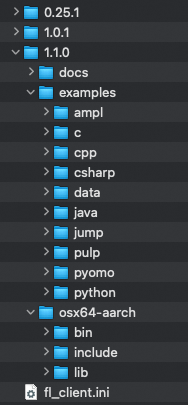
After the installer finishes, the installation directory contains the following:
| Path | Description |
|---|---|
2.3.0/ |
Root folder named after the installed version. Multiple versions can coexist under the same parent directory. |
<platform>/ |
Subfolder containing executables, dynamic-link libraries, and related files. The folder name reflects your OS and architecture: win64-x86, linux64-x86, osx64-x86, linux64-aarch, or osx64-aarch. |
examples/ |
Code examples for multiple languages, modeling tools, and sample input data in the data/ subfolder. Start here. |
docs/ |
Readme.txt, the End-User License Agreement (EULA), and other documents. |
fl_client.ini |
The authentication file you create in the next step. |
Verify the installation
Check environment variables
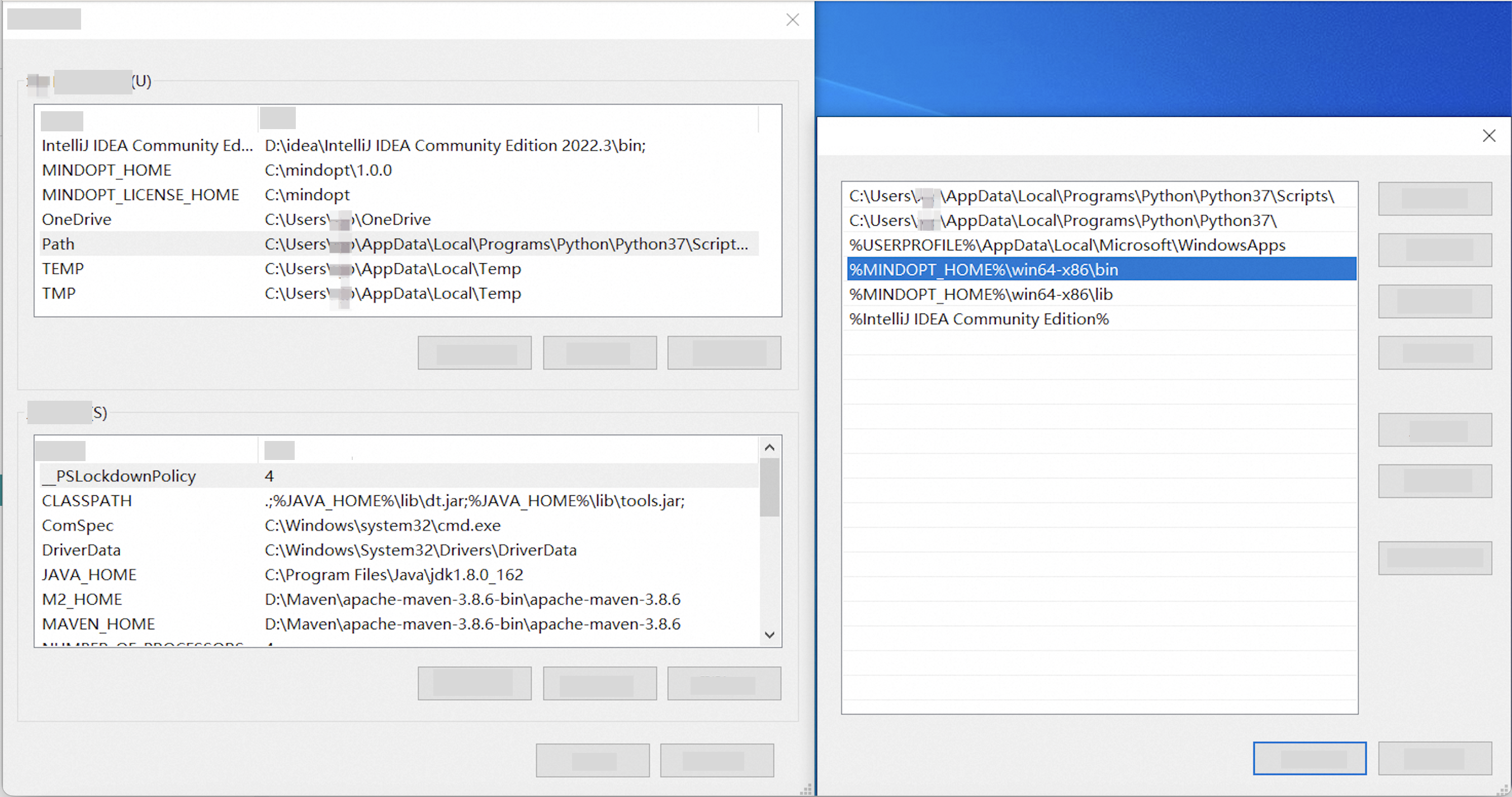
Windows: The installer adds MINDOPT_HOME and Path automatically. To switch between installed versions, update the MINDOPT_HOME value.
Linux and macOS: The installer adds source ~/.mdo_profile to ~/.bashrc and ~/.zshrc. The changes take effect after you restart the terminal.
To apply them immediately without restarting:
cat ~/.mdo_profile   # view the current settings
source ~/.mdo_profile
To switch between installed versions, edit ~/.mdo_profile directly:
nano ~/.mdo_profileIn a Docker container, use export to check the variables.
Run a quick test
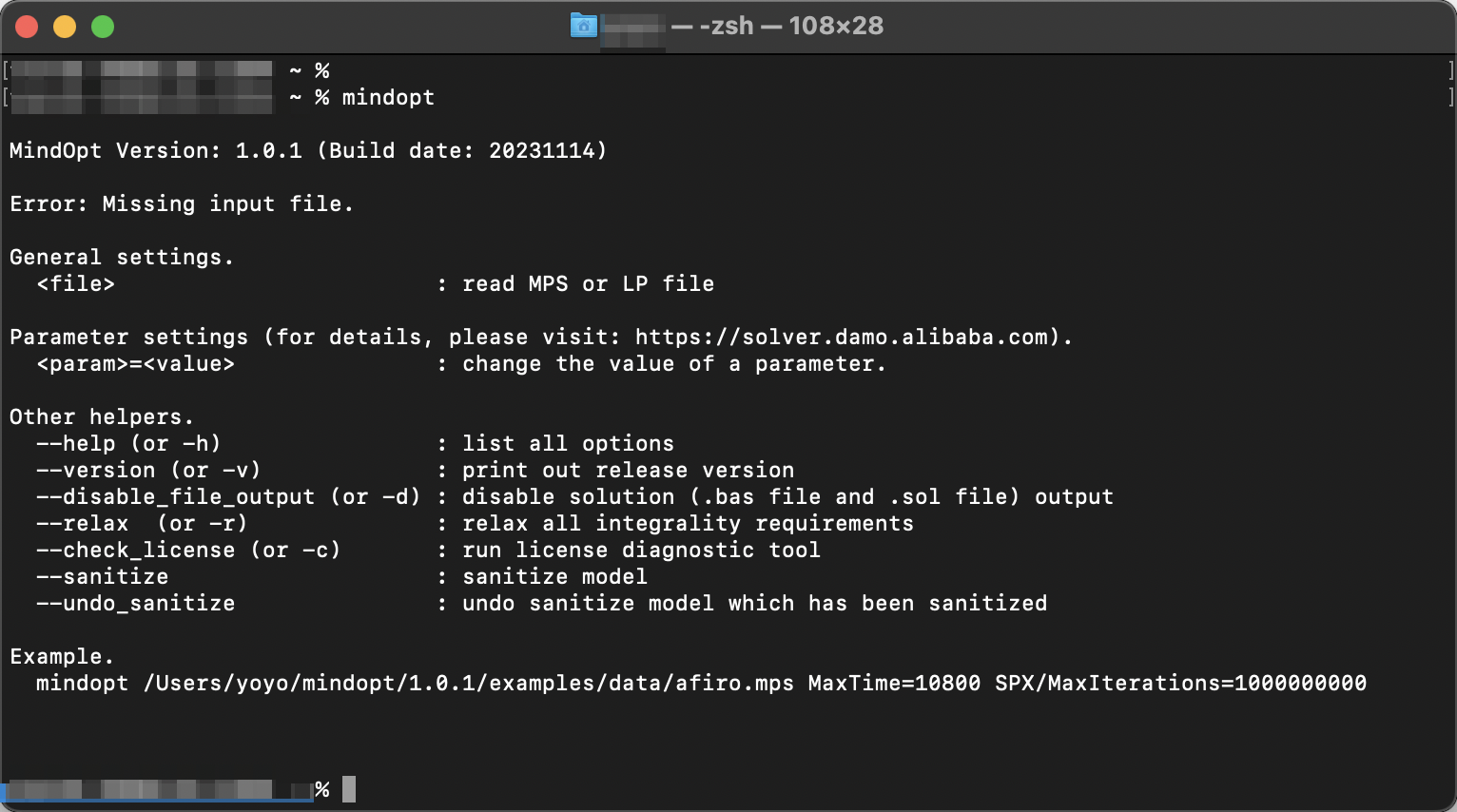
After loading the environment variables, run mindopt in the command line:
mindoptA successful installation prints version and usage information to the terminal, similar to the output shown here:
Troubleshooting
Permission error: If mindopt fails to run, fix the executable permission:
# Linux
chmod u+x $MINDOPT_HOME/linux64-x86/bin/mindopt

# macOS
chmod u+x $MINDOPT_HOME/osx64-x86/bin/mindopt
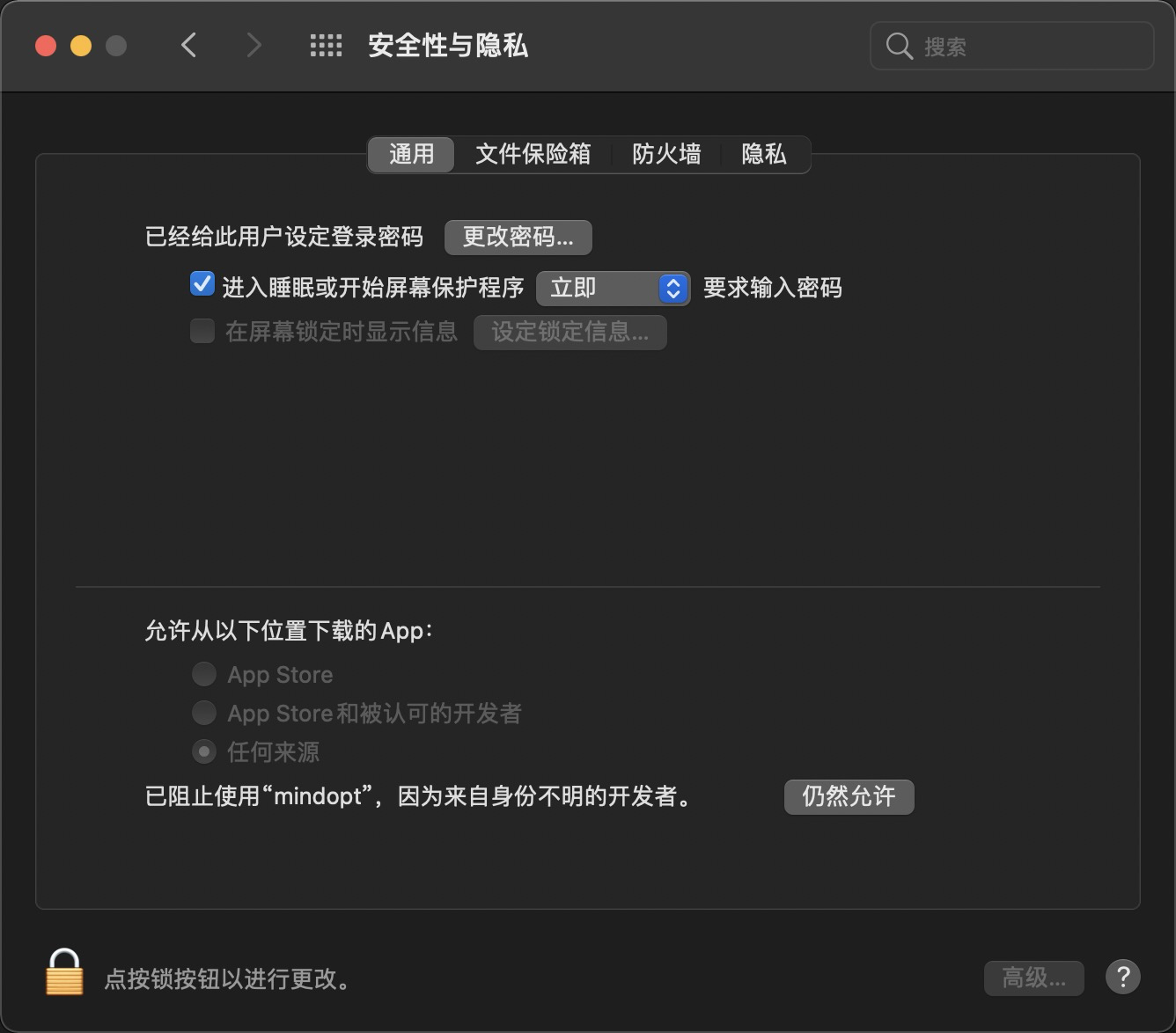
macOS security block: macOS may prevent the binary from running due to developer security checks. In Security & Privacy, click Allow Anyway.
For other issues, see the Installation issues section in the FAQ.
Configure a license
MindOpt requires a license file to run. Choose one of two authentication methods:
| Cloud authentication (recommended) | Offline authentication | |
|---|---|---|
| How it works | License key tied to your Alibaba Cloud account; internet required only for authentication | License file tied to a specific machine ID; fully offline |
| Best for | Most users; especially when using across multiple machines | Air-gapped environments or single-machine deployments |
| Multi-machine | One key works on multiple machines | Single machine only |
| Renewal | Renew on the console without changing the license file; SMS reminder before expiry | Purchase a new license |
During authentication, MindOpt searches formindopt.licfirst, thenfl_client.ini, based on environment variable settings. It validates the first file it finds. License file names are fixed and cannot be changed.
Option 1: Cloud authentication (recommended)
Follow the steps in Configure an Alibaba Cloud account for authentication to get a license key and create the fl_client.ini license file. The solver runs locally on your machine. An internet connection is required only for authentication — no other information is uploaded.
Option 2: Offline authentication
Starting from 2024, purchase a local authentication license from the console. The license is tied to a machine fingerprint (machine ID) and supports offline, single-machine, unlimited concurrent use. For instructions on getting the machine fingerprint, see consoleHow to get the machine fingerprint for an offline fixed-machine license.
Set the license file location
Recommended: Set the MINDOPT_LICENSE_PATH environment variable to the folder containing the license file.
Linux and macOS:
export MINDOPT_LICENSE_PATH=$HOME/mindoptWindows — set the environment variable in System Properties:
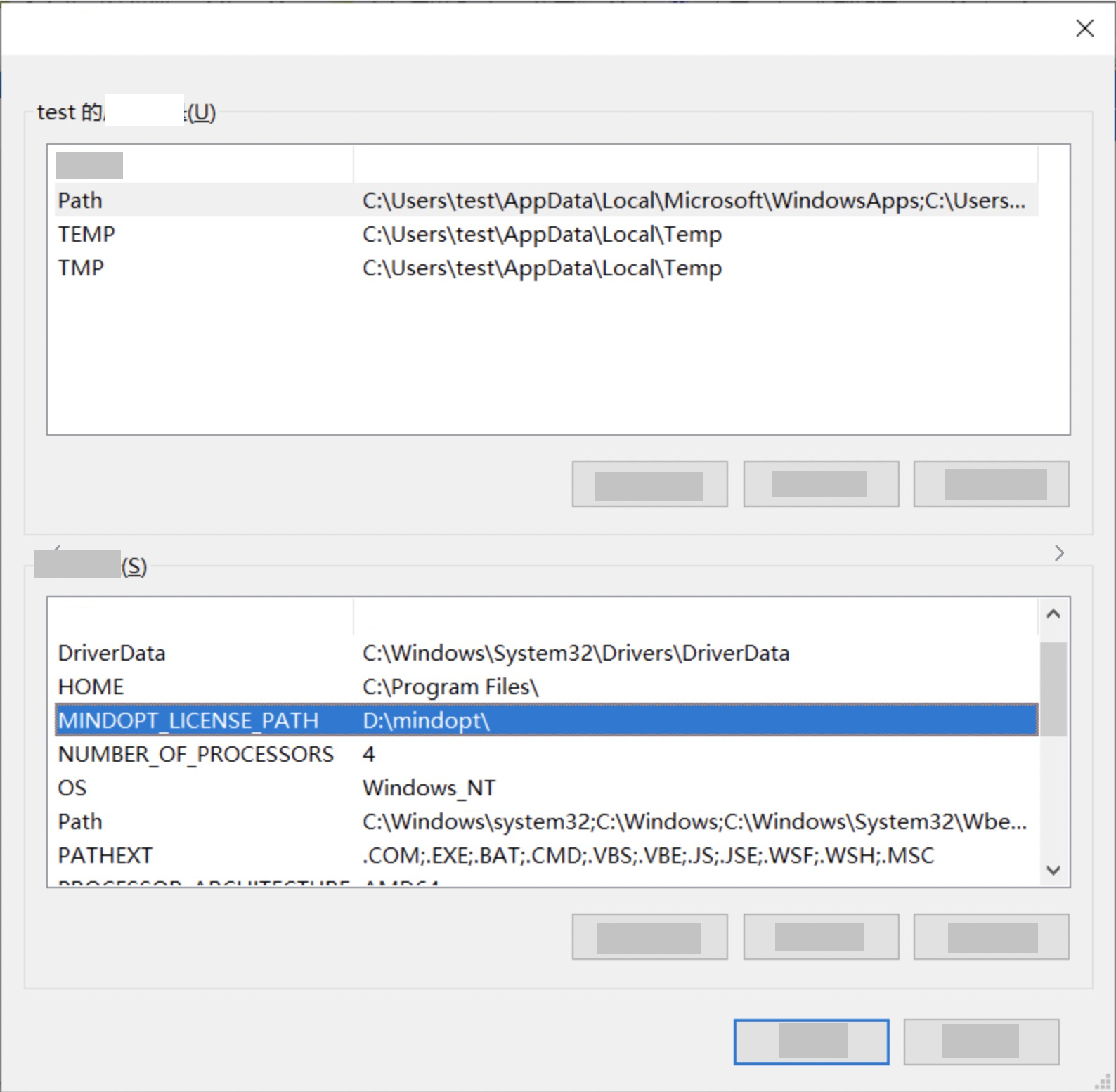
For more details, see License configuration.
Default location (if `MINDOPT_LICENSE_PATH` is not set):
| OS | Default path |
|---|---|
| Windows | C:\Users\<username>\mindopt\fl_client.ini |
| Linux | ~/mindopt/fl_client.ini |
| macOS | ~/mindopt/fl_client.ini |
Install Java support
Complete the base installation above before installing Java support. The Java SDK depends on the solver's dynamic-link libraries.
Choose the method that matches your SDK version:
V2.1 and later — Maven dependency (recommended)
Add the following dependency to your pom.xml. Set the classifier to match your platform:
<dependency>
  <groupId>com.alibaba.damo</groupId>
  <artifactId>mindoptj</artifactId>
  <version>2.1.0-SNAPSHOT</version>
  <classifier>osx-x64</classifier>
  <!-- macOS arm64  : osx-aarch -->
  <!-- linux arm64  : linux-aarch -->
  <!-- linux x86    : linux-x64 -->
  <!-- windows      : win-x64 -->
  <!-- all platforms: portable -->
  <type>jar</type>
</dependency>
V1.0 and later — built-in JAR
The installation package includes mindoptj.jar at <MDOHOME>/<VERSION>/<PLATFORM>/lib/mindoptj.jar. Reference it directly in pom.xml:
<dependency>
  <groupId>com.alibaba.damo</groupId>
  <artifactId>mindoptj</artifactId>
  <version>2.0.0</version>
  <scope>system</scope>
  <systemPath>${env.MINDOPT_HOME}/osx64-x86/lib/mindoptj.jar</systemPath>
</dependency>
V0.x.x — Maven dependency
<dependency>
  <groupId>com.alibaba.damo</groupId>
  <artifactId>mindoptj</artifactId>
  <version>[0.24.0, 1.0.0)</version>
</dependency>Some IDEs (for example, CLion) block rpath-related environment variables at runtime, causing errors when the program looks for dynamic libraries. Specify the library path manually in your IDE's run configuration. For CLion on macOS, add the following in Run/Debug Configurations: DYLD_LIBRARY_PATH=<MDOHOME>/<VERSION>/<PLATFORM>/lib
Install Python support
Starting from V0.24.1, pip install mindoptpy provides a standalone Python library with a bundled license (valid from 2023-01-01 to 2025-02-28). This installation only includes the Python library — it does not include the command-line solver, C/C++ APIs, or modeling tools. For those, complete the full installation above.
After the full installation, navigate to the Python library folder and install it:
cd <MDOHOME>/<VERSION>/<PLATFORM>/lib/python
pip install .
Starting from V2.1, Python 3.6 and 3.7 are no longer supported. For solutions to mindoptpy module import errors or detailed installation instructions, see the User Guide.
Uninstall and reinstall
Uninstall
Windows: Go to Control Panel > Programs and Features, find the MindOpt version, and right-click to uninstall. Each installed version appears as a separate entry. If you installed as an administrator, the uninstaller may not have permission to remove the MINDOPT_HOME and Path environment variables — remove them manually or run the uninstaller as an administrator.
Linux and macOS:
-
Delete the installation directory (for example,
$HOME/mindopt). -
Remove the
source ~/.mdo_profileline from~/.bashrcand~/.zshrc, then delete~/.mdo_profile.
Python APIs:
pip3 uninstall mindoptpyIf you plan to reinstall later, back up your license files before deleting the installation directory. Default license locations:$HOME/mindopt(Linux/macOS) andC:\Users\<username>\mindopt(Windows). Running example commands may generate.basand.solresult files in the installation directory — delete these as needed.
Reinstall
Multiple SDK versions can coexist in separate folders. Set the environment variables for the version you want to use — no changes to the license file are required.
Windows: Double-click the installer. The new environment variable settings overwrite the previous ones. To switch between versions, update the directory in the MINDOPT_HOME environment variable.
Linux and macOS: Follow the installation steps above. Then update the version path in ~/.mdo_profile or in ~/.bashrc/~/.zshrc.
After reinstalling, close and reopen the command prompt window for the new environment variables to take effect.
What's next
-
New to MindOpt? Follow the Quick example of problem-solving in the Getting Started guide.
-
For full solver documentation, see the Solver User Manual.