This Quick Start guide for Optimization Solver describes how to activate the service, download and install the software, configure authentication files, and run a quick example.
1. Activate the service
Go to the console to activate the service. After activation, you can find the LicenseKey in the list of purchased services.
The mathematical programming solver is currently free to use. The bill for activation and purchase will be CNY 0.
Activation
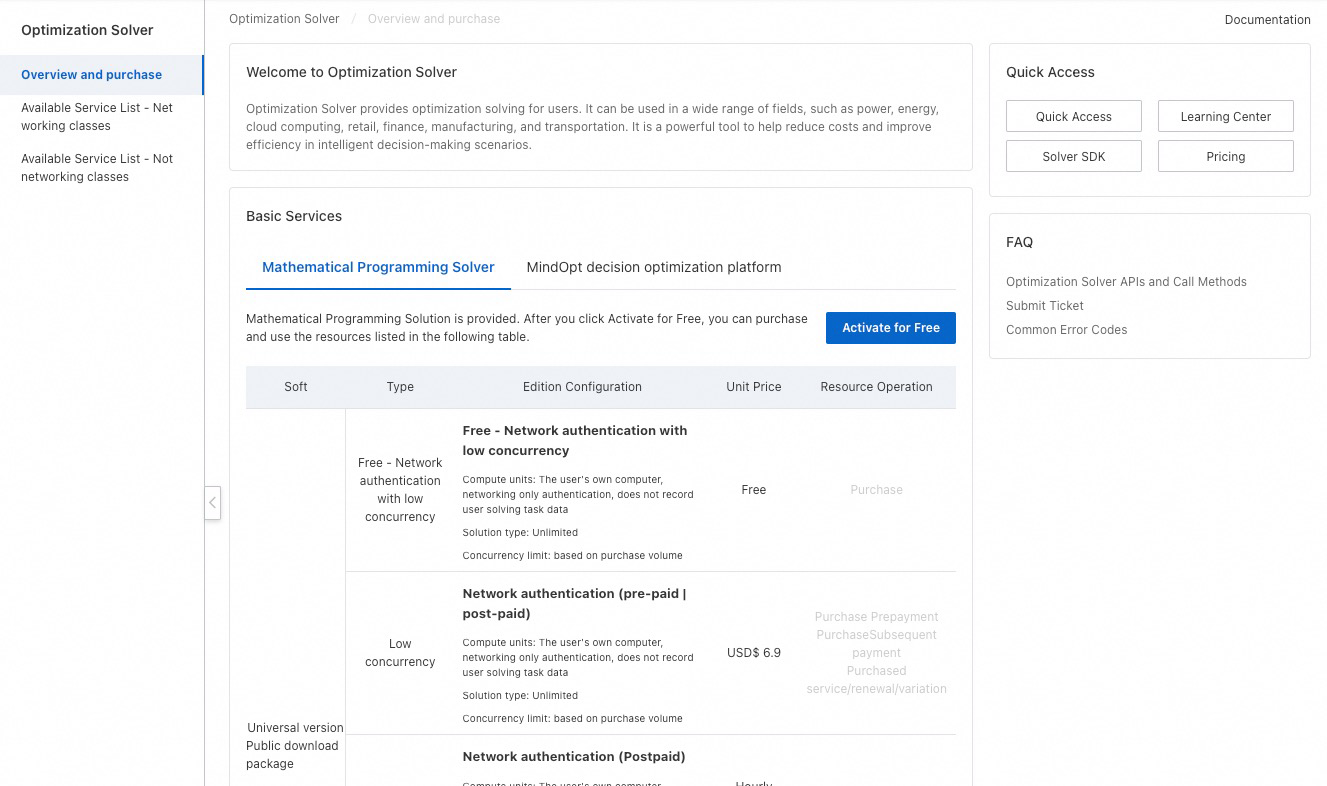
If you are a new user, go to the console and click Activate. Then, click Purchase for CNY 0 and select the required duration and number of processes. After your purchase, you can also renew or upgrade/downgrade the service, as shown in the following figure:
View purchased services and LicenseKey
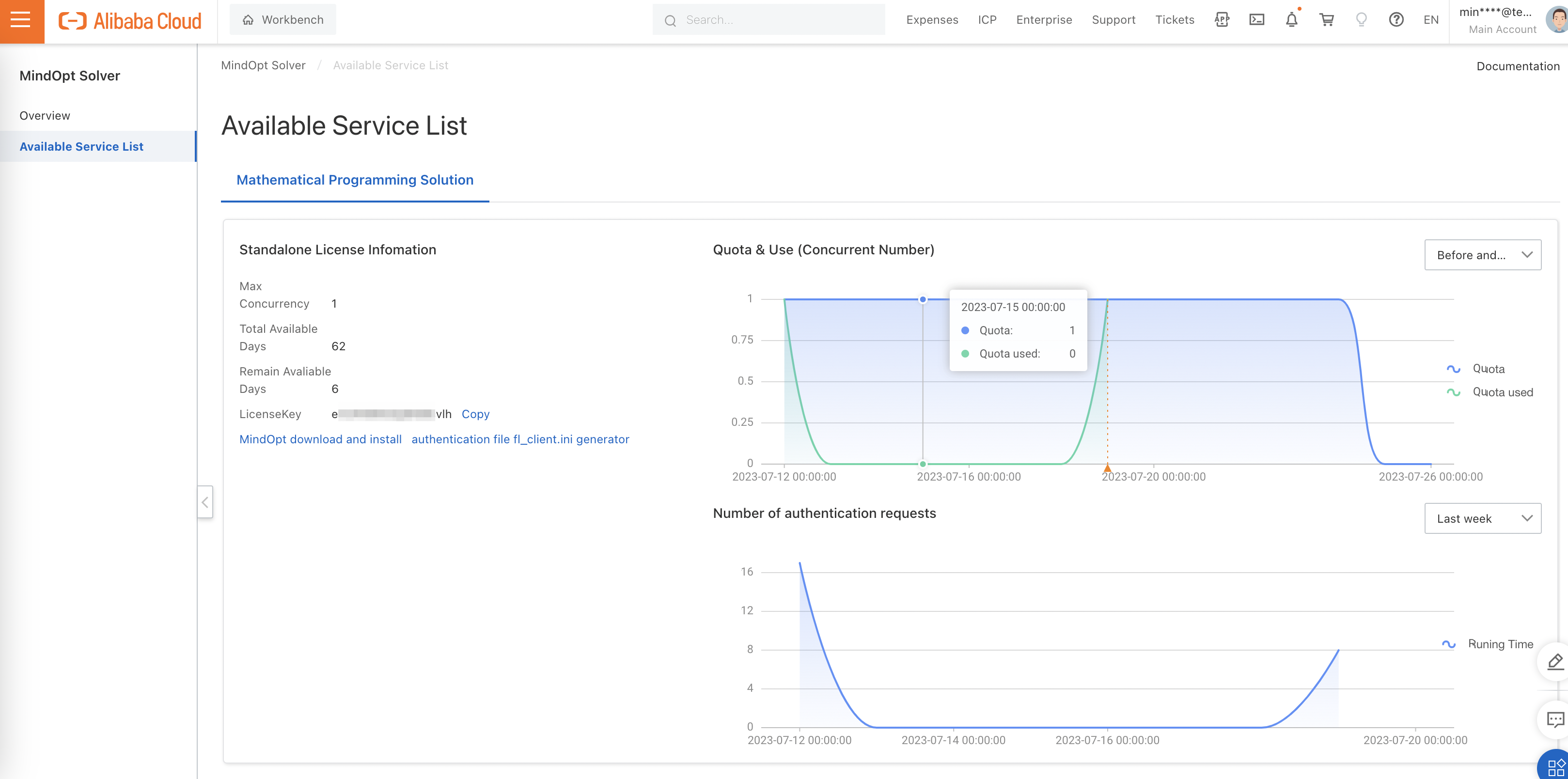
In the navigation pane on the left, click List of Purchased Services to view the services you have purchased. The LicenseKey is displayed on the card, as shown in the following figure:
2. Download and install the SDK
Download and install the required version. For more information, see Download and install the solver SDK.
3. Use an Alibaba Cloud authentication LicenseKey
Configure authentication account information
MindOpt requires a license to solve problems. After purchasing the service, obtain your LicenseKey from the list of purchased services. Use this key to configure the fl_client.ini authentication file. For information about the file location, see 4. Configure the authentication file in the installation steps. You can also set the MINDOPT_LICENSE_PATH environment variable to specify the file's location. If the fl_client.ini file does not exist, create it. Then, copy the following example content into the file and modify it.
The following is an example of the content in the fl_client.ini file. Note: To copy the following content, click 'Open in Documentation Center' in the lower-left corner of this page because the copy function in the pop-up window does not work correctly.
[security]
# key for client authentication
aliyun_license_key = xxx # Replace xxx with your LicenseKey. You can find it in the list of purchased services in the console (as described in the Activate service section).

aliyun_ak_id= xxx # Replace xxx with your Alibaba Cloud account's AccessKey ID.

aliyun_ak_secret= xxx # Replace xxx with your Alibaba Cloud account's AccessKey secret.

# After you copy the following content, do not change it unless necessary.
[server]
# license server host
name = opt.cn-beijing.aliyuncs.com # Replace this with the endpoint of the region where you purchased the service.

# license server port 80 if absent
port = 443

# license server is https protocol
https = true

# client side request timeout in second
request_timeout  =   2
Where:
The account configurations to modify in the fl_client.ini file are as follows:
In the security section, set
aliyun_license_keyto your LicenseKey. You can find the LicenseKey on the Console > List of Purchased Services page. If you have not purchased the service, follow the instructions in the 'Activate the service' section to activate and purchase it.In the
securitysection, replace the values ofaliyun_ak_idandaliyun_ak_secretwith the AccessKey pair of your Alibaba Cloud account or RAM user.NoteHow to create an AccessKey pair:
In the upper-right corner of the console page, hover over your profile picture. In the menu that appears, click AccessKey Management.
You can also watch the following tutorial, which demonstrates operations in the Professional Edition:
Alibaba Cloud account: To create an AccessKey pair for an Alibaba Cloud account, go to AccessKey Management.
RAM user: If you use a RAM user, create an AccessKey pair. For more information, see Create an AccessKey pair for a RAM user. After you create the AccessKey pair, the root account must grant the RAM user permission to manage Optimization Solver.
4. A quick example for solving a problem
The SDK package contains an `examples` folder with sample code and data for various languages. These examples assume that you have installed MindOpt and correctly set the `MINDOPT_HOME` environment variable to the installation directory.
Command-line example:
On a Linux or macOS system:
mindopt $MINDOPT_HOME/examples/data/afiro.mps2. On a Windows system:
mindopt %MINDOPT_HOME%\examples\data\afiro.mps MaxTime=10800 SPX/MaxIterations=1000000000Python example: You can open the
.pyfile to view the sample source code.
On a Linux or macOS system:
python $MINDOPT_HOME/examples/python/read_mps.py --filename $MINDOPT_HOME/examples/data/afiro.mps2. On a Windows system:
python "%MINDOPT_HOME%\examples\python\read_mps.py" --filename "%MINDOPT_HOME%\examples\data\afiro.mps"Python 3.6 or later is supported. If you run the sample code on Python 3.8 or later, you may encounter an error indicating that mindoptpy cannot be found. For more information about the solution, see the user documentation.
For more information, see the Solver User Manual.
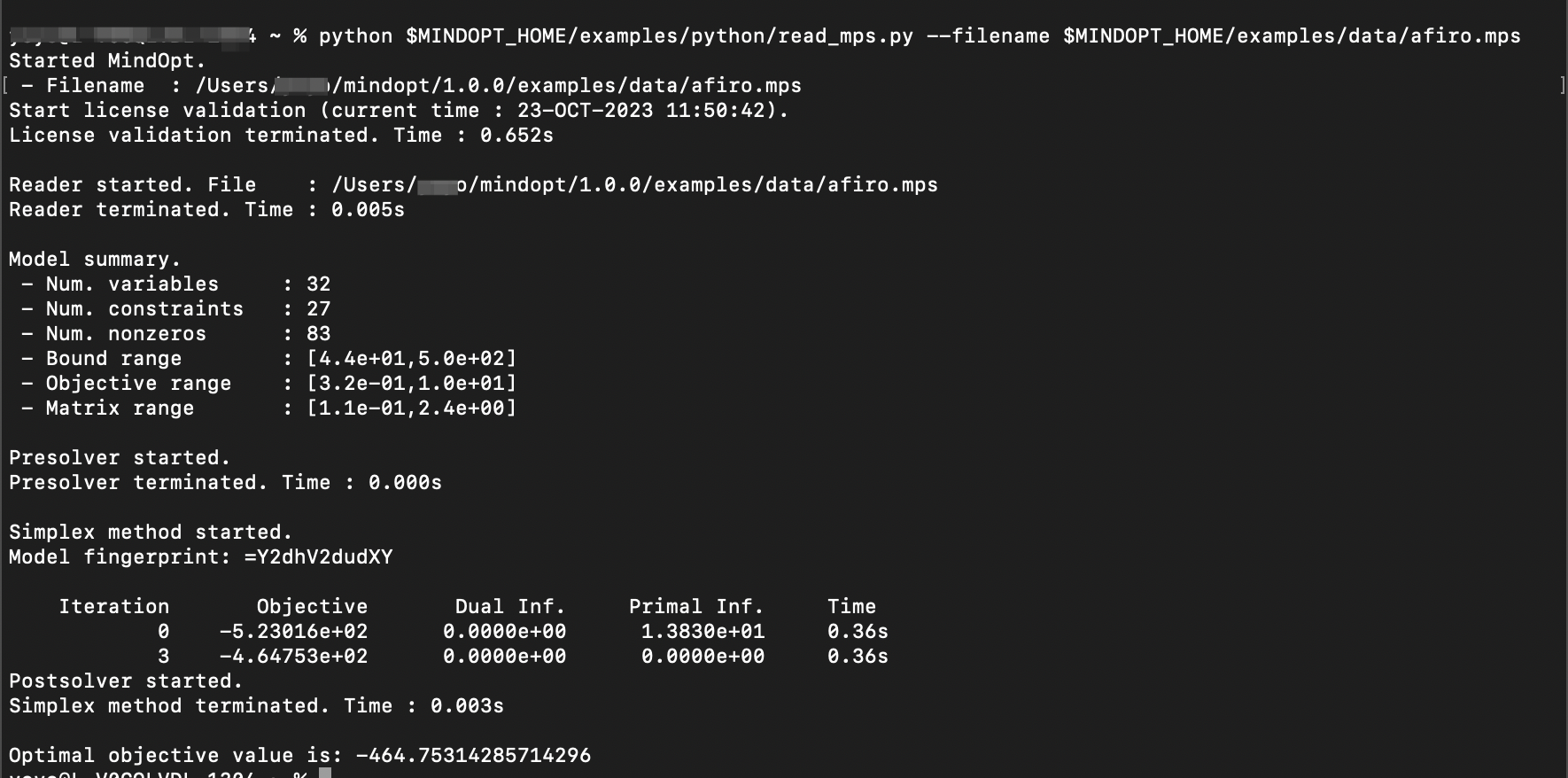
The command line and Python examples both solve the afiro.mps optimization problem. The output is shown in the following figure: