Optimization Solver SDK V0.19.0 and earlier require manual environment variable setup after installation. Starting from V0.20.0, the SDK installation packages for Linux and macOS support automatic setup.
If you are installing V0.19.0 or earlier, use the steps in this topic to replace the following two sections in the Download and install the latest Optimization Solver SDK topic:
Step 2: Install the Optimization Solver SDK (C and C++ APIs supported)
Step 3: Check environment variables and test the running of Optimization Solver
Prerequisites
Before you begin, ensure that you have:
Cleared or backed up all previously installed Optimization Solver SDKs. For instructions, see Step 7: Uninstall and reinstall one or more Optimization Solver SDK versions in the Download and install the latest Optimization Solver SDK topic.
If you plan to install the Java or Python APIs, complete Step 2 (this step) before proceeding with those installations.
Step 2: Install the SDK
Replace 0.19.0 in all commands with the version you want to install.
Windows
Double-click the installation package and follow the prompts.
To install for all users, use one of the following methods:
Method 1: Select the installation package, hold Shift, right-click, select Run as administrator, and clear Install MindOpt for current user only.
Method 2: Run Command Prompt as administrator, switch to the folder containing the installation package, and run the installation package file.
Linux
Run one of the following commands:
Bash shell:
bash mindopt-install-linux-0.19.0.sh --target $HOME/mindoptZsh shell:
zsh mindopt-install-linux-0.19.0.sh --target $HOME/mindoptmacOS
The installation method is the same as Linux. Run one of the following commands. Change the destination path as needed.
Bash shell:
bash mindopt-install-osx-0.19.0.sh --target $HOME/mindoptZsh shell:
zsh mindopt-install-osx-0.19.0.sh --target $HOME/mindoptDirectory structure after installation
After installation, the SDK is organized under <MDOHOME>/<VERSION>/<PLATFORM>/, where MDOHOME is your installation directory, VERSION is the SDK version, and PLATFORM is your operating system. Multiple SDK versions can be installed simultaneously.
| Folder / File | Description |
|---|---|
0.19.0/ | Root directory for this SDK version |
win64-x86/, linux64-x86/, osx64-x86/ | OS-specific directory containing executables and dynamic libraries. Use the folder name to verify that the correct SDK version is installed. |
examples/ | Sample code for multiple programming languages and modeling tools, plus input sample data |
fl_client.ini | License file — you must create this file |
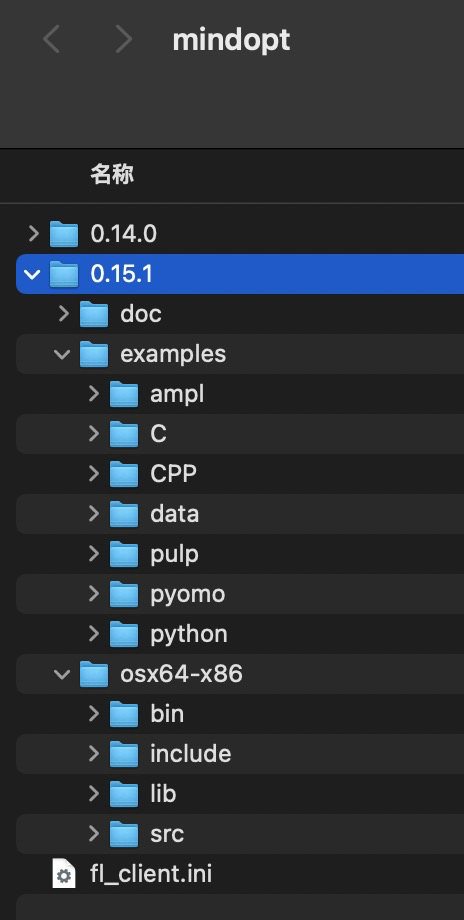
Step 3: Set environment variables and verify the installation
Set environment variables
After installation, set the environment variables for your operating system. If you have multiple SDK versions installed, update the variables to point to the version you want to use.
Linux:
export MINDOPT_HOME=$HOME/mindopt/0.19.0/
export LD_LIBRARY_PATH="$MINDOPT_HOME/linux64-x86/lib/"${LD_LIBRARY_PATH:+:$LD_LIBRARY_PATH}
export PATH="$MINDOPT_HOME/linux64-x86/bin/"${PATH:+:$PATH}
macOS:
export MINDOPT_HOME=$HOME/mindopt/0.19.0/
export DYLD_LIBRARY_PATH="$MINDOPT_HOME/osx64-x86/lib/"${DYLD_LIBRARY_PATH:+:$DYLD_LIBRARY_PATH}
export PATH="$MINDOPT_HOME/osx64-x86/bin/"${PATH:+:$PATH}
Persist environment variables (Linux and macOS)
To make the variables permanent, add the export commands above to your shell configuration file and reload it.
Bash shell:
nano ~/.bashrc
source ~/.bashrc
Zsh shell:
nano ~/.zshrc
source ~/.zshrc
Verify the installation
After setting the environment variables, run minopt from the command line to confirm the SDK is installed correctly.
Troubleshooting
Permission error on Linux:
If the SDK fails to run because your OS does not support executing the file, grant execute permission:
chmod u+x $MINDOPT_HOME/linux64-x86/bin/mindoptPermission error on macOS:
chmod u+x $MINDOPT_HOME/osx64-x86/bin/mindoptmacOS security block:
If macOS blocks the SDK because the developer signature is not verified, click Still Permit in Security and Privacy Settings.